Basic automatic Gmail email labelling with OpenAI and Gmail API

Workflow preview

Workflow preview
100%
Basic automatic Gmail email labelling with OpenAI and Gmail API preview
Open on n8n.io

Important notice

This workflow is provided as-is. Please review and test before using in production.

1. Workflow Overview

Description This workflow automates email categorization in Gmail using the Gmail API and OpenAI's language model. It periodically checks for new emails, reads their content, and categorizes them b...

Best for

  • Personal Productivity automation workflows
  • AI Summarization automation workflows
  • intermediate n8n builders looking for reusable templates

Tools used

n8n-nodes-base.gmailtrigger, @n8n/n8n-nodes-langchain.lmchatopenai, n8n-nodes-base.gmailtool, @n8n/n8n-nodes-langchain.agent, @n8n/n8n-nodes-langchain.memorybufferwindow, n8n-nodes-base.wait, n8n-nodes-base.stickynote

Source and attribution

This workflow is cataloged by N8N Workflows and links back to its original n8n.io source page by Martijn Kerver.

Original n8n.io source

1.1 Workflow description

Title
Basic automatic Gmail email labelling with OpenAI and Gmail API
Workflow name
Basic automatic Gmail email labelling with OpenAI and Gmail API

Description

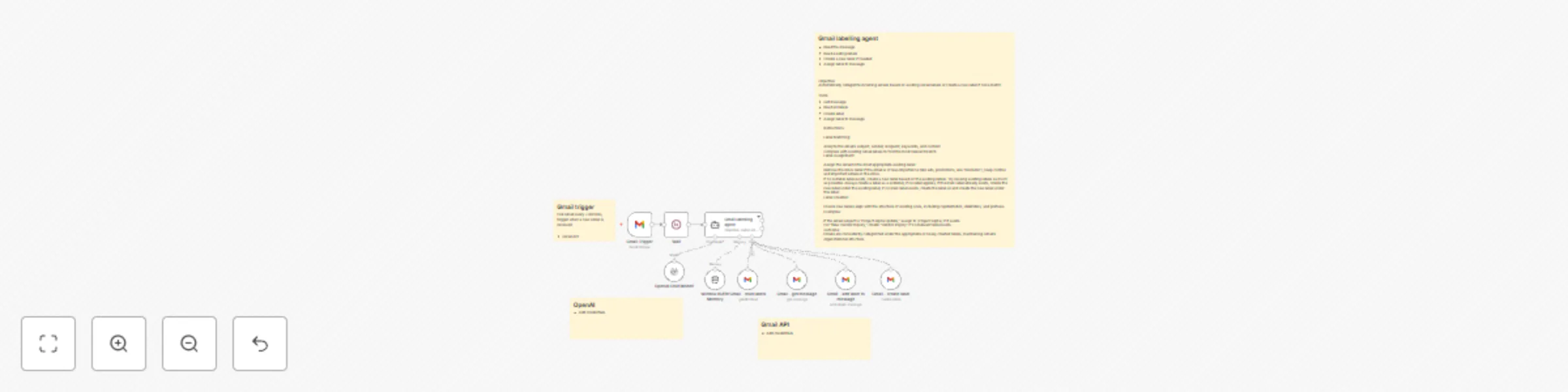
This workflow automates email categorization in Gmail using the Gmail API and OpenAI's language model. It periodically checks for new emails, reads their content, and categorizes them based on existing Gmail labels. If no matching label is found, the workflow creates a new label and assigns it to the email.

Key Features

  • Polling for Emails: The workflow triggers every 5 minutes to check for new emails using the Gmail Trigger node.
  • Reading Labels: Existing Gmail labels are fetched to determine the most relevant match for email categorization.
  • Dynamic Labeling: If no existing label matches, a new label is created dynamically based on the email's content.
  • OpenAI Integration: The workflow uses OpenAI's Chat model to analyze email content and suggest or create appropriate labels.
  • Email Categorization: Labels are applied to emails, ensuring they are organized in Gmail's structure. The workflow also removes less relevant emails (e.g., ads) from the inbox.

Nodes in Use

  1. Gmail Trigger: Polls Gmail every 5 minutes for new emails.
  2. Gmail - Read Labels: Fetches all existing Gmail labels.
  3. Gmail - Get Message: Retrieves the full content of a specific email.
  4. Gmail - Add Label to Message: Assigns a chosen label to the email.
  5. Gmail - Create Label: Creates a new label if necessary.
  6. OpenAI Chat Model: Analyzes email content for categorization.
  7. Memory Buffer: Retains context for email analysis across multiple iterations.
  8. Wait Node: Adds a buffer period to manage email processing.

Prerequisites

  • Gmail API Setup: Ensure Gmail OAuth2 credentials are configured in n8n.
  • OpenAI API Key: Configure OpenAI credentials for email analysis.
  • Labeling Standards: Maintain a consistent Gmail label structure for better organization.

Instructions

  1. Add your Gmail API credentials to the Gmail nodes.
  2. Add your OpenAI API credentials to the OpenAI Chat Model node.
  3. Activate the workflow. It will start polling for new emails every 5 minutes.
  4. Monitor and refine the categorization logic if necessary to ensure alignment with Gmail's organizational needs.

Use Case

Ideal for individuals or teams handling high email volumes who want to maintain an organized inbox and automate repetitive categorization tasks.

Note: You can improve the prompt to get better results from the agent by giving it more personal rules on how to categorize.

1.2 Logical Blocks

This catalog entry is organized from the workflow JSON. The node-level section below shows the executable blocks available for review before importing the template.

2. Block-by-Block Analysis

Block 1 - Gmail Trigger

Type / Role
n8n-nodes-base.gmailTrigger - gmailTrigger
Config choices
Version 1.2

Block 2 - OpenAI Chat Model1

Type / Role
@n8n/n8n-nodes-langchain.lmChatOpenAi - lmChatOpenAi
Config choices
Version 1

Block 3 - Gmail - read labels

Type / Role
n8n-nodes-base.gmailTool - gmailTool
Config choices
Version 2.1

Block 4 - Gmail - get message

Type / Role
n8n-nodes-base.gmailTool - gmailTool
Config choices
Version 2.1

Block 5 - Gmail - add label to message

Type / Role
n8n-nodes-base.gmailTool - gmailTool
Config choices
Version 2.1

Block 6 - Gmail - create label

Type / Role
n8n-nodes-base.gmailTool - gmailTool
Config choices
Version 2.1

Block 7 - Gmail labelling agent

Type / Role
@n8n/n8n-nodes-langchain.agent - agent
Config choices
Version 1.7

Block 8 - Window Buffer Memory

Type / Role
@n8n/n8n-nodes-langchain.memoryBufferWindow - memoryBufferWindow
Config choices
Version 1.3

Block 9 - Wait

Type / Role
n8n-nodes-base.wait - wait
Config choices
Version 1.1

Block 10 - Sticky Note

Type / Role
n8n-nodes-base.stickyNote - stickyNote
Config choices
Version 1

Block 11 - Sticky Note1

Type / Role
n8n-nodes-base.stickyNote - stickyNote
Config choices
Version 1

Block 12 - Sticky Note2

Type / Role
n8n-nodes-base.stickyNote - stickyNote
Config choices
Version 1

Block 13 - Sticky Note3

Type / Role
n8n-nodes-base.stickyNote - stickyNote
Config choices
Version 1

3. Summary Table

Workflow Basic automatic Gmail email labelling with OpenAI and Gmail API
Complexity intermediate
Nodes 13
Categories Personal Productivity, AI Summarization
Author Martijn Kerver
Published 17 Jan 2025

4. Reproducing the Workflow from Scratch

  1. 1. Download the workflow JSON

    Use the JSON export at /data/workflows/2740/2740.json as the source template for this automation.

  2. 2. Import the template into n8n

    Open n8n, import the downloaded JSON, and review each node before activating the workflow.

  3. 3. Configure credentials and variables

    Replace placeholder credentials, API keys, webhook URLs, account IDs, and environment-specific values with your own settings.

  4. 4. Test with sample data

    Run the workflow manually or in a staging workspace, inspect node output, and confirm downstream systems receive the expected data.

  5. 5. Activate and monitor

    Enable the workflow only after testing, then monitor executions, errors, and rate limits during the first production runs.

5. General Notes & Resources

Review imported nodes carefully before activation. This catalog entry is intended to help you inspect the workflow structure, understand required services, and find related templates faster.

Node names, credentials, schedules, webhook paths, and external service limits may need adjustment for your workspace.

Frequently asked questions

What does Basic automatic Gmail email labelling with OpenAI and Gmail API do?

Description This workflow automates email categorization in Gmail using the Gmail API and OpenAI's language model. It periodically checks for new emails, reads their content, and categorizes them b...

What do I need before importing this workflow?

Review the workflow JSON, configure any required credentials in n8n, and test the automation in a safe workspace before using it in production.

Can I customize this workflow?

Yes. Use the block-by-block analysis and the downloadable JSON to inspect each node, then adjust credentials, prompts, schedules, filters, or destinations for your Personal Productivity, AI Summarization use case.