Block 1 - Update JSON Catalog
- Type / Role
- n8n-nodes-base.stickyNote - stickyNote
- Config choices
- Version 1


 Early Deal
Instagram Video Backup to Google Drive Automatically backup all your Instagram videos to Google Drive with a searchable metadata catalog in JSON format. What It Does This workflow provides a comple...
n8n-nodes-base.stickynote, n8n-nodes-base.googledrive, n8n-nodes-base.httprequest, n8n-nodes-base.code, n8n-nodes-base.splitinbatches, n8n-nodes-base.noop, n8n-nodes-base.datatable, n8n-nodes-base.set
This workflow is cataloged by N8N Workflows and links back to its original n8n.io source page by Lucio.
Original n8n.io sourceAutomatically backup all your Instagram videos to Google Drive with a searchable metadata catalog in JSON format.
This workflow provides a complete backup solution for your Instagram video content with intelligent caption parsing:
Account-Level Tracking: The Data Table includes accountId so you can use the same table across multiple Instagram accounts. Each account's videos are tracked separately.
Smart Caption Parsing: Automatically splits Instagram captions into title (before first #) and description (all hashtags and text after), with full text preserved in descriptionFull.
Portable Catalog: The JSON file is stored in Google Drive alongside your videos, making it accessible anywhere without needing n8n.
Maximum Quality: Uses Instagram Graph API's media_url field for highest available quality.
Hashtag Extraction: Automatically extracts all hashtags into an array for easy filtering and analysis.
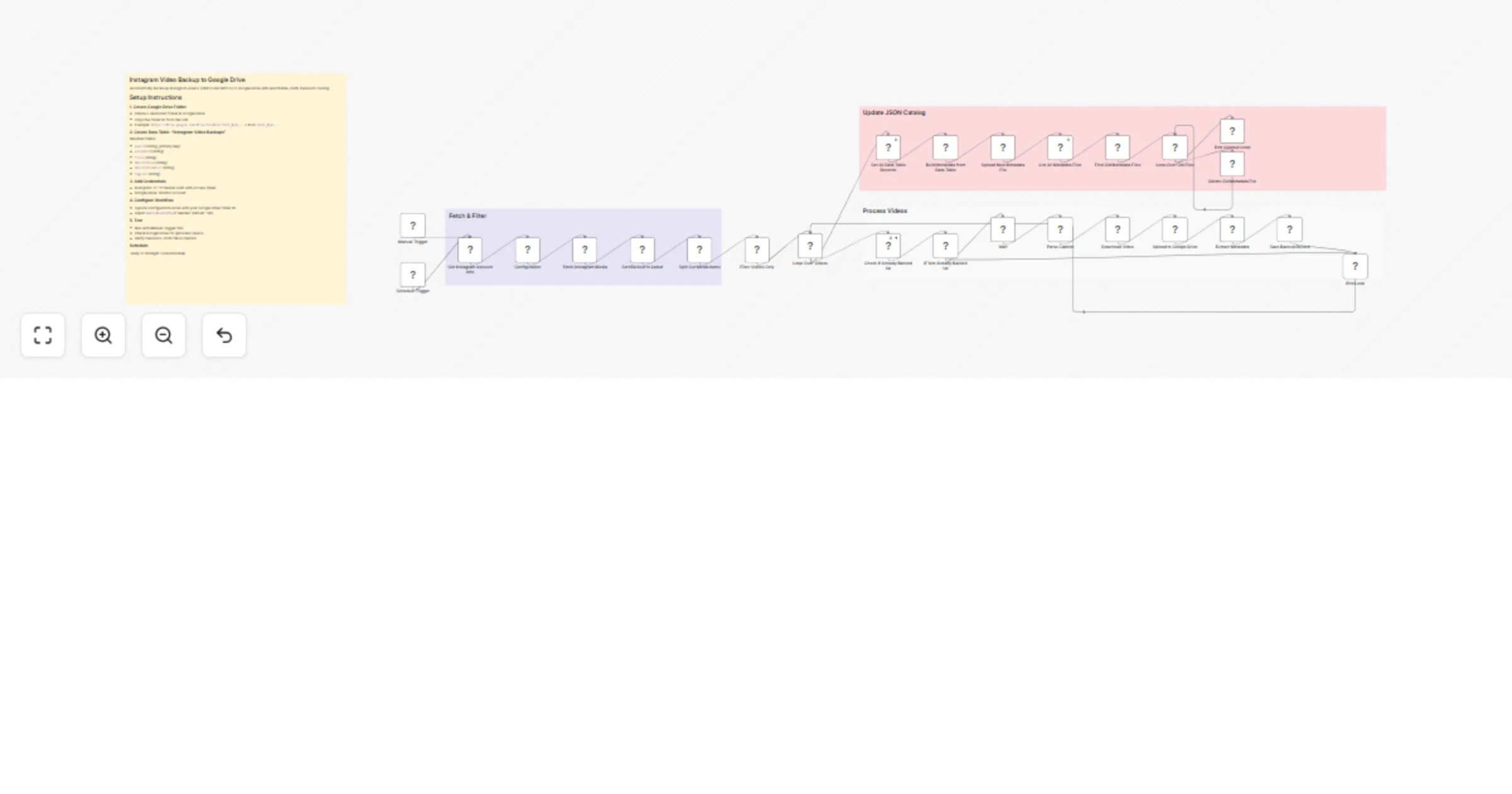
Get Instagram Account Info → Configuration → Fetch Media → Split Out Items → Filter Videos Only
Check If Backed Up → IF Not Backed Up → Wait → Parse Caption → Download → Upload → Extract Metadata → Save Record → Aggregate
For each video:
postId to avoid duplicatesaccountId, postId, googleDriveFileId, backedUpAt in Data TableEnd Loop → Download Existing JSON → Update JSON → Upload Updated JSON
After all videos processed:
Instagram Video Backups (or any name you prefer)https://drive.google.com/drive/folders/1ABC123xyz...
^^^^^^^^^^^
This is your Folder ID
Create a Data Table for deduplication tracking with account-level support:
Table Name: Instagram Video Backups
Schema:
| Field Name | Type | Description |
|---|---|---|
accountId |
string | Instagram account ID (allows multi-account use) |
postId |
string (Primary Key) | Instagram post ID |
googleDriveFileId |
string | Google Drive file ID for the video |
backedUpAt |
string | ISO timestamp of backup |
Why accountId? This allows you to use the same Data Table for multiple Instagram accounts. Each account's videos are tracked separately, preventing conflicts.
You'll need two credential sets:
AuthorizationBearer YOUR_INSTAGRAM_ACCESS_TOKENInstagram Graph APIGetting Instagram Access Token:
instagram_graph_user_mediaGoogle Drive AccountIn the workflow, open the Configuration node and update:
{
 "googleDriveFolderId": "PASTE_YOUR_FOLDER_ID_HERE",
 "maxVideosPerRun": 100,
 "waitBetweenDownloads": 5,
 "metadataFileName": "instagram-backup-metadata.json"
}
Settings Explained:
googleDriveFolderId: The folder ID you copied in step 1maxVideosPerRun: Max videos to process per run (100 is safe for API limits)waitBetweenDownloads: Seconds to wait between downloads (prevents rate limits)metadataFileName: Name of the JSON catalog file in Google DriveNote: accountId and accountUsername are automatically populated from Instagram API.
instagram_{postId}.mp4instagram-backup-metadata.jsonaccountId and postIdThe JSON file stored in Google Drive has this structure:
{
 "lastUpdated": "2026-02-01T10:00:00Z",
 "totalVideos": 42,
 "videos": [
 {
 "accountId": "17841400123456789",
 "instagramId": "123456789",
 "permalink": "https://instagram.com/p/ABC123",
 "title": "Amazing sunset at the beach!",
 "description": "#travel #nature #sunset",
 "tagList": ["travel", "nature", "sunset"],
 "descriptionFull": "Amazing sunset at the beach! #travel #nature #sunset",
 "timestamp": "2026-01-15T08:30:00Z",
 "mediaType": "VIDEO",
 "googleDriveFileId": "1ABC123xyz...",
 "googleDriveFileName": "instagram_123456789.mp4",
 "backedUpAt": "2026-02-01T10:00:00Z"
 }
 ]
}
/me endpoint)# symbolVIDEO or REELSinstagram_{postId}.mp4)The Parse Caption Code node splits Instagram captions intelligently:
Example Caption:
"Amazing sunset at the beach! 🌅 #travel #nature #sunset"
Parsed Fields:
"Amazing sunset at the beach! 🌅""#travel #nature #sunset"["travel", "nature", "sunset"]"Amazing sunset at the beach! 🌅 #travel #nature #sunset"Edge Cases:
title, description is emptytitle is empty, entire caption becomes descriptiondescriptionFullUsing the same Data Table for multiple accounts:
Instagram Video BackupsaccountIdBenefits:
Querying specific account backups:
// In Data Table or external script
const accountBackups = allBackups.filter(
 backup => backup.accountId === "17841400123456789"
);
Check Instagram credentials:
Verify account has videos:
Account info fetch failed:
Caption parsing issue:
Custom parsing logic: Edit the "Parse Caption" Code node to adjust splitting logic:
// Current: splits at FIRST hashtag
const firstHashtagIndex = caption.indexOf('#');

// Alternative: split at specific word
const splitWord = 'DESCRIPTION:';
const splitIndex = caption.indexOf(splitWord);
Data Table issues:
Instagram Video BackupspostId as primary keyaccountId field existsWorkflow execution failed mid-run:
Instagram rate limits:
maxVideosPerRun to 50 or 25waitBetweenDownloads to 10 secondsGoogle Drive rate limits:
maxVideosPerRunEmojis preserved:
descriptionFulltitle or description depending on positionLine breaks:
descriptionFullUpdate googleDriveFolderId in Configuration node to any Google Drive folder ID.
Edit the Schedule Trigger node:
0 0 * * * (default)0 */12 * * *0 0 * * 0To create monthly subfolders (e.g., 2026-02/video.mp4):
={{ $now.format('yyyy-MM') }}={{ $('Configuration').item.json.googleDriveFolderId }}To keep local copies in addition to Google Drive:
/path/to/backup/{{ $('Extract Metadata').item.json.googleDriveFileName }}To use different title/description split logic:
Option 1: Split at specific keyword
const splitKeyword = 'DESCRIPTION:';
const splitIndex = caption.indexOf(splitKeyword);

if (splitIndex === -1) {
 title = caption.trim();
 description = '';
} else {
 title = caption.substring(0, splitIndex).trim();
 description = caption.substring(splitIndex + splitKeyword.length).trim();
}
Option 2: Use first sentence as title
const sentenceEnd = caption.match(/[.!?]/);
const endIndex = sentenceEnd ? caption.indexOf(sentenceEnd[0]) + 1 : -1;

if (endIndex === -1) {
 title = caption.trim();
 description = '';
} else {
 title = caption.substring(0, endIndex).trim();
 description = caption.substring(endIndex).trim();
}
To create separate JSON files per account:
accountIdmetadataFileName to include account username:instagram-backup-{{ $('Configuration').item.json.accountUsername }}.json
Download the JSON file from Google Drive, then:
// Load JSON
const metadata = require('./instagram-backup-metadata.json');

// Find all #travel videos
const travelVideos = metadata.videos.filter(v =>
 v.tagList.includes('travel')
);

console.log(`Found ${travelVideos.length} travel videos`);
const startDate = new Date('2026-01-01');
const endDate = new Date('2026-01-31');

const videosInRange = metadata.videos.filter(v => {
 const videoDate = new Date(v.timestamp);
 return videoDate >= startDate && videoDate <= endDate;
});
Import JSON into Google Sheets or Excel to analyze:
The JSON catalog includes permalinks and timestamps, making it easy to:
If you encounter issues:
This catalog entry is organized from the workflow JSON. The node-level section below shows the executable blocks available for review before importing the template.
Showing the first 24 of 30 workflow blocks. Download the JSON for the full node graph.
| Workflow | Back up Instagram videos to Google Drive with JSON metadata catalog |
|---|---|
| Complexity | advanced |
| Nodes | 30 |
| Categories | File Management |
| Author | Lucio |
| Published | 11 Feb 2026 |
Use the JSON export at /data/workflows/13317/13317.json as the source template for this automation.
Open n8n, import the downloaded JSON, and review each node before activating the workflow.
Replace placeholder credentials, API keys, webhook URLs, account IDs, and environment-specific values with your own settings.
Run the workflow manually or in a staging workspace, inspect node output, and confirm downstream systems receive the expected data.
Enable the workflow only after testing, then monitor executions, errors, and rate limits during the first production runs.
Review imported nodes carefully before activation. This catalog entry is intended to help you inspect the workflow structure, understand required services, and find related templates faster.
Node names, credentials, schedules, webhook paths, and external service limits may need adjustment for your workspace.
Instagram Video Backup to Google Drive Automatically backup all your Instagram videos to Google Drive with a searchable metadata catalog in JSON format. What It Does This workflow provides a comple...
Review the workflow JSON, configure any required credentials in n8n, and test the automation in a safe workspace before using it in production.
Yes. Use the block-by-block analysis and the downloadable JSON to inspect each node, then adjust credentials, prompts, schedules, filters, or destinations for your File Management use case.