Block 1 - When clicking ‘Execute workflow’
- Type / Role
- n8n-nodes-base.manualTrigger - manualTrigger
- Config choices
- Version 1


 Early Deal
This workflow is provided as-is. Please review and test before using in production.
This n8n workflow template automates your B2B marketing follow up process. It tracks which introductory emails have received a reply, identifies leads who haven't responded within a set time, uses ...
n8n-nodes-base.manualtrigger, n8n-nodes-base.gmail, n8n-nodes-base.googlesheets, n8n-nodes-base.if, @n8n/n8n-nodes-langchain.agent, @n8n/n8n-nodes-langchain.lmchatgooglegemini, n8n-nodes-base.httprequesttool, n8n-nodes-base.stickynote
This workflow is cataloged by N8N Workflows and links back to its original n8n.io source page by Priyanka Rana.
Original n8n.io sourceThis n8n workflow template automates your B2B marketing follow-up process. It tracks which introductory emails have received a reply, identifies leads who haven't responded within a set time, uses Gemini AI to draft a personalized, casual reminder, sends the follow-up as a reply on the original thread, and updates your lead tracker in Google Sheets.
Best if used with preivously created workflow that sends an automated introductory email with templatized subject.
To use this workflow, you need the following accounts and credentials:
Gmail Account: To check for replies and send the reminder emails.
Google Sheets Account: To manage your lead tracking spreadsheet (the workflow uses a sheet with ID). Below are the Sheet columns First Name Last Name Email ID Company Name Company Information (optional) Designation (optional) Message - the main form enquiry Location (optional) Status (auto) Intro email Date (auto) Reminder 1 needed? (auto) Reminder 1 Email Date (auto)
Google Gemini (PaLM) API Key: For the AI Agent node to generate the personalized email content.
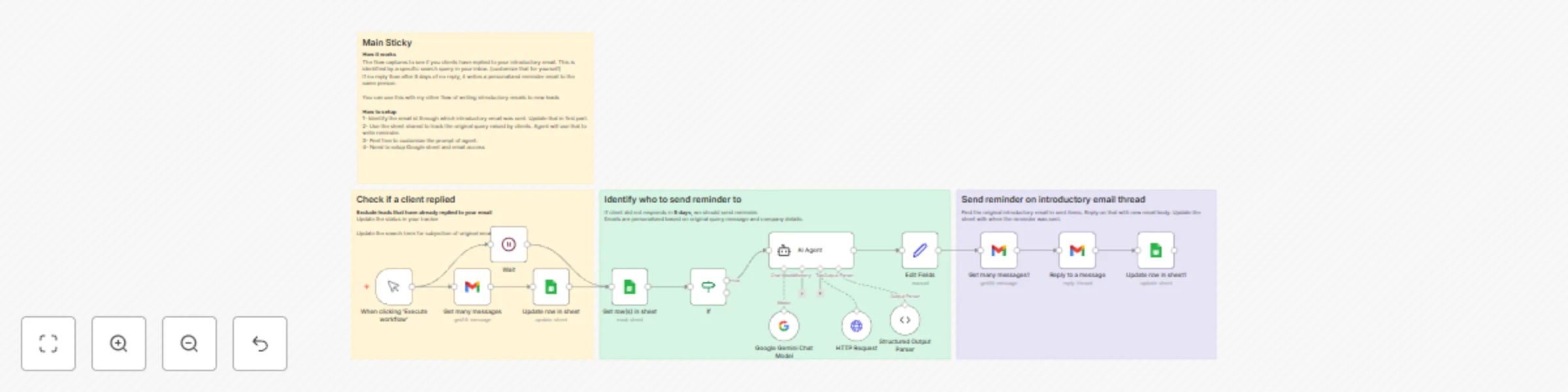
This automation is broken down into three main stages:
This stage excludes leads who have already replied to your introductory email and updates the status in your tracker.
When clicking ‘Execute workflow’ (Manual Trigger): The workflow starts manually or can be scheduled.
Get many messages (Gmail): The node searches your inbox (CATEGORY_PERSONAL) for replies to your introductory email (using the search query subject: <template of your introductory email>).
Update row in sheet (Google Sheets): For every incoming reply found, the workflow matches the lead by Email ID and updates the column Reminder 1 needed? to No.
This stage finds leads who have not yet received a reminder and checks if the introductory email was sent over 5 days ago.
Get row(s) in sheet (Google Sheets): The workflow retrieves all leads from the tracker where the column Reminder 1 needed? is not set to No (i.e., they haven't replied and a reminder status hasn't been logged).
If: A condition checks if the Intro email Date is older than 5 days (DateTime.now().minus({ days: 5 })). Only leads that meet this age criteria are passed forward.
For eligible leads, the AI generates a follow-up, finds the original email thread, sends the reply, and logs the action.
AI Agent: The AI Agent acts as a B2B marketing assistant to write a short, friendly first reminder email. It uses lead data (First Name, Company Name, Message) to personalize the content, referencing the original introductory email and the client's pain point.
Note: The AI is instructed to format its output into ClientEmail and ClientEmailBody using the Structured Output Parser.
Edit Fields (Set): The structured output from the AI is mapped to workflow fields.
Get many messages1 (Gmail): The workflow searches the SENT label for the original email using the client's email and the introductory subject line to find the correct threadId and messageId.
Reply to a message (Gmail): The personalized body is sent as a reply on the original thread to maintain context.
Update row in sheet1 (Google Sheets): The final step updates the lead's row in the tracker, setting Status to Reminder 1 Drafted, Reminder 1 needed? to Yes, and recording the current date in the Reminder 1 Email Date column.
Customization Currently it has option to send first reminder. This can be extended to add another reminder.
Write to [email protected] for more customizations.
This catalog entry is organized from the workflow JSON. The node-level section below shows the executable blocks available for review before importing the template.
| Workflow | B2B lead follow-up automation with Gemini AI, Gmail and Google Sheets |
|---|---|
| Complexity | advanced |
| Nodes | 18 |
| Categories | Lead Nurturing, Multimodal AI |
| Author | Priyanka Rana |
| Published | 27 Nov 2025 |
Use the JSON export at /data/workflows/11283/11283.json as the source template for this automation.
Open n8n, import the downloaded JSON, and review each node before activating the workflow.
Replace placeholder credentials, API keys, webhook URLs, account IDs, and environment-specific values with your own settings.
Run the workflow manually or in a staging workspace, inspect node output, and confirm downstream systems receive the expected data.
Enable the workflow only after testing, then monitor executions, errors, and rate limits during the first production runs.
Review imported nodes carefully before activation. This catalog entry is intended to help you inspect the workflow structure, understand required services, and find related templates faster.
Node names, credentials, schedules, webhook paths, and external service limits may need adjustment for your workspace.
This n8n workflow template automates your B2B marketing follow up process. It tracks which introductory emails have received a reply, identifies leads who haven't responded within a set time, uses ...
Review the workflow JSON, configure any required credentials in n8n, and test the automation in a safe workspace before using it in production.
Yes. Use the block-by-block analysis and the downloadable JSON to inspect each node, then adjust credentials, prompts, schedules, filters, or destinations for your Lead Nurturing, Multimodal AI use case.