Automation of creative testing and campaign launching for Meta ads

Workflow preview

Workflow preview
100%
Automation of creative testing and campaign launching for Meta ads preview
Open on n8n.io

Important notice

This workflow is provided as-is. Please review and test before using in production.

1. Workflow Overview

This workflow is a comprehensive solution for digital marketers, performance agencies, and e commerce brands looking to scale their creative testing process on Meta Ads efficiently. It eliminates t...

Best for

  • Social Media automation workflows
  • advanced n8n builders looking for reusable templates

Tools used

n8n-nodes-base.scheduletrigger, n8n-nodes-base.googledrive, n8n-nodes-base.httprequest, n8n-nodes-base.if, n8n-nodes-base.merge, n8n-nodes-base.function, n8n-nodes-base.set, n8n-nodes-base.googlesheets

Source and attribution

This workflow is cataloged by N8N Workflows and links back to its original n8n.io source page by Kirill Khatkevich.

Original n8n.io source

1.1 Workflow description

Title
Automation of creative testing and campaign launching for Meta ads
Workflow name
Automation of creative testing and campaign launching for Meta ads

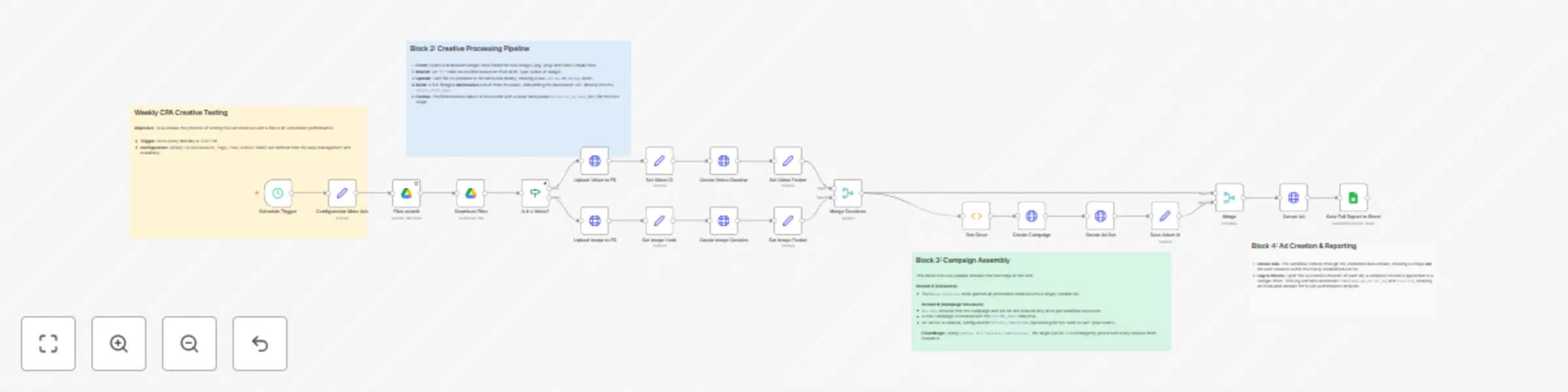
This workflow is a comprehensive solution for digital marketers, performance agencies, and e-commerce brands looking to scale their creative testing process on Meta Ads efficiently. It eliminates the tedious manual work of uploading assets, creating campaigns, and setting up ads one by one.

Use Case

Manually launching weekly creative tests is time-consuming and prone to errors. This workflow solves that problem by creating a fully automated pipeline: from a creative asset in a folder to a complete, ready-to-launch (but paused) ad structure in your Meta Ads account. It's perfect for teams that want to:

  • Save hours of manual work every week.
  • Systematically test a high volume of creatives.
  • Maintain a structured and consistent campaign naming convention.
  • Keep a detailed log of all created assets for data-driven performance analysis.
How it Works

The workflow is structured into four logical blocks:

1. Configuration & Scheduling:

  • The workflow runs on a weekly schedule.
  • A central "Configuration" Set node at the beginning holds all key variables (Ad Account ID, Page ID, Pixel ID, making it incredibly easy to adapt the template for different projects.

2. Creative Ingestion & Processing:

  • It scans a specific Google Drive folder for new image and video files.
  • Using an IF node, it branches the logic based on the file type.
  • Each file is uploaded to the Meta Ads library, and a corresponding Ad Creative is built with a pre-defined destination URL.

3. Campaign & Ad Set Assembly:

  • The workflow creates a single new Campaign with an OUTCOME_SALES objective.
  • It then creates a single Ad Set optimized for OFFSITE_CONVERSIONS (e.g., "Add to Cart"), using the Pixel ID from the configuration.
  • A Merge node intelligently combines the single Ad Set ID with every creative processed in the previous block, preparing the data for the final step.

4. Ad Creation & Data Logging:

  • The workflow iterates through the prepared data, creating a unique Ad for each creative.
  • Upon the successful creation of each ad, a new row is appended to a Google Sheet, logging all relevant IDs (CampaignID, AdSetID, AdID, CreativeID) and metadata for a complete audit trail.

Setup Instructions

To use this template, you need to configure a few key nodes.

1. Credentials:

  • Connect your Meta Ads account.
  • Connect your Google account (for both Drive and Sheets).

2. The ⚙️ Configuration Node (Set node): This is the most important step. Open the first Set node and fill in your specific values:

  • adAccountId: Your Meta Ad Account ID.
  • pageId: The ID of the Facebook Page you're advertising for.
  • pixelId: Your Meta Pixel ID for conversion tracking.

3. Google Sheets Node (Save Full Report to Sheet):

  • Select your spreadsheet and the specific sheet where you want to save the reports.
  • Make sure your sheet has columns with the following headers: CampaignID, AdSetID, AdID, CreativeID, FileName, MimeType, Timestamp.

4. Check URLs and IDs in HTTP Request Nodes:

  • The template is configured to use the variables from the ⚙️ Configuration node. Double-check that the URLs in the Create Campaign, Create Ad Set, and Create ... Creative nodes correctly reference these variables (e.g., .../act_{{ $('⚙️ Configuration Meta Ads').item.json.adAccountId }}/campaigns).
  • Verify the link in the Create Video Creative and Create Image Creative nodes points to your desired landing page.

5. Activate the Workflow:

  • Set your desired schedule in the Schedule Trigger node.
  • Save and activate the workflow.

Further Ideas & Customization

This workflow is a powerful foundation. You can easily extend it to:

  • Create a second workflow that runs a week later, reads the Google Sheet, and pulls performance data for all the ads created.
  • A/B test ad copy by adding different text variations from a spreadsheet.
  • Add a Slack or Email notification at the end to confirm that the weekly campaign launch was successful.

1.2 Logical Blocks

This catalog entry is organized from the workflow JSON. The node-level section below shows the executable blocks available for review before importing the template.

2. Block-by-Block Analysis

Block 1 - Schedule Trigger

Type / Role
n8n-nodes-base.scheduleTrigger - scheduleTrigger
Config choices
Version 1.2

Block 2 - Files search

Type / Role
n8n-nodes-base.googleDrive - googleDrive
Config choices
Version 3

Block 3 - Download Files

Type / Role
n8n-nodes-base.googleDrive - googleDrive
Config choices
Version 3

Block 4 - Upload Video to FB

Type / Role
n8n-nodes-base.httpRequest - httpRequest
Config choices
Version 3

Block 5 - Create Video Creative

Type / Role
n8n-nodes-base.httpRequest - httpRequest
Config choices
Version 3

Block 6 - Is it a Video?

Type / Role
n8n-nodes-base.if - if
Config choices
Version 1

Block 7 - Upload Image to FB

Type / Role
n8n-nodes-base.httpRequest - httpRequest
Config choices
Version 3

Block 8 - Create Image Creative

Type / Role
n8n-nodes-base.httpRequest - httpRequest
Config choices
Version 3

Block 9 - Merge Creatives

Type / Role
n8n-nodes-base.merge - merge
Config choices
Version 1

Block 10 - Create Campaign

Type / Role
n8n-nodes-base.httpRequest - httpRequest
Config choices
Version 3

Block 11 - Run Once

Type / Role
n8n-nodes-base.function - function
Config choices
Version 1

Block 12 - Create Ad Set

Type / Role
n8n-nodes-base.httpRequest - httpRequest
Config choices
Version 3

Block 13 - Create Ad

Type / Role
n8n-nodes-base.httpRequest - httpRequest
Config choices
Version 3

Block 14 - Set Video ID

Type / Role
n8n-nodes-base.set - set
Config choices
Version 3.4

Block 15 - Set Image Hash

Type / Role
n8n-nodes-base.set - set
Config choices
Version 3.4

Block 16 - Set Image Packet

Type / Role
n8n-nodes-base.set - set
Config choices
Version 3.4

Block 17 - Set Video Packet

Type / Role
n8n-nodes-base.set - set
Config choices
Version 3.4

Block 18 - Merge

Type / Role
n8n-nodes-base.merge - merge
Config choices
Version 3.1

Block 19 - Save Adset Id

Type / Role
n8n-nodes-base.set - set
Config choices
Version 3.4

Block 20 - Save Full Report to Sheet

Type / Role
n8n-nodes-base.googleSheets - googleSheets
Config choices
Version 4.6

Block 21 - Sticky Note

Type / Role
n8n-nodes-base.stickyNote - stickyNote
Config choices
Version 1

Block 22 - Sticky Note1

Type / Role
n8n-nodes-base.stickyNote - stickyNote
Config choices
Version 1

Block 23 - Sticky Note2

Type / Role
n8n-nodes-base.stickyNote - stickyNote
Config choices
Version 1

Block 24 - Sticky Note3

Type / Role
n8n-nodes-base.stickyNote - stickyNote
Config choices
Version 1

Showing the first 24 of 25 workflow blocks. Download the JSON for the full node graph.

3. Summary Table

Workflow Automation of creative testing and campaign launching for Meta ads
Complexity advanced
Nodes 25
Categories Social Media
Author Kirill Khatkevich
Published 15 Jul 2025

4. Reproducing the Workflow from Scratch

  1. 1. Download the workflow JSON

    Use the JSON export at /data/workflows/6038/6038.json as the source template for this automation.

  2. 2. Import the template into n8n

    Open n8n, import the downloaded JSON, and review each node before activating the workflow.

  3. 3. Configure credentials and variables

    Replace placeholder credentials, API keys, webhook URLs, account IDs, and environment-specific values with your own settings.

  4. 4. Test with sample data

    Run the workflow manually or in a staging workspace, inspect node output, and confirm downstream systems receive the expected data.

  5. 5. Activate and monitor

    Enable the workflow only after testing, then monitor executions, errors, and rate limits during the first production runs.

5. General Notes & Resources

Review imported nodes carefully before activation. This catalog entry is intended to help you inspect the workflow structure, understand required services, and find related templates faster.

Node names, credentials, schedules, webhook paths, and external service limits may need adjustment for your workspace.

Frequently asked questions

What does Automation of creative testing and campaign launching for Meta ads do?

This workflow is a comprehensive solution for digital marketers, performance agencies, and e commerce brands looking to scale their creative testing process on Meta Ads efficiently. It eliminates t...

What do I need before importing this workflow?

Review the workflow JSON, configure any required credentials in n8n, and test the automation in a safe workspace before using it in production.

Can I customize this workflow?

Yes. Use the block-by-block analysis and the downloadable JSON to inspect each node, then adjust credentials, prompts, schedules, filters, or destinations for your Social Media use case.