An intelligent AI-powered agent that automatically browses publication websites, analyzes page content with natural language understanding, and identifies the latest downloadable reports, research papers, and data files across multiple sources using advanced structured output parsing.
What Makes This Different:
- AI-Powered Content Analysis - Uses advanced language models (GPT-4/GPT-5.1) to understand page context and identify downloadable reports, even when links aren't explicitly labeled, handling complex page layouts and dynamic content
- Structured Output Parsing - Enforces JSON schema validation ensuring consistent data extraction with required fields (title, link, file_type, description), eliminating parsing errors and data inconsistencies
- HTML to Markdown Conversion - Converts raw HTML to clean Markdown before AI processing, removing noise and improving AI comprehension of page structure and content hierarchy
- Intelligent Link Detection - AI agent identifies direct download URLs, converts relative links to absolute URLs, and prioritizes the most recent reports based on publication dates and page positioning
- Comprehensive Validation - Multi-layer validation checks link format, file type detection, and report relevance before saving, ensuring only valid, downloadable reports enter your library
- Flexible Source Management - Reads publication sources from Google Sheets, enabling easy addition/removal of sources without workflow modification, with support for categories and custom metadata
Key Benefits of AI-Powered Report Discovery:
- Automated Discovery - Eliminates manual browsing and searching across multiple publication sites, saving hours of research time while ensuring you never miss new reports
- Context-Aware Extraction - AI understands page context, distinguishing between actual reports and navigation links, category pages, or promotional content
- Prioritized Results - Automatically selects the most recent and relevant report from each source, focusing on quality over quantity
- Structured Data Output - All discovered reports are saved with consistent metadata (title, link, file type, description, source), making them easy to search, filter, and integrate with other systems
- Error Resilience - Handles missing reports gracefully, logging when no reports are found without failing the entire workflow, ensuring continuous operation
- Integration Ready - Can be called by other workflows (e.g., PDF downloader), enabling end-to-end automation from discovery to storage
Who's it for
This template is designed for researchers, market analysts, competitive intelligence teams, academic institutions, industry monitoring services, and anyone who needs to systematically discover and track downloadable reports from multiple publication sources. It's perfect for organizations that need to monitor industry publications, track competitor research, discover new market reports, build research libraries, or stay updated on latest publications without manually visiting dozens of websites daily.
How it works / What it does
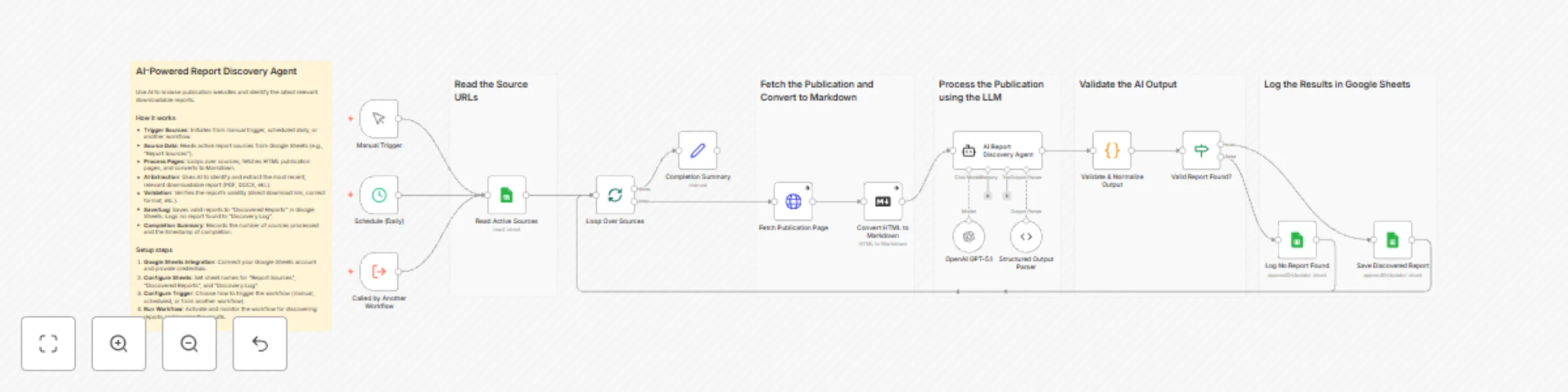
This workflow creates an AI-powered report discovery system that reads publication source URLs from Google Sheets, fetches their pages, uses AI to analyze content, and extracts information about downloadable reports. The system:
- Reads Active Sources - Fetches publication URLs and metadata from Google Sheets "Report Sources" sheet, processing each source in sequence
- Loops Through Sources - Processes sources one at a time using Split in Batches, ensuring proper error isolation and preventing batch failures
- Fetches Publication Pages - Downloads HTML content from each source URL with proper browser headers (User-Agent, Accept, Accept-Language) to avoid blocking
- Converts HTML to Markdown - Transforms raw HTML into clean Markdown format, removing styling, scripts, and navigation elements to improve AI comprehension
- AI Analysis - LangChain agent analyzes the Markdown content using GPT-4/GPT-5.1, identifying downloadable reports based on context, link patterns, and content structure
- Structured Output Parsing - Enforces JSON schema validation, ensuring the AI returns data in the exact format: source, title, link, file_type, description
- Validates & Normalizes Output - Validates extracted links are absolute URLs, checks file type indicators, determines report validity, and normalizes all fields
- Routes by Validity - IF node routes valid reports to save operation, invalid/missing reports to logging
- Saves Discovered Reports - Appends valid reports to Google Sheets "Discovered Reports" sheet with metadata, source URL, category, and discovery timestamp
- Logs No Report Found - Records sources where no valid reports were found in "Discovery Log" sheet for monitoring and troubleshooting
- Tracks Completion - Generates completion summary with number of sources checked and processing timestamp
Key Innovation: AI-Powered Context Understanding - Unlike traditional web scrapers that rely on fixed CSS selectors or regex patterns, this workflow uses AI to understand page context and semantics. The AI can identify reports even when they're embedded in complex layouts, use non-standard naming, or require understanding of surrounding text to determine relevance. This makes it adaptable to any website structure without manual configuration.
How to set up
1. Prepare Google Sheets
- Create a Google Sheet with three tabs: "Report Sources", "Discovered Reports", and "Discovery Log"
- In "Report Sources" sheet, create columns:
Source_Name, Source_URL, Category (optional)
- Add publication URLs in the
Source_URL column (e.g., "https://example.com/research" or "https://publisher.com/reports")
- Add descriptive names in
Source_Name column for easy identification
- Optionally add
Category values (e.g., "Market Research", "Industry Reports", "Academic Papers")
- The "Discovered Reports" sheet will be automatically populated with columns:
source, title, link, fileType, description, sourceUrl, category, discoveredAt, status, isValid
- The "Discovery Log" sheet will record sources where no reports were found
- Verify your Google Sheets credentials are set up in n8n (OAuth2 recommended)
2. Configure Google Sheets Nodes
- Open the "Read Active Sources" node and select your spreadsheet from the document dropdown
- Set sheet name to "Report Sources"
- Configure the "Save Discovered Report" node: select same spreadsheet, set sheet name to "Discovered Reports", operation should be "Append or Update"
- Configure the "Log No Report Found" node: same spreadsheet, "Discovery Log" sheet, operation "Append or Update"
- Test connection by running the "Read Active Sources" node manually to verify it can access your sheet
3. Set Up OpenAI Credentials
- Open the "OpenAI GPT-5.1" node (or configure the model you want to use)
- Connect your OpenAI API credentials (API key required)
- The workflow uses GPT-5.1 by default, but you can change to GPT-4, GPT-4 Turbo, or other models
- Temperature is set to 0.1 for consistent, deterministic output
- Verify API key has sufficient credits and access to the selected model
- For cost optimization, GPT-4 Turbo is recommended for similar results at lower cost
4. Configure AI Agent & Output Parser
- The "AI Report Discovery Agent" node contains a detailed system prompt that instructs the AI on what to look for
- The prompt is pre-configured but can be customized for your specific needs (e.g., prioritize certain file types, look for specific keywords)
- The "Structured Output Parser" enforces the JSON schema - verify the schema matches your needs:
{
  "source": "Publisher Name",
  "title": "Report Title",
  "link": "https://example.com/report.pdf",
  "file_type": "pdf",
  "description": "Brief description"
}
- The parser ensures the AI always returns valid JSON with all required fields
- Test the AI agent by manually running with a sample source URL to verify it correctly identifies reports
5. Customize Discovery Rules (Optional)
- The AI agent's system prompt can be modified in the "AI Report Discovery Agent" node
- Current rules prioritize: downloadable files (PDF, Excel, Word, PowerPoint), most recent publications, direct download URLs
- To customize: Edit the system message to add specific keywords, file types, or discovery patterns
- Example customization: Add industry-specific terms or prioritize reports with certain keywords in titles
- The validation code in "Validate & Normalize Output" can be adjusted to change what's considered "valid"
- Test with your specific sources to ensure discovery rules work as expected
6. Set Up Scheduling & Test
- The workflow includes Manual Trigger (for testing), Schedule Trigger (runs daily), and Execute Workflow Trigger (for calling from other workflows)
- To customize schedule: Open "Schedule (Daily)" node and adjust interval (e.g., twice daily, weekly)
- For initial testing: Use Manual Trigger, add 2-3 test publication URLs to your "Report Sources" sheet
- Verify execution: Check that pages are fetched, AI analysis completes, and reports are saved to "Discovered Reports"
- Monitor execution logs: Check for API errors, timeout issues, or parsing failures
- Review Discovery Log: Verify sources with no reports are properly logged
- Common issues: OpenAI API rate limits (add delays if processing many sources), invalid URLs (check source URLs), timeout errors (increase timeout for slow-loading pages), AI not finding reports (may need to adjust system prompt for specific site structures)
Requirements
- OpenAI API Key - Active OpenAI account with API access and sufficient credits for GPT-4/GPT-5.1 model usage (API key configured in n8n credentials)
- Google Sheets Account - Active Google account with OAuth2 credentials configured in n8n for reading and writing spreadsheet data
- Source Spreadsheet - Google Sheet with "Report Sources", "Discovered Reports", and "Discovery Log" tabs, properly formatted with required columns
- Valid Publication URLs - Direct links to publication pages that contain downloadable reports (not direct PDF links - the workflow discovers those)
- n8n Instance - Self-hosted or cloud n8n instance with access to external websites (HTTP Request node needs internet connectivity) and LangChain nodes enabled


 Early Deal