Block 1 - Get image
- Type / Role
- n8n-nodes-base.httpRequest - httpRequest
- Config choices
- Version 4.2


 Early Deal
This workflow is provided as-is. Please review and test before using in production.
Who is this for? This template is designed for Marketing Managers , Performance Marketers , and Ad Ops professionals who want to automate Facebook ad creation using structured data in Google Sheets...
n8n-nodes-base.httprequest, n8n-nodes-base.facebookgraphapi, n8n-nodes-base.googlesheetstrigger, n8n-nodes-base.googlesheets, n8n-nodes-base.set
This workflow is cataloged by N8N Workflows and links back to its original n8n.io source page by Artur.
Original n8n.io sourceThis template is designed for Marketing Managers, Performance Marketers, and Ad Ops professionals who want to automate Facebook ad creation using structured data in Google Sheets. It’s ideal for teams running multiple creatives or testing ad variations without having to manually use Meta Ads Manager.
> ⚠️ Important Note:
This is not a plug-and-play workflow. It requires:
Additionally, launching Facebook ads will incur real advertising costs, so this template is best suited for users willing to make a time investment to set things up properly and test responsibly. Expect to spend time customizing targeting and budget strategies based on your campaign needs.
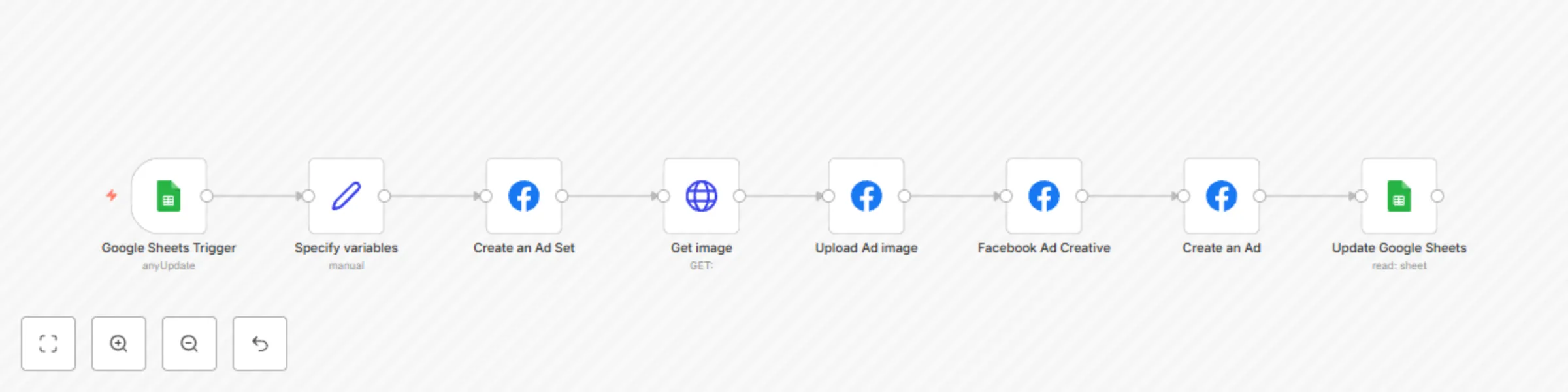
Manually uploading creatives, setting up ad sets, and creating ads in Meta’s Ad Manager is time-consuming, repetitive, and error-prone—especially at scale. This workflow eliminates the manual work by pulling data from Google Sheets and using it to automatically:
Using a trigger from a Google Sheets row update, this workflow:
All configuration fields like campaign_id, act_id, pixel_id, age ranges, interest targeting, and call-to-action links are defined up front in a single Edit Fields node, making the template easy to maintain or extend.
| Hooks | Render URL | Generate Ad | Ad ID |
|---|---|---|---|
| Static ad text (e.g., “Visit us at...”) | Link to the creative asset (image) | Status: generate, generated, or error |
Populated by the workflow with the created Facebook Ad ID |
generate — workflow will attempt to create the adgenerated — already processederror — error occurred during generationEdit Fields node with your actual ad account ID, page ID, campaign ID, pixel ID, and destination linkThis workflow runs every time the generate ad column in your sheet is updated.
Edit Fields node to adjust ad set parameters like targeting, budget strategy, CTA type, and moreThis catalog entry is organized from the workflow JSON. The node-level section below shows the executable blocks available for review before importing the template.
| Workflow | Automatically create Facebook ads from Google Sheets |
|---|---|
| Complexity | intermediate |
| Nodes | 8 |
| Categories | Social Media |
| Author | Artur |
| Published | 02 Apr 2025 |
Use the JSON export at /data/workflows/3406/3406.json as the source template for this automation.
Open n8n, import the downloaded JSON, and review each node before activating the workflow.
Replace placeholder credentials, API keys, webhook URLs, account IDs, and environment-specific values with your own settings.
Run the workflow manually or in a staging workspace, inspect node output, and confirm downstream systems receive the expected data.
Enable the workflow only after testing, then monitor executions, errors, and rate limits during the first production runs.
Review imported nodes carefully before activation. This catalog entry is intended to help you inspect the workflow structure, understand required services, and find related templates faster.
Node names, credentials, schedules, webhook paths, and external service limits may need adjustment for your workspace.
Who is this for? This template is designed for Marketing Managers , Performance Marketers , and Ad Ops professionals who want to automate Facebook ad creation using structured data in Google Sheets...
Review the workflow JSON, configure any required credentials in n8n, and test the automation in a safe workspace before using it in production.
Yes. Use the block-by-block analysis and the downloadable JSON to inspect each node, then adjust credentials, prompts, schedules, filters, or destinations for your Social Media use case.