Automatic invoice due date reminders from Stripe to Google Calendar

Workflow preview

Workflow preview
100%
Automatic invoice due date reminders from Stripe to Google Calendar preview
Open on n8n.io

Important notice

This workflow is provided as-is. Please review and test before using in production.

1. Workflow Overview

Description Automatically track Stripe invoices and create Google Calendar reminders for upcoming due dates. This workflow ensures you never miss a payment deadline by running daily checks, filteri...

Best for

  • Invoice Processing automation workflows
  • advanced n8n builders looking for reusable templates

Tools used

n8n-nodes-base.stickynote, n8n-nodes-base.scheduletrigger, n8n-nodes-base.httprequest, n8n-nodes-base.itemlists, n8n-nodes-base.if, n8n-nodes-base.googlecalendar, n8n-nodes-base.set

Source and attribution

This workflow is cataloged by N8N Workflows and links back to its original n8n.io source page by Rahul Joshi.

Original n8n.io source

1.1 Workflow description

Title
Automatic invoice due date reminders from Stripe to Google Calendar
Workflow name
Automatic invoice due date reminders from Stripe to Google Calendar

Description

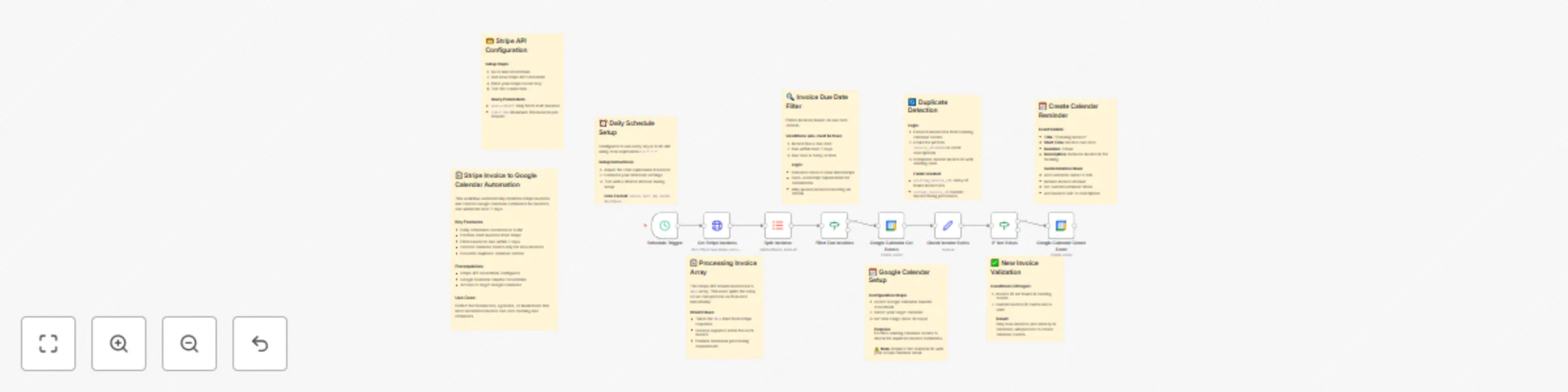
Automatically track Stripe invoices and create Google Calendar reminders for upcoming due dates. This workflow ensures you never miss a payment deadline by running daily checks, filtering invoices due within the next 7 days, and adding them to your calendar with invoice details. ⏰💳📅

What This Template Does

  • Runs daily at 8:00 AM using a scheduled trigger. ⏰
  • Fetches draft invoices from Stripe. 💳
  • Splits invoice data into individual records for processing. 🔎
  • Filters invoices due within the next 7 days. 📆
  • Prevents duplicates by checking against existing calendar events. 🔄
  • Creates Google Calendar events for valid invoices with details (ID, customer, amount). 📅

Key Benefits

  • Automated invoice due date reminders with no manual effort. ⚡
  • Avoids duplicate entries in Google Calendar. 🛡️
  • Provides a clear overview of pending payments. 👀
  • Saves time for freelancers, agencies, and finance teams. ⏱️
  • Keeps all payment reminders in one central place. 📲

Features

  • Daily schedule with cron expression (0 8 * * *).
  • Stripe API integration to fetch draft invoices.
  • Smart filtering: only invoices with due dates within 7 days are selected.
  • Google Calendar integration to check existing events and avoid duplicates.
  • Detailed calendar events with invoice ID, amount due, and customer email.
  • Customizable reminders — add customer name, invoice link, or change times.

Requirements

  • n8n instance (cloud or self-hosted).
  • Stripe API credentials with invoice read access.
  • Google Calendar OAuth2 credentials with event write permissions.
  • Access to the target Google Calendar (replace placeholder with your own).

Target Audience

  • Freelancers and solopreneurs managing invoices. 👩‍💻
  • Agencies tracking multiple client invoices. 🏢
  • Finance and accounting teams requiring automated reminders. 📊
  • Businesses wanting to automate payment follow-ups. 💼
  • Remote teams centralizing billing schedules. 🌍

Step-by-Step Setup Instructions

  • Configure Stripe API credentials in n8n.
  • Add Google Calendar OAuth2 credentials with access to your target calendar.
  • Replace the placeholder calendar ID ([email protected]) with your actual calendar.
  • Import this workflow into n8n.
  • Test the workflow by creating a test draft invoice in Stripe with a due date in the next 7 days.
  • Verify the Google Calendar event is created with the invoice details.
  • Enable the workflow to run daily and enjoy hands-free invoice tracking. ✅

1.2 Logical Blocks

This catalog entry is organized from the workflow JSON. The node-level section below shows the executable blocks available for review before importing the template.

2. Block-by-Block Analysis

Block 1 - Workflow Description

Type / Role
n8n-nodes-base.stickyNote - stickyNote
Config choices
Version 1

Block 2 - Schedule Setup

Type / Role
n8n-nodes-base.stickyNote - stickyNote
Config choices
Version 1

Block 3 - Schedule Trigger

Type / Role
n8n-nodes-base.scheduleTrigger - scheduleTrigger
Config choices
Version 1.1

Block 4 - Stripe Setup Guide

Type / Role
n8n-nodes-base.stickyNote - stickyNote
Config choices
Version 1

Block 5 - Get Stripe Invoices

Type / Role
n8n-nodes-base.httpRequest - httpRequest
Config choices
Version 4.1

Block 6 - Array Processing

Type / Role
n8n-nodes-base.stickyNote - stickyNote
Config choices
Version 1

Block 7 - Split Invoices

Type / Role
n8n-nodes-base.itemLists - itemLists
Config choices
Version 3

Block 8 - Date Filter Logic

Type / Role
n8n-nodes-base.stickyNote - stickyNote
Config choices
Version 1

Block 9 - Filter Due Invoices

Type / Role
n8n-nodes-base.if - if
Config choices
Version 2

Block 10 - Calendar API Setup

Type / Role
n8n-nodes-base.stickyNote - stickyNote
Config choices
Version 1

Block 11 - Google Calendar Get Events

Type / Role
n8n-nodes-base.googleCalendar - googleCalendar
Config choices
Version 1

Block 12 - Duplicate Prevention

Type / Role
n8n-nodes-base.stickyNote - stickyNote
Config choices
Version 1

Block 13 - Check Invoice Exists

Type / Role
n8n-nodes-base.set - set
Config choices
Version 3.2

Block 14 - New Invoice Check

Type / Role
n8n-nodes-base.stickyNote - stickyNote
Config choices
Version 1

Block 15 - IF Not Exists

Type / Role
n8n-nodes-base.if - if
Config choices
Version 2

Block 16 - Calendar Event Setup

Type / Role
n8n-nodes-base.stickyNote - stickyNote
Config choices
Version 1

Block 17 - Google Calendar Create Event

Type / Role
n8n-nodes-base.googleCalendar - googleCalendar
Config choices
Version 1

3. Summary Table

Workflow Automatic invoice due date reminders from Stripe to Google Calendar
Complexity advanced
Nodes 17
Categories Invoice Processing
Author Rahul Joshi
Published 26 Sept 2025

4. Reproducing the Workflow from Scratch

  1. 1. Download the workflow JSON

    Use the JSON export at /data/workflows/8948/8948.json as the source template for this automation.

  2. 2. Import the template into n8n

    Open n8n, import the downloaded JSON, and review each node before activating the workflow.

  3. 3. Configure credentials and variables

    Replace placeholder credentials, API keys, webhook URLs, account IDs, and environment-specific values with your own settings.

  4. 4. Test with sample data

    Run the workflow manually or in a staging workspace, inspect node output, and confirm downstream systems receive the expected data.

  5. 5. Activate and monitor

    Enable the workflow only after testing, then monitor executions, errors, and rate limits during the first production runs.

5. General Notes & Resources

Review imported nodes carefully before activation. This catalog entry is intended to help you inspect the workflow structure, understand required services, and find related templates faster.

Node names, credentials, schedules, webhook paths, and external service limits may need adjustment for your workspace.

Frequently asked questions

What does Automatic invoice due date reminders from Stripe to Google Calendar do?

Description Automatically track Stripe invoices and create Google Calendar reminders for upcoming due dates. This workflow ensures you never miss a payment deadline by running daily checks, filteri...

What do I need before importing this workflow?

Review the workflow JSON, configure any required credentials in n8n, and test the automation in a safe workspace before using it in production.

Can I customize this workflow?

Yes. Use the block-by-block analysis and the downloadable JSON to inspect each node, then adjust credentials, prompts, schedules, filters, or destinations for your Invoice Processing use case.