Automated Upwork messages alerts to Slack with Gmail and Google Gemini AI

Workflow preview

Workflow preview
100%
Automated Upwork messages alerts to Slack with Gmail and Google Gemini AI preview
Open on n8n.io

Important notice

This workflow is provided as-is. Please review and test before using in production.

1. Workflow Overview

Upwork Messages Notifications (Gmail to Slack) Fully Automated Alerts This n8n workflow streamlines how you receive Upwork client messages, sending instant notifications to Slack. It demonstrates t...

Best for

  • Personal Productivity automation workflows
  • AI Summarization automation workflows
  • intermediate n8n builders looking for reusable templates

Tools used

n8n-nodes-base.gmailtrigger, n8n-nodes-base.code, @n8n/n8n-nodes-langchain.informationextractor, @n8n/n8n-nodes-langchain.lmchatgooglegemini, n8n-nodes-base.stickynote, n8n-nodes-base.slack

Source and attribution

This workflow is cataloged by N8N Workflows and links back to its original n8n.io source page by Zain Khan.

Original n8n.io source

1.1 Workflow description

Title
Automated Upwork messages alerts to Slack with Gmail and Google Gemini AI
Workflow name
Automated Upwork messages alerts to Slack with Gmail and Google Gemini AI

Upwork Messages Notifications (Gmail to Slack) - Fully Automated Alerts

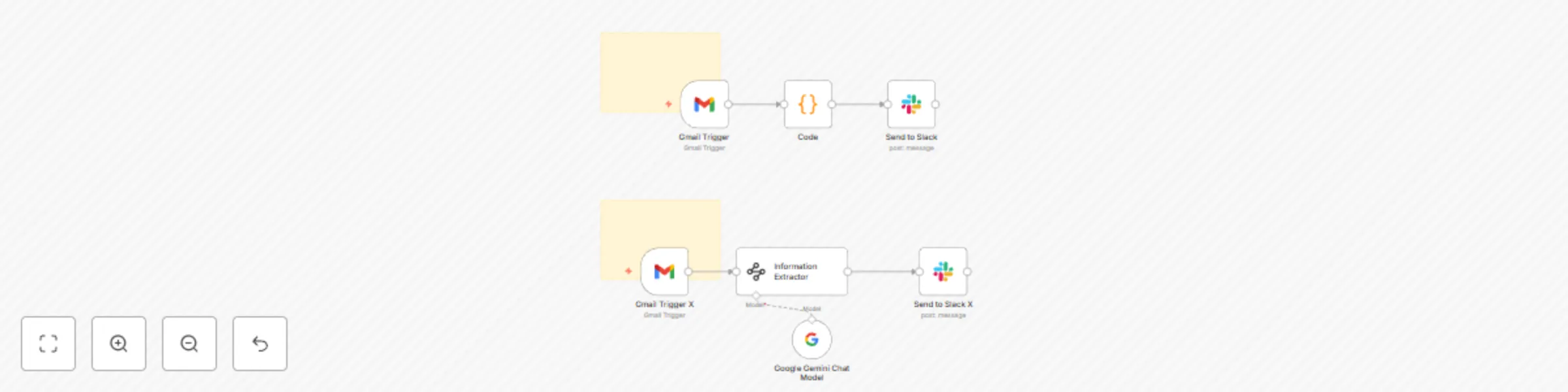
This n8n workflow streamlines how you receive Upwork client messages, sending instant notifications to Slack. It demonstrates two approaches: a code-based extraction and an AI-powered one with Google Gemini.


Use Cases

  • Instant Communication: Get real-time alerts for new Upwork client messages in your team's Slack channel.
  • Improved Responsiveness: Quickly respond to client inquiries and maintain strong communication.
  • Centralized Notifications: Keep all your essential work-related notifications in one place.

Good to Know

  • The workflow is set to poll your Gmail every 3 minutes for unread Upwork messages, which can be reduced or increased.
  • The AI Information Extractor with Google Gemini provides a more refined and robust method for data parsing compared to custom code.
  • Usage of Google Gemini may incur costs. Refer to Gemini Pricing for updated information.
  • Google Gemini models can be geo-restricted. If you encounter a "model not found" error, it might not be available in your region.

How it Works

Method 1: Code-Based Extraction

  1. Gmail Trigger: The workflow starts by monitoring your Gmail for new, unread emails from "via Upwork".
  2. Code Node: A custom JavaScript code block is used to extract the client's name and the message content directly from the email's text.
  3. Slack Notification: The extracted client name and message are then formatted and sent as a new message to a designated Slack channel.

Method 2: AI-Powered Extraction with Google Gemini (Recommended)

  1. Gmail Trigger X: Similar to Method 1, this part also triggers on new unread Upwork emails.
  2. Information Extractor (AI): This powerful node, powered by Google Gemini, takes the entire email text and intelligently extracts structured information like the "client" name and the "message" content based on a defined schema. This method is more robust and requires less manual parsing logic.
  3. Google Gemini Chat Model: (Implicitly used by the Information Extractor) This node provides the underlying AI capabilities for intelligent information extraction.
  4. Send to Slack X: The refined output from the AI Information Extractor (client name and message) is then sent to a Slack channel.

How to Use

  1. Gmail Credentials: Ensure you have configured your Gmail OAuth2 credentials in n8n for both "Gmail Trigger" nodes.
  2. Slack Credentials: Set up your Slack OAuth2 credentials in n8n for both "Send to Slack" nodes and select the desired Slack channel.
  3. Google Gemini Credentials: For the AI-powered workflow, you'll need to set up your Google Gemini API key as a credential in n8n.
  4. Activate Workflows: Enable both workflows in n8n to start receiving notifications. You can compare the output quality of each method.

Requirements

  • n8n instance (self-hosted or cloud)
  • Gmail Account connected to Upwork notifications.
  • Slack Workspace and a designated channel for notifications.
  • Google Gemini API key for the AI-powered extraction workflow.

1.2 Logical Blocks

This catalog entry is organized from the workflow JSON. The node-level section below shows the executable blocks available for review before importing the template.

2. Block-by-Block Analysis

Block 1 - Gmail Trigger

Type / Role
n8n-nodes-base.gmailTrigger - gmailTrigger
Config choices
Version 1.2

Block 2 - Code

Type / Role
n8n-nodes-base.code - code
Config choices
Version 2

Block 3 - Information Extractor

Type / Role
@n8n/n8n-nodes-langchain.informationExtractor - informationExtractor
Config choices
Version 1.2

Block 4 - Google Gemini Chat Model

Type / Role
@n8n/n8n-nodes-langchain.lmChatGoogleGemini - lmChatGoogleGemini
Config choices
Version 1

Block 5 - Sticky Note

Type / Role
n8n-nodes-base.stickyNote - stickyNote
Config choices
Version 1

Block 6 - Sticky Note1

Type / Role
n8n-nodes-base.stickyNote - stickyNote
Config choices
Version 1

Block 7 - Gmail Trigger X

Type / Role
n8n-nodes-base.gmailTrigger - gmailTrigger
Config choices
Version 1.2

Block 8 - Send to Slack X

Type / Role
n8n-nodes-base.slack - slack
Config choices
Version 2.3

Block 9 - Send to Slack

Type / Role
n8n-nodes-base.slack - slack
Config choices
Version 2.3

3. Summary Table

Workflow Automated Upwork messages alerts to Slack with Gmail and Google Gemini AI
Complexity intermediate
Nodes 9
Categories Personal Productivity, AI Summarization
Author Zain Khan
Published 28 Jul 2025

4. Reproducing the Workflow from Scratch

  1. 1. Download the workflow JSON

    Use the JSON export at /data/workflows/6600/6600.json as the source template for this automation.

  2. 2. Import the template into n8n

    Open n8n, import the downloaded JSON, and review each node before activating the workflow.

  3. 3. Configure credentials and variables

    Replace placeholder credentials, API keys, webhook URLs, account IDs, and environment-specific values with your own settings.

  4. 4. Test with sample data

    Run the workflow manually or in a staging workspace, inspect node output, and confirm downstream systems receive the expected data.

  5. 5. Activate and monitor

    Enable the workflow only after testing, then monitor executions, errors, and rate limits during the first production runs.

5. General Notes & Resources

Review imported nodes carefully before activation. This catalog entry is intended to help you inspect the workflow structure, understand required services, and find related templates faster.

Node names, credentials, schedules, webhook paths, and external service limits may need adjustment for your workspace.

Frequently asked questions

What does Automated Upwork messages alerts to Slack with Gmail and Google Gemini AI do?

Upwork Messages Notifications (Gmail to Slack) Fully Automated Alerts This n8n workflow streamlines how you receive Upwork client messages, sending instant notifications to Slack. It demonstrates t...

What do I need before importing this workflow?

Review the workflow JSON, configure any required credentials in n8n, and test the automation in a safe workspace before using it in production.

Can I customize this workflow?

Yes. Use the block-by-block analysis and the downloadable JSON to inspect each node, then adjust credentials, prompts, schedules, filters, or destinations for your Personal Productivity, AI Summarization use case.