Automated invoice payment reminders with Google Sheets and Gmail

Workflow preview

Workflow preview
100%
Automated invoice payment reminders with Google Sheets and Gmail preview
Open on n8n.io

Important notice

This workflow is provided as-is. Please review and test before using in production.

1. Workflow Overview

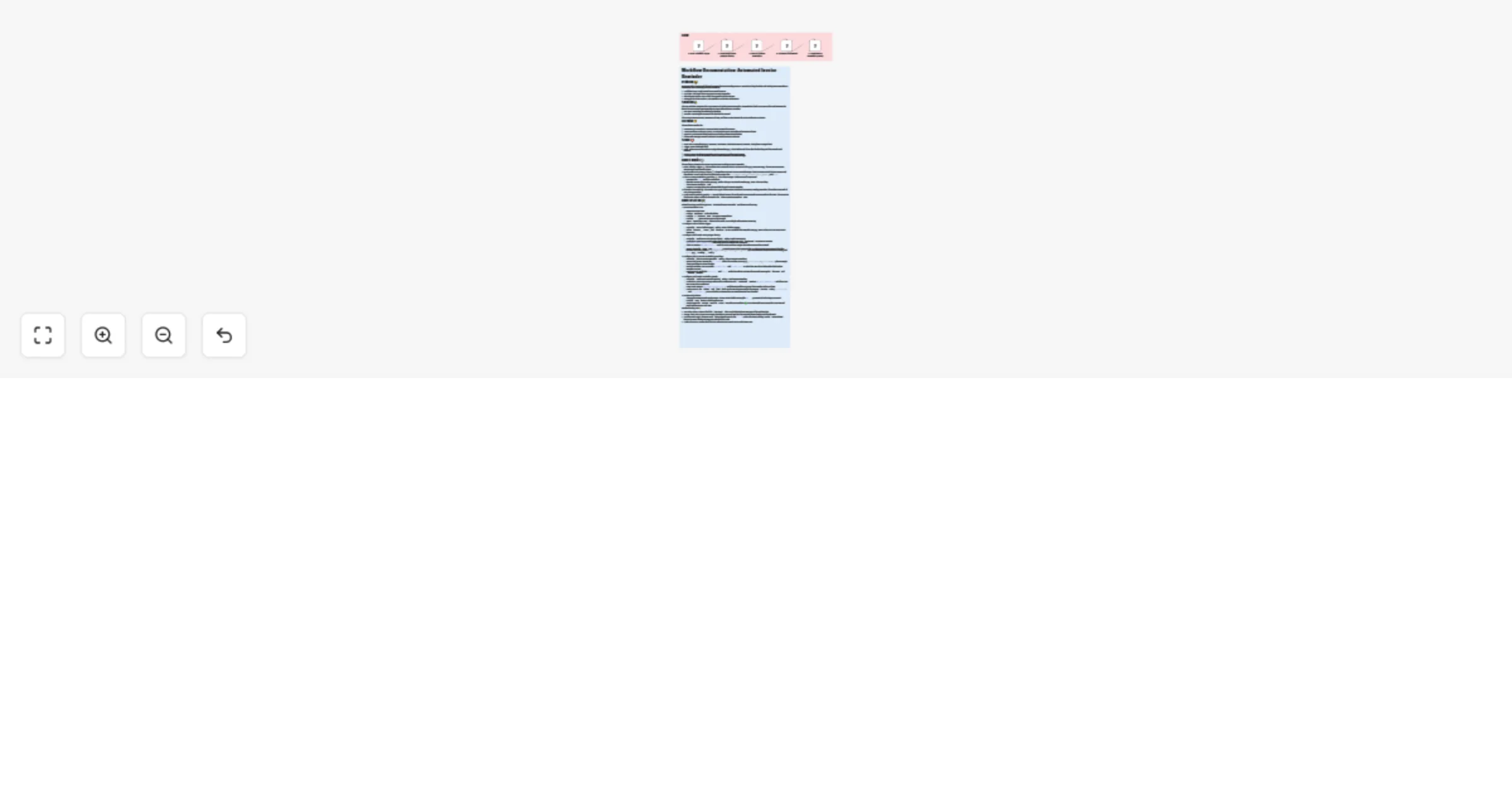
How It Works ️ This workflow systematically ensures you never miss sending an invoice reminder: 1. Daily Schedule Trigger: The workflow starts automatically at a set time each day (e.g., every m...

Best for

  • Invoice Processing automation workflows
  • intermediate n8n builders looking for reusable templates

Tools used

n8n-nodes-base.scheduletrigger, n8n-nodes-base.googlesheets, n8n-nodes-base.function, n8n-nodes-base.if, n8n-nodes-base.gmail, n8n-nodes-base.stickynote

Source and attribution

This workflow is cataloged by N8N Workflows and links back to its original n8n.io source page by Marth.

Original n8n.io source

1.1 Workflow description

Title
Automated invoice payment reminders with Google Sheets and Gmail
Workflow name
Automated invoice payment reminders with Google Sheets and Gmail

How It Works ⚙️

This workflow systematically ensures you never miss sending an invoice reminder:

  1. Daily Schedule Trigger: ⏰ The workflow starts automatically at a set time each day (e.g., every morning). This ensures continuous monitoring of your invoice statuses.
  2. Read Invoice Data (Google Sheets): 📊 The workflow connects to your specified Google Sheet to retrieve a list of all your invoices and their details. Ensure your sheet has required columns like InvoiceID, ClientName, ClientEmail, Amount, DueDate, and Status.
  3. Filter & Prepare Reminders (Function): 🧹 This is the core logic. It processes each invoice row:
    • Compares the DueDate with the current date.
    • Identifies invoices that are due soon (e.g., within 3 days) or are already overdue (e.g., up to 7 days past due).
    • Skips invoices marked as 'Paid'.
    • Prepares a custom subject line and email body for each relevant reminder.
  4. If Invoices to Remind?: 🚦 This node acts as a gate. If the previous step found any invoices needing reminders, the workflow proceeds. If not, it stops gracefully.
  5. Send Invoice Reminder (Gmail): 📧 For each filtered invoice, this node sends a personalized email reminder to the client. The email uses the dynamic subject and body prepared in the 'Filter & Prepare Reminders' step.

How to Set Up 🛠️

Follow these steps carefully to get your "Automated Invoice Reminder" workflow up and running:

  1. Import Workflow JSON:

    • Open your n8n instance.
    • Click on 'Workflows' in the left sidebar.
    • Click the '+' button or 'New' to create a new workflow.
    • Click the '...' (More Options) icon in the top right.
    • Select 'Import from JSON' and paste the entire JSON code provided in the previous response for this workflow.
  2. Configure Daily Schedule Trigger:

    • Locate the 'Daily Schedule Trigger' node (1. Daily Schedule Trigger).
    • Adjust 'interval', 'value', and 'timezone' to your preferred daily reminder time (e.g., every 24 hours at 9 AM in your local timezone).
  3. Configure Read Invoice Data (Google Sheets):

    • Locate the 'Read Invoice Data (Google Sheets)' node (2. Read Invoice Data).
    • Credentials: Select your existing Google Sheets OAuth2 credential or click 'Create New' to set one up. Replace YOUR_GOOGLE_SHEETS_CREDENTIAL_ID with the actual ID or name of your credential from your n8n credentials.
    • Sheet ID: Replace YOUR_GOOGLE_SHEET_ID with the actual ID of your Google Sheet where invoice data is stored.
    • Range: Ensure the 'range' (e.g., Invoices!A:F) correctly covers all your invoice data. Crucially, ensure your Google Sheet has columns with exact names: InvoiceID, ClientName, ClientEmail, Amount, DueDate (in a parsable date format like YYYY-MM-DD), and Status (e.g., 'Pending', 'Paid').
  4. Configure Filter & Prepare Reminders (Function):

    • Locate the 'Filter & Prepare Reminders' node (3. Filter & Prepare Reminders).
    • Date & Field Names: Review the functionCode inside the node. Adjust the variable names (e.g., invoice.InvoiceID, invoice.DueDate) if your Google Sheet uses different column headers than the defaults assumed in the code.
    • Reminder Window: You can modify remindBeforeDays (e.g., 3 days before) and remindAfterDays (e.g., 7 days after) to adjust how many days before/after the due date reminders are sent.
    • Email Content: Modify the subjectPrefix and bodyText within the code to customize the reminder message for 'due soon' and 'overdue' invoices.
  5. Configure Send Invoice Reminder (Gmail):

    • Locate the 'Send Invoice Reminder (Gmail)' node (5. Send Invoice Reminder).
    • Credentials: Select your existing Gmail OAuth2 credential or click 'Create New'. Replace YOUR_GMAIL_CREDENTIAL_ID with the actual ID or name of your credential from your n8n credentials.
    • From Email: Replace [email protected] with the email address you want the reminders to be sent from.
    • Email Content: The 'subject' and 'html' fields are dynamically generated by the previous 'Function' node (={{ $json.subject }} and ={{ $json.body }}). You can further customize the HTML email template here if needed.
  6. Review and Activate:

    • Thoroughly review all node configurations. Ensure all placeholder values (like YOUR_...) are replaced and settings are correct.
    • Click the 'Save' button in the top right corner.
    • Finally, toggle the 'Inactive' switch to 'Active' to enable your workflow. 🟢 Your automated invoice reminder is now live and ready to improve your cash flow!

Troubleshooting Tips: 💡

  • Execution History: Always check the 'Executions' tab in n8n for detailed error messages if the workflow fails.
  • Google Sheet Data: Ensure your Google Sheet data is clean and matches the expected column headers and date formats.
  • Function Node Logic: If invoices aren't being filtered correctly, the Function node is the place to debug. Use the 'Test Workflow' feature to inspect the data flowing into and out of this node.
  • Credential Issues: Double-check that all credentials are correctly set up and active in n8n.

1.2 Logical Blocks

This catalog entry is organized from the workflow JSON. The node-level section below shows the executable blocks available for review before importing the template.

2. Block-by-Block Analysis

Block 1 - 1. Daily Schedule Trigger

Type / Role
n8n-nodes-base.scheduleTrigger - scheduleTrigger
Config choices
Version 1

Block 2 - 2. Read Invoice Data (Google Sheets)

Type / Role
n8n-nodes-base.googleSheets - googleSheets
Config choices
Version 2

Block 3 - 3. Filter & Prepare Reminders

Type / Role
n8n-nodes-base.function - function
Config choices
Version 1

Block 4 - 4. If Invoices to Remind?

Type / Role
n8n-nodes-base.if - if
Config choices
Version 1

Block 5 - 5. Send Invoice Reminder (Gmail)

Type / Role
n8n-nodes-base.gmail - gmail
Config choices
Version 1

Block 6 - Sticky Note

Type / Role
n8n-nodes-base.stickyNote - stickyNote
Config choices
Version 1

Block 7 - Sticky Note1

Type / Role
n8n-nodes-base.stickyNote - stickyNote
Config choices
Version 1

3. Summary Table

Workflow Automated invoice payment reminders with Google Sheets and Gmail
Complexity intermediate
Nodes 7
Categories Invoice Processing
Author Marth
Published 23 Jul 2025

4. Reproducing the Workflow from Scratch

  1. 1. Download the workflow JSON

    Use the JSON export at /data/workflows/6316/6316.json as the source template for this automation.

  2. 2. Import the template into n8n

    Open n8n, import the downloaded JSON, and review each node before activating the workflow.

  3. 3. Configure credentials and variables

    Replace placeholder credentials, API keys, webhook URLs, account IDs, and environment-specific values with your own settings.

  4. 4. Test with sample data

    Run the workflow manually or in a staging workspace, inspect node output, and confirm downstream systems receive the expected data.

  5. 5. Activate and monitor

    Enable the workflow only after testing, then monitor executions, errors, and rate limits during the first production runs.

5. General Notes & Resources

Review imported nodes carefully before activation. This catalog entry is intended to help you inspect the workflow structure, understand required services, and find related templates faster.

Node names, credentials, schedules, webhook paths, and external service limits may need adjustment for your workspace.

Frequently asked questions

What does Automated invoice payment reminders with Google Sheets and Gmail do?

How It Works ️ This workflow systematically ensures you never miss sending an invoice reminder: 1. Daily Schedule Trigger: The workflow starts automatically at a set time each day (e.g., every m...

What do I need before importing this workflow?

Review the workflow JSON, configure any required credentials in n8n, and test the automation in a safe workspace before using it in production.

Can I customize this workflow?

Yes. Use the block-by-block analysis and the downloadable JSON to inspect each node, then adjust credentials, prompts, schedules, filters, or destinations for your Invoice Processing use case.