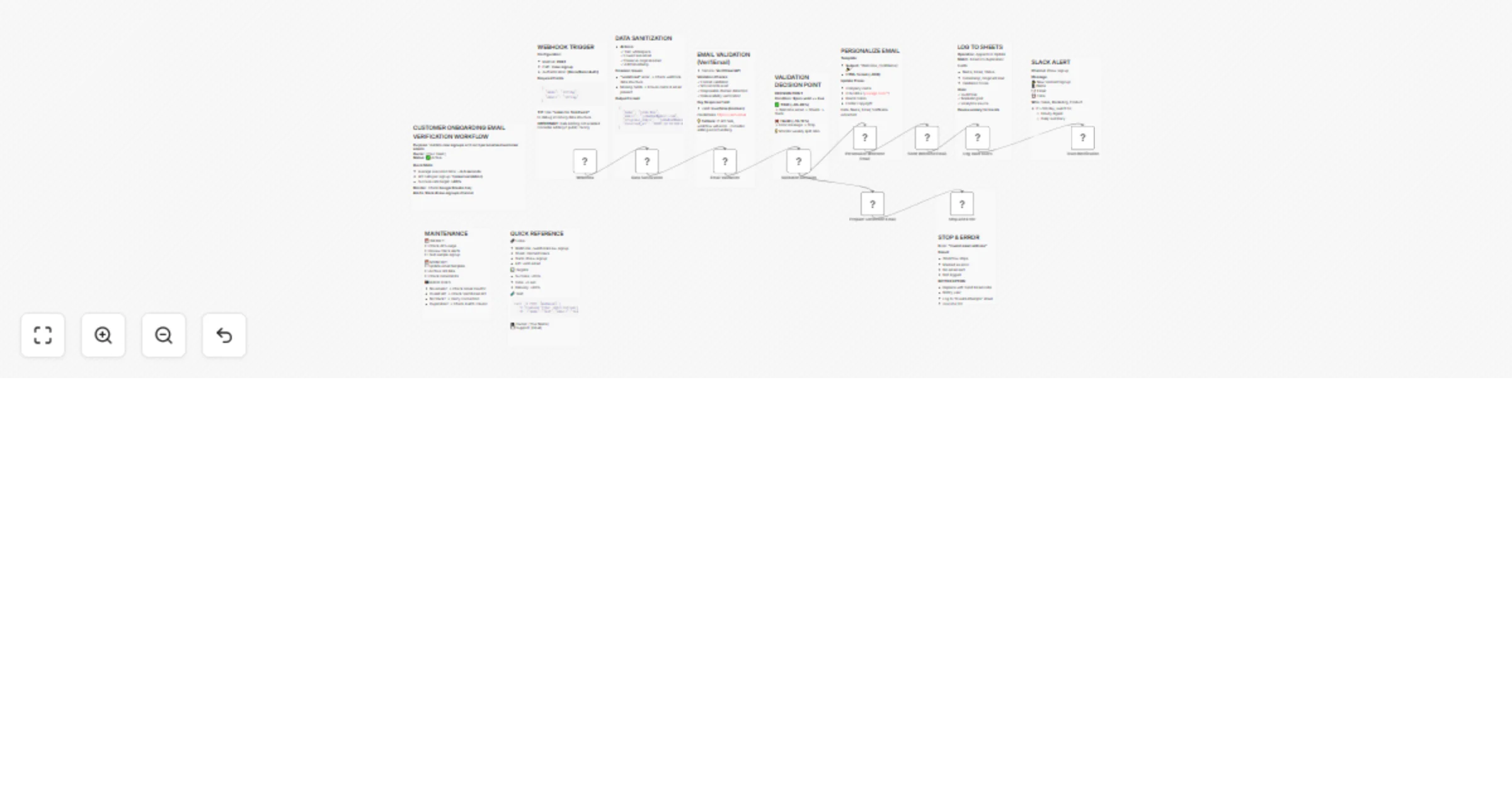
Automated email verification & onboarding with VerifiEmail, Gmail & Slack

Workflow preview

Workflow preview
100%
Automated email verification & onboarding with VerifiEmail, Gmail & Slack preview
Open on n8n.io

Important notice

This workflow is provided as-is. Please review and test before using in production.

1. Workflow Overview

Customer Onboarding Email Verification Automated email verification and welcome email workflow that validates new user signups, prevents fake emails, and creates a seamless onboarding experience wi...

Best for

  • Lead Nurturing automation workflows
  • advanced n8n builders looking for reusable templates

Tools used

n8n-nodes-base.webhook, n8n-nodes-base.code, n8n-nodes-verifiemail.verifiemail, n8n-nodes-base.if, n8n-nodes-base.slack, n8n-nodes-base.googlesheets, n8n-nodes-base.gmail, n8n-nodes-base.stopanderror

Source and attribution

This workflow is cataloged by N8N Workflows and links back to its original n8n.io source page by Jitesh Dugar.

Original n8n.io source

1.1 Workflow description

Title
Automated email verification & onboarding with VerifiEmail, Gmail & Slack
Workflow name
Automated email verification & onboarding with VerifiEmail, Gmail & Slack

Customer Onboarding Email Verification

Automated email verification and welcome email workflow that validates new user signups, prevents fake emails, and creates a seamless onboarding experience with real-time team notifications.

Features

✅ Real-time email validation with VerifiEmail API
✅ Automatic data sanitization (lowercase, trim whitespace)
✅ Smart typo detection and correction suggestions
✅ Disposable email domain blocking
✅ Professional HTML welcome emails with responsive design
✅ Automatic duplicate prevention in Google Sheets logging
✅ Real-time Slack notifications for sales/marketing teams
✅ MX record and SMTP deliverability checks

What You Need

Required Accounts/APIs:

  1. VerifiEmail API - For email validation (verifi.email)
  2. Gmail account (or SMTP server) - For sending welcome emails
  3. Google Sheets - For logging verified users
  4. Slack workspace - For team notifications (optional but recommended)

Setup Instructions

  1. Create Google Sheet

    • Create new spreadsheet named "Verified Users"
    • Add headers: Name | Email | Status | Verified At | Original Email | Validation Score
  2. Connect Credentials

    • Add VerifiEmail API key in n8n credentials
    • Connect Gmail via OAuth2 (enable 2FA, generate app password if needed)
    • Connect Google Sheets via OAuth2
    • Connect Slack workspace via OAuth2
  3. Customize Email Template

    • Open "Personalize Welcome Email" node
    • Replace "Your Company" with your brand name (appears 3 times)
    • Update CTA URLs:
      • yourapp.com/dashboard → Your actual dashboard URL
      • yourapp.com/getting-started → Your docs/guide URL
      • yourapp.com/support → Your support page URL
    • Modify colors: Purple gradient #667eea to #764ba2 (line 37)
  4. Configure Slack Channel

    • Create #new-signup channel in Slack (or use existing)
    • Update channel in "Team Notification" node
  5. Test Workflow

    • Activate workflow
    • Copy webhook URL from Webhook node
    • Test with: curl -X POST [webhook-url] -H "Content-Type: application/json" -d '{"name":"Test User","email":"[email protected]"}'
  6. Integrate with Your Signup Form

    • Point form submission to webhook URL
    • Ensure payload includes name and email fields

Input Format

Send POST request to webhook with this JSON:

{
  "name": "John Doe",
  "email": "[email protected]"
}

The workflow handles various input formats (nested in body field, query params, etc.) and sanitizes automatically.

Output

After execution, you'll get:

  1. Email validated via VerifiEmail API with deliverability score
  2. Welcome email sent to user with personalized greeting and CTAs
  3. User logged to Google Sheets with timestamp and validation details
  4. Slack notification sent to team with user details and status
  5. Invalid emails blocked with typo correction suggestions prepared

For Valid Emails (~85-90%):

  • Professional HTML welcome email delivered
  • Entry added to "Verified Users" sheet
  • Real-time Slack alert to #new-signup channel

For Invalid Emails (~10-15%):

  • Workflow stops with error message
  • No email sent (prevents bounces)
  • Typo suggestion prepared (e.g., gmial.com → gmail.com)

Customization

Change Email Design:

Edit the "Personalize Welcome Email" node HTML:

  • Colors: Change gradient in line 37: background: linear-gradient(135deg, #667eea 0%, #764ba2 100%)
  • Logo: Add <img> tag in header section
  • Buttons: Modify CTA text and links in lines 45-65
  • Footer: Update copyright year and company name

Modify Validation Rules:

In "Prepare Correction Email" node, add more typo patterns:

const commonTypos = {
  'gmial': 'gmail',
  'gmai': 'gmail',
  // Add your custom patterns:
  'yourdomain': 'yourcorrectdomain'
}

Enable Correction Email Sending:

Replace "Stop and Error" node with Gmail "Send Email" node:

  • Connect from "Prepare Correction Email"
  • Use {{ $json.email }} as recipient
  • Use {{ $json.emailBody }} as message
  • User receives helpful correction suggestion instead of silent failure

Add More Notification Channels:

After "Log Valid Users" node, add:

  • Discord webhook for team notifications
  • Microsoft Teams connector
  • Email to sales@ or support@
  • Custom webhook to your CRM

Log Invalid Attempts:

Add Google Sheets node after "Prepare Correction Email":

  • Create "Invalid Attempts" tab in same spreadsheet
  • Log: Name, Email, Reason, Suggestion, Timestamp
  • Analyze patterns weekly for form improvements

Troubleshooting

"undefined" error in Data Sanitization:

  • Check webhook payload structure
  • Verify name and email fields are present
  • Test with the debug code provided in sticky notes

All emails marked as invalid:

  • Verify VerifiEmail API key is active
  • Test API directly at verifi.email dashboard

Welcome emails not sending:

  • Confirm Gmail OAuth2 is connected (check for expired tokens)
  • Verify sending limits not exceeded
  • Check spam folder if testing with personal email
  • Review Gmail "Sent" folder for delivery confirmation

No Slack notifications:

  • Verify OAuth2 connection is active
  • Check bot has permission to post in #new-signup channel
  • Confirm channel ID is correct
  • Test Slack credentials in n8n

Duplicate entries in Google Sheets:

  • Verify "Email" is set as matching column
  • Confirm operation is "Append or Update" not just "Append"
  • Check Sheet1 has the exact column names expected

High validation failure rate:

  • Review invalid emails in execution logs
  • Check for form submission issues (bots, testing)
  • Verify VerifiEmail API is not blocking legitimate domains

Performance Optimization

For high-volume signups (>100/day):

  • Switch Slack notifications to hourly digest
  • Implement rate limiting on webhook
  • Consider caching frequent domain validations
  • Use Google Workspace for higher email sending limits

Maintenance

Weekly:

  • Check VerifiEmail API usage and quota
  • Review Slack notifications for anomalies
  • Scan Google Sheets for data quality
  • Test with sample signup

Monthly:

  • Archive old Google Sheets data (>90 days)
  • Review invalid email patterns
  • Update email template if needed
  • Audit credential security

Support

For issues or questions, visit the n8n community forum.


1.2 Logical Blocks

This catalog entry is organized from the workflow JSON. The node-level section below shows the executable blocks available for review before importing the template.

2. Block-by-Block Analysis

Block 1 - Webhook

Type / Role
n8n-nodes-base.webhook - webhook
Config choices
Version 2.1

Block 2 - Data Sanitization

Type / Role
n8n-nodes-base.code - code
Config choices
Version 2

Block 3 - Email Validation

Type / Role
n8n-nodes-verifiemail.verifiEmail - verifiEmail
Config choices
Version 1

Block 4 - Validation Decision

Type / Role
n8n-nodes-base.if - if
Config choices
Version 2.2

Block 5 - Personalize Welcome Email

Type / Role
n8n-nodes-base.code - code
Config choices
Version 2

Block 6 - Prepare Correction Email

Type / Role
n8n-nodes-base.code - code
Config choices
Version 2

Block 7 - Team Notification

Type / Role
n8n-nodes-base.slack - slack
Config choices
Version 2.3

Block 8 - Log Valid Users

Type / Role
n8n-nodes-base.googleSheets - googleSheets
Config choices
Version 4.7

Block 9 - Send Welcome Email

Type / Role
n8n-nodes-base.gmail - gmail
Config choices
Version 2.1

Block 10 - Stop and Error

Type / Role
n8n-nodes-base.stopAndError - stopAndError
Config choices
Version 1

Block 11 - Sticky Note

Type / Role
n8n-nodes-base.stickyNote - stickyNote
Config choices
Version 1

Block 12 - Sticky Note1

Type / Role
n8n-nodes-base.stickyNote - stickyNote
Config choices
Version 1

Block 13 - Sticky Note2

Type / Role
n8n-nodes-base.stickyNote - stickyNote
Config choices
Version 1

Block 14 - Sticky Note3

Type / Role
n8n-nodes-base.stickyNote - stickyNote
Config choices
Version 1

Block 15 - Sticky Note4

Type / Role
n8n-nodes-base.stickyNote - stickyNote
Config choices
Version 1

Block 16 - Sticky Note5

Type / Role
n8n-nodes-base.stickyNote - stickyNote
Config choices
Version 1

Block 17 - Sticky Note6

Type / Role
n8n-nodes-base.stickyNote - stickyNote
Config choices
Version 1

Block 18 - Sticky Note7

Type / Role
n8n-nodes-base.stickyNote - stickyNote
Config choices
Version 1

Block 19 - Sticky Note8

Type / Role
n8n-nodes-base.stickyNote - stickyNote
Config choices
Version 1

Block 20 - Sticky Note9

Type / Role
n8n-nodes-base.stickyNote - stickyNote
Config choices
Version 1

Block 21 - Sticky Note10

Type / Role
n8n-nodes-base.stickyNote - stickyNote
Config choices
Version 1

3. Summary Table

Workflow Automated email verification & onboarding with VerifiEmail, Gmail & Slack
Complexity advanced
Nodes 21
Categories Lead Nurturing
Author Jitesh Dugar
Published 01 Oct 2025

4. Reproducing the Workflow from Scratch

  1. 1. Download the workflow JSON

    Use the JSON export at /data/workflows/9150/9150.json as the source template for this automation.

  2. 2. Import the template into n8n

    Open n8n, import the downloaded JSON, and review each node before activating the workflow.

  3. 3. Configure credentials and variables

    Replace placeholder credentials, API keys, webhook URLs, account IDs, and environment-specific values with your own settings.

  4. 4. Test with sample data

    Run the workflow manually or in a staging workspace, inspect node output, and confirm downstream systems receive the expected data.

  5. 5. Activate and monitor

    Enable the workflow only after testing, then monitor executions, errors, and rate limits during the first production runs.

5. General Notes & Resources

Review imported nodes carefully before activation. This catalog entry is intended to help you inspect the workflow structure, understand required services, and find related templates faster.

Node names, credentials, schedules, webhook paths, and external service limits may need adjustment for your workspace.

Frequently asked questions

What does Automated email verification & onboarding with VerifiEmail, Gmail & Slack do?

Customer Onboarding Email Verification Automated email verification and welcome email workflow that validates new user signups, prevents fake emails, and creates a seamless onboarding experience wi...

What do I need before importing this workflow?

Review the workflow JSON, configure any required credentials in n8n, and test the automation in a safe workspace before using it in production.

Can I customize this workflow?

Yes. Use the block-by-block analysis and the downloadable JSON to inspect each node, then adjust credentials, prompts, schedules, filters, or destinations for your Lead Nurturing use case.