Automated email blast with follow-ups & response tracking

Workflow preview

Workflow preview
100%
Automated email blast with follow-ups & response tracking preview
Open on n8n.io

Important notice

This workflow is provided as-is. Please review and test before using in production.

1. Workflow Overview

This n8n workflow automates email blasts with follow ups and response tracking by reading contact data from a Google Sheet daily, looping through contacts to send personalized emails based on follo...

Best for

  • Social Media automation workflows
  • Multimodal AI automation workflows
  • intermediate n8n builders looking for reusable templates

Tools used

n8n-nodes-base.scheduletrigger, n8n-nodes-base.googlesheets, n8n-nodes-base.splitinbatches, n8n-nodes-base.if, n8n-nodes-base.switch, n8n-nodes-base.gmail, n8n-nodes-base.emailreadimap, n8n-nodes-base.stickynote

Source and attribution

This workflow is cataloged by N8N Workflows and links back to its original n8n.io source page by Oneclick AI Squad.

Original n8n.io source

1.1 Workflow description

Title
Automated email blast with follow-ups & response tracking
Workflow name
Automated email blast with follow-ups & response tracking

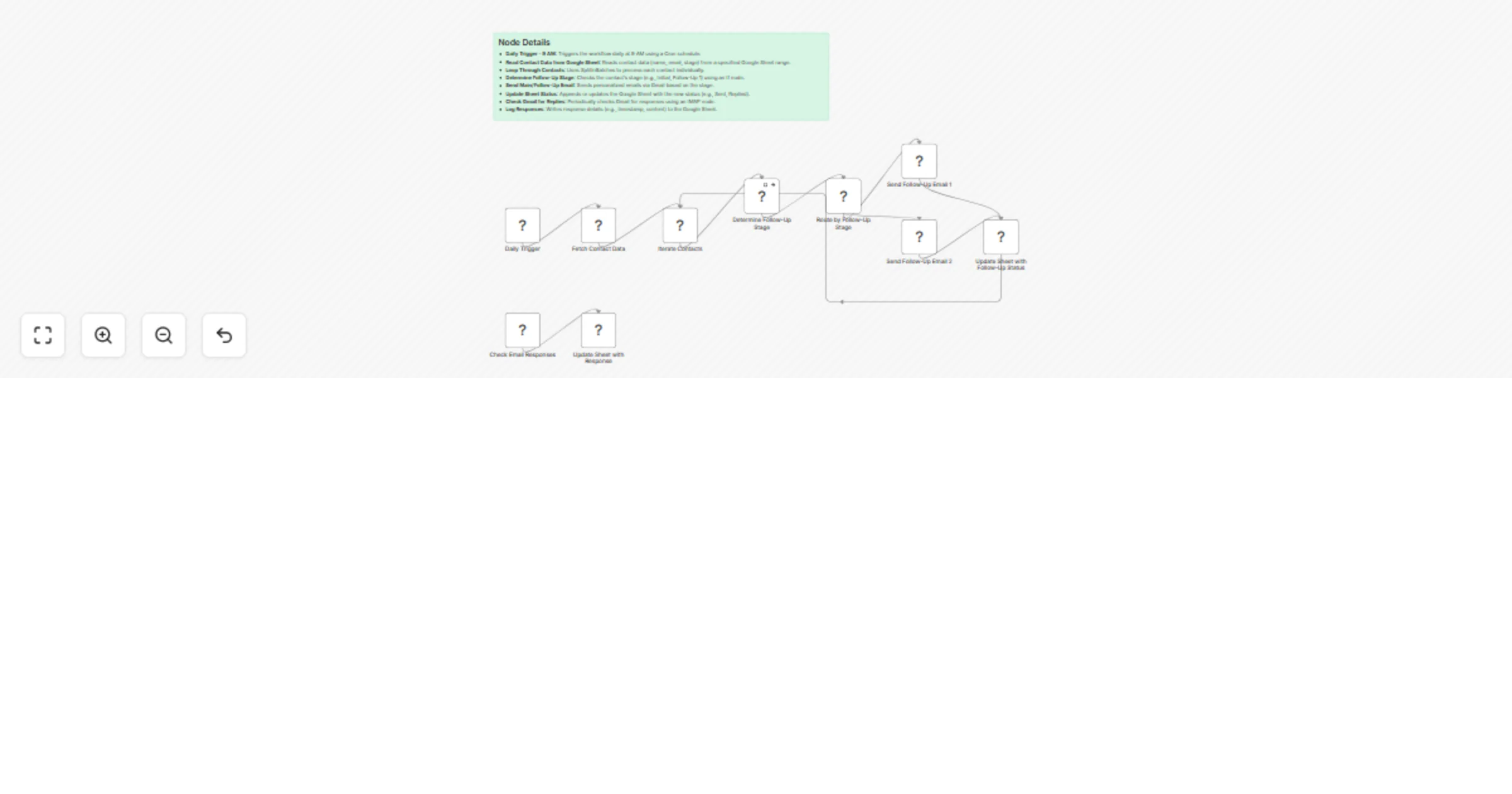
This n8n workflow automates email blasts with follow-ups and response tracking by reading contact data from a Google Sheet daily, looping through contacts to send personalized emails based on follow-up stages via Gmail, updating the sheet with status changes, and monitoring replies for logging.

Why Use It

This workflow streamlines email marketing campaigns by automating personalized email distribution, managing follow-up sequences, and tracking responses without manual intervention, saving time, improving engagement, and providing actionable insights into contact interactions.

How to Import It

  1. Download the Workflow JSON: Obtain the workflow file from the n8n template or create it based on this document.
  2. Import into n8n: In your n8n instance, go to "Workflows," click the three dots, select "Import from File," and upload the JSON.
  3. Configure Credentials: Set up Gmail and Google Sheets credentials in n8n.
  4. Run the Workflow: Activate the scheduled trigger and test with a sample Google Sheet.

System Architecture

  • Email Blast Pipeline:
    • Daily Trigger - 9 AM: Initiates the workflow daily at 9 AM via Cron.
    • Read Contact Data from Google Sheet: Fetches contact details from the sheet.
    • Loop Through Contacts: Processes each contact individually.
    • Determine Follow-Up Stage: Identifies the current stage for each contact.
    • Send Main/Follow-Up Email: Delivers the appropriate email via Gmail.
    • Update Sheet Status: Updates the Google Sheet with the latest status.
  • Response Tracking Flow:
    • Check Gmail for Replies: Monitors Gmail for email responses.
    • Log Responses: Records responses in the Google Sheet.

Google Sheet File Structure

  • Sheet Name: EmailCampaign
  • Range: A1:F10 (or adjust based on needs)
A B C D E F
name email stage last_email_date status response
John Doe [email protected] Initial 2025-08-07 Pending
Jane Smith [email protected] Follow-Up 1 2025-08-06 Sent "Interested"
Bob Jones [email protected] Follow-Up 2 2025-08-05 Replied "Follow up later"
  • Columns:
    • name: Contact’s full name.
    • email: Contact’s email address for sending emails.
    • stage: Current follow-up stage (e.g., Initial, Follow-Up 1, Follow-Up 2).
    • last_email_date: Date of the last email sent.
    • status: Current status (e.g., Pending, Sent, Replied).
    • response: Logged response from the contact (updated after reply detection).

Customization Ideas

  • Adjust Schedule: Change the Cron trigger to hourly or weekly based on campaign needs.
  • Add Email Templates: Customize email content for different stages or audiences.
  • Incorporate SMS: Add WhatsApp or SMS follow-ups using additional nodes.
  • Enhance Tracking: Integrate a dashboard (e.g., Google Data Studio) for real-time campaign analytics.
  • Automate Segmentation: Add logic to segment contacts by industry or interest for targeted emails.

Requirements to Run This Workflow

  • Google Sheets Account: For storing and managing contact data and responses.
  • Gmail Account: For sending emails and checking replies (requires IMAP enabled).
  • n8n Instance: With Google Sheets and Gmail connectors configured.
  • Cron Service: For scheduling the daily trigger.
  • Internet Connection: To access Google Sheets and Gmail APIs.
  • API Credentials: Gmail OAuth2 and Google Sheets API credentials set up in n8n.

Notes

  • Ensure the Google Sheet is shared with the n8n service account or has appropriate permissions.
  • Test the workflow with a small contact list to verify email delivery and response logging.
  • Adjust the stage logic in the "Determine Follow-Up Stage" node to match your campaign structure.

1.2 Logical Blocks

This catalog entry is organized from the workflow JSON. The node-level section below shows the executable blocks available for review before importing the template.

2. Block-by-Block Analysis

Block 1 - Daily Trigger

Type / Role
n8n-nodes-base.scheduleTrigger - scheduleTrigger
Config choices
Version 1.2

Block 2 - Fetch Contact Data

Type / Role
n8n-nodes-base.googleSheets - googleSheets
Config choices
Version 4.6

Block 3 - Iterate Contacts

Type / Role
n8n-nodes-base.splitInBatches - splitInBatches
Config choices
Version 3

Block 4 - Determine Follow-Up Stage

Type / Role
n8n-nodes-base.if - if
Config choices
Version 2.2

Block 5 - Route by Follow-Up Stage

Type / Role
n8n-nodes-base.switch - switch
Config choices
Version 3.2

Block 6 - Send Follow-Up Email 1

Type / Role
n8n-nodes-base.gmail - gmail
Config choices
Version 2.1

Block 7 - Send Follow-Up Email 2

Type / Role
n8n-nodes-base.gmail - gmail
Config choices
Version 2.1

Block 8 - Update Sheet with Follow-Up Status

Type / Role
n8n-nodes-base.googleSheets - googleSheets
Config choices
Version 4.6

Block 9 - Check Email Responses

Type / Role
n8n-nodes-base.emailReadImap - emailReadImap
Config choices
Version 2

Block 10 - Update Sheet with Response

Type / Role
n8n-nodes-base.googleSheets - googleSheets
Config choices
Version 4.6

Block 11 - Sticky Note

Type / Role
n8n-nodes-base.stickyNote - stickyNote
Config choices
Version 1

3. Summary Table

Workflow Automated email blast with follow-ups & response tracking
Complexity intermediate
Nodes 11
Categories Social Media, Multimodal AI
Author Oneclick AI Squad
Published 08 Aug 2025

4. Reproducing the Workflow from Scratch

  1. 1. Download the workflow JSON

    Use the JSON export at /data/workflows/7175/7175.json as the source template for this automation.

  2. 2. Import the template into n8n

    Open n8n, import the downloaded JSON, and review each node before activating the workflow.

  3. 3. Configure credentials and variables

    Replace placeholder credentials, API keys, webhook URLs, account IDs, and environment-specific values with your own settings.

  4. 4. Test with sample data

    Run the workflow manually or in a staging workspace, inspect node output, and confirm downstream systems receive the expected data.

  5. 5. Activate and monitor

    Enable the workflow only after testing, then monitor executions, errors, and rate limits during the first production runs.

5. General Notes & Resources

Review imported nodes carefully before activation. This catalog entry is intended to help you inspect the workflow structure, understand required services, and find related templates faster.

Node names, credentials, schedules, webhook paths, and external service limits may need adjustment for your workspace.

Frequently asked questions

What does Automated email blast with follow-ups & response tracking do?

This n8n workflow automates email blasts with follow ups and response tracking by reading contact data from a Google Sheet daily, looping through contacts to send personalized emails based on follo...

What do I need before importing this workflow?

Review the workflow JSON, configure any required credentials in n8n, and test the automation in a safe workspace before using it in production.

Can I customize this workflow?

Yes. Use the block-by-block analysis and the downloadable JSON to inspect each node, then adjust credentials, prompts, schedules, filters, or destinations for your Social Media, Multimodal AI use case.