Automated APK security scanning & PDF reporting with MobSF, AI & Google Drive

Workflow preview

Workflow preview
100%
Automated APK security scanning & PDF reporting with MobSF, AI & Google Drive preview
Open on n8n.io

Important notice

This workflow is provided as-is. Please review and test before using in production.

1. Workflow Overview

APK Security Scanner & PDF Report Generator This workflow automatically analyzes any newly uploaded APK file and produces a clean, professional PDF security report. When an APK appears in Google Dr...

Best for

  • SecOps automation workflows
  • Multimodal AI automation workflows
  • advanced n8n builders looking for reusable templates

Tools used

n8n-nodes-base.googledrivetrigger, n8n-nodes-base.googledrive, n8n-nodes-base.httprequest, n8n-nodes-base.code, @n8n/n8n-nodes-langchain.openai, n8n-nodes-base.stickynote

Source and attribution

This workflow is cataloged by N8N Workflows and links back to its original n8n.io source page by WeblineIndia.

Original n8n.io source

1.1 Workflow description

Title
Automated APK security scanning & PDF reporting with MobSF, AI & Google Drive
Workflow name
Automated APK security scanning & PDF reporting with MobSF, AI & Google Drive

APK Security Scanner & PDF Report Generator

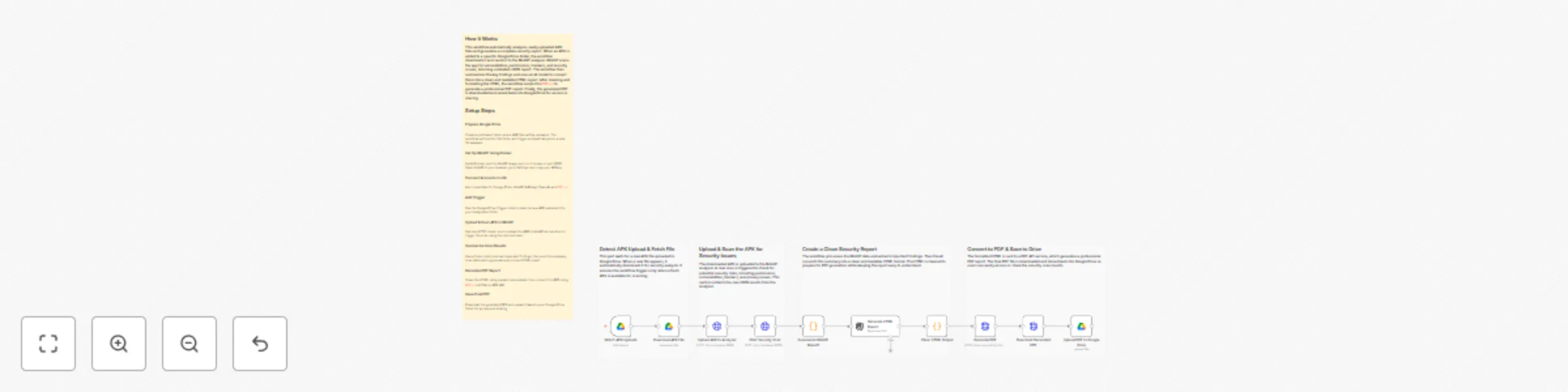
This workflow automatically analyzes any newly uploaded APK file and produces a clean, professional PDF security report. When an APK appears in Google Drive, the workflow downloads it, sends it to MobSF for security scanning, summarizes the results, generates an HTML report using AI, converts it into a PDF via PDF.co and finally saves the PDF back to Google Drive.

Quick Start: Fastest Way to Use This Workflow

  1. Set up a Google Drive folder for uploading APKs.
  2. Install MobSF using Docker and copy your API key.
  3. Add credentials for Google Drive, MobSF, OpenAI and PDF.co in n8n.
  4. Import the workflow JSON.
  5. Update node credentials.
  6. Upload an APK to the watched folder and let the automation run.

What It Does

This workflow provides a complete automated pipeline for analyzing Android APK files. It removes the manual process of scanning apps, extracting security insights, formatting reports and distributing results. Each step is designed to streamline application security checks for development teams, QA engineers and product managers.

Once the workflow detects a new APK in Google Drive, it passes the file to MobSF for a detailed static analysis. The workflow extracts the results, transforms them into a clear and well-structured HTML report using AI and then converts the report into a PDF. This ensures the end-user receives a polished audit-ready security document with zero manual involvement.

Who’s It For

This workflow is ideal for:

  • Mobile development teams performing security checks on apps.
  • QA and testing teams validating APK builds before release.
  • DevSecOps engineers needing automated, repeatable security audits.
  • Software companies generating compliance and audit documentation.
  • Agencies reviewing client apps for vulnerabilities.

Requirements to Use This Workflow

  • An n8n instance (self-hosted or cloud)
  • A Google Drive account with a folder for APK uploads
  • Docker installed to run MobSF locally
  • MobSF API key
  • OpenAI API key
  • PDF.co API key
  • Basic understanding of n8n nodes and credentials setup

How It Works & Setup Instructions

Step 1 — Prepare Google Drive

Create a folder specifically for APK uploads. Configure the Watch APK Uploads (Google Drive) node to monitor this folder for new files.

Step 2 — Install and Run MobSF Using Docker

Install Docker and run:

docker run -it --rm -p 8000:8000 \
  -v $(pwd)/mobsf:/home/mobsf/.MobSF \
  opensecurity/mobile-security-framework-mobsf

Open MobSF at http://localhost:8000 and copy your API key.

Step 3 — Add Credentials in n8n

Add credentials for:

  • Google Drive
  • MobSF (API key in headers)
  • OpenAI
  • PDF.co

Step 4 — Configure Malware Scanning

  • Upload APK to Analyzer (MobSF Upload API) sends the file.
  • Start Security Scan (MobSF Scan API) triggers the vulnerability scan.

Step 5 — Summarize & Generate HTML Report

  • Summarize MobSF Report (JS Code) extracts key vulnerabilities.
  • Generate HTML Report (GPT Model) formats them in a structured report.
  • Clean HTML Output (JS Code) removes escaped characters.

Step 6 — Convert HTML to PDF

Use Generate PDF (PDF.co API) to convert the HTML to PDF.

Step 7 — Save Final Report

Download using Download Generated PDF, then upload via Upload PDF to Google Drive.

How To Customize Nodes

  • Google Drive Trigger: Change the folder ID to watch a different upload directory.
  • MobSF API Nodes: Update URLs if MobSF runs on another port or server.
  • AI Report Generator: Modify prompt instructions to change the writing style or report template.
  • PDF Generation: Edit margins, page size, or output filename in the PDF.co node.
  • Save Location: Change Google Drive folder where the final PDF is stored.

Add-Ons

You can extend this workflow with:

  • Slack or Email Notifications when a report is ready
  • Automatic naming conventions (e.g., report-{{date}}-{{app_name}}.pdf)
  • Saving reports into Airtable or Notion
  • Multi-file batch scanning
  • VirusTotal scan integration before generating the PDF

Use Case Examples

  • Automated security scanning for every new build generated by CI/CD.
  • Pre-release vulnerability checks for client-delivered APKs.
  • Compliance documentation generation for internal security audits.
  • Bulk scanning of legacy APKs for modernization projects.
  • Creating professional PDF security reports for customers.

(Many more use cases can be built using the same workflow foundation.)

Troubleshooting Guide

Issue Possible Cause Solution
MobSF API call fails Wrong API key or URL Check MobSF is running and API key is correct.
PDF not generated Invalid HTML or PDF.co key Validate HTML output and verify PDF.co credentials.
Workflow not triggering Wrong Google Drive folder Reconfigure Drive Trigger node with the correct folder ID.
APK upload fails File not in binary mode Ensure HTTP Upload node is using “Binary Data” correctly.
Scan returns empty data MobSF not fully started Wait for full MobSF startup logs before scanning.

Need Help?

If you need assistance setting up this workflow, customizing it or adding advanced features such as Slack alerts, CI/CD integration or bulk scanning, our n8n workflow development team at WeblineIndia can help.

We specialize in building secure, scalable, automation-driven workflows on n8n for businesses of all sizes.

Contact us anytime for support or to build custom workflow automation solutions.

1.2 Logical Blocks

This catalog entry is organized from the workflow JSON. The node-level section below shows the executable blocks available for review before importing the template.

2. Block-by-Block Analysis

Block 1 - Watch APK Uploads

Type / Role
n8n-nodes-base.googleDriveTrigger - googleDriveTrigger
Config choices
Version 1

Block 2 - Download APK File

Type / Role
n8n-nodes-base.googleDrive - googleDrive
Config choices
Version 3

Block 3 - Upload APK to Analyzer

Type / Role
n8n-nodes-base.httpRequest - httpRequest
Config choices
Version 4.3

Block 4 - Summarize MobSF Report1

Type / Role
n8n-nodes-base.code - code
Config choices
Version 2

Block 5 - Generate HTML Report

Type / Role
@n8n/n8n-nodes-langchain.openAi - openAi
Config choices
Version 2

Block 6 - Clean HTML Output

Type / Role
n8n-nodes-base.code - code
Config choices
Version 2

Block 7 - Generate PDF

Type / Role
n8n-nodes-base.httpRequest - httpRequest
Config choices
Version 4.3

Block 8 - Download Generated PDF

Type / Role
n8n-nodes-base.httpRequest - httpRequest
Config choices
Version 4.3

Block 9 - Upload PDF to Google Drive

Type / Role
n8n-nodes-base.googleDrive - googleDrive
Config choices
Version 3

Block 10 - Sticky Note

Type / Role
n8n-nodes-base.stickyNote - stickyNote
Config choices
Version 1

Block 11 - Sticky Note1

Type / Role
n8n-nodes-base.stickyNote - stickyNote
Config choices
Version 1

Block 12 - Sticky Note2

Type / Role
n8n-nodes-base.stickyNote - stickyNote
Config choices
Version 1

Block 13 - Sticky Note3

Type / Role
n8n-nodes-base.stickyNote - stickyNote
Config choices
Version 1

Block 14 - Sticky Note4

Type / Role
n8n-nodes-base.stickyNote - stickyNote
Config choices
Version 1

Block 15 - Start Security Scan

Type / Role
n8n-nodes-base.httpRequest - httpRequest
Config choices
Version 4.3

3. Summary Table

Workflow Automated APK security scanning & PDF reporting with MobSF, AI & Google Drive
Complexity advanced
Nodes 15
Categories SecOps, Multimodal AI
Author WeblineIndia
Published 22 Dec 2025

4. Reproducing the Workflow from Scratch

  1. 1. Download the workflow JSON

    Use the JSON export at /data/workflows/12024/12024.json as the source template for this automation.

  2. 2. Import the template into n8n

    Open n8n, import the downloaded JSON, and review each node before activating the workflow.

  3. 3. Configure credentials and variables

    Replace placeholder credentials, API keys, webhook URLs, account IDs, and environment-specific values with your own settings.

  4. 4. Test with sample data

    Run the workflow manually or in a staging workspace, inspect node output, and confirm downstream systems receive the expected data.

  5. 5. Activate and monitor

    Enable the workflow only after testing, then monitor executions, errors, and rate limits during the first production runs.

5. General Notes & Resources

Review imported nodes carefully before activation. This catalog entry is intended to help you inspect the workflow structure, understand required services, and find related templates faster.

Node names, credentials, schedules, webhook paths, and external service limits may need adjustment for your workspace.

Frequently asked questions

What does Automated APK security scanning & PDF reporting with MobSF, AI & Google Drive do?

APK Security Scanner & PDF Report Generator This workflow automatically analyzes any newly uploaded APK file and produces a clean, professional PDF security report. When an APK appears in Google Dr...

What do I need before importing this workflow?

Review the workflow JSON, configure any required credentials in n8n, and test the automation in a safe workspace before using it in production.

Can I customize this workflow?

Yes. Use the block-by-block analysis and the downloadable JSON to inspect each node, then adjust credentials, prompts, schedules, filters, or destinations for your SecOps, Multimodal AI use case.