Automated AI content creation & Instagram publishing from Google Sheets

Workflow preview

Workflow preview
100%
Automated AI content creation & Instagram publishing from Google Sheets preview
Open on n8n.io

Important notice

This workflow is provided as-is. Please review and test before using in production.

1. Workflow Overview

Automated AI Content Creation & Instagram Publishing from Google Sheets This n8n workflow automates the creation and publishing of social media content directly to Instagram, using ideas stored in ...

Best for

  • Social Media automation workflows
  • Multimodal AI automation workflows
  • advanced n8n builders looking for reusable templates

Tools used

n8n-nodes-base.scheduletrigger, n8n-nodes-base.googlesheets, n8n-nodes-base.set, @n8n/n8n-nodes-langchain.chainllm, @n8n/n8n-nodes-langchain.lmchatgooglegemini, @n8n/n8n-nodes-langchain.outputparserstructured, n8n-nodes-base.httprequest, n8n-nodes-base.facebookgraphapi

Source and attribution

This workflow is cataloged by N8N Workflows and links back to its original n8n.io source page by Onur.

Original n8n.io source

1.1 Workflow description

Title
Automated AI content creation & Instagram publishing from Google Sheets
Workflow name
Automated AI content creation & Instagram publishing from Google Sheets

Automated AI Content Creation & Instagram Publishing from Google Sheets

This n8n workflow automates the creation and publishing of social media content directly to Instagram, using ideas stored in a Google Sheet. It leverages AI (Google Gemini and Replicate Flux) to generate concepts, image prompts, captions, and the final image, turning your content plan into reality with minimal manual intervention.

Think of this as the execution engine for your content strategy. It assumes you have a separate process (whether manual entry, another workflow, or a different tool) for populating the Google Sheet with initial post ideas (including Topic, Audience, Voice, and Platform). This workflow takes those ideas and handles the rest, from AI generation to final publication.

What does this workflow do?

This workflow streamlines the content execution process by:

  • Automatically fetching unprocessed content ideas from a designated Google Sheet based on a schedule.
  • Using Google Gemini to generate a platform-specific content concept (specifically for a 'Single Image' format).
  • Generating two distinct AI image prompt options based on the concept using Gemini.
  • Writing an engaging, platform-tailored caption (including hashtags) using Gemini, based on the first prompt option.
  • Generating a visual image using the first prompt option via the Replicate API (using the Flux model).
  • Publishing the generated image and caption directly to a connected Instagram Business account.
  • Updating the status in the Google Sheet to mark the idea as completed, preventing reprocessing.

Who is this for?

  • Social Media Managers & Agencies: Automate the execution of your content calendar stored in Google Sheets.
  • Marketing Teams: Streamline content production from planned ideas and ensure consistent posting schedules.
  • Content Creators & Solopreneurs: Save significant time by automating the generation and publishing process based on your pre-defined ideas.
  • Anyone using Google Sheets to plan social media content and wanting to automate the creative generation and posting steps with AI.

Benefits

  • Full Automation: From fetching planned ideas to Instagram publishing, automate the entire content execution pipeline.
  • AI-Powered Generation: Leverage Google Gemini for creative concepts, prompts, and captions, and Replicate for image generation based on your initial topic.
  • Content Calendar Execution: Directly turn your Google Sheet plan into published posts.
  • Time Savings: Drastically reduce the manual effort involved in creating visuals and text for each planned post.
  • Consistency: Maintain a regular posting schedule by automatically processing your queue of ideas.
  • Platform-Specific Content: AI prompts are designed to tailor concepts, prompts, and captions for the platform specified in your sheet (e.g., Instagram or LinkedIn).

How it Works

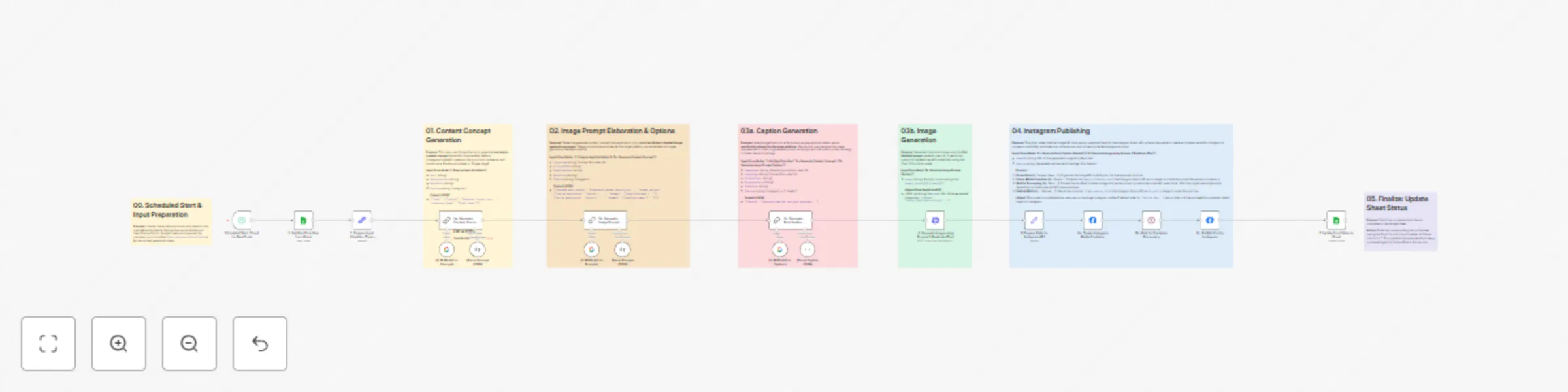
  1. Scheduled Trigger: The workflow starts automatically based on the schedule you set (e.g., every hour, daily).
  2. Fetch Idea: Reads the next row from your Google Sheet where the 'Status' column indicates it's pending (e.g., '0'). It only fetches one idea per run.
  3. Prepare Inputs: Extracts Topic, Audience, Voice, and Platform from the sheet data.
  4. AI Concept Generation (Gemini): Creates a single content concept suitable for a 'Single Image' post on the target platform.
  5. AI Prompt Generation (Gemini): Develops two detailed, distinct image prompt options based on the concept.
  6. AI Caption Generation (Gemini): Writes a caption tailored to the platform, using the first image prompt and other context.
  7. Image Generation (Replicate): Sends the first prompt to the Replicate API (Flux model) to generate the image.
  8. Prepare for Instagram: Formats the generated image URL and caption.
  9. Publish to Instagram: Uses the Facebook Graph API in three steps:
    • Creates a media container by uploading the image URL and caption.
    • Waits for Instagram to process the container.
    • Publishes the processed container to your feed.
  10. Update Sheet: Changes the 'Status' in the Google Sheet for the processed row (e.g., to '1') to mark it as complete.

n8n Nodes Used

  • Schedule Trigger
  • Google Sheets (Read & Update operations)
  • Set (Multiple instances for data preparation)
  • Langchain Chain - LLM (Multiple instances for Gemini calls)
  • Langchain Chat Model - Google Gemini (Multiple instances)
  • Langchain Output Parser - Structured (Multiple instances)
  • HTTP Request (for Replicate API call)
  • Wait
  • Facebook Graph API (Multiple instances for Instagram publishing steps)

Prerequisites

  • Active n8n instance (Cloud or Self-Hosted).
  • Google Account with access to Google Sheets.
  • Google Sheets API Credentials (OAuth2): Configured in n8n.
  • A Google Sheet structured with columns like Topic, Audience, Voice, Platform, Status (or similar). Ensure your 'pending' and 'completed' statuses are defined (e.g., '0' and '1').
  • Google Cloud Project with the Vertex AI API enabled.
  • Google Gemini API Credentials: Configured in n8n (usually via Google Vertex AI credentials).
  • Replicate Account and API Token.
  • Replicate API Credentials (Header Auth): Configured in n8n.
  • Facebook Developer Account.
  • Instagram Business Account connected to a Facebook Page.
  • Facebook App with necessary permissions: instagram_basic, instagram_content_publish, pages_read_engagement, pages_show_list.
  • Facebook Graph API Credentials (OAuth2): Configured in n8n with the required permissions.

Setup

  1. Import the workflow JSON into your n8n instance.
  2. Configure Schedule Trigger: Set the desired frequency (e.g., every 30 minutes, every 4 hours) for checking new ideas in the sheet.
  3. Configure Google Sheets Nodes:
    • Select your Google Sheets OAuth2 credentials for both Google Sheets nodes.
    • In 1. Get Next Post Idea..., enter your Spreadsheet ID and Sheet Name. Verify the Status filter matches your 'pending' value (e.g., 0).
    • In 7. Update Post Status..., enter the same Spreadsheet ID and Sheet Name. Ensure the Matching Columns (e.g., Topic) and the Status value to update match your 'completed' value (e.g., 1).
  4. Configure Google Gemini Nodes: Select your configured Google Vertex AI / Gemini credentials in all Google Gemini Chat Model nodes.
  5. Configure Replicate Node (4. Generate Image...): Select your Replicate Header Auth credentials. The workflow uses black-forest-labs/flux-1.1-pro-ultra by default; you can change this if needed.
  6. Configure Facebook Graph API Nodes (6a, 6c):
    • Select your Facebook Graph API OAuth2 credentials.
    • Crucially, update the Instagram Account ID in the Node parameter of both Facebook Graph API nodes (6a and 6c). The template uses a placeholder (17841473009917118); replace this with your actual Instagram Business Account ID.
  7. Adjust Wait Node (6b): The default wait time might be sufficient, but if you encounter errors during publishing (especially with larger images/videos in the future), you might need to increase the wait duration.
  8. Activate the workflow.
  9. Populate your Google Sheet: Ensure you have rows with your content ideas and the correct 'pending' status (e.g., '0'). The workflow will pick them up on its next scheduled run.

This workflow transforms your Google Sheet content plan into a fully automated AI-powered Instagram publishing engine. Start automating your social media presence today!

1.2 Logical Blocks

This catalog entry is organized from the workflow JSON. The node-level section below shows the executable blocks available for review before importing the template.

2. Block-by-Block Analysis

Block 1 - Scheduled Start: Check for New Posts

Type / Role
n8n-nodes-base.scheduleTrigger - scheduleTrigger
Config choices
Version 1.2

Block 2 - 1. Get Next Post Idea from Sheet

Type / Role
n8n-nodes-base.googleSheets - googleSheets
Config choices
Version 4.5

Block 3 - 2. Prepare Input Variables (Topic, Audience, etc.)

Type / Role
n8n-nodes-base.set - set
Config choices
Version 3.4

Block 4 - 3a. Generate Content Concept (Gemini)

Type / Role
@n8n/n8n-nodes-langchain.chainLlm - chainLlm
Config choices
Version 1.5

Block 5 - (LLM Model for Concept)

Type / Role
@n8n/n8n-nodes-langchain.lmChatGoogleGemini - lmChatGoogleGemini
Config choices
Version 1

Block 6 - (Parse Concept JSON)

Type / Role
@n8n/n8n-nodes-langchain.outputParserStructured - outputParserStructured
Config choices
Version 1.2

Block 7 - 3b. Generate Image Prompt Options (Gemini)

Type / Role
@n8n/n8n-nodes-langchain.chainLlm - chainLlm
Config choices
Version 1.5

Block 8 - (LLM Model for Prompts)

Type / Role
@n8n/n8n-nodes-langchain.lmChatGoogleGemini - lmChatGoogleGemini
Config choices
Version 1

Block 9 - (Parse Prompts JSON)

Type / Role
@n8n/n8n-nodes-langchain.outputParserStructured - outputParserStructured
Config choices
Version 1.2

Block 10 - 3c. Generate Post Caption (Gemini)

Type / Role
@n8n/n8n-nodes-langchain.chainLlm - chainLlm
Config choices
Version 1.5

Block 11 - (LLM Model for Caption)

Type / Role
@n8n/n8n-nodes-langchain.lmChatGoogleGemini - lmChatGoogleGemini
Config choices
Version 1

Block 12 - (Parse Caption JSON)

Type / Role
@n8n/n8n-nodes-langchain.outputParserStructured - outputParserStructured
Config choices
Version 1.2

Block 13 - 4. Generate Image using Prompt 1 (Replicate Flux)

Type / Role
n8n-nodes-base.httpRequest - httpRequest
Config choices
Version 4.2

Block 14 - 5. Prepare Data for Instagram API

Type / Role
n8n-nodes-base.set - set
Config choices
Version 3.4

Block 15 - 6a. Create Instagram Media Container

Type / Role
n8n-nodes-base.facebookGraphApi - facebookGraphApi
Config choices
Version 1

Block 16 - 6b. Wait for Container Processing

Type / Role
n8n-nodes-base.wait - wait
Config choices
Version 1.1

Block 17 - 6c. Publish Post to Instagram

Type / Role
n8n-nodes-base.facebookGraphApi - facebookGraphApi
Config choices
Version 1

Block 18 - 7. Update Post Status in Sheet

Type / Role
n8n-nodes-base.googleSheets - googleSheets
Config choices
Version 4.5

Block 19 - Sticky Note

Type / Role
n8n-nodes-base.stickyNote - stickyNote
Config choices
Version 1

Block 20 - Sticky Note1

Type / Role
n8n-nodes-base.stickyNote - stickyNote
Config choices
Version 1

Block 21 - Sticky Note2

Type / Role
n8n-nodes-base.stickyNote - stickyNote
Config choices
Version 1

Block 22 - Sticky Note3

Type / Role
n8n-nodes-base.stickyNote - stickyNote
Config choices
Version 1

Block 23 - Sticky Note4

Type / Role
n8n-nodes-base.stickyNote - stickyNote
Config choices
Version 1

Block 24 - Sticky Note5

Type / Role
n8n-nodes-base.stickyNote - stickyNote
Config choices
Version 1

Showing the first 24 of 26 workflow blocks. Download the JSON for the full node graph.

3. Summary Table

Workflow Automated AI content creation & Instagram publishing from Google Sheets
Complexity advanced
Nodes 26
Categories Social Media, Multimodal AI
Author Onur
Published 03 May 2025

4. Reproducing the Workflow from Scratch

  1. 1. Download the workflow JSON

    Use the JSON export at /data/workflows/3840/3840.json as the source template for this automation.

  2. 2. Import the template into n8n

    Open n8n, import the downloaded JSON, and review each node before activating the workflow.

  3. 3. Configure credentials and variables

    Replace placeholder credentials, API keys, webhook URLs, account IDs, and environment-specific values with your own settings.

  4. 4. Test with sample data

    Run the workflow manually or in a staging workspace, inspect node output, and confirm downstream systems receive the expected data.

  5. 5. Activate and monitor

    Enable the workflow only after testing, then monitor executions, errors, and rate limits during the first production runs.

5. General Notes & Resources

Review imported nodes carefully before activation. This catalog entry is intended to help you inspect the workflow structure, understand required services, and find related templates faster.

Node names, credentials, schedules, webhook paths, and external service limits may need adjustment for your workspace.

Frequently asked questions

What does Automated AI content creation & Instagram publishing from Google Sheets do?

Automated AI Content Creation & Instagram Publishing from Google Sheets This n8n workflow automates the creation and publishing of social media content directly to Instagram, using ideas stored in ...

What do I need before importing this workflow?

Review the workflow JSON, configure any required credentials in n8n, and test the automation in a safe workspace before using it in production.

Can I customize this workflow?

Yes. Use the block-by-block analysis and the downloadable JSON to inspect each node, then adjust credentials, prompts, schedules, filters, or destinations for your Social Media, Multimodal AI use case.