Block 1 - Cart Created
- Type / Role
- n8n-nodes-base.shopifyTrigger - shopifyTrigger
- Config choices
- Version 1


 Early Deal
This workflow is provided as-is. Please review and test before using in production.
This n8n template automatically sends personalized recovery emails to customers who abandon their shopping carts. Recover 15 25% of lost sales with intelligent, well timed follow up emails that inc...
n8n-nodes-base.shopifytrigger, n8n-nodes-base.wait, n8n-nodes-base.shopify, n8n-nodes-base.if, n8n-nodes-base.set, n8n-nodes-base.emailsend, n8n-nodes-base.stickynote
This workflow is cataloged by N8N Workflows and links back to its original n8n.io source page by David Olusola.
Original n8n.io sourceThis n8n template automatically sends personalized recovery emails to customers who abandon their shopping carts. Recover 15-25% of lost sales with intelligent, well-timed follow-up emails that include exact cart contents. Use cases: Online stores, e-commerce brands, subscription services, digital product sales, any business with cart abandonment.
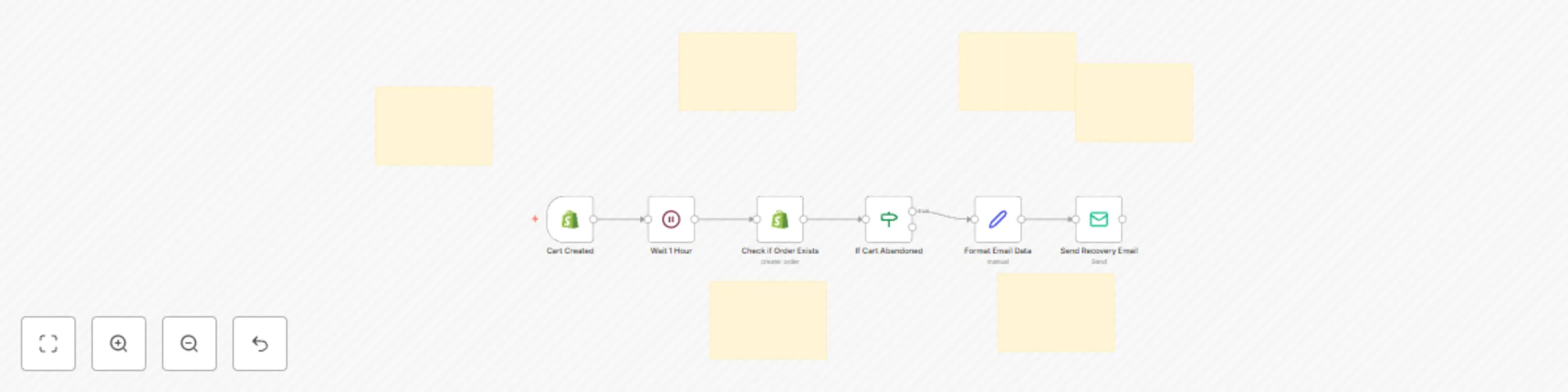
Shopify webhook triggers when customer creates cart and begins checkout process. The workflow waits one hour then checks if cart was converted to completed order. If cart remains abandoned, it extracts customer email and cart details. A personalized email is generated with cart contents and direct checkout link. Customer receives gentle reminder and can complete purchase with one click.
The cart creation webhook is used but you can adjust the wait time or add multiple follow-up sequences Configure your email service provider in the Send Email node Customize email template and messaging to match your brand tone
Shopify store with cart abandonment tracking Email service provider configured in n8n Customer email collection enabled in checkout process
Create multi-email sequences with different timing (1hr, 24hr, 72hr) Add discount codes for additional purchase incentive Segment messaging by cart value or customer type
This catalog entry is organized from the workflow JSON. The node-level section below shows the executable blocks available for review before importing the template.
| Workflow | Automated abandoned cart recovery emails for Shopify stores |
|---|---|
| Complexity | intermediate |
| Nodes | 12 |
| Categories | Lead Nurturing |
| Author | David Olusola |
| Published | 18 Jul 2025 |
Use the JSON export at /data/workflows/6111/6111.json as the source template for this automation.
Open n8n, import the downloaded JSON, and review each node before activating the workflow.
Replace placeholder credentials, API keys, webhook URLs, account IDs, and environment-specific values with your own settings.
Run the workflow manually or in a staging workspace, inspect node output, and confirm downstream systems receive the expected data.
Enable the workflow only after testing, then monitor executions, errors, and rate limits during the first production runs.
Review imported nodes carefully before activation. This catalog entry is intended to help you inspect the workflow structure, understand required services, and find related templates faster.
Node names, credentials, schedules, webhook paths, and external service limits may need adjustment for your workspace.
This n8n template automatically sends personalized recovery emails to customers who abandon their shopping carts. Recover 15 25% of lost sales with intelligent, well timed follow up emails that inc...
Review the workflow JSON, configure any required credentials in n8n, and test the automation in a safe workspace before using it in production.
Yes. Use the block-by-block analysis and the downloadable JSON to inspect each node, then adjust credentials, prompts, schedules, filters, or destinations for your Lead Nurturing use case.