Automate vulnerability triage from Snyk with Jira, Slack & Airtable integration

Workflow preview

Workflow preview
100%
Automate vulnerability triage from Snyk with Jira, Slack & Airtable integration preview
Open on n8n.io

Important notice

This workflow is provided as-is. Please review and test before using in production.

1. Workflow Overview

Snyk Vulnerability Automation Workflow with Webhook, Jira, Slack & Airtable This workflow receives vulnerability data(e.g., Snyk, Dependabot or any security scanner) from Snyk through a webhook, st...

Best for

  • SecOps automation workflows
  • AI Summarization automation workflows
  • advanced n8n builders looking for reusable templates

Tools used

n8n-nodes-base.webhook, n8n-nodes-base.function, n8n-nodes-base.code, n8n-nodes-base.if, n8n-nodes-base.slack, n8n-nodes-base.jira, n8n-nodes-base.stickynote, n8n-nodes-base.airtable

Source and attribution

This workflow is cataloged by N8N Workflows and links back to its original n8n.io source page by WeblineIndia.

Original n8n.io source

1.1 Workflow description

Title
Automate vulnerability triage from Snyk with Jira, Slack & Airtable integration
Workflow name
Automate vulnerability triage from Snyk with Jira, Slack & Airtable integration

Snyk Vulnerability Automation Workflow with Webhook, Jira, Slack & Airtable

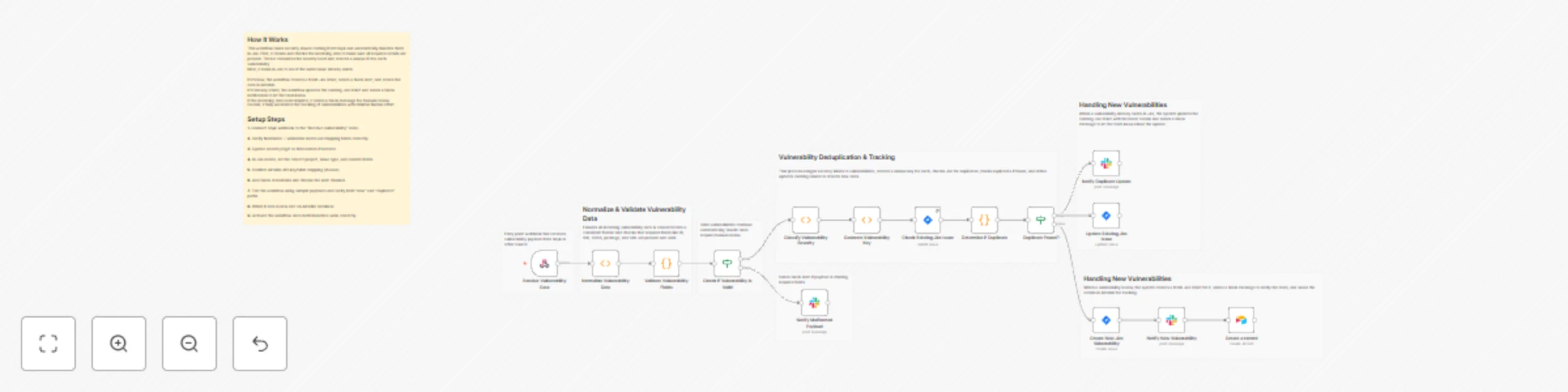
This workflow receives vulnerability data(e.g., Snyk, Dependabot or any security scanner) from Snyk through a webhook, standardizes and validates the payload, checks Jira for duplicates using a unique vulnerability key, and either updates an existing Jira issue or creates a new one. It also sends real-time alerts to Slack and stores every new vulnerability in Airtable for reporting and auditing. The workflow ensures fast triage, prevents duplicate Jira tickets and centralizes all data for easy tracking.

Quick Start – Implementation Steps

  1. Add the n8n Webhook URL to Snyk.
  2. Configure Jira, Slack and Airtable credentials in n8n.
  3. Adjust severity rules or Jira fields if required.
  4. Activate the workflow — vulnerability triage becomes fully automated.

What It Does

This workflow automates how your team processes vulnerabilities reported by Snyk. When a new vulnerability arrives, the system first normalizes the payload into a clean, consistent format. It then validates required fields such as the vulnerability ID, CVSS score, title and URL. If anything is missing, the workflow instantly sends a Slack alert so the team can review.

If the payload is valid, the workflow assigns a severity level and generates a unique “vulnerability key.” This key is used to search Jira for existing issues. If a match is found, the workflow updates the existing Jira ticket and notifies the team. If no match exists, the workflow creates a brand-new Jira issue, sends a Slack alert and also writes the data into Airtable for centralized tracking and analytics.

This ensures accurate documentation, avoids duplicates and gives teams visibility through both Jira and Airtable.

Who’s It For

This workflow is ideal for:

  • DevOps and platform engineering teams
  • Security engineers
  • QA and development teams
  • Companies using Snyk for vulnerability scanning
  • Teams needing automated Jira creation and Airtable reporting

Requirements to Use This Workflow

To fully use this workflow, you need:

  • An n8n instance (cloud or self-hosted)
  • A Snyk webhook configured to send vulnerability notifications
  • A Jira Software Cloud account
  • A Slack workspace with bot permissions
  • An Airtable base and personal access token
  • Basic understanding of JSON fields

How It Works

  1. Receive Vulnerability – Snyk posts data to an n8n webhook.
  2. Normalize Payload – Converts inconsistent Snyk formats into a standard structure.
  3. Validate Required Fields – Missing fields trigger a Slack alert.
  4. Assign Severity – CVSS score is mapped to Low/Medium/High/Critical.
  5. Generate Vulnerability Key – Used for deduplication (e.g., vuln-SNYK-12345).
  6. Check Jira for Matches – Searches by label to detect duplicates.
  7. Duplicate Handling – Updates existing Jira issue and sends Slack notification.
  8. Create New Issue – If no duplicate exists, creates a new Jira ticket.
  9. Store in Airtable – Adds a new vulnerability row for reporting and history.
  10. Slack Alerts – Notifies the team of new or updated vulnerabilities.

Setup Steps

  1. Import the workflow JSON file into n8n.
  2. Configure credentials:
    • Jira
    • Slack
    • Airtable
  3. Add the generated webhook URL inside your Snyk project settings.
  4. Update Jira project ID, issue type, or description fields as needed.
  5. Map Airtable fields (Title, CVSS, Severity, URL, Key, etc.).
  6. Update Slack channel IDs.
  7. Activate the workflow.

How To Customize Nodes

Customize Severity Rules

Modify the node that maps CVSS score ranges:

  • Change thresholds
  • Add custom severity levels
  • Map severity to Jira priority

Customize Jira Fields

Inside the Create or Update Jira Issue nodes, you can modify:

  • Project ID
  • Issue type
  • Labels
  • Description template
  • Assigned user

Customize Slack Messages

Adjust Slack text blocks to:

  • Change formatting
  • Add emojis or styling
  • Mention specific users or teams
  • Send different messages based on severity

Customize Airtable Storage

Update the Airtable node to:

  • Add new columns
  • Save timestamps
  • Link vulnerabilities to other Airtable tables
  • Store more metadata for reporting

Add-Ons (Optional Enhancements)

You can extend this workflow with:

  • Auto-close Jira tickets when Snyk marks vulnerabilities as “fixed”.
  • Severity-based Slack routing (e.g., Critical → #security-alerts).
  • Email notifications for high-risk vulnerabilities.
  • Google Sheets or Notion logging for long-term tracking.
  • Weekly summary report generated using OpenAI.
  • Mapping vulnerabilities to microservices or repositories.
  • Automated dashboards using Airtable Interfaces.

Use Case Examples

  1. Automatic Vulnerability Triage – Instantly logs new Snyk findings into Jira.
  2. Duplicate Prevention – Ensures every vulnerability is tracked only once.
  3. Slack Alerts – Real-time notifications for new or updated issues.
  4. Airtable Reporting – Creates a central, filterable database for analysis.
  5. Security Team Automation – Reduces manual reviews and saves time.

Troubleshooting Guide

Issue Possible Cause Solution
Slack alert not sent Wrong API credentials or channel ID Re-check Slack configuration
Jira issue not created Incorrect project ID / issue type Update Jira node details
Duplicate detection not working Vulnerability key or label mismatch Confirm key generation and JQL settings
Airtable row not added Wrong base or field mapping Reconfigure Airtable node
Webhook not triggered Snyk not pointing to correct URL Re-add the n8n webhook in Snyk
Severity not correct CVSS parsing error Check normalization and mapping node

Need Help?

If you need help setting up this workflow, customizing the logic, integrating new nodes or adding advanced reporting, feel free to reach out to our n8n automation development team at WeblineIndia. We can help automate with advanced security processes, build dashboards, integrate additional tools or expand the workflow as per your business needs.

1.2 Logical Blocks

This catalog entry is organized from the workflow JSON. The node-level section below shows the executable blocks available for review before importing the template.

2. Block-by-Block Analysis

Block 1 - Receive Vulnerability Data

Type / Role
n8n-nodes-base.webhook - webhook
Config choices
Version 1

Block 2 - Normalize Vulnerability Data

Type / Role
n8n-nodes-base.function - function
Config choices
Version 1

Block 3 - Validate Vulnerability Fields

Type / Role
n8n-nodes-base.code - code
Config choices
Version 2

Block 4 - Check if Vulnerability is Valid

Type / Role
n8n-nodes-base.if - if
Config choices
Version 1

Block 5 - Notify Malformed Payload

Type / Role
n8n-nodes-base.slack - slack
Config choices
Version 2.3

Block 6 - Classify Vulnerability Severity

Type / Role
n8n-nodes-base.function - function
Config choices
Version 1

Block 7 - Generate Vulnerability Key

Type / Role
n8n-nodes-base.function - function
Config choices
Version 1

Block 8 - Check Existing Jira Issue

Type / Role
n8n-nodes-base.jira - jira
Config choices
Version 1

Block 9 - Determine if Duplicate

Type / Role
n8n-nodes-base.code - code
Config choices
Version 2

Block 10 - Duplicate Found?

Type / Role
n8n-nodes-base.if - if
Config choices
Version 1

Block 11 - Update Existing Jira Issue

Type / Role
n8n-nodes-base.jira - jira
Config choices
Version 1

Block 12 - Notify Duplicate Update

Type / Role
n8n-nodes-base.slack - slack
Config choices
Version 2.3

Block 13 - Create New Jira Vulnerability

Type / Role
n8n-nodes-base.jira - jira
Config choices
Version 1

Block 14 - Notify New Vulnerability

Type / Role
n8n-nodes-base.slack - slack
Config choices
Version 2.3

Block 15 - Sticky Note

Type / Role
n8n-nodes-base.stickyNote - stickyNote
Config choices
Version 1

Block 16 - Create a record

Type / Role
n8n-nodes-base.airtable - airtable
Config choices
Version 2.1

Block 17 - Sticky Note1

Type / Role
n8n-nodes-base.stickyNote - stickyNote
Config choices
Version 1

Block 18 - Sticky Note2

Type / Role
n8n-nodes-base.stickyNote - stickyNote
Config choices
Version 1

Block 19 - Sticky Note3

Type / Role
n8n-nodes-base.stickyNote - stickyNote
Config choices
Version 1

Block 20 - Sticky Note4

Type / Role
n8n-nodes-base.stickyNote - stickyNote
Config choices
Version 1

Block 21 - Sticky Note5

Type / Role
n8n-nodes-base.stickyNote - stickyNote
Config choices
Version 1

Block 22 - Sticky Note6

Type / Role
n8n-nodes-base.stickyNote - stickyNote
Config choices
Version 1

Block 23 - Sticky Note7

Type / Role
n8n-nodes-base.stickyNote - stickyNote
Config choices
Version 1

3. Summary Table

Workflow Automate vulnerability triage from Snyk with Jira, Slack & Airtable integration
Complexity advanced
Nodes 23
Categories SecOps, AI Summarization
Author WeblineIndia
Published 15 Dec 2025

4. Reproducing the Workflow from Scratch

  1. 1. Download the workflow JSON

    Use the JSON export at /data/workflows/11824/11824.json as the source template for this automation.

  2. 2. Import the template into n8n

    Open n8n, import the downloaded JSON, and review each node before activating the workflow.

  3. 3. Configure credentials and variables

    Replace placeholder credentials, API keys, webhook URLs, account IDs, and environment-specific values with your own settings.

  4. 4. Test with sample data

    Run the workflow manually or in a staging workspace, inspect node output, and confirm downstream systems receive the expected data.

  5. 5. Activate and monitor

    Enable the workflow only after testing, then monitor executions, errors, and rate limits during the first production runs.

5. General Notes & Resources

Review imported nodes carefully before activation. This catalog entry is intended to help you inspect the workflow structure, understand required services, and find related templates faster.

Node names, credentials, schedules, webhook paths, and external service limits may need adjustment for your workspace.

Frequently asked questions

What does Automate vulnerability triage from Snyk with Jira, Slack & Airtable integration do?

Snyk Vulnerability Automation Workflow with Webhook, Jira, Slack & Airtable This workflow receives vulnerability data(e.g., Snyk, Dependabot or any security scanner) from Snyk through a webhook, st...

What do I need before importing this workflow?

Review the workflow JSON, configure any required credentials in n8n, and test the automation in a safe workspace before using it in production.

Can I customize this workflow?

Yes. Use the block-by-block analysis and the downloadable JSON to inspect each node, then adjust credentials, prompts, schedules, filters, or destinations for your SecOps, AI Summarization use case.