Automate restaurant orders with AI dish recommendations using Gemini and Telegram

Workflow preview

Workflow preview
100%
Automate restaurant orders with AI dish recommendations using Gemini and Telegram preview
Open on n8n.io

Important notice

This workflow is provided as-is. Please review and test before using in production.

1. Workflow Overview

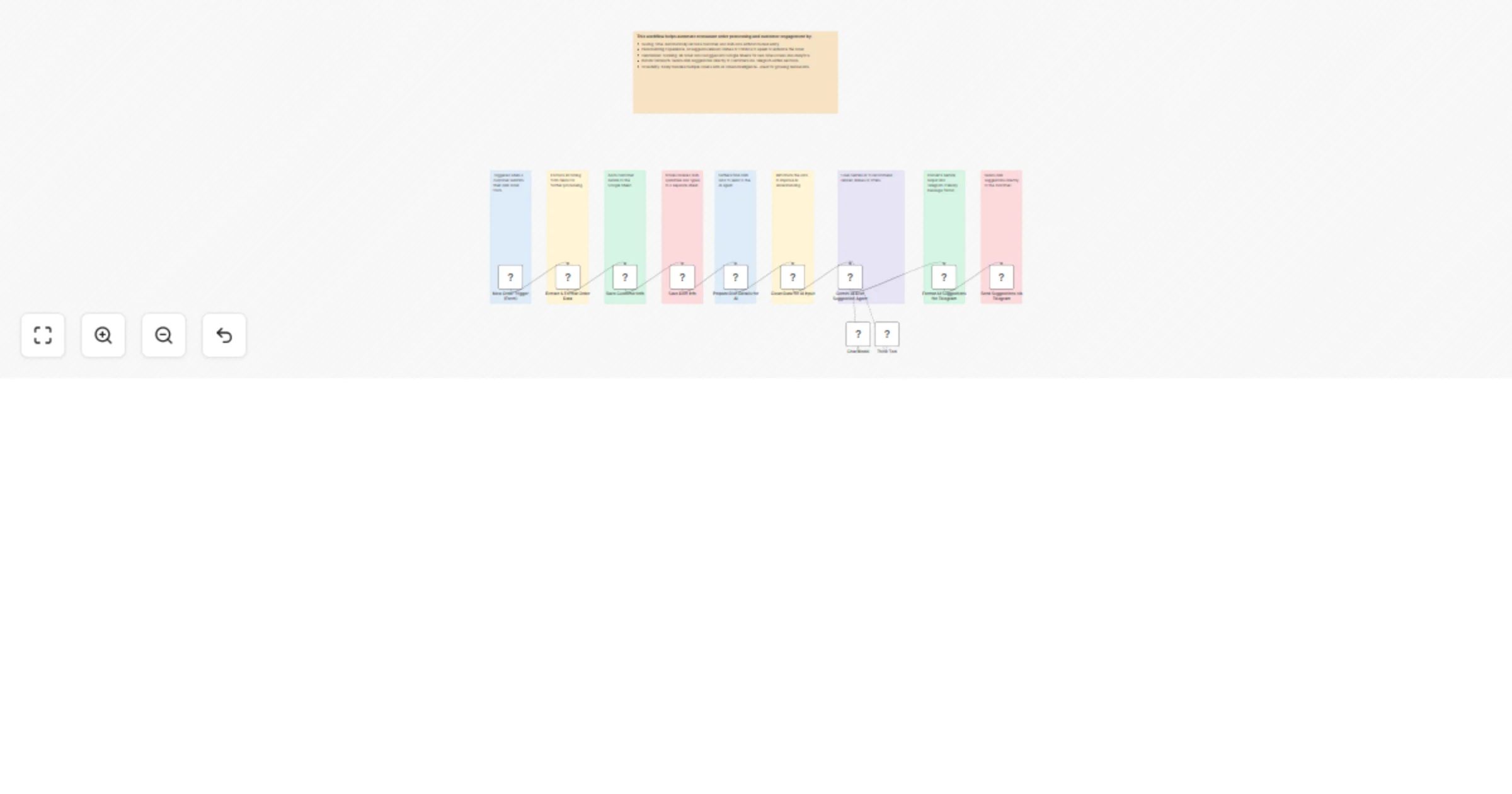
In this guide, we’ll walk you through setting up a smart workflow that triggers on new restaurant orders, extracts and formats customer and dish details from Google Sheets, uses Gemini AI to recomm...

Best for

  • Lead Nurturing automation workflows
  • Multimodal AI automation workflows
  • advanced n8n builders looking for reusable templates

Tools used

n8n-nodes-base.formtrigger, n8n-nodes-base.code, n8n-nodes-base.googlesheets, @n8n/n8n-nodes-langchain.agent, n8n-nodes-base.telegram, @n8n/n8n-nodes-langchain.lmchatgooglegemini, @n8n/n8n-nodes-langchain.toolthink, n8n-nodes-base.stickynote

Source and attribution

This workflow is cataloged by N8N Workflows and links back to its original n8n.io source page by Oneclick AI Squad.

Original n8n.io source

1.1 Workflow description

Title
Automate restaurant orders with AI dish recommendations using Gemini and Telegram
Workflow name
Automate restaurant orders with AI dish recommendations using Gemini and Telegram

In this guide, we’ll walk you through setting up a smart workflow that triggers on new restaurant orders, extracts and formats customer and dish details from Google Sheets, uses Gemini AI to recommend dishes or offers, and sends suggestions via Telegram. Ready to automate your order processing and enhance customer experience? Let’s dive in!

What’s the Goal?

  • Automatically trigger the workflow when a new order is placed.
  • Extract and format customer information and order details from Google Sheets.
  • Use Gemini AI to analyze orders and recommend dishes or offers.
  • Send personalized suggestions to customers via Telegram.
  • Enable real-time order processing and customer engagement.

By the end, you’ll have a smart system that processes orders and suggests items effortlessly.

Why Does It Matter?

Manual order processing and suggestion generation are inefficient and miss opportunities. Here’s why this workflow is a game changer:

  • Real-Time Efficiency: Instantly process orders and suggest items.
  • Personalized Engagement: AI-driven suggestions enhance customer satisfaction.
  • Time-Saving Automation: Reduce manual effort in order management.
  • Improved Sales: Targeted recommendations can boost order value. Think of it as your intelligent assistant for orders and customer delight.

How It Works

Here’s the step-by-step magic behind the automation:

Step 1: New Order Trigger

  • Trigger the workflow when a new order is detected (e.g., via a form submission).

Step 2: Extract & Format Order

  • Extract and format dish ordering details from the customer order details sheet for further processing.

Step 3: Save Customer Info

  • Save customer information (e.g., ID, name, mobile number) from the customer details sheet.

Step 4: Save Dish Info

  • Save dish details (e.g., name, quantity, price) from the customer order details sheet.

Step 5: Prepare Dish Details for AI

  • Prepare the dish details for AI analysis to generate recommendations.

Step 6: Clean Data for Input to Improve AI Understanding

  • Clean and structure the data to enhance AI comprehension.

Step 7: Use Gemini AI to Recommend Dishes or Offers

  • Utilize Gemini AI (via Google Chat Model and Think Tool) to recommend dishes or offers based on order data.

Step 8: Format AI Suggestions

  • Format the AI-generated suggestions into a Telegram-friendly message.

Step 9: Send Suggestions via Telegram

  • Send the formatted suggestions directly to the customer via Telegram.

How to Use the Workflow?

Importing a workflow in n8n is a straightforward process that allows you to use pre-built workflows to save time. Below is a step-by-step guide to importing the Smart Restaurant Order & Suggestion System workflow in n8n.

Steps to Import a Workflow in n8n

  1. Obtain the Workflow JSON

    • Source the Workflow: Workflows are shared as JSON files or code snippets, e.g., from the n8n community, a colleague, or exported from another n8n instance.
    • Format: Ensure you have the workflow in JSON format, either as a file (e.g., workflow.json) or copied text.
  2. Access the n8n Workflow Editor

    • Log in to n8n (via n8n Cloud or self-hosted instance).
    • Navigate to the Workflows tab in the n8n dashboard.
    • Click Add Workflow to create a blank workflow.
  3. Import the Workflow

    • Option 1: Import via JSON Code (Clipboard):
      • Click the three dots (⋯) in the top-right corner to open the menu.
      • Select Import from Clipboard.
      • Paste the JSON code into the text box.
      • Click Import to load the workflow.
    • Option 2: Import via JSON File:
      • Click the three dots (⋯) in the top-right corner.
      • Select Import from File.
      • Choose the .json file from your computer.
      • Click Open to import.

Setup Notes

  • Google Sheet Columns:
    • Customer Details Sheet: Customer id, Customer name, Customer mobile number (e.g., CUST-JW4Z8Y, ajay, 9898989898; CUST-VEITPW, akash, 9898976898).
    • Customer Order Details Sheet: Customer id, Dish name, Dish quantity, Per unit price, Actual price (e.g., CUST-JW4Z8Y, Tandoori Chicken, 1, 250, 250; CUST-VEITPW, Masala Dosa, 1, 150, 150).
  • Google Sheets Credentials: Configure OAuth2 settings in the extract and save nodes with your Google Sheet ID and credentials.
  • Gemini AI: Set up the Gemini AI node with Google Chat Model and Think Tool credentials.
  • Telegram Integration: Authorize the Send Suggestions node with Telegram API credentials and the customer’s chat ID or mobile number.
  • Trigger Setup: Configure the New Order Trigger node to detect new orders (e.g., via form or webhook).

1.2 Logical Blocks

This catalog entry is organized from the workflow JSON. The node-level section below shows the executable blocks available for review before importing the template.

2. Block-by-Block Analysis

Block 1 - New Order Trigger (Form)

Type / Role
n8n-nodes-base.formTrigger - formTrigger
Config choices
Version 2.2

Block 2 - Extract & Format Order Data

Type / Role
n8n-nodes-base.code - code
Config choices
Version 2

Block 3 - Save Customer Info

Type / Role
n8n-nodes-base.googleSheets - googleSheets
Config choices
Version 4.6

Block 4 - Save Dish Info

Type / Role
n8n-nodes-base.code - code
Config choices
Version 2

Block 5 - Prepare Dish Details for AI

Type / Role
n8n-nodes-base.googleSheets - googleSheets
Config choices
Version 4.6

Block 6 - Clean Data for AI Input

Type / Role
n8n-nodes-base.code - code
Config choices
Version 2

Block 7 - Gemini AI Dish Suggestion Agent

Type / Role
@n8n/n8n-nodes-langchain.agent - agent
Config choices
Version 1.9

Block 8 - Format AI Suggestions for Telegram

Type / Role
n8n-nodes-base.code - code
Config choices
Version 2

Block 9 - Send Suggestions via Telegram

Type / Role
n8n-nodes-base.telegram - telegram
Config choices
Version 1.2

Block 10 - Chat Model

Type / Role
@n8n/n8n-nodes-langchain.lmChatGoogleGemini - lmChatGoogleGemini
Config choices
Version 1

Block 11 - Think Tool

Type / Role
@n8n/n8n-nodes-langchain.toolThink - toolThink
Config choices
Version 1

Block 12 - Sticky Note

Type / Role
n8n-nodes-base.stickyNote - stickyNote
Config choices
Version 1

Block 13 - Sticky Note1

Type / Role
n8n-nodes-base.stickyNote - stickyNote
Config choices
Version 1

Block 14 - Sticky Note2

Type / Role
n8n-nodes-base.stickyNote - stickyNote
Config choices
Version 1

Block 15 - Sticky Note3

Type / Role
n8n-nodes-base.stickyNote - stickyNote
Config choices
Version 1

Block 16 - Sticky Note4

Type / Role
n8n-nodes-base.stickyNote - stickyNote
Config choices
Version 1

Block 17 - Sticky Note5

Type / Role
n8n-nodes-base.stickyNote - stickyNote
Config choices
Version 1

Block 18 - Sticky Note6

Type / Role
n8n-nodes-base.stickyNote - stickyNote
Config choices
Version 1

Block 19 - Sticky Note7

Type / Role
n8n-nodes-base.stickyNote - stickyNote
Config choices
Version 1

Block 20 - Sticky Note8

Type / Role
n8n-nodes-base.stickyNote - stickyNote
Config choices
Version 1

Block 21 - Sticky Note9

Type / Role
n8n-nodes-base.stickyNote - stickyNote
Config choices
Version 1

3. Summary Table

Workflow Automate restaurant orders with AI dish recommendations using Gemini and Telegram
Complexity advanced
Nodes 21
Categories Lead Nurturing, Multimodal AI
Author Oneclick AI Squad
Published 14 Jul 2025

4. Reproducing the Workflow from Scratch

  1. 1. Download the workflow JSON

    Use the JSON export at /data/workflows/6001/6001.json as the source template for this automation.

  2. 2. Import the template into n8n

    Open n8n, import the downloaded JSON, and review each node before activating the workflow.

  3. 3. Configure credentials and variables

    Replace placeholder credentials, API keys, webhook URLs, account IDs, and environment-specific values with your own settings.

  4. 4. Test with sample data

    Run the workflow manually or in a staging workspace, inspect node output, and confirm downstream systems receive the expected data.

  5. 5. Activate and monitor

    Enable the workflow only after testing, then monitor executions, errors, and rate limits during the first production runs.

5. General Notes & Resources

Review imported nodes carefully before activation. This catalog entry is intended to help you inspect the workflow structure, understand required services, and find related templates faster.

Node names, credentials, schedules, webhook paths, and external service limits may need adjustment for your workspace.

Frequently asked questions

What does Automate restaurant orders with AI dish recommendations using Gemini and Telegram do?

In this guide, we’ll walk you through setting up a smart workflow that triggers on new restaurant orders, extracts and formats customer and dish details from Google Sheets, uses Gemini AI to recomm...

What do I need before importing this workflow?

Review the workflow JSON, configure any required credentials in n8n, and test the automation in a safe workspace before using it in production.

Can I customize this workflow?

Yes. Use the block-by-block analysis and the downloadable JSON to inspect each node, then adjust credentials, prompts, schedules, filters, or destinations for your Lead Nurturing, Multimodal AI use case.