Automate news article scraping with ScrapegraphAI and store in Google Sheets

Workflow preview

Workflow preview
100%
Automate news article scraping with ScrapegraphAI and store in Google Sheets preview
Open on n8n.io

Important notice

This workflow is provided as-is. Please review and test before using in production.

1. Workflow Overview

This workflow contains community nodes that are only compatible with the self hosted version of n8n. News Article Scraping and Analysis with AI and Google Sheets Integration Target Audience News...

Best for

  • Market Research automation workflows
  • AI Summarization automation workflows
  • intermediate n8n builders looking for reusable templates

Tools used

n8n-nodes-base.scheduletrigger, n8n-nodes-scrapegraphai.scrapegraphai, n8n-nodes-base.googlesheets, n8n-nodes-base.code, n8n-nodes-base.stickynote

Source and attribution

This workflow is cataloged by N8N Workflows and links back to its original n8n.io source page by vinci-king-01.

Original n8n.io source

1.1 Workflow description

Title
Automate news article scraping with ScrapegraphAI and store in Google Sheets
Workflow name
Automate news article scraping with ScrapegraphAI and store in Google Sheets

This workflow contains community nodes that are only compatible with the self-hosted version of n8n.

News Article Scraping and Analysis with AI and Google Sheets Integration

🎯 Target Audience

  • News aggregators and content curators
  • Media monitoring professionals
  • Market researchers tracking industry news
  • PR professionals monitoring brand mentions
  • Journalists and content creators
  • Business analysts tracking competitor news
  • Academic researchers collecting news data

🚀 Problem Statement

Manual news monitoring is time-consuming and often misses important articles. This template solves the challenge of automatically collecting, structuring, and storing news articles from any website for comprehensive analysis and tracking.

🔧 How it Works

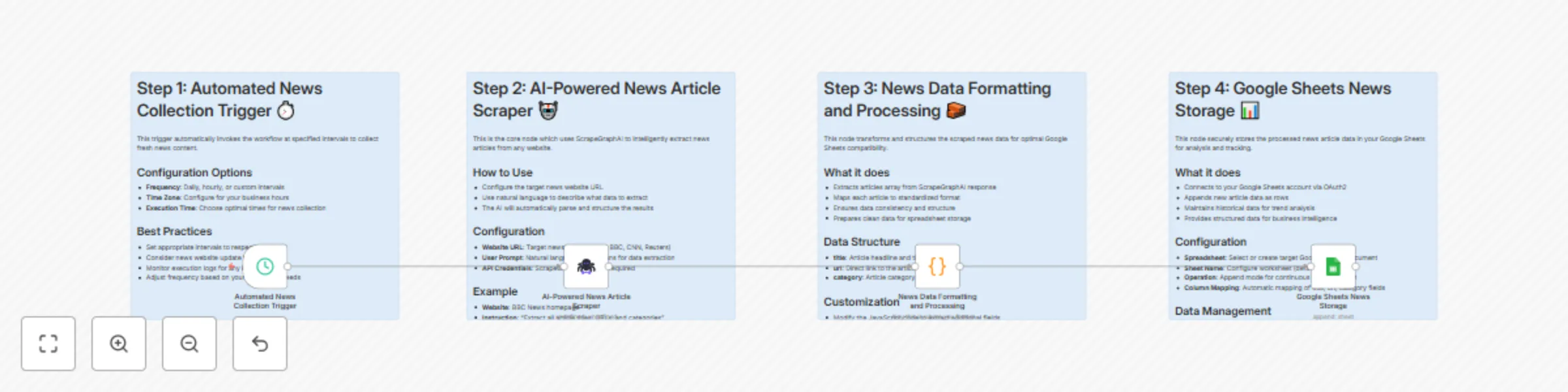
This workflow automatically scrapes news articles from websites using AI-powered extraction and stores them in Google Sheets for analysis and tracking.

Key Components
  • Scheduled Trigger: Runs automatically at specified intervals to collect fresh content
  • AI-Powered Scraping: Uses ScrapeGraphAI to intelligently extract article titles, URLs, and categories from any news website
  • Data Processing: Formats extracted data for optimal spreadsheet compatibility
  • Automated Storage: Saves all articles to Google Sheets with metadata for easy filtering and analysis

📊 Google Sheets Column Specifications

The template creates the following columns in your Google Sheets:

Column Data Type Description Example
title String Article headline and title "'My friend died right in front of me' - Student describes moment air force jet crashed into school"
url URL Direct link to the article "https://www.bbc.com/news/articles/cglzw8y5wy5o"
category String Article category or section "Asia"

🛠️ Setup Instructions

Estimated setup time: 10-15 minutes

Prerequisites
  • n8n instance with community nodes enabled
  • ScrapeGraphAI API account and credentials
  • Google Sheets account with API access
Step-by-Step Configuration
1. Install Community Nodes
# Install ScrapeGraphAI community node
npm install n8n-nodes-scrapegraphai
2. Configure ScrapeGraphAI Credentials
  • Navigate to Credentials in your n8n instance
  • Add new ScrapeGraphAI API credentials
  • Enter your API key from ScrapeGraphAI dashboard
  • Test the connection to ensure it's working
3. Set up Google Sheets Connection
  • Add Google Sheets OAuth2 credentials
  • Grant necessary permissions for spreadsheet access
  • Select or create a target spreadsheet for data storage
  • Configure the sheet name (default: "Sheet1")
4. Customize News Source Parameters
  • Update the websiteUrl parameter in the ScrapeGraphAI node
  • Modify the target news website URL as needed
  • Adjust the user prompt to extract additional fields if required
  • Test with a small website first before scaling to larger news sites
5. Configure Schedule Trigger
  • Set your preferred execution frequency (daily, hourly, etc.)
  • Choose appropriate time zones for your business hours
  • Consider the news website's update frequency when setting intervals
6. Test and Validate
  • Run the workflow manually to verify all connections
  • Check Google Sheets for proper data formatting
  • Validate that all required fields are being captured

🔄 Workflow Customization Options

Modify News Sources
  • Change the website URL to target different news sources
  • Add multiple news websites for comprehensive coverage
  • Implement filters for specific topics or categories
Extend Data Collection
  • Modify the user prompt to extract additional fields (author, date, summary)
  • Add sentiment analysis for article content
  • Integrate with other data sources for comprehensive analysis
Output Customization
  • Change Google Sheets operation from "append" to "upsert" for deduplication
  • Add data validation and cleaning steps
  • Implement error handling and retry logic

📈 Use Cases

  • Media Monitoring: Track mentions of your brand, competitors, or industry keywords
  • Content Curation: Automatically collect articles for newsletters or content aggregation
  • Market Research: Monitor industry trends and competitor activities
  • News Aggregation: Build custom news feeds for specific topics or sources
  • Academic Research: Collect news data for research projects and analysis
  • Crisis Management: Monitor breaking news and emerging stories

�� Important Notes

  • Respect the target website's terms of service and robots.txt
  • Consider implementing delays between requests for large datasets
  • Regularly review and update your scraping parameters
  • Monitor API usage to manage costs effectively
  • Keep your credentials secure and rotate them regularly

🔧 Troubleshooting

Common Issues:

  • ScrapeGraphAI connection errors: Verify API key and account status
  • Google Sheets permission errors: Check OAuth2 scope and permissions
  • Data formatting issues: Review the Code node's JavaScript logic
  • Rate limiting: Adjust schedule frequency and implement delays

Pro Tips:

  • Keep detailed configuration notes in the sticky notes within the workflow
  • Test with a small website first before scaling to larger news sites
  • Consider adding filters in the Code node to exclude certain article types or categories
  • Monitor execution logs for any issues and adjust parameters accordingly

Support Resources:

  • ScrapeGraphAI documentation and API reference
  • n8n community forums for workflow assistance
  • Google Sheets API documentation for advanced configurations

1.2 Logical Blocks

This catalog entry is organized from the workflow JSON. The node-level section below shows the executable blocks available for review before importing the template.

2. Block-by-Block Analysis

Block 1 - Automated News Collection Trigger

Type / Role
n8n-nodes-base.scheduleTrigger - scheduleTrigger
Config choices
Version 1.2

Block 2 - AI-Powered News Article Scraper

Type / Role
n8n-nodes-scrapegraphai.scrapegraphAi - scrapegraphAi
Config choices
Version 1

Block 3 - Google Sheets News Storage

Type / Role
n8n-nodes-base.googleSheets - googleSheets
Config choices
Version 4.5

Block 4 - News Data Formatting and Processing

Type / Role
n8n-nodes-base.code - code
Config choices
Version 2

Block 5 - Sticky Note1

Type / Role
n8n-nodes-base.stickyNote - stickyNote
Config choices
Version 1

Block 6 - Sticky Note2

Type / Role
n8n-nodes-base.stickyNote - stickyNote
Config choices
Version 1

Block 7 - Sticky Note3

Type / Role
n8n-nodes-base.stickyNote - stickyNote
Config choices
Version 1

Block 8 - Sticky Note

Type / Role
n8n-nodes-base.stickyNote - stickyNote
Config choices
Version 1

3. Summary Table

Workflow Automate news article scraping with ScrapegraphAI and store in Google Sheets
Complexity intermediate
Nodes 8
Categories Market Research, AI Summarization
Author vinci-king-01
Published 24 Jul 2025

4. Reproducing the Workflow from Scratch

  1. 1. Download the workflow JSON

    Use the JSON export at /data/workflows/6395/6395.json as the source template for this automation.

  2. 2. Import the template into n8n

    Open n8n, import the downloaded JSON, and review each node before activating the workflow.

  3. 3. Configure credentials and variables

    Replace placeholder credentials, API keys, webhook URLs, account IDs, and environment-specific values with your own settings.

  4. 4. Test with sample data

    Run the workflow manually or in a staging workspace, inspect node output, and confirm downstream systems receive the expected data.

  5. 5. Activate and monitor

    Enable the workflow only after testing, then monitor executions, errors, and rate limits during the first production runs.

5. General Notes & Resources

Review imported nodes carefully before activation. This catalog entry is intended to help you inspect the workflow structure, understand required services, and find related templates faster.

Node names, credentials, schedules, webhook paths, and external service limits may need adjustment for your workspace.

Frequently asked questions

What does Automate news article scraping with ScrapegraphAI and store in Google Sheets do?

This workflow contains community nodes that are only compatible with the self hosted version of n8n. News Article Scraping and Analysis with AI and Google Sheets Integration Target Audience News...

What do I need before importing this workflow?

Review the workflow JSON, configure any required credentials in n8n, and test the automation in a safe workspace before using it in production.

Can I customize this workflow?

Yes. Use the block-by-block analysis and the downloadable JSON to inspect each node, then adjust credentials, prompts, schedules, filters, or destinations for your Market Research, AI Summarization use case.