Automate Gmail Organization with AI-Powered Email Classification and Smart Labeling

Workflow preview

Workflow preview
100%
Automate Gmail Organization with AI-Powered Email Classification and Smart Labeling preview
Open on n8n.io

Important notice

This workflow is provided as-is. Please review and test before using in production.

1. Workflow Overview

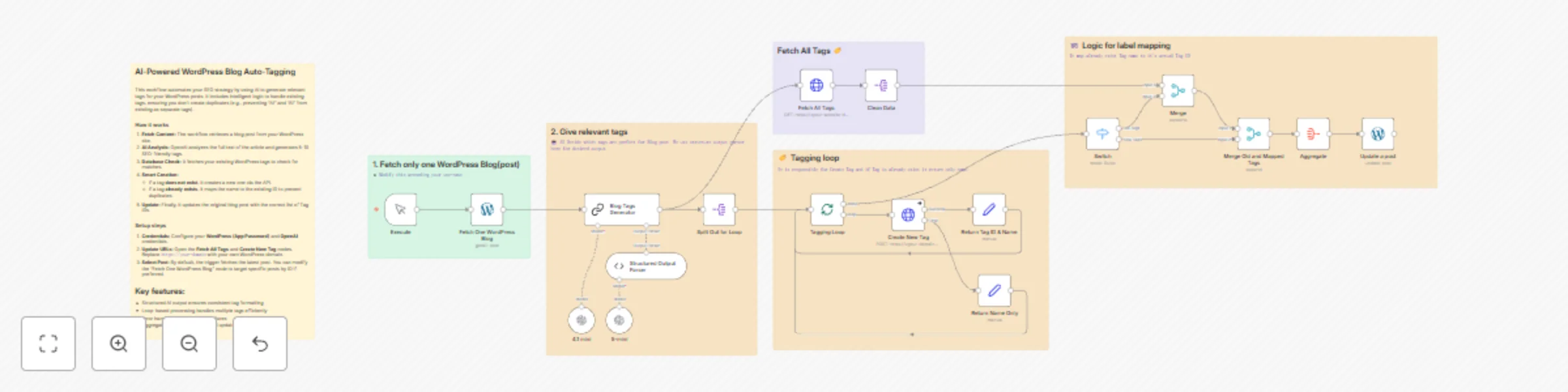
AI Powered Gmail Auto Labeling with Smart Classification This n8n workflow automatically organizes your Gmail inbox by intelligently categorizing incoming emails and applying custom labels using...

Best for

  • Ticket Management automation workflows
  • AI Summarization automation workflows
  • advanced n8n builders looking for reusable templates

Tools used

n8n-nodes-base.wordpress, n8n-nodes-base.manualtrigger, @n8n/n8n-nodes-langchain.outputparserstructured, @n8n/n8n-nodes-langchain.lmchatopenai, @n8n/n8n-nodes-langchain.chainllm, n8n-nodes-base.switch, n8n-nodes-base.aggregate, n8n-nodes-base.stickynote

Source and attribution

This workflow is cataloged by N8N Workflows and links back to its original n8n.io source page by Bhavy Shekhaliya.

Original n8n.io source

1.1 Workflow description

Title
Automate Gmail Organization with AI-Powered Email Classification and Smart Labeling
Workflow name
Automate Gmail Organization with AI-Powered Email Classification and Smart Labeling

đź“§ AI-Powered Gmail Auto-Labeling with Smart Classification

This n8n workflow automatically organizes your Gmail inbox by intelligently categorizing incoming emails and applying custom labels using AI-powered sentiment analysis. Say goodbye to manual email sorting and hello to an organized inbox!

Use Cases

  • Business Email Management: Automatically sort partnership inquiries, meeting requests, and promotional emails
  • Sales Team Automation: Identify and label cold outreach and high-priority leads
  • Executive Assistants: Filter important meetings and urgent matters for busy professionals
  • Marketing Teams: Separate promotional content from genuine business communications

Good to Know

  • The workflow runs every minute to check for new emails
  • Each email is processed only once - already labeled emails are automatically skipped
  • Uses OpenAI's GPT model for accurate email classification (API costs apply)
  • Processes emails in batches to handle multiple incoming messages efficiently

How It Works

  1. Gmail Trigger continuously monitors your inbox for new emails every minute
  2. Switch Node checks if emails already have labels (Other, Promotion, or Meeting) to avoid duplicate processing
  3. Loop Node processes emails in batches for efficient handling
  4. AI Classification analyzes the email's sender, subject, and content using OpenAI's GPT model to categorize into:
    • Partnerships - Collaboration opportunities and B2B proposals
    • Promotional - Marketing emails and newsletters
    • Cold Outreach - Unsolicited sales emails and prospecting
    • Meeting - Calendar invites and scheduling requests
    • High Priority - Urgent matters requiring immediate attention
    • Other - Everything else that doesn't fit the above categories
  5. Label Application automatically applies the appropriate Gmail label based on AI classification
  6. Loop Completion returns to process the next email in the batch

How to Use

  • Set up your Gmail credentials to connect the workflow to your account
  • Create custom labels in Gmail (or use the pre-configured label IDs in the workflow)
  • Add your OpenAI API credentials for AI classification
  • Activate the workflow and let it run automatically in the background
  • Optionally adjust the polling frequency from "every minute" to your preference

Requirements

  • Gmail OAuth2 credentials for email access and label management
  • OpenAI API key for GPT-powered email classification
  • Pre-created Gmail labels for each category (or modify label IDs in the workflow)

Customizing This Workflow

  • Add More Categories: Extend the sentiment analysis node with additional email categories relevant to your business
  • Adjust Classification Logic: Modify the AI prompt to better match your specific email patterns
  • Change Polling Frequency: Update the Gmail trigger to check more or less frequently based on your email volume
  • Add Actions: Extend each label branch to trigger additional actions like Slack notifications, database updates, or auto-replies
  • Filter by Sender: Add conditions to the Switch node to handle VIP senders differently

1.2 Logical Blocks

This catalog entry is organized from the workflow JSON. The node-level section below shows the executable blocks available for review before importing the template.

2. Block-by-Block Analysis

Block 1 - Fetch One WordPress Blog

Type / Role
n8n-nodes-base.wordpress - wordpress
Config choices
Version 1

Block 2 - Execute

Type / Role
n8n-nodes-base.manualTrigger - manualTrigger
Config choices
Version 1

Block 3 - Structured Output Parser

Type / Role
@n8n/n8n-nodes-langchain.outputParserStructured - outputParserStructured
Config choices
Version 1.3

Block 4 - 5-mini

Type / Role
@n8n/n8n-nodes-langchain.lmChatOpenAi - lmChatOpenAi
Config choices
Version 1.2

Block 5 - 4.1 mini

Type / Role
@n8n/n8n-nodes-langchain.lmChatOpenAi - lmChatOpenAi
Config choices
Version 1.2

Block 6 - Blog Tags Generator

Type / Role
@n8n/n8n-nodes-langchain.chainLlm - chainLlm
Config choices
Version 1.7

Block 7 - Update a post

Type / Role
n8n-nodes-base.wordpress - wordpress
Config choices
Version 1

Block 8 - Switch

Type / Role
n8n-nodes-base.switch - switch
Config choices
Version 3.3

Block 9 - Aggregate

Type / Role
n8n-nodes-base.aggregate - aggregate
Config choices
Version 1

Block 10 - Sticky Note

Type / Role
n8n-nodes-base.stickyNote - stickyNote
Config choices
Version 1

Block 11 - Tagging Loop

Type / Role
n8n-nodes-base.splitInBatches - splitInBatches
Config choices
Version 3

Block 12 - Sticky Note2

Type / Role
n8n-nodes-base.stickyNote - stickyNote
Config choices
Version 1

Block 13 - Fetch All Tags

Type / Role
n8n-nodes-base.httpRequest - httpRequest
Config choices
Version 4.3

Block 14 - Clean Data

Type / Role
n8n-nodes-base.splitOut - splitOut
Config choices
Version 1

Block 15 - Sticky Note3

Type / Role
n8n-nodes-base.stickyNote - stickyNote
Config choices
Version 1

Block 16 - Sticky Note4

Type / Role
n8n-nodes-base.stickyNote - stickyNote
Config choices
Version 1

Block 17 - Split Out for Loop

Type / Role
n8n-nodes-base.splitOut - splitOut
Config choices
Version 1

Block 18 - Create New Tag

Type / Role
n8n-nodes-base.httpRequest - httpRequest
Config choices
Version 4.3

Block 19 - Return Tag ID & Name

Type / Role
n8n-nodes-base.set - set
Config choices
Version 3.4

Block 20 - Return Name Only

Type / Role
n8n-nodes-base.set - set
Config choices
Version 3.4

Block 21 - Sticky Note5

Type / Role
n8n-nodes-base.stickyNote - stickyNote
Config choices
Version 1

Block 22 - Merge

Type / Role
n8n-nodes-base.merge - merge
Config choices
Version 3.2

Block 23 - Merge Old and Mapped Tags

Type / Role
n8n-nodes-base.merge - merge
Config choices
Version 3.2

Block 24 - Sticky Note1

Type / Role
n8n-nodes-base.stickyNote - stickyNote
Config choices
Version 1

3. Summary Table

Workflow Automate Gmail Organization with AI-Powered Email Classification and Smart Labeling
Complexity advanced
Nodes 24
Categories Ticket Management, AI Summarization
Author Bhavy Shekhaliya
Published 21 Nov 2025

4. Reproducing the Workflow from Scratch

  1. 1. Download the workflow JSON

    Use the JSON export at /data/workflows/11071/11071.json as the source template for this automation.

  2. 2. Import the template into n8n

    Open n8n, import the downloaded JSON, and review each node before activating the workflow.

  3. 3. Configure credentials and variables

    Replace placeholder credentials, API keys, webhook URLs, account IDs, and environment-specific values with your own settings.

  4. 4. Test with sample data

    Run the workflow manually or in a staging workspace, inspect node output, and confirm downstream systems receive the expected data.

  5. 5. Activate and monitor

    Enable the workflow only after testing, then monitor executions, errors, and rate limits during the first production runs.

5. General Notes & Resources

Review imported nodes carefully before activation. This catalog entry is intended to help you inspect the workflow structure, understand required services, and find related templates faster.

Node names, credentials, schedules, webhook paths, and external service limits may need adjustment for your workspace.

Frequently asked questions

What does Automate Gmail Organization with AI-Powered Email Classification and Smart Labeling do?

AI Powered Gmail Auto Labeling with Smart Classification This n8n workflow automatically organizes your Gmail inbox by intelligently categorizing incoming emails and applying custom labels using...

What do I need before importing this workflow?

Review the workflow JSON, configure any required credentials in n8n, and test the automation in a safe workspace before using it in production.

Can I customize this workflow?

Yes. Use the block-by-block analysis and the downloadable JSON to inspect each node, then adjust credentials, prompts, schedules, filters, or destinations for your Ticket Management, AI Summarization use case.