Bhavy Shekhaliya
Workflows by Bhavy Shekhaliya
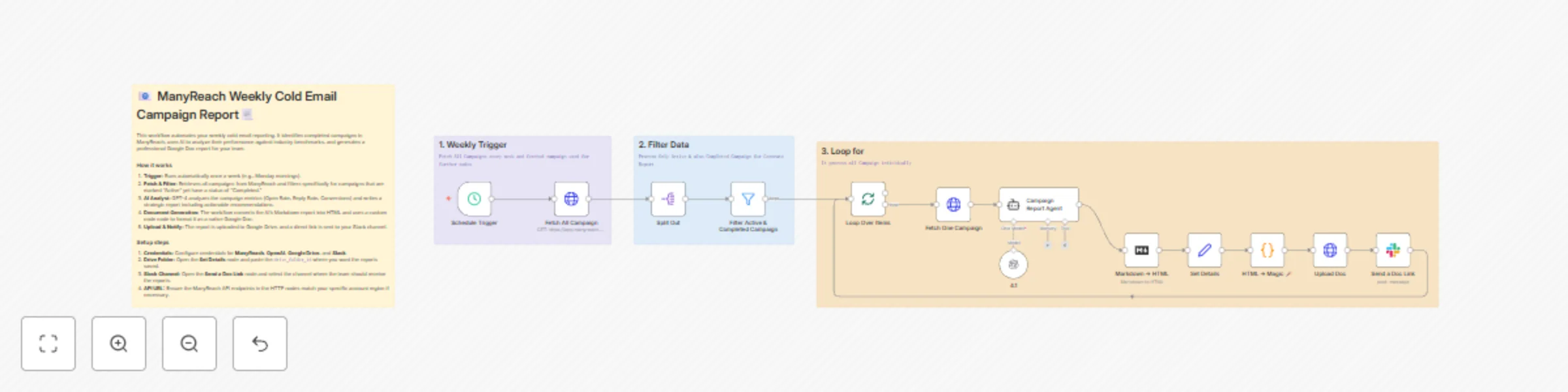
Generate weekly cold email performance reports with ManyReach, GPT-4.1 & Slack
## Overview This n8n workflow automatically generates weekly performance reports for completed email campaigns from ManyReach, converts them to Google Docs, and shares them via Slack. ## Workflow Trigger - **Schedule**: Runs every Monday (weekly) - Automates the entire reporting process without manual intervention ## Process Flow ### 1. Data Collection - **Fetch All Campaigns**: Retrieves up to 100 campaigns from ManyReach API - **Split Out**: Breaks down the campaign list into individual items - **Filter**: Selects only campaigns that are both: - Active (`active = true`) - Completed (`campStatus = "completed"`) ### 2. Campaign Processing Loop The workflow processes each filtered campaign individually: 1. **Fetch One Campaign**: Retrieves detailed data for the specific campaign 2. **Campaign Report Agent**: AI-powered analysis using GPT-4.1 that generates: - Executive summary with key highlights - Performance metrics (open rate, click rate, reply rate, conversion rate) - Email content analysis - Configuration insights - Actionable recommendations - Next steps ### 3. Report Generation - **Markdown → HTML**: Converts the AI-generated markdown report to HTML format - **Set Details**: Prepares document metadata (name, content) - **HTML → Magic 🪄**: Formats the HTML content for Google Drive upload with proper styling ### 4. Distribution - **Upload Doc**: Creates a new Google Doc in the connected Drive account - **Send a Doc Link**: Posts the document link to the `#manyreach` Slack channel with campaign name ## Key Features - **Automated Analysis**: AI evaluates campaign performance against industry benchmarks - **Comprehensive Metrics**: Tracks prospects, opens, clicks, replies, conversions, and interested leads - **Professional Reports**: Generated as formatted Google Docs for easy sharing - **Team Notifications**: Automatic Slack alerts keep the team informed ## Required Credentials - ManyReach API (HTTP Query Auth) - OpenAI API (for GPT-4.1) - Google Drive OAuth2 - Slack OAuth2 ## Output Each completed campaign receives a detailed performance report posted to Slack with a direct link to the Google Doc for review and collaboration.
Auto-generate WordPress blog tags with GPT-4.1-mini and smart tag mapping
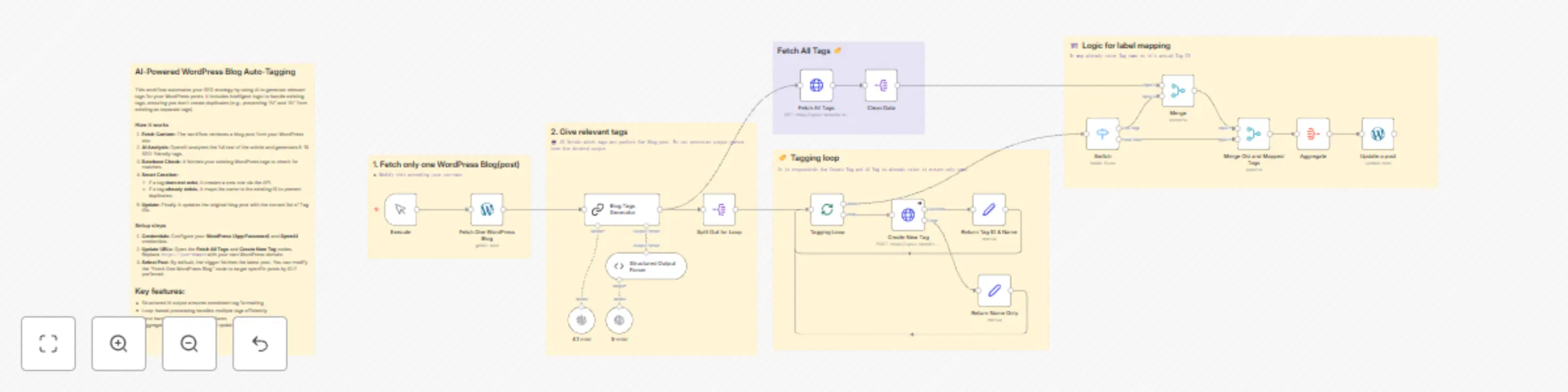
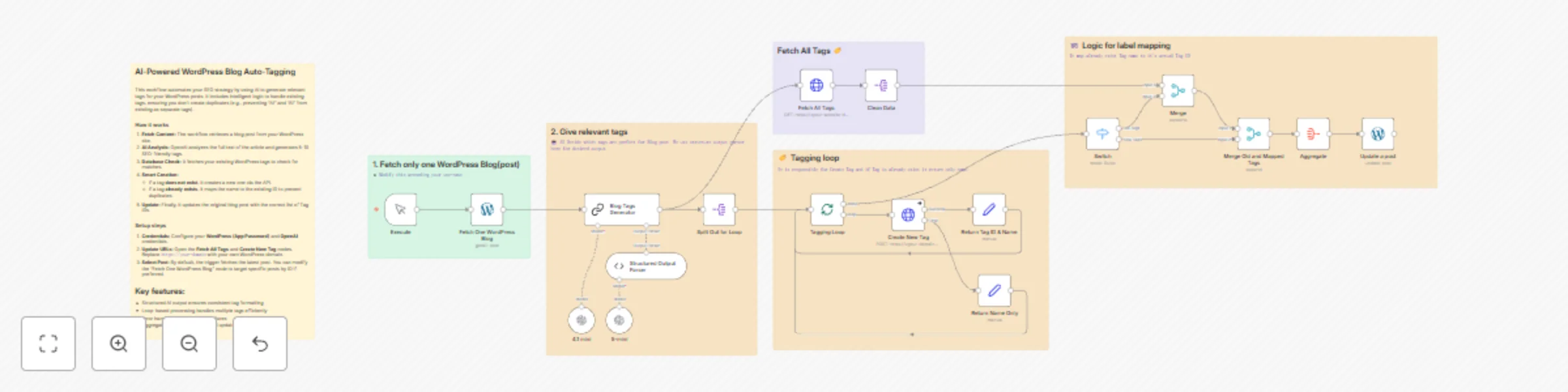
## **Overview** This n8n template demonstrates how to use AI to automatically analyze WordPress blog content and generate relevant, SEO-optimized tags for WordPress posts. ## **Use cases** Automate content tagging for WordPress blogs, maintain consistent taxonomy across large content libraries, save hours of manual tagging work, or improve SEO by ensuring every post has relevant, searchable tags! ## **Good to know** * The workflow creates new tags automatically if they don't exist in WordPress. * Tag generation is intelligent - it avoids duplicates by mapping to existing tag IDs. ## **How it works** * We fetch a WordPress blog post using the WordPress node with sticky data enabled for testing. * The post content is sent to GPT-4.1-mini which analyzes it and generates 5-10 relevant tags using a structured output parser. * All existing WordPress tags are fetched via HTTP Request to check for matches. * A smart loop processes each AI-generated tag: * If the tag already exists, it maps to the existing tag ID * If it's new, it creates the tag via WordPress API * All tag IDs are aggregated and the WordPress post is updated with the complete tag list. ## **How to use** * The manual trigger node is used as an example but feel free to replace this with other triggers such as webhook, schedule, or WordPress webhook for new posts. * Modify the "Fetch One WordPress Blog" node to fetch multiple posts or integrate with your publishing workflow. ## **Requirements** * WordPress site with REST API enabled * OpenAI API ## **Customising this workflow** * Adjust the AI prompt to generate tags specific to your industry or SEO strategy * Change the tag count (currently 5-10) based on your needs * Add filtering logic to only tag posts in specific categories
Automate Gmail Organization with AI-Powered Email Classification and Smart Labeling
# 📧 AI-Powered Gmail Auto-Labeling with Smart Classification This n8n workflow automatically organizes your Gmail inbox by intelligently categorizing incoming emails and applying custom labels using AI-powered sentiment analysis. Say goodbye to manual email sorting and hello to an organized inbox! ## Use Cases - **Business Email Management**: Automatically sort partnership inquiries, meeting requests, and promotional emails - **Sales Team Automation**: Identify and label cold outreach and high-priority leads - **Executive Assistants**: Filter important meetings and urgent matters for busy professionals - **Marketing Teams**: Separate promotional content from genuine business communications ## Good to Know - The workflow runs every minute to check for new emails - Each email is processed only once - already labeled emails are automatically skipped - Uses OpenAI's GPT model for accurate email classification (API costs apply) - Processes emails in batches to handle multiple incoming messages efficiently ## How It Works 1. **Gmail Trigger** continuously monitors your inbox for new emails every minute 2. **Switch Node** checks if emails already have labels (Other, Promotion, or Meeting) to avoid duplicate processing 3. **Loop Node** processes emails in batches for efficient handling 4. **AI Classification** analyzes the email's sender, subject, and content using OpenAI's GPT model to categorize into: - **Partnerships** - Collaboration opportunities and B2B proposals - **Promotional** - Marketing emails and newsletters - **Cold Outreach** - Unsolicited sales emails and prospecting - **Meeting** - Calendar invites and scheduling requests - **High Priority** - Urgent matters requiring immediate attention - **Other** - Everything else that doesn't fit the above categories 5. **Label Application** automatically applies the appropriate Gmail label based on AI classification 6. **Loop Completion** returns to process the next email in the batch ## How to Use - Set up your Gmail credentials to connect the workflow to your account - Create custom labels in Gmail (or use the pre-configured label IDs in the workflow) - Add your OpenAI API credentials for AI classification - Activate the workflow and let it run automatically in the background - Optionally adjust the polling frequency from "every minute" to your preference ## Requirements - **Gmail OAuth2** credentials for email access and label management - **OpenAI API** key for GPT-powered email classification - Pre-created Gmail labels for each category (or modify label IDs in the workflow) ## Customizing This Workflow - **Add More Categories**: Extend the sentiment analysis node with additional email categories relevant to your business - **Adjust Classification Logic**: Modify the AI prompt to better match your specific email patterns - **Change Polling Frequency**: Update the Gmail trigger to check more or less frequently based on your email volume - **Add Actions**: Extend each label branch to trigger additional actions like Slack notifications, database updates, or auto-replies - **Filter by Sender**: Add conditions to the Switch node to handle VIP senders differently