Block 1 - 📧 Gmail: New Lead Response
- Type / Role
- n8n-nodes-base.gmailTrigger - gmailTrigger
- Config choices
- Version 1


 Early Deal
This workflow is provided as-is. Please review and test before using in production.
How it works This workflow automates the handling of new lead responses received in Gmail. It captures emails with a specific label, analyzes the message using AI to determine sentiment, intent, ur...
n8n-nodes-base.gmailtrigger, n8n-nodes-base.set, n8n-nodes-base.code, n8n-nodes-base.hubspot, n8n-nodes-base.slack, n8n-nodes-base.googlesheets, @n8n/n8n-nodes-langchain.lmchatopenai, n8n-nodes-base.if
This workflow is cataloged by N8N Workflows and links back to its original n8n.io source page by Avkash Kakdiya.
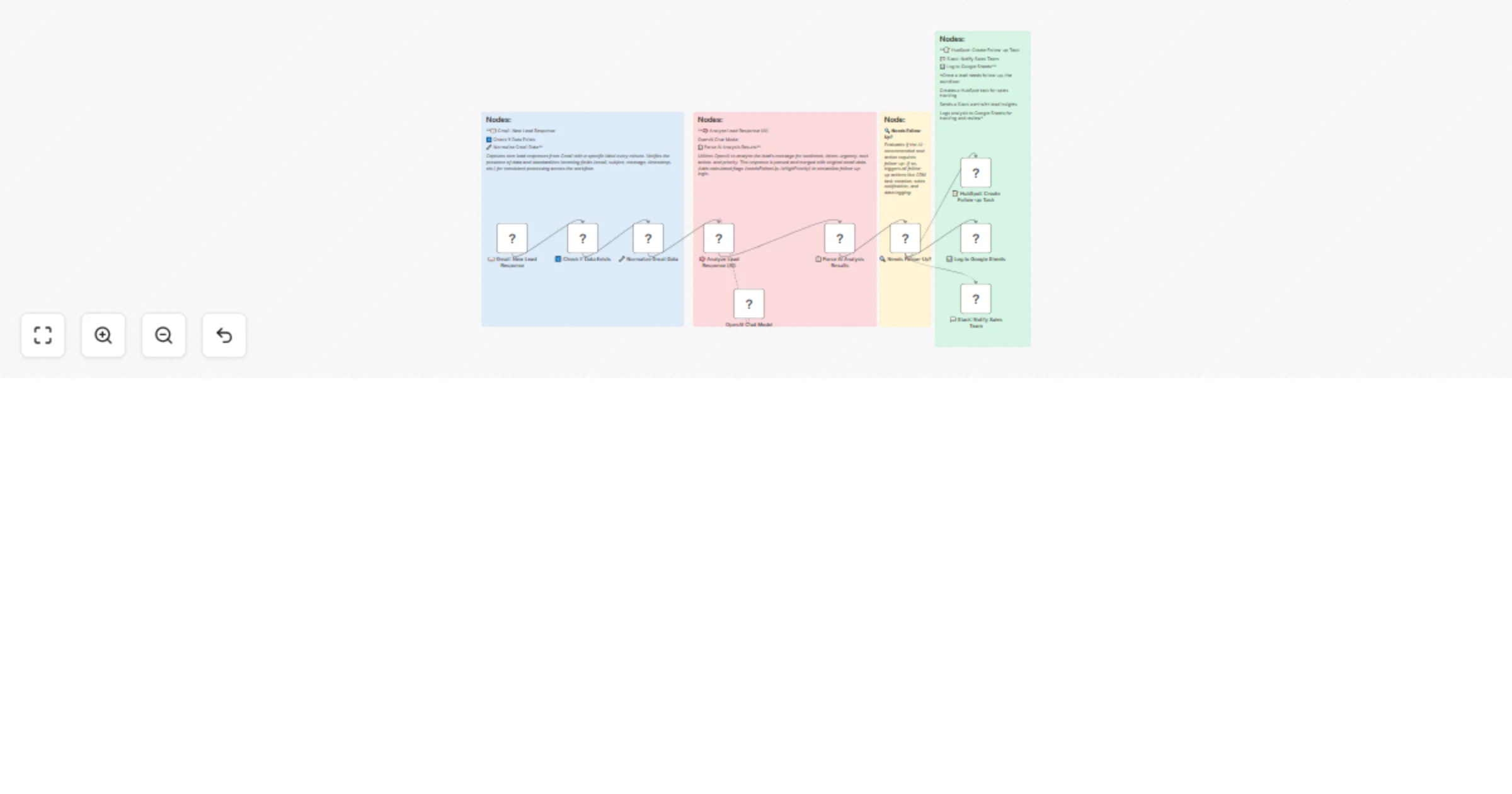
Original n8n.io sourceThis workflow automates the handling of new lead responses received in Gmail. It captures emails with a specific label, analyzes the message using AI to determine sentiment, intent, urgency, next action, and priority, and then decides whether follow-up is needed. If required, it creates tasks in HubSpot, notifies the sales team via Slack, and logs all details into Google Sheets for tracking.
Trigger on New Lead Email
Workflow starts whenever a new email with a defined Gmail label arrives.
Captures the sender’s email, subject, message snippet, and timestamp.
Normalize Email Data
Standardizes Gmail fields into structured values:
leadEmail (sender’s address)
subject (email subject)
message (email content snippet)
source (Gmail)
receivedAt (timestamp)
AI-Powered Lead Analysis
Uses OpenAI to analyze the lead’s message.
Extracts:
Sentiment (Positive / Neutral / Negative)
Intent (Interested, Not Interested, Needs Info, Ready to Buy, Objection)
Urgency (High / Medium / Low)
Next Action (Call, Email, Demo, Quote, No Action)
Summary (1–2 sentence description)
Priority (Hot / Warm / Cold)
Parsed results are merged with the original email data.
Flags are added:
needsFollowUp (true/false)
isHighPriority (true/false)
Decision: Needs Follow-Up?
If AI suggests a follow-up action, the workflow continues.
Otherwise, the process stops here.
Create HubSpot Task
Automatically creates a HubSpot CRM task for the sales team.
Task includes email subject, body, and lead details.
Notify Sales Team on Slack
Sends a formatted message to Slack with key lead insights:
Summary
Lead email
Priority
Urgency
Date of analysis
Log Lead Data to Google Sheets
Appends structured data to Google Sheets for record-keeping.
Stores all fields: Email, Date, Subject, Message, Sentiment, Intent, Urgency, Next Action, Summary, and Priority.
Automates lead triage directly from Gmail.
Saves time by using AI-powered analysis instead of manual review.
Ensures no potential lead is missed by logging into Google Sheets.
Provides instant sales team alerts on high-priority leads.
Integrates seamlessly with HubSpot CRM for structured follow-up.
Keeps your sales pipeline efficient, organized, and proactive.
This catalog entry is organized from the workflow JSON. The node-level section below shows the executable blocks available for review before importing the template.
| Workflow | Automate Gmail lead follow-up with OpenAI GPT-4O, HubSpot, Slack & Google Sheets |
|---|---|
| Complexity | intermediate |
| Nodes | 14 |
| Categories | AI Summarization, Multimodal AI |
| Author | Avkash Kakdiya |
| Published | 21 Aug 2025 |
Use the JSON export at /data/workflows/7680/7680.json as the source template for this automation.
Open n8n, import the downloaded JSON, and review each node before activating the workflow.
Replace placeholder credentials, API keys, webhook URLs, account IDs, and environment-specific values with your own settings.
Run the workflow manually or in a staging workspace, inspect node output, and confirm downstream systems receive the expected data.
Enable the workflow only after testing, then monitor executions, errors, and rate limits during the first production runs.
Review imported nodes carefully before activation. This catalog entry is intended to help you inspect the workflow structure, understand required services, and find related templates faster.
Node names, credentials, schedules, webhook paths, and external service limits may need adjustment for your workspace.
How it works This workflow automates the handling of new lead responses received in Gmail. It captures emails with a specific label, analyzes the message using AI to determine sentiment, intent, ur...
Review the workflow JSON, configure any required credentials in n8n, and test the automation in a safe workspace before using it in production.
Yes. Use the block-by-block analysis and the downloadable JSON to inspect each node, then adjust credentials, prompts, schedules, filters, or destinations for your AI Summarization, Multimodal AI use case.