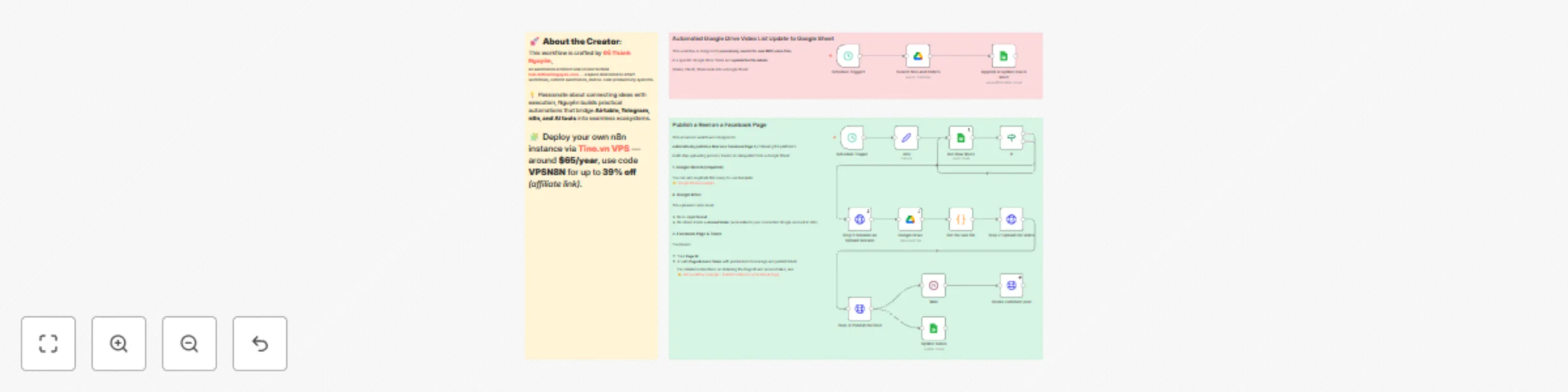
Automate Facebook reels publishing with Google Sheets and Drive

Workflow preview

Workflow preview
100%
Automate Facebook reels publishing with Google Sheets and Drive preview
Open on n8n.io

Important notice

This workflow is provided as-is. Please review and test before using in production.

1. Workflow Overview

Publish a Reel on a Facebook Page Good to Know Set up n8n self hosted instance using https://tino.vn/vps n8n?affid=388 Use the code == VPSN8N == fo...

Best for

  • Social Media automation workflows
  • advanced n8n builders looking for reusable templates

Tools used

n8n-nodes-base.set, n8n-nodes-base.scheduletrigger, n8n-nodes-base.googledrive, n8n-nodes-base.wait, n8n-nodes-base.httprequest, n8n-nodes-base.googlesheets, n8n-nodes-base.code, n8n-nodes-base.stickynote

Source and attribution

This workflow is cataloged by N8N Workflows and links back to its original n8n.io source page by Đỗ Thành Nguyên.

Original n8n.io source

1.1 Workflow description

Title
Automate Facebook reels publishing with Google Sheets and Drive
Workflow name
Automate Facebook reels publishing with Google Sheets and Drive

Publish a Reel on a Facebook Page

🧠 Good to Know

> Set up n8n self-hosted instance using https://tino.vn/vps-n8n?affid=388 > Use the code ==VPSN8N== for up to 39% off.

This workflow automatically uploads and publishes Facebook Reels using data from Google Sheets and video files stored in Google Drive. It runs on a schedule (every 30 minutes by default) and can be fully customized for your posting routine.


⚙️ How It Works

  1. Google Sheets provides the content data — video file ID, caption, and optional links.
  2. Google Drive hosts the actual video file (.mp4 format).
  3. The workflow initializes an upload session with the Facebook Graph API, uploads the video, and publishes it as a Reel on your Page.
  4. Finally, it updates your Google Sheet and adds a comment under the published Reel with your affiliate or product link.

How to Use

  1. Open the template Google Sheet or make a copy: 👉 Template Sheet

  2. Fill out each row with:

    • File ID → the ID of your video file from Google Drive
    • File name → optional
    • Caption → your post caption
    • Link Share → optional
    • Link post → leave empty (it will be filled after posting)
  3. Ensure your video file:

    • .mp4 format
    • shared folder on Google Drive that’s accessible to your connected account
  4. Add your Facebook Page ID and Page Access Token to the “info” node. (Learn how to get these here: Facebook Reels Workflow Guide)


📋 Requirements

  • n8n instance (Self-hosted recommended):

  • Facebook Page with publishing permissions

  • Page Access Token (with pages_manage_posts, pages_read_engagement)

  • Google Drive and Google Sheets account connected to n8n

  • Video files in .mp4 format, under the 1GB upload limit


🎨 Customizing This Workflow

  • Change schedule: Adjust the Schedule Trigger node (e.g., every 2 hours or only during business hours).
  • Track post links: Add a node to fetch the permalink_url from the Graph API and update it in your sheet.
  • Auto-comment control: Modify or remove the “Create comment post” node to suit your campaign style.
  • Improve security: Replace hardcoded tokens with n8n credentials, secrets, or a Data Table lookup.

This structure keeps your automation scalable, secure, and easy to adapt for multi-page or multi-brand use.

1.2 Logical Blocks

This catalog entry is organized from the workflow JSON. The node-level section below shows the executable blocks available for review before importing the template.

2. Block-by-Block Analysis

Block 1 - info

Type / Role
n8n-nodes-base.set - set
Config choices
Version 3.4

Block 2 - Schedule Trigger

Type / Role
n8n-nodes-base.scheduleTrigger - scheduleTrigger
Config choices
Version 1.2

Block 3 - Google Drive

Type / Role
n8n-nodes-base.googleDrive - googleDrive
Config choices
Version 3

Block 4 - Wait

Type / Role
n8n-nodes-base.wait - wait
Config choices
Version 1.1

Block 5 - Step 1: Initialize an Upload Session

Type / Role
n8n-nodes-base.httpRequest - httpRequest
Config choices
Version 4.2

Block 6 - Step 2: Upload the Video

Type / Role
n8n-nodes-base.httpRequest - httpRequest
Config choices
Version 4.2

Block 7 - Step 3: Publish the Reel

Type / Role
n8n-nodes-base.httpRequest - httpRequest
Config choices
Version 4.2

Block 8 - Get Row Sheet

Type / Role
n8n-nodes-base.googleSheets - googleSheets
Config choices
Version 4.5

Block 9 - Get the size file

Type / Role
n8n-nodes-base.code - code
Config choices
Version 2

Block 10 - Update status

Type / Role
n8n-nodes-base.googleSheets - googleSheets
Config choices
Version 4.5

Block 11 - Create comment post

Type / Role
n8n-nodes-base.httpRequest - httpRequest
Config choices
Version 4.2

Block 12 - Search files and folders

Type / Role
n8n-nodes-base.googleDrive - googleDrive
Config choices
Version 3

Block 13 - Schedule Trigger1

Type / Role
n8n-nodes-base.scheduleTrigger - scheduleTrigger
Config choices
Version 1.2

Block 14 - Append or update row in sheet

Type / Role
n8n-nodes-base.googleSheets - googleSheets
Config choices
Version 4.7

Block 15 - Sticky Note

Type / Role
n8n-nodes-base.stickyNote - stickyNote
Config choices
Version 1

Block 16 - If

Type / Role
n8n-nodes-base.if - if
Config choices
Version 2.2

Block 17 - Sticky Note1

Type / Role
n8n-nodes-base.stickyNote - stickyNote
Config choices
Version 1

Block 18 - Sticky Note3

Type / Role
n8n-nodes-base.stickyNote - stickyNote
Config choices
Version 1

3. Summary Table

Workflow Automate Facebook reels publishing with Google Sheets and Drive
Complexity advanced
Nodes 18
Categories Social Media
Author Đỗ Thành Nguyên
Published 24 Oct 2025

4. Reproducing the Workflow from Scratch

  1. 1. Download the workflow JSON

    Use the JSON export at /data/workflows/10122/10122.json as the source template for this automation.

  2. 2. Import the template into n8n

    Open n8n, import the downloaded JSON, and review each node before activating the workflow.

  3. 3. Configure credentials and variables

    Replace placeholder credentials, API keys, webhook URLs, account IDs, and environment-specific values with your own settings.

  4. 4. Test with sample data

    Run the workflow manually or in a staging workspace, inspect node output, and confirm downstream systems receive the expected data.

  5. 5. Activate and monitor

    Enable the workflow only after testing, then monitor executions, errors, and rate limits during the first production runs.

5. General Notes & Resources

Review imported nodes carefully before activation. This catalog entry is intended to help you inspect the workflow structure, understand required services, and find related templates faster.

Node names, credentials, schedules, webhook paths, and external service limits may need adjustment for your workspace.

Frequently asked questions

What does Automate Facebook reels publishing with Google Sheets and Drive do?

Publish a Reel on a Facebook Page Good to Know Set up n8n self hosted instance using https://tino.vn/vps n8n?affid=388 Use the code == VPSN8N == fo...

What do I need before importing this workflow?

Review the workflow JSON, configure any required credentials in n8n, and test the automation in a safe workspace before using it in production.

Can I customize this workflow?

Yes. Use the block-by-block analysis and the downloadable JSON to inspect each node, then adjust credentials, prompts, schedules, filters, or destinations for your Social Media use case.