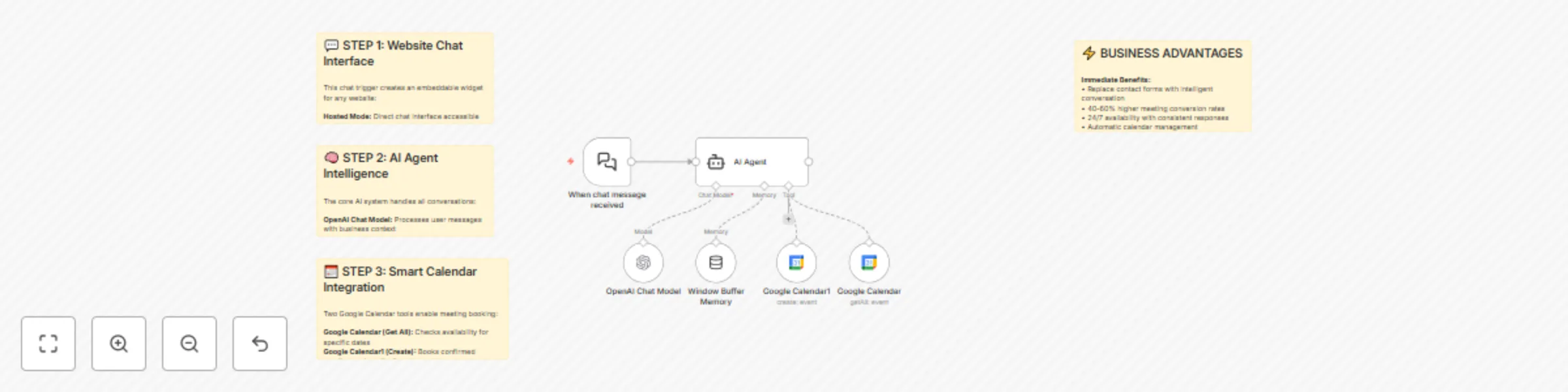
Automate customer support & calendar bookings with OpenAI GPT and Google Calendar

Workflow preview

Workflow preview
100%
Automate customer support & calendar bookings with OpenAI GPT and Google Calendar preview
Open on n8n.io

Important notice

This workflow is provided as-is. Please review and test before using in production.

1. Workflow Overview

Website AI Agent with Calendar Integration Categories: AI Agents, Website Integration, Calendar Automation This workflow creates a complete website AI agent that can be embedded on any website with...

Best for

  • Support Chatbot automation workflows
  • AI Chatbot automation workflows
  • intermediate n8n builders looking for reusable templates

Tools used

n8n-nodes-base.stickynote, @n8n/n8n-nodes-langchain.chattrigger, @n8n/n8n-nodes-langchain.lmchatopenai, @n8n/n8n-nodes-langchain.memorybufferwindow, @n8n/n8n-nodes-langchain.agent, n8n-nodes-base.googlecalendartool

Source and attribution

This workflow is cataloged by N8N Workflows and links back to its original n8n.io source page by Nick Saraev.

Original n8n.io source

1.1 Workflow description

Title
Automate customer support & calendar bookings with OpenAI GPT and Google Calendar
Workflow name
Automate customer support & calendar bookings with OpenAI GPT and Google Calendar

Website AI Agent with Calendar Integration

Categories: AI Agents, Website Integration, Calendar Automation

This workflow creates a complete website AI agent that can be embedded on any website with just a few lines of code. The agent handles customer inquiries, provides business information, and automatically books meetings by checking calendar availability in real-time. Built for simplicity and business practicality, this system proves that effective AI agents don't need to be overcomplicated.

Benefits

  • Universal Website Integration - Works with WordPress, Webflow, Squarespace, custom sites, or any platform that accepts HTML
  • Intelligent Calendar Management - Checks availability and books meetings automatically without double-booking
  • Business-Ready Conversations - Trained with specific business context and maintains professional, helpful interactions
  • Real-Time Functionality - All changes to the N8N workflow are immediately reflected on your live website
  • No Technical Complexity - Simple architecture that prioritizes reliability and consistent outputs over flashy features
  • Customizable Branding - Easy to modify appearance, messages, and behavior to match your brand

How It Works

Embedded Chat Interface:

  • Generates embeddable HTML code that creates a chat widget on any website
  • Provides both hosted and embedded modes for different use cases
  • Handles all communication between website visitors and the AI system

Intelligent Conversation Management:

  • Uses sophisticated system prompts to maintain context about your business
  • Handles common inquiries about services, pricing, and company information
  • Gracefully redirects off-topic conversations back to business matters

Smart Calendar Integration:

  • Connects to Google Calendar to check real-time availability
  • Automatically suggests meeting times based on your schedule
  • Collects all necessary information (name, email, preferred time) before booking

Meeting Booking Process:

  • Validates meeting requests against existing calendar entries
  • Confirms all details with users before creating calendar events
  • Sends automatic invitations with proper timezone handling

Required Setup Configuration

System Message Requirements: Your AI agent needs a comprehensive system message that includes:

  • Business Identity: Company name, services, location, timezone
  • Business Context: What you offer, pricing information, key differentiators
  • Conversation Rules: How to handle inquiries, booking procedures, moderation guidelines
  • Personality Instructions: Tone of voice, response style, conversation length preferences

Example System Message Structure:

You are a helpful, intelligent website chatbot for [Company Name], a [business type]. The current date is [dynamic date]. You are in the [timezone] timezone.

Business Context:

  • We offer [services] with [key benefits]
  • Our pricing is [pricing structure]
  • We work with [target customers]

Your task is answering questions about the business & booking meetings. For meetings: use calendar function to check availability, collect name/email/preferred time, confirm details.

Rules:

  • Keep responses short and conversational
  • Stay focused on business topics
  • Always confirm timezone when discussing meeting times

Google Calendar Setup:

  1. Enable Google Calendar API in Google Cloud Console
  2. Create OAuth2 credentials for N8N
  3. Connect your business calendar in the Google Calendar nodes
  4. Set correct timezone in both nodes to match your business location

Website Integration:

  1. Switch chat trigger to "embedded" mode
  2. Copy the provided CDN embed code
  3. Paste code into your website's HTML (before closing body tag)
  4. Replace webhook URL with your production URL

Business Use Cases

  • Service Businesses - Automate initial consultations and lead qualification
  • Agencies - Handle project inquiries and schedule discovery calls
  • Consultants - Streamline the booking process for potential clients
  • E-commerce - Provide product support and schedule demos
  • Any Business - Replace contact forms with intelligent conversation

Revenue Potential

This system can replace expensive chatbot services that cost $100-500/month. The automated booking feature alone typically increases meeting conversion rates by 40-60% compared to traditional contact forms.

Difficulty Level: Beginner
Estimated Build Time: 15-20 minutes
Monthly Operating Cost: ~$10 (OpenAI API usage)

Watch My 13-Minute Build

Want to see exactly how I built this from scratch? I walk through the complete setup process in real-time, including all the configuration, testing, and website integration.

πŸŽ₯ See My Complete Build Process: "How to Build a Website AI Agent in 13 Min (Free N8N Template)"

This step-by-step tutorial shows you my exact process for creating business-ready AI agents that actually make money, not just impressive demos.

Set Up Steps

Basic Agent Configuration:

  • Create new N8N workflow with AI Agent node
  • Connect OpenAI Chat Model with your API credentials
  • Add Window Buffer Memory for conversation context

System Message Setup:

  • Configure detailed business context and operating instructions
  • Set timezone and personality parameters for consistent responses
  • Define conversation rules and moderation guidelines

Google Calendar Integration:

  • Set up Google Calendar credentials through Google Cloud Console
  • Configure "Get All Events" tool for availability checking
  • Set up "Create Event" tool for automated booking

Website Embedding:

  • Switch chat trigger to "embedded" mode for website integration
  • Copy the provided CDN embed code
  • Paste code into your website's HTML with your webhook URL

Customization Options:

  • Modify initial messages and branding in the embed code
  • Adjust colors and styling using CSS variables
  • Configure timezone settings to match your business location

Testing & Optimization:

  • Test complete conversation flows from inquiry to booking
  • Verify calendar integration works correctly with your timezone
  • Optimize system prompts based on actual user interactions

Advanced Features

Extend this system with additional capabilities:

  • CRM Integration - Automatically add leads to your sales pipeline
  • Multi-language Support - Handle conversations in different languages
  • Custom Business Logic - Add specific qualification questions or routing
  • Analytics Tracking - Monitor conversation patterns and conversion rates

Check Out My Channel

For more practical automation systems that generate real business value, check out my YouTube channel where I share the exact strategies I used to scale my automation agency to $72K/month.

1.2 Logical Blocks

This catalog entry is organized from the workflow JSON. The node-level section below shows the executable blocks available for review before importing the template.

2. Block-by-Block Analysis

Block 1 - Sticky Note

Type / Role
n8n-nodes-base.stickyNote - stickyNote
Config choices
Version 1

Block 2 - Sticky Note1

Type / Role
n8n-nodes-base.stickyNote - stickyNote
Config choices
Version 1

Block 3 - Sticky Note2

Type / Role
n8n-nodes-base.stickyNote - stickyNote
Config choices
Version 1

Block 4 - Sticky Note3

Type / Role
n8n-nodes-base.stickyNote - stickyNote
Config choices
Version 1

Block 5 - When chat message received

Type / Role
@n8n/n8n-nodes-langchain.chatTrigger - chatTrigger
Config choices
Version 1.1

Block 6 - OpenAI Chat Model

Type / Role
@n8n/n8n-nodes-langchain.lmChatOpenAi - lmChatOpenAi
Config choices
Version 1

Block 7 - Window Buffer Memory

Type / Role
@n8n/n8n-nodes-langchain.memoryBufferWindow - memoryBufferWindow
Config choices
Version 1.2

Block 8 - AI Agent

Type / Role
@n8n/n8n-nodes-langchain.agent - agent
Config choices
Version 1.7

Block 9 - Google Calendar

Type / Role
n8n-nodes-base.googleCalendarTool - googleCalendarTool
Config choices
Version 1.2

Block 10 - Google Calendar1

Type / Role
n8n-nodes-base.googleCalendarTool - googleCalendarTool
Config choices
Version 1.2

3. Summary Table

Workflow Automate customer support & calendar bookings with OpenAI GPT and Google Calendar
Complexity intermediate
Nodes 10
Categories Support Chatbot, AI Chatbot
Author Nick Saraev
Published 26 Jun 2025

4. Reproducing the Workflow from Scratch

  1. 1. Download the workflow JSON

    Use the JSON export at /data/workflows/5387/5387.json as the source template for this automation.

  2. 2. Import the template into n8n

    Open n8n, import the downloaded JSON, and review each node before activating the workflow.

  3. 3. Configure credentials and variables

    Replace placeholder credentials, API keys, webhook URLs, account IDs, and environment-specific values with your own settings.

  4. 4. Test with sample data

    Run the workflow manually or in a staging workspace, inspect node output, and confirm downstream systems receive the expected data.

  5. 5. Activate and monitor

    Enable the workflow only after testing, then monitor executions, errors, and rate limits during the first production runs.

5. General Notes & Resources

Review imported nodes carefully before activation. This catalog entry is intended to help you inspect the workflow structure, understand required services, and find related templates faster.

Node names, credentials, schedules, webhook paths, and external service limits may need adjustment for your workspace.

Frequently asked questions

What does Automate customer support & calendar bookings with OpenAI GPT and Google Calendar do?

Website AI Agent with Calendar Integration Categories: AI Agents, Website Integration, Calendar Automation This workflow creates a complete website AI agent that can be embedded on any website with...

What do I need before importing this workflow?

Review the workflow JSON, configure any required credentials in n8n, and test the automation in a safe workspace before using it in production.

Can I customize this workflow?

Yes. Use the block-by-block analysis and the downloadable JSON to inspect each node, then adjust credentials, prompts, schedules, filters, or destinations for your Support Chatbot, AI Chatbot use case.