Auto-stop email sequences based on replies with IMAP and Google Sheets
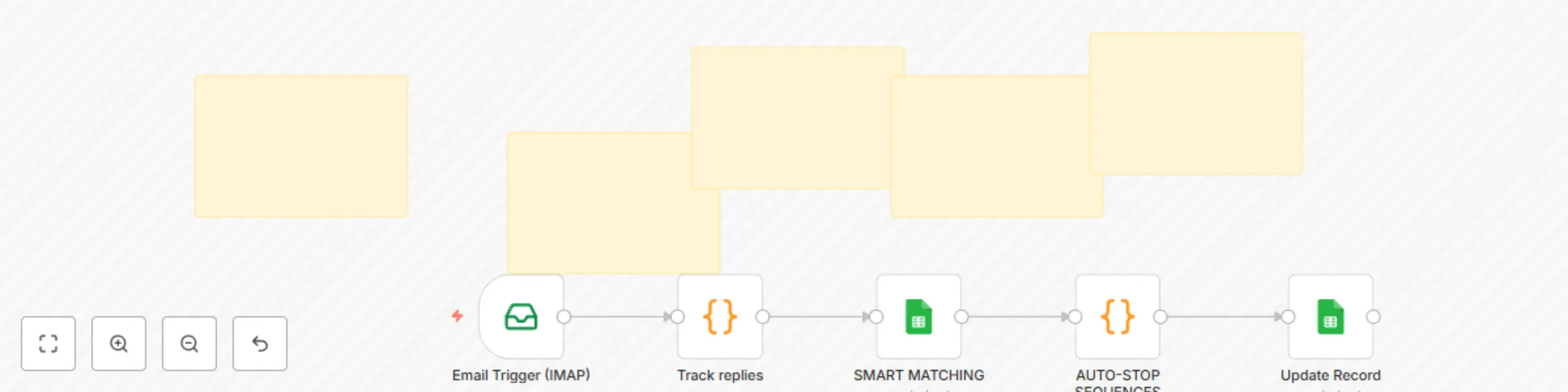
Workflow preview


 Early Deal
DISCOUNT 20%

Important notice
This workflow is provided as-is. Please review and test before using in production.
Overview
Email Reply Auto-Stopper Workflow
How It Works
This n8n automation automatically stops your email sequences when prospects reply, preventing embarrassing follow-ups and maintaining professional outreach.
The Process:
Email Monitoring - IMAP trigger watches your inbox for new emails Reply Detection - When someone replies, it extracts their email address
Database Lookup - Searches your Google Sheet prospect list for a match Auto-Stop - Updates the prospect's status to "STOP" and logs reply date Sequence Prevention - Your email sequences skip contacts with "STOP" status Real-World Example:
You send Email 1 to [email protected] John replies: "Thanks, but not interested" This workflow automatically marks John as "STOP" Your follow-up sequences skip John completely You look professional, not spammy Setup Instructions Prerequisites n8n instance (cloud or self-hosted) Email account with IMAP access (Gmail, Outlook, etc.) Google Sheets with your prospect data Step 1: Prepare Your Google Sheet Your prospect sheet MUST include these columns:
Email - Prospect email addresses Email Sent Status - Current status (ACTIVE, SENT, STOP, etc.) Reply Date - When they replied (can be empty initially) row_number - Unique identifier for each row Sample Sheet Structure:
| First Name | Email Sent Status | Reply Date | row_number | |
|---|---|---|---|---|
| John | [email protected] | ACTIVE | 2 | |
| Sarah | [email protected] | SENT | 3 | |
| Step 2: Set Up Email Credentials | ||||
| In n8n, go to Credentials → Add Credential | ||||
| Choose IMAP | ||||
| Enter your email settings: | ||||
| Host: imap.gmail.com (for Gmail) | ||||
| Port: 993 | ||||
| Username: [email protected] | ||||
| Password: your-app-password | ||||
| Secure: Yes | ||||
| Gmail Users: Enable 2FA and create an App Password |
Step 3: Set Up Google Sheets Access Create Google Sheets OAuth2 credential Follow n8n's Google Sheets setup guide Grant access to your prospect spreadsheet Step 4: Import & Configure Workflow Import the workflow JSON Email Trigger Node: Select your IMAP credential Keep "UNSEEN" filter enabled Google Sheets Nodes: Select your Google Sheets credential Choose your prospect spreadsheet Select correct sheet tab Test the workflow with a test email Step 5: Connect to Your Email Sequences Your existing email automation should check the "Email Sent Status" column:
Skip sending if status = "STOP" Continue sequence if status = "ACTIVE" or "SENT" Important Notes ⚠️ Critical: Your email sequence automation MUST respect the "Email Sent Status" field, or this won't work.
💡 Pro Tip: Test with a personal email first to make sure the matching works correctly.
🔧 Customization: You can modify the "STOP" status to anything that fits your workflow (REPLIED, UNSUBSCRIBED, etc.).
Use Cases Cold email campaigns Sales follow-up sequences Newsletter nurture flows Event promotion follow-ups Customer onboarding sequences Troubleshooting Emails not being detected:
Check IMAP credentials Verify "UNSEEN" filter is working Test with manual email trigger Sheet not updating:
Confirm Google Sheets permissions Check column names match exactly Verify row_number column exists No matches found:
Email addresses must match exactly (case-insensitive) Check for extra spaces in email data Verify prospect is in the correct sheet tab This automation prevents spam complaints, protects sender reputation, and keeps your outreach professional. Set it once, forget it forever.