Auto-send DMs to LinkedIn keyword commenters with ConnectSafely.AI

Workflow preview

Workflow preview
100%
Auto-send DMs to LinkedIn keyword commenters with ConnectSafely.AI preview
Open on n8n.io

Important notice

This workflow is provided as-is. Please review and test before using in production.

1. Workflow Overview

Auto Send DMs to LinkedIn Commenters Who Type a Specific Keyword using ConnectSafely.AI API Who's it for This workflow is built for content creators, coaches, course sellers, and marketers who use ...

Best for

  • Lead Nurturing automation workflows
  • advanced n8n builders looking for reusable templates

Tools used

n8n-nodes-base.stickynote, n8n-nodes-base.formtrigger, n8n-nodes-connectsafely-ai.connectsafelylinkedin, n8n-nodes-base.splitout, n8n-nodes-base.splitinbatches, n8n-nodes-base.code, n8n-nodes-base.if, n8n-nodes-base.wait

Source and attribution

This workflow is cataloged by N8N Workflows and links back to its original n8n.io source page by ConnectSafely.

Original n8n.io source

1.1 Workflow description

Title
Auto-send DMs to LinkedIn keyword commenters with ConnectSafely.AI
Workflow name
Auto-send DMs to LinkedIn keyword commenters with ConnectSafely.AI

Auto-Send DMs to LinkedIn Commenters Who Type a Specific Keyword using ConnectSafely.AI API

Who's it for

This workflow is built for content creators, coaches, course sellers, and marketers who use the "comment X to get the link" engagement strategy on LinkedIn. Perfect for anyone who wants to deliver lead magnets, code samples, templates, or resources automatically without spending hours manually DMing every commenter.

If you're tired of the manual grind—reading comments, checking connections, copy-pasting messages—this automation handles the entire fulfillment process while you focus on creating more content. Works especially well for viral posts where comment volume makes manual responses impossible.

How it works

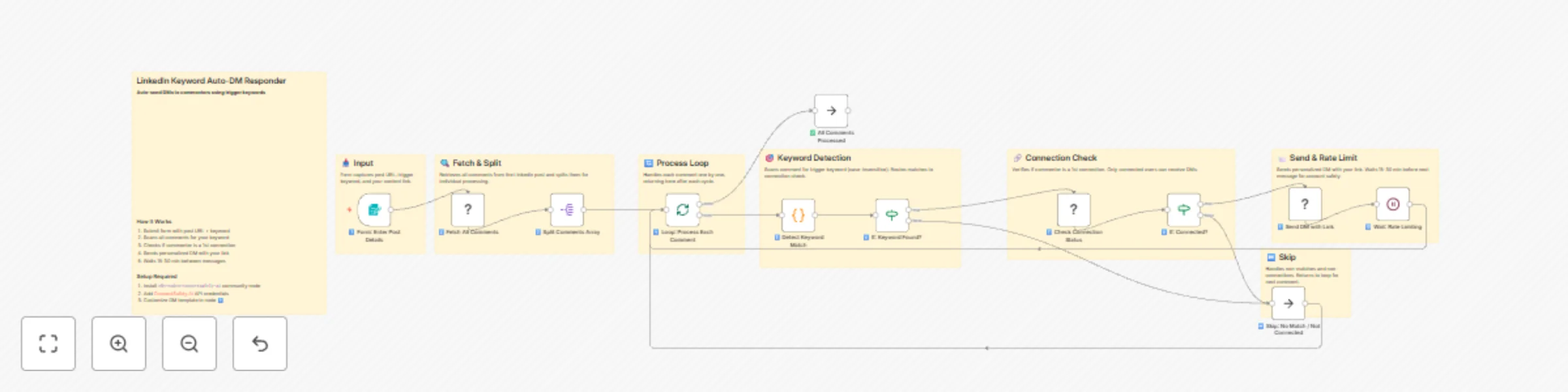
The workflow monitors your LinkedIn post for specific keyword triggers and automatically sends personalized DMs to commenters who request your content.

The process flow:

  1. You submit your post URL, trigger keyword, and resource link via a simple form
  2. Fetches all comments from the specified LinkedIn post via ConnectSafely.ai API
  3. Loops through each comment individually for processing
  4. Detects if the comment contains your trigger keyword (case-insensitive)
  5. Checks if the commenter is a 1st-degree connection (required for DMs)
  6. Sends a personalized direct message with their name and your resource link
  7. Applies random rate limiting (15-30 minutes) between messages for account safety
  8. Continues until all matching comments are processed

The rate limiting and connection checks are built-in to protect your LinkedIn account from automation detection.


Setup steps

Step 1: Get Your ConnectSafely.ai API Key

Obtain API Key
  1. Sign up at ConnectSafely.ai
  2. Log into your dashboard
  3. Navigate to SettingsAPI Keys
  4. Generate a new API key and copy it
Add Credential in n8n
  1. Go to Credentials in n8n
  2. Click Add Credential → Search for ConnectSafely API
  3. Paste your API key
  4. Save the credential

This credential is used by all ConnectSafely nodes in the workflow.

Step 2: Connect Your LinkedIn Account

  1. In your ConnectSafely.ai dashboard, click Connect LinkedIn
  2. Follow the authorization flow
  3. Ensure your account shows as "Connected" with a green status
  4. Your LinkedIn is now accessible via the API

Step 3: Import and Configure the Workflow

  1. Download the workflow JSON file
  2. In n8n, go to WorkflowsImport from File
  3. Select the downloaded JSON
  4. Open each ConnectSafely node and select your credential from the dropdown

Step 4: Test the Workflow

  1. Click the Test Workflow button in n8n
  2. Copy the form URL that appears in the Form Trigger node
  3. Open the URL in a new browser tab
  4. Fill in the form:
    • LinkedIn Post URL: Full URL of your post with comments
    • Trigger Keyword: The word commenters type (e.g., "code", "link", "example")
    • Content Link: The URL you want to send them
    • Your Name: For the message signature
  5. Submit and watch the execution

Pro Tip: Test with your own post first where you've left a test comment containing the keyword.

Step 5: Activate for Production

  1. Review the test execution to ensure messages sent correctly
  2. Toggle the workflow to Active
  3. Use the form URL whenever you post new "comment for link" content
  4. The workflow processes comments and sends DMs automatically

Customization

Message Template

Edit the Send DM with Link node to customize your message:

Hey {{name}}! 👋

Thanks for your comment on my post!

As promised, here's the link you requested:
👉 {{link}}

If you have any questions or want more resources like this, just let me know!

Best,
{{your_name}}

Variables available:

  • {{ $('Loop: Process Each Comment').item.json.authorName }} - Commenter's name
  • {{ $('Form: Enter Post Details').item.json['Content Link to Send'] }} - Your resource link
  • {{ $('Form: Enter Post Details').item.json['Your Name (for signature)'] }} - Your name

Multiple Keywords

Edit the Detect Keyword Match code node to check for multiple trigger words:

// Multiple keyword detection
const keywords = ['code', 'example', 'template', 'link', 'send'];
const commentLower = commentText.toLowerCase();

const isMatch = keywords.some(keyword => 
  commentLower.includes(keyword.toLowerCase())
);

return [{ json: { isKeywordMatch: isMatch, commentText } }];

Rate Limiting Adjustment

Edit the Wait: Rate Limiting node to change delays:

Risk Level Wait Time Formula
🟢 Safest 30-60 min Math.floor(Math.random() * (3600 - 1800 + 1)) + 1800
🟡 Moderate (Default) 15-30 min Math.floor(Math.random() * (1800 - 900 + 1)) + 900
🔴 Faster (Risky) 5-15 min Math.floor(Math.random() * (900 - 300 + 1)) + 300

Warning: Shorter delays increase the risk of LinkedIn flagging your account.

Add Connection Requests (Optional)

To also send connection requests to non-connected commenters:

  1. Add a ConnectSafely LinkedIn node after the "If: Connected?" FALSE path
  2. Set operation to sendConnectionRequest
  3. Map the publicIdentifier from the loop
  4. Add a personalized connection message

Use Cases

  • Lead Magnet Distribution: Automatically deliver PDFs, guides, or checklists to everyone who comments
  • Code Sample Sharing: Share GitHub repos, code snippets, or template files to developers who request them
  • Course Previews: Send free lesson links or course previews to interested commenters
  • Template Giveaways: Distribute Notion templates, spreadsheets, or design files
  • Webinar Registrations: Send signup links to commenters interested in your events
  • Community Building: Deliver exclusive Discord/Slack invite links to engaged followers
  • Podcast Promotion: Share episode links or show notes with interested listeners
  • Newsletter Growth: Send subscription links with a teaser of your best content

Troubleshooting

Common Issues & Solutions

Issue: No comments returned from post

  • Solution: Verify the post URL is correct and complete (should include the full linkedin.com/posts/... URL)
  • Solution: Ensure the post is public or you're the post author
  • Solution: Check that the post actually has comments

Issue: "Cannot send message" errors

  • Solution: You can only DM 1st-degree connections on LinkedIn; non-connections are automatically skipped
  • Solution: The commenter may have messaging disabled in their settings

Issue: Messages not being sent

  • Solution: Verify your ConnectSafely.ai credentials are valid and connected
  • Solution: Check that your LinkedIn account is properly connected in ConnectSafely dashboard
  • Solution: Review the execution log for specific error messages

Issue: Keyword not matching comments

  • Solution: Keywords are case-insensitive, but check spelling
  • Solution: Ensure the keyword appears exactly in the comment (partial matches work)
  • Solution: Test with a simple, unique keyword first

Issue: Workflow seems slow

  • Solution: This is intentional! The 15-30 minute delays between messages protect your account
  • Solution: Large batches (50+ comments) will take several hours to complete safely

Issue: LinkedIn account warnings

  • Solution: Stop the workflow immediately
  • Solution: Wait 24-48 hours before resuming
  • Solution: Increase rate limiting delays when you restart
  • Solution: Reduce daily volume

Issue: Duplicate messages sent

  • Solution: Don't run the workflow multiple times on the same post
  • Solution: Consider adding a Google Sheets node to track processed commenters

Safety Best Practices

LinkedIn Account Protection

Do ✅ Don't ❌
Use random delays (built-in) Send messages without delays
Process 20-30 comments per batch Process 100+ comments at once
Run during business hours Run 24/7 continuously
Stop if you see warnings Ignore LinkedIn restrictions
Keep messages helpful Send salesy/spammy content
Respond to genuine requests Use for cold outreach

Daily Limits (Approximate)

Account Type Recommended Max DMs/Day
Free Account 30-50
Premium 50-80
Sales Navigator 80-100

These are conservative estimates. LinkedIn doesn't publish exact limits.


Documentation & Resources

Official Documentation

Support Channels


Connect With Us

Stay updated with the latest automation tips, LinkedIn strategies, and platform updates:


Need Custom Workflows?

Looking to build sophisticated LinkedIn automation workflows tailored to your business needs?

Contact our team for custom automation development, strategy consulting, and enterprise solutions.

We specialize in:

  • Multi-channel engagement workflows
  • AI-powered personalization at scale
  • Lead scoring and qualification automation
  • CRM integration and data synchronization
  • Custom reporting and analytics pipelines

1.2 Logical Blocks

This catalog entry is organized from the workflow JSON. The node-level section below shows the executable blocks available for review before importing the template.

2. Block-by-Block Analysis

Block 1 - 📋 Workflow Overview

Type / Role
n8n-nodes-base.stickyNote - stickyNote
Config choices
Version 1

Block 2 - 📥 Input

Type / Role
n8n-nodes-base.stickyNote - stickyNote
Config choices
Version 1

Block 3 - 🔍 Fetch Comments

Type / Role
n8n-nodes-base.stickyNote - stickyNote
Config choices
Version 1

Block 4 - 🔄 Loop

Type / Role
n8n-nodes-base.stickyNote - stickyNote
Config choices
Version 1

Block 5 - 🎯 Keyword Check

Type / Role
n8n-nodes-base.stickyNote - stickyNote
Config choices
Version 1

Block 6 - 🔗 Connection Check

Type / Role
n8n-nodes-base.stickyNote - stickyNote
Config choices
Version 1

Block 7 - 📨 Send & Wait

Type / Role
n8n-nodes-base.stickyNote - stickyNote
Config choices
Version 1

Block 8 - ⏭️ Skip Path

Type / Role
n8n-nodes-base.stickyNote - stickyNote
Config choices
Version 1

Block 9 - 1️⃣ Form: Enter Post Details

Type / Role
n8n-nodes-base.formTrigger - formTrigger
Config choices
Version 2.3

Block 10 - 2️⃣ Fetch All Comments

Type / Role
n8n-nodes-connectsafely-ai.connectSafelyLinkedIn - connectSafelyLinkedIn
Config choices
Version 1

Block 11 - 3️⃣ Split Comments Array

Type / Role
n8n-nodes-base.splitOut - splitOut
Config choices
Version 1

Block 12 - 4️⃣ Loop: Process Each Comment

Type / Role
n8n-nodes-base.splitInBatches - splitInBatches
Config choices
Version 3

Block 13 - 5️⃣ Detect Keyword Match

Type / Role
n8n-nodes-base.code - code
Config choices
Version 2

Block 14 - 6️⃣ If: Keyword Found?

Type / Role
n8n-nodes-base.if - if
Config choices
Version 2.2

Block 15 - 7️⃣ Check Connection Status

Type / Role
n8n-nodes-connectsafely-ai.connectSafelyLinkedIn - connectSafelyLinkedIn
Config choices
Version 1

Block 16 - 8️⃣ If: Connected?

Type / Role
n8n-nodes-base.if - if
Config choices
Version 2.2

Block 17 - 9️⃣ Send DM with Link

Type / Role
n8n-nodes-connectsafely-ai.connectSafelyLinkedIn - connectSafelyLinkedIn
Config choices
Version 1

Block 18 - 🔟 Wait: Rate Limiting

Type / Role
n8n-nodes-base.wait - wait
Config choices
Version 1.1

Block 19 - ⏭️ Skip: No Match / Not Connected

Type / Role
n8n-nodes-base.noOp - noOp
Config choices
Version 1

Block 20 - ✅ All Comments Processed

Type / Role
n8n-nodes-base.noOp - noOp
Config choices
Version 1

3. Summary Table

Workflow Auto-send DMs to LinkedIn keyword commenters with ConnectSafely.AI
Complexity advanced
Nodes 20
Categories Lead Nurturing
Author ConnectSafely
Published 05 Dec 2025

4. Reproducing the Workflow from Scratch

  1. 1. Download the workflow JSON

    Use the JSON export at /data/workflows/11531/11531.json as the source template for this automation.

  2. 2. Import the template into n8n

    Open n8n, import the downloaded JSON, and review each node before activating the workflow.

  3. 3. Configure credentials and variables

    Replace placeholder credentials, API keys, webhook URLs, account IDs, and environment-specific values with your own settings.

  4. 4. Test with sample data

    Run the workflow manually or in a staging workspace, inspect node output, and confirm downstream systems receive the expected data.

  5. 5. Activate and monitor

    Enable the workflow only after testing, then monitor executions, errors, and rate limits during the first production runs.

5. General Notes & Resources

Review imported nodes carefully before activation. This catalog entry is intended to help you inspect the workflow structure, understand required services, and find related templates faster.

Node names, credentials, schedules, webhook paths, and external service limits may need adjustment for your workspace.

Frequently asked questions

What does Auto-send DMs to LinkedIn keyword commenters with ConnectSafely.AI do?

Auto Send DMs to LinkedIn Commenters Who Type a Specific Keyword using ConnectSafely.AI API Who's it for This workflow is built for content creators, coaches, course sellers, and marketers who use ...

What do I need before importing this workflow?

Review the workflow JSON, configure any required credentials in n8n, and test the automation in a safe workspace before using it in production.

Can I customize this workflow?

Yes. Use the block-by-block analysis and the downloadable JSON to inspect each node, then adjust credentials, prompts, schedules, filters, or destinations for your Lead Nurturing use case.