Auto-generate competitive battle cards from websites with Zoho CRM and Gemini AI

Workflow preview

Workflow preview
100%
Auto-generate competitive battle cards from websites with Zoho CRM and Gemini AI preview
Open on n8n.io

Important notice

This workflow is provided as-is. Please review and test before using in production.

1. Workflow Overview

Zoho CRM → AI‑Generated Competitive Battle Card This workflow automatically analyzes competitor websites, which inseted in description field and generates a clean, structured AI‑powered Battle Card...

Best for

  • Market Research automation workflows
  • AI Summarization automation workflows
  • advanced n8n builders looking for reusable templates

Tools used

n8n-nodes-base.cron, n8n-nodes-base.merge, n8n-nodes-base.code, n8n-nodes-base.splitout, n8n-nodes-base.httprequest, @n8n/n8n-nodes-langchain.lmchatgooglegemini, @n8n/n8n-nodes-langchain.outputparserstructured, n8n-nodes-base.zohocrm

Source and attribution

This workflow is cataloged by N8N Workflows and links back to its original n8n.io source page by WeblineIndia.

Original n8n.io source

1.1 Workflow description

Title
Auto-generate competitive battle cards from websites with Zoho CRM and Gemini AI
Workflow name
Auto-generate competitive battle cards from websites with Zoho CRM and Gemini AI

Zoho CRM → AI‑Generated Competitive Battle Card

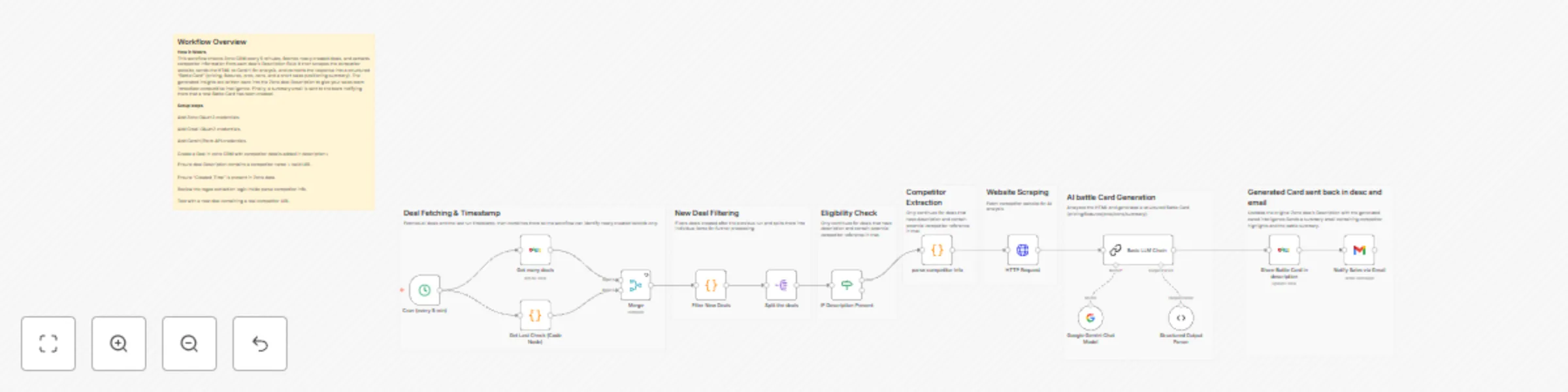
This workflow automatically analyzes competitor websites, which inseted in description field and generates a clean, structured AI‑powered Battle Card for every new Zoho CRM deal. It reads the competitor URL from the deal Description, scrapes the site, runs an AI analysis pipeline and updates the deal with pricing, differentiators, pros/cons and a concise sales battle summary — all fully automated.

Quick Implementation Steps

  1. Add Zoho CRM + Gmail OAuth2 + AI API credentials.
  2. Import workflow into n8n.
  3. create a new deal in zoho CRM.
  4. While creating Deal,Add a competitor URL inside the Zoho deal Description.
  5. Activate the workflow.
  6. Wait 5 minutes → Deal updates with AI‑generated Battle Card.

What It Does

This workflow removes the manual effort of researching competitors during a sales cycle. Every time a new deal is created, it checks the Description field for a competitor name and website. After validating both, it automatically fetches the competitor webpage and feeds the content into an AI analysis pipeline powered by LangChain.

The AI transforms the messy, unstructured webpage HTML into a readable, structured and ready‑to‑use Battle Card — including pricing overview, differentiating features, advantages, disadvantages and a compact sales battle summary. This data is pushed directly into the Deal Description and emailed to the sales team. No web research, no copy‑pasting, no manual formatting — the AI does everything.

Who’s It For

  • Sales teams wanting fast competitor intelligence.
  • SDR/BDR teams prepping before first calls.
  • Pre‑sales engineers making pitch notes.
  • Founders/Product teams monitoring competitor positioning.
  • Agencies building automation for CRM users.

Requirements

  • n8n instance
  • Zoho CRM OAuth2 credentials
  • Gmail OAuth2 credentials
  • AI model provider API key (Gemini / OpenAI / Claude — interchangeable)
  • Deals containing a competitor name + competitor URL [Must Have]

How It Works & Setup

Step 1 — Cron Trigger

Runs every 5 minutes → pulls newly created deals and last run time.

Step 2 — Fetch Deals

Retrieves deals sorted by Created_Time.

Step 3 — Identify New Deals

Filters deals created after the last workflow run.

Step 4 — Validate Deal Description

Ensures the Description has:

  • Competitor name
  • Competitor website URL

Step 5 — Extract Competitor Info

Regex identifies and extracts the name + first valid URL in the Description.

Step 6 — Scrape Competitor Website

HTTP Request downloads the competitor webpage’s HTML.

Step 7 — AI‑Generated Battle Card Creation

The AI pipeline (LangChain + your chosen LLM) transforms HTML into a structured JSON output containing:

  • Pricing Summary
  • Key Features
  • Pros
  • Cons
  • Battle Summary
  • Competitor Name

Step 8 — Update Zoho Deal

The script saves the formatted AI Battle Card directly into the Deal Description.

Step 9 — Notify Sales

Gmail node sends a summary email to the sales team.

How to Customize Nodes

Change the AI Output

Edit LangChain prompt to:

  • Add SWOT
  • Include pricing tiers
  • Include objections
  • Add competitor positioning
  • Add risk scoring

Change Where Battle Card Is Stored

Modify the Zoho Update node to store data in:

  • Notes
  • Custom fields
  • Attachments
  • Tags
  • Tasks

Email Customization

Update subject, body, recipients, etc.

Filtering Logic

Modify filters to:

  • Only process specific deal stages
  • Only process certain pipelines
  • Ignore internal test deals

Add‑Ons (Optional Enhancements)

  • Auto‑generate a PDF Battle Card and attach it to the deal.
  • Send Battle Cards to Slack, Teams, or a WhatsApp bot.
  • Store all Battle Cards in Notion, Airtable, or Google Sheets.
  • Add a competitor scoring system (price, features, risk level).
  • Build a weekly digest of all competitors analyzed.

Use Case Examples

  1. Instant competitor breakdown when a new lead or deal is created.
  2. Rapid sales call preparation with AI summarizing the competition.
  3. Automated enrichment of CRM records with meaningful intelligence.
  4. Internal competitive intelligence dashboards fed by AI outputs.
  5. Pitch deck automation where Battle Cards update slides automatically.

There are many more possible use cases depending on your CRM setup and AI strategy.

Troubleshooting Guide

Issue Possible Cause Solution
No Battle Card generated No URL found in Description Add valid http/https competitor URL
Deal skipped Time filtering excluded it Adjust lookback window in code
AI output incomplete HTML unreadable or blocked Try different competitor URL
Zoho update fails OAuth scope missing Reconnect Zoho with full CRM access
Email not sent Gmail OAuth expired Reconnect Gmail
AI output wrong format Prompt mismatched Update output schema and prompt

Need Help?

If you need help customizing prompts, enhancing automations or building full‑scale AI workflows, then our n8n automation developers at WeblineIndia can support:

  • AI automations
  • LangChain pipelines
  • CRM integrations
  • n8n workflow development
  • Competitive intelligence tooling
  • And so much more.

1.2 Logical Blocks

This catalog entry is organized from the workflow JSON. The node-level section below shows the executable blocks available for review before importing the template.

2. Block-by-Block Analysis

Block 1 - Cron (every 5 min)

Type / Role
n8n-nodes-base.cron - cron
Config choices
Version 1

Block 2 - Merge

Type / Role
n8n-nodes-base.merge - merge
Config choices
Version 3.2

Block 3 - Filter New Deals

Type / Role
n8n-nodes-base.code - code
Config choices
Version 2

Block 4 - Split the deals

Type / Role
n8n-nodes-base.splitOut - splitOut
Config choices
Version 1

Block 5 - parse competitor info

Type / Role
n8n-nodes-base.code - code
Config choices
Version 2

Block 6 - HTTP Request

Type / Role
n8n-nodes-base.httpRequest - httpRequest
Config choices
Version 4.3

Block 7 - Google Gemini Chat Model

Type / Role
@n8n/n8n-nodes-langchain.lmChatGoogleGemini - lmChatGoogleGemini
Config choices
Version 1

Block 8 - Structured Output Parser

Type / Role
@n8n/n8n-nodes-langchain.outputParserStructured - outputParserStructured
Config choices
Version 1.3

Block 9 - Share Battle Card in description

Type / Role
n8n-nodes-base.zohoCrm - zohoCrm
Config choices
Version 1

Block 10 - Notify Sales via Gmail

Type / Role
n8n-nodes-base.gmail - gmail
Config choices
Version 2.1

Block 11 - Get many deals

Type / Role
n8n-nodes-base.zohoCrm - zohoCrm
Config choices
Version 1

Block 12 - Get Last Check (Code Node)

Type / Role
n8n-nodes-base.code - code
Config choices
Version 2

Block 13 - IF Description Present

Type / Role
n8n-nodes-base.if - if
Config choices
Version 2.2

Block 14 - Basic LLM Chain

Type / Role
@n8n/n8n-nodes-langchain.chainLlm - chainLlm
Config choices
Version 1.7

Block 15 - Sticky Note12

Type / Role
n8n-nodes-base.stickyNote - stickyNote
Config choices
Version 1

Block 16 - Sticky Note13

Type / Role
n8n-nodes-base.stickyNote - stickyNote
Config choices
Version 1

Block 17 - Sticky Note14

Type / Role
n8n-nodes-base.stickyNote - stickyNote
Config choices
Version 1

Block 18 - Sticky Note15

Type / Role
n8n-nodes-base.stickyNote - stickyNote
Config choices
Version 1

Block 19 - Sticky Note16

Type / Role
n8n-nodes-base.stickyNote - stickyNote
Config choices
Version 1

Block 20 - Sticky Note17

Type / Role
n8n-nodes-base.stickyNote - stickyNote
Config choices
Version 1

Block 21 - Sticky Note18

Type / Role
n8n-nodes-base.stickyNote - stickyNote
Config choices
Version 1

Block 22 - Sticky Note19

Type / Role
n8n-nodes-base.stickyNote - stickyNote
Config choices
Version 1

3. Summary Table

Workflow Auto-generate competitive battle cards from websites with Zoho CRM and Gemini AI
Complexity advanced
Nodes 22
Categories Market Research, AI Summarization
Author WeblineIndia
Published 10 Dec 2025

4. Reproducing the Workflow from Scratch

  1. 1. Download the workflow JSON

    Use the JSON export at /data/workflows/11658/11658.json as the source template for this automation.

  2. 2. Import the template into n8n

    Open n8n, import the downloaded JSON, and review each node before activating the workflow.

  3. 3. Configure credentials and variables

    Replace placeholder credentials, API keys, webhook URLs, account IDs, and environment-specific values with your own settings.

  4. 4. Test with sample data

    Run the workflow manually or in a staging workspace, inspect node output, and confirm downstream systems receive the expected data.

  5. 5. Activate and monitor

    Enable the workflow only after testing, then monitor executions, errors, and rate limits during the first production runs.

5. General Notes & Resources

Review imported nodes carefully before activation. This catalog entry is intended to help you inspect the workflow structure, understand required services, and find related templates faster.

Node names, credentials, schedules, webhook paths, and external service limits may need adjustment for your workspace.

Frequently asked questions

What does Auto-generate competitive battle cards from websites with Zoho CRM and Gemini AI do?

Zoho CRM → AI‑Generated Competitive Battle Card This workflow automatically analyzes competitor websites, which inseted in description field and generates a clean, structured AI‑powered Battle Card...

What do I need before importing this workflow?

Review the workflow JSON, configure any required credentials in n8n, and test the automation in a safe workspace before using it in production.

Can I customize this workflow?

Yes. Use the block-by-block analysis and the downloadable JSON to inspect each node, then adjust credentials, prompts, schedules, filters, or destinations for your Market Research, AI Summarization use case.