Block 1 - 📥 Sheet Trigger - New Company
- Type / Role
- n8n-nodes-base.googleSheetsTrigger - googleSheetsTrigger
- Config choices
- Version 1


 Early Deal
This workflow is provided as-is. Please review and test before using in production.
How it works This workflow starts whenever you add a new company name to a Google Sheet. It checks if the company name is filled in, then uses AI to find more details about the company like industr...
n8n-nodes-base.googlesheetstrigger, n8n-nodes-base.if, @n8n/n8n-nodes-langchain.openai, n8n-nodes-base.set, n8n-nodes-base.hubspot, n8n-nodes-base.googlesheets, n8n-nodes-base.stickynote
This workflow is cataloged by N8N Workflows and links back to its original n8n.io source page by Avkash Kakdiya.
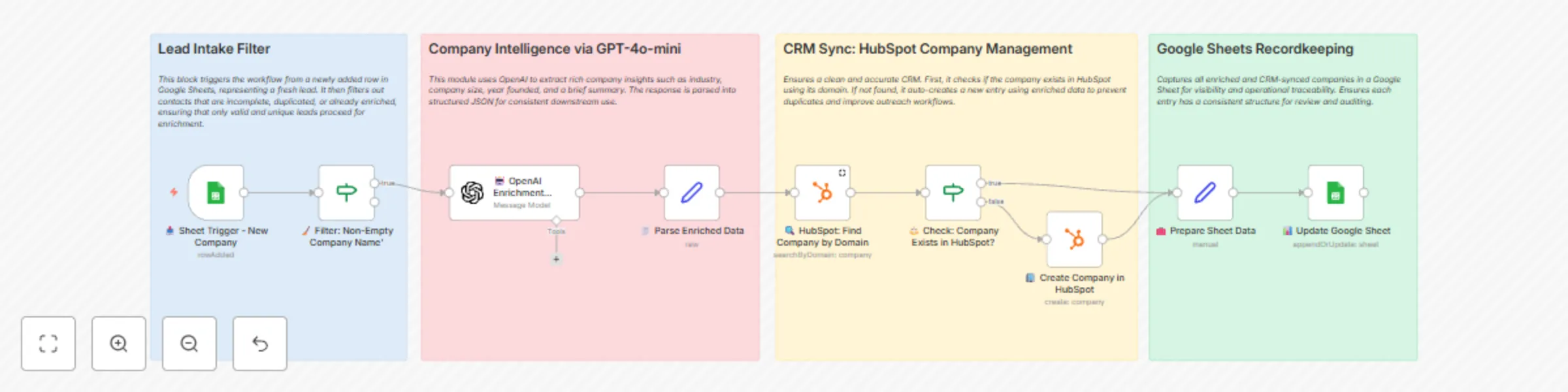
Original n8n.io sourceThis workflow starts whenever you add a new company name to a Google Sheet. It checks if the company name is filled in, then uses AI to find more details about the company like industry, size, location, and website. Next, it looks for the company in your HubSpot CRM. If the company is not there, it adds it automatically. Finally, it updates the Google Sheet with all the new company information so you have everything organized in one place.
1. Start with Google Sheets
The workflow watches your Google Sheet for new company names.
It ignores any empty or incomplete entries.
2. Get Company Details
Uses AI (OpenAI GPT-4o-mini) to find more information about the company.
Formats the AI results so they can be used easily.
3. Check and Update HubSpot
Searches your HubSpot CRM to see if the company already exists.
If the company is new, it creates a record in HubSpot with the AI details.
4. Save Everything in Google Sheets
Prepares the enriched data for saving.
Adds or updates the company information in the Google Sheet for easy tracking.
Automatically adds useful company info without manual work.
Keeps your CRM clean by avoiding duplicates.
Stores all updated company details in one place for easy access.
Runs smoothly in the background without you needing to do anything after setup.
This catalog entry is organized from the workflow JSON. The node-level section below shows the executable blocks available for review before importing the template.
| Workflow | Auto-enrich & sync companies from Google Sheets to HubSpot using GPT-4o-mini |
|---|---|
| Complexity | intermediate |
| Nodes | 13 |
| Categories | Lead Generation, Multimodal AI |
| Author | Avkash Kakdiya |
| Published | 13 Aug 2025 |
Use the JSON export at /data/workflows/7314/7314.json as the source template for this automation.
Open n8n, import the downloaded JSON, and review each node before activating the workflow.
Replace placeholder credentials, API keys, webhook URLs, account IDs, and environment-specific values with your own settings.
Run the workflow manually or in a staging workspace, inspect node output, and confirm downstream systems receive the expected data.
Enable the workflow only after testing, then monitor executions, errors, and rate limits during the first production runs.
Review imported nodes carefully before activation. This catalog entry is intended to help you inspect the workflow structure, understand required services, and find related templates faster.
Node names, credentials, schedules, webhook paths, and external service limits may need adjustment for your workspace.
How it works This workflow starts whenever you add a new company name to a Google Sheet. It checks if the company name is filled in, then uses AI to find more details about the company like industr...
Review the workflow JSON, configure any required credentials in n8n, and test the automation in a safe workspace before using it in production.
Yes. Use the block-by-block analysis and the downloadable JSON to inspect each node, then adjust credentials, prompts, schedules, filters, or destinations for your Lead Generation, Multimodal AI use case.