Block 1 - RSS Sources
- Type / Role
- n8n-nodes-base.code - code
- Config choices
- Version 2


 Early Deal
Real Estate News RSS to AI Deal Analyzer This workflow acts as a 24/7 digital real estate scout. It automatically monitors multiple RSS news feeds, filters out stories you have already seen, uses G...
n8n-nodes-base.code, n8n-nodes-base.googlesheets, n8n-nodes-base.rssfeedread, n8n-nodes-base.splitinbatches, n8n-nodes-base.wait, @n8n/n8n-nodes-langchain.chainllm, @n8n/n8n-nodes-langchain.lmchatgroq, n8n-nodes-base.if
This workflow is cataloged by N8N Workflows and links back to its original n8n.io source page by WeblineIndia.
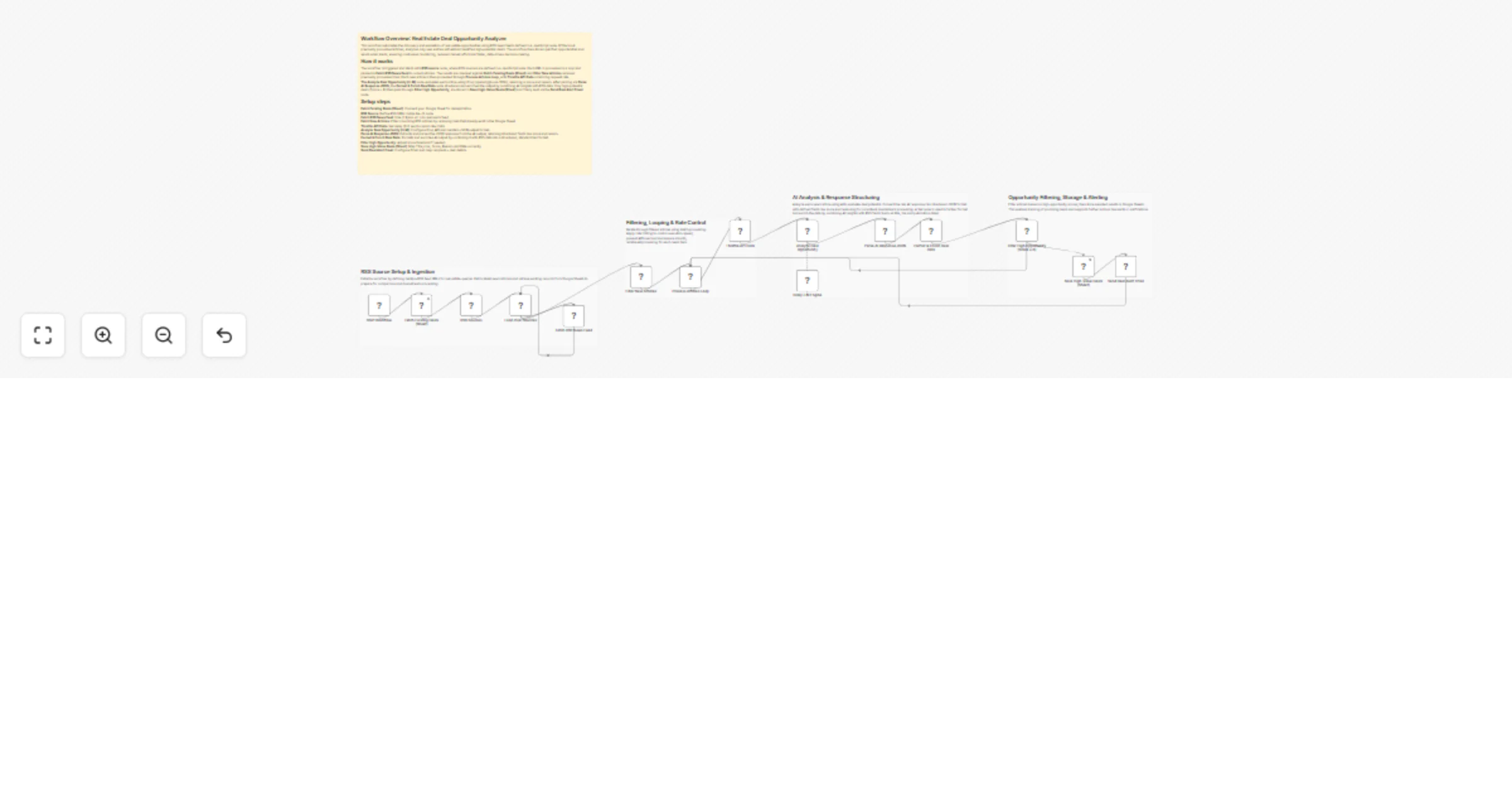
Original n8n.io sourceThis workflow acts as a 24/7 digital real estate scout. It automatically monitors multiple RSS news feeds, filters out stories you have already seen, uses Groq-powered AI to score the investment potential of new articles and saves high-value opportunities to a Google Sheet while alerting you via Gmail.
The workflow begins by retrieving a list of previously "seen" articles from your Google Sheet to prevent duplicate work. It then visits a list of RSS news sources (defined in a JavaScript node) to find the latest real estate headlines. Using a specialized filtering script, it compares the new headlines against your existing list, ensuring that only fresh, unread news moves forward.
Once new articles are identified, the workflow uses the Groq LLM Engine to perform a deep "Deal Opportunity" analysis. The AI reads the news snippet, assigns a score from 1 to 10 based on investment potential and provides a concise reason for that score. This turns a simple headline into a structured data point.
In the final stage, the workflow applies a quality filter. If the AI determines a deal is high-potential (Score ≥ 8), the workflow saves the title, link and AI reasoning to your Google Sheet. Simultaneously, it fires off a Gmail notification to your inbox so you can act on the lead before the rest of the market.
Before running the workflow, create a Google Spreadsheet. In the first sheet (tab), you must create a header named Link. You may also add headers for Title, PubDate and Reason to keep your data organized. The workflow uses the "Link" column to remember which articles it has already processed.
Open the RSS Sources node. You will see a small snippet of JavaScript code. You can change the URLs here to target your specific location or niche (e.g., changing "Ahmedabad" to "New York" or "Commercial Real Estate").
The workflow includes a Throttle API Calls node. This is set to 3 seconds by default. This ensures you do not hit "Rate Limits" on your Groq account if the RSS feed returns dozens of articles at once.
Open the Filter High Opportunity node. You can change the value from 8 to a lower number (like 5) if you want to see more frequent, moderate-potential leads.
Edit the Analyze Deal Opportunity node to ask the AI to look for specific things, like "Commercial warehouse space" or "Foreclosure notices."
The Send Deal Alert Email node can be customized with your own branding or specific subject lines.
You can add a Set node before the Gmail step to manage a list of emails if you need to alert a whole team.
Replace the Manual Trigger with a Schedule Trigger to run this every morning at 8:00 AM automatically.
Add a Twilio or WhatsApp node after the high-score filter to get instant text notifications for the best deals.
Scoring news daily to see if a specific city is trending toward a "Buyer's Market."
Automatically capturing every new residential project announced in a specific region.
Using specific Google News RSS queries to find distressed property sales.
Monitoring news related to specific developers or real estate firms.
Building a long-term database of real estate news and AI analysis for future trend reporting.
| Issue | Possible Cause | Solution |
|---|---|---|
| Workflow skips all news | Deduplication logic is too strict | Check if your Google Sheet "Link" column is filled with old data; clear it to reset the filter. |
| AI returns "No Response" | Groq model naming or API key | Ensure your Groq model is set to a valid ID (e.g., llama3-8b-8192) and your key is active. |
| Google Sheets Error | Missing Column Headers | Ensure your spreadsheet has a header named exactly "Link" (case sensitive). |
| Gmail fails to send | OAuth Scopes | Re-connect your Google account in n8n and ensure the "Gmail API" is enabled in your Google Cloud Console. |
Setting up AI-driven market monitors can be a competitive advantage, but the technical setup needs to be perfect. If you need help fine-tuning the AI prompts, adding custom RSS sources or connecting this to your existing CRM, our experts at WeblineIndia are here to assist.
Contact WeblineIndia today to build your custom business automation or to refine this workflow for your specific market!
This catalog entry is organized from the workflow JSON. The node-level section below shows the executable blocks available for review before importing the template.
| Workflow | Analyze real estate RSS deals with Groq, Google Sheets and Gmail |
|---|---|
| Complexity | advanced |
| Nodes | 20 |
| Categories | Market Research, AI Summarization |
| Author | WeblineIndia |
| Published | 08 Apr 2026 |
Use the JSON export at /data/workflows/14900/14900.json as the source template for this automation.
Open n8n, import the downloaded JSON, and review each node before activating the workflow.
Replace placeholder credentials, API keys, webhook URLs, account IDs, and environment-specific values with your own settings.
Run the workflow manually or in a staging workspace, inspect node output, and confirm downstream systems receive the expected data.
Enable the workflow only after testing, then monitor executions, errors, and rate limits during the first production runs.
Review imported nodes carefully before activation. This catalog entry is intended to help you inspect the workflow structure, understand required services, and find related templates faster.
Node names, credentials, schedules, webhook paths, and external service limits may need adjustment for your workspace.
Real Estate News RSS to AI Deal Analyzer This workflow acts as a 24/7 digital real estate scout. It automatically monitors multiple RSS news feeds, filters out stories you have already seen, uses G...
Review the workflow JSON, configure any required credentials in n8n, and test the automation in a safe workspace before using it in production.
Yes. Use the block-by-block analysis and the downloadable JSON to inspect each node, then adjust credentials, prompts, schedules, filters, or destinations for your Market Research, AI Summarization use case.