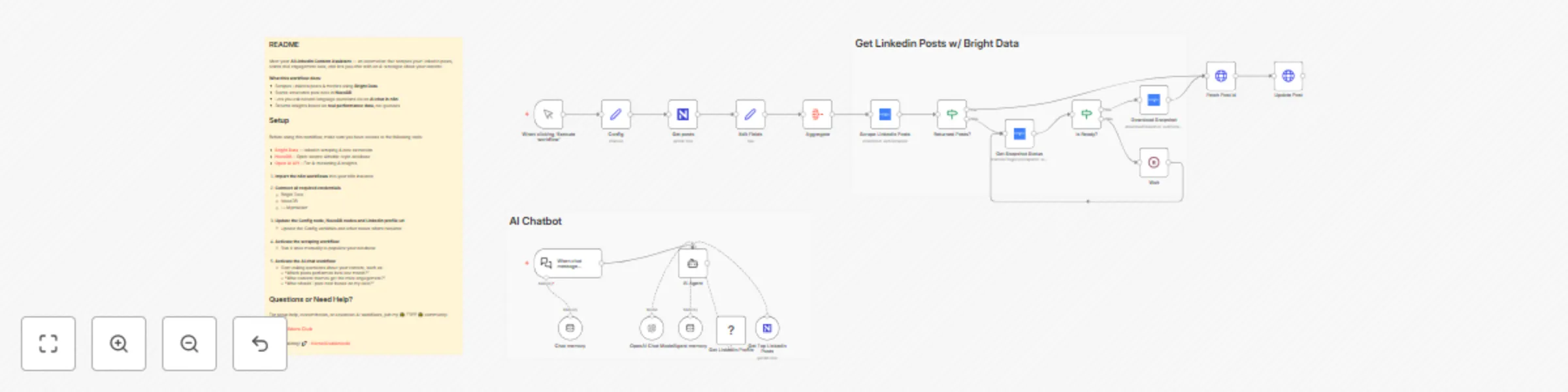
Analyze LinkedIn content performance with OpenAI, Bright Data and NocoDB

Workflow preview

Workflow preview
100%
Analyze LinkedIn content performance with OpenAI, Bright Data and NocoDB preview
Open on n8n.io

Important notice

This workflow is provided as-is. Please review and test before using in production.

1. Workflow Overview

AI LinkedIn Content Assistant using Bright Data and NocoDB Who’s it for This template is designed for creators, founders, and automation builders who publish regularly on LinkedIn and want to analy...

Best for

  • Market Research automation workflows
  • AI RAG automation workflows
  • advanced n8n builders looking for reusable templates

Tools used

@n8n/n8n-nodes-langchain.agent, @n8n/n8n-nodes-langchain.lmchatopenai, @n8n/n8n-nodes-langchain.chattrigger, n8n-nodes-base.manualtrigger, n8n-nodes-base.set, n8n-nodes-base.aggregate, n8n-nodes-base.httprequest, @n8n/n8n-nodes-langchain.memorybufferwindow

Source and attribution

This workflow is cataloged by N8N Workflows and links back to its original n8n.io source page by Kornel Dubieniecki.

Original n8n.io source

1.1 Workflow description

Title
Analyze LinkedIn content performance with OpenAI, Bright Data and NocoDB
Workflow name
Analyze LinkedIn content performance with OpenAI, Bright Data and NocoDB

AI LinkedIn Content Assistant using Bright Data and NocoDB

Who’s it for

This template is designed for creators, founders, and automation builders who publish regularly on LinkedIn and want to analyze their content performance using real data.

It’s especially useful for users who are already comfortable with n8n and want to build data-grounded AI assistants instead of relying on generic prompts or manual spreadsheets.


What this workflow does

This workflow builds an AI-powered LinkedIn content assistant backed by real engagement data.

It automatically:

  • Scrapes LinkedIn posts and engagement metrics using Bright Data
  • Stores structured post data in NocoDB
  • Enables an AI chat interface in n8n to query and analyze your content
  • Returns insights based on historical performance (not hallucinated data)

You can ask questions like:

  • “Which posts performed best last month?”
  • “What content got the most engagement?”
  • “What should I post next?”

Requirements

  • Self-hosted or cloud n8n instance
  • Bright Data – LinkedIn scraping & data extraction
  • NocoDB – Open-source Airtable-style database
  • Open AI API – For AI reasoning & insights

Setup

  1. Import the workflow into your n8n instance
  2. Open the Config node and fill in required variables
  3. Connect your credentials for Bright Data, NocoDB, and Open AI API
  4. Activate the workflow and run the scraper once to populate data

How to customize the workflow

You can extend this template by:

  • Adding new metrics or post fields in NocoDB
  • Scheduling regular data refreshes
  • Changing the AI system prompt to match your content strategy
  • Connecting additional channels (email, Slack, dashboards)

This template is fully modular and designed to be adapted to your workflow.


Questions or Need Help?

For setup help, customization, or advanced AI workflows, join my 🌟 FREE 🌟 community:

Tech Builders Club

Happy building! 🚀 - Kornel Dubieniecki

1.2 Logical Blocks

This catalog entry is organized from the workflow JSON. The node-level section below shows the executable blocks available for review before importing the template.

2. Block-by-Block Analysis

Block 1 - AI Agent

Type / Role
@n8n/n8n-nodes-langchain.agent - agent
Config choices
Version 3

Block 2 - OpenAI Chat Model

Type / Role
@n8n/n8n-nodes-langchain.lmChatOpenAi - lmChatOpenAi
Config choices
Version 1.3

Block 3 - When chat message received

Type / Role
@n8n/n8n-nodes-langchain.chatTrigger - chatTrigger
Config choices
Version 1.4

Block 4 - When clicking ‘Execute workflow’

Type / Role
n8n-nodes-base.manualTrigger - manualTrigger
Config choices
Version 1

Block 5 - Edit Fields

Type / Role
n8n-nodes-base.set - set
Config choices
Version 3.4

Block 6 - Aggregate

Type / Role
n8n-nodes-base.aggregate - aggregate
Config choices
Version 1

Block 7 - Fetch Post Id

Type / Role
n8n-nodes-base.httpRequest - httpRequest
Config choices
Version 4.3

Block 8 - Agent memory

Type / Role
@n8n/n8n-nodes-langchain.memoryBufferWindow - memoryBufferWindow
Config choices
Version 1.3

Block 9 - Chat memory

Type / Role
@n8n/n8n-nodes-langchain.memoryBufferWindow - memoryBufferWindow
Config choices
Version 1.3

Block 10 - Get posts

Type / Role
n8n-nodes-base.nocoDb - nocoDb
Config choices
Version 3

Block 11 - Sticky Note2

Type / Role
n8n-nodes-base.stickyNote - stickyNote
Config choices
Version 1

Block 12 - Config

Type / Role
n8n-nodes-base.set - set
Config choices
Version 3.4

Block 13 - Download Snapshot

Type / Role
@brightdata/n8n-nodes-brightdata.brightData - brightData
Config choices
Version 1

Block 14 - Wait

Type / Role
n8n-nodes-base.wait - wait
Config choices
Version 1.1

Block 15 - Get LinkedIn Profile

Type / Role
@brightdata/n8n-nodes-brightdata.brightDataTool - brightDataTool
Config choices
Version 1

Block 16 - Get Top LinkedIn Posts

Type / Role
n8n-nodes-base.nocoDbTool - nocoDbTool
Config choices
Version 3

Block 17 - Is Ready?

Type / Role
n8n-nodes-base.if - if
Config choices
Version 2.2

Block 18 - Returned Posts?

Type / Role
n8n-nodes-base.if - if
Config choices
Version 2.2

Block 19 - Scrape LinkedIn Posts

Type / Role
@brightdata/n8n-nodes-brightdata.brightData - brightData
Config choices
Version 1

Block 20 - Update Post

Type / Role
n8n-nodes-base.httpRequest - httpRequest
Config choices
Version 4.3

Block 21 - Get Snapshot Status

Type / Role
@brightdata/n8n-nodes-brightdata.brightData - brightData
Config choices
Version 1

Block 22 - Sticky Note

Type / Role
n8n-nodes-base.stickyNote - stickyNote
Config choices
Version 1

Block 23 - Sticky Note1

Type / Role
n8n-nodes-base.stickyNote - stickyNote
Config choices
Version 1

3. Summary Table

Workflow Analyze LinkedIn content performance with OpenAI, Bright Data and NocoDB
Complexity advanced
Nodes 23
Categories Market Research, AI RAG
Author Kornel Dubieniecki
Published 14 Dec 2025

4. Reproducing the Workflow from Scratch

  1. 1. Download the workflow JSON

    Use the JSON export at /data/workflows/11790/11790.json as the source template for this automation.

  2. 2. Import the template into n8n

    Open n8n, import the downloaded JSON, and review each node before activating the workflow.

  3. 3. Configure credentials and variables

    Replace placeholder credentials, API keys, webhook URLs, account IDs, and environment-specific values with your own settings.

  4. 4. Test with sample data

    Run the workflow manually or in a staging workspace, inspect node output, and confirm downstream systems receive the expected data.

  5. 5. Activate and monitor

    Enable the workflow only after testing, then monitor executions, errors, and rate limits during the first production runs.

5. General Notes & Resources

Review imported nodes carefully before activation. This catalog entry is intended to help you inspect the workflow structure, understand required services, and find related templates faster.

Node names, credentials, schedules, webhook paths, and external service limits may need adjustment for your workspace.

Frequently asked questions

What does Analyze LinkedIn content performance with OpenAI, Bright Data and NocoDB do?

AI LinkedIn Content Assistant using Bright Data and NocoDB Who’s it for This template is designed for creators, founders, and automation builders who publish regularly on LinkedIn and want to analy...

What do I need before importing this workflow?

Review the workflow JSON, configure any required credentials in n8n, and test the automation in a safe workspace before using it in production.

Can I customize this workflow?

Yes. Use the block-by-block analysis and the downloadable JSON to inspect each node, then adjust credentials, prompts, schedules, filters, or destinations for your Market Research, AI RAG use case.