Analyze, classify, and summarize Gmail with OpenAI RAG and Google Sheets

Workflow preview

Workflow preview
100%
Analyze, classify, and summarize Gmail with OpenAI RAG and Google Sheets preview
Open on n8n.io

1. Workflow Overview

Analyze, classify, and summarize emails using RAG (automatic taxonomy learning) This workflow automatically reads incoming Gmail messages, analyzes them using AI with a retrieval augm...

Best for

  • Ticket Management automation workflows
  • AI RAG automation workflows
  • advanced n8n builders looking for reusable templates

Tools used

@n8n/n8n-nodes-langchain.lmchatopenai, n8n-nodes-base.gmailtrigger, n8n-nodes-base.googlesheets, n8n-nodes-base.stickynote, n8n-nodes-base.manualtrigger, @n8n/n8n-nodes-langchain.agent, n8n-nodes-base.gmail, n8n-nodes-base.set

Source and attribution

This workflow is cataloged by N8N Workflows and links back to its original n8n.io source page by Amirhosein Zahedi.

Original n8n.io source

1.1 Workflow description

Title
Analyze, classify, and summarize Gmail with OpenAI RAG and Google Sheets
Workflow name
Analyze, classify, and summarize Gmail with OpenAI RAG and Google Sheets

πŸ“§ Analyze, classify, and summarize emails using RAG (automatic taxonomy learning)

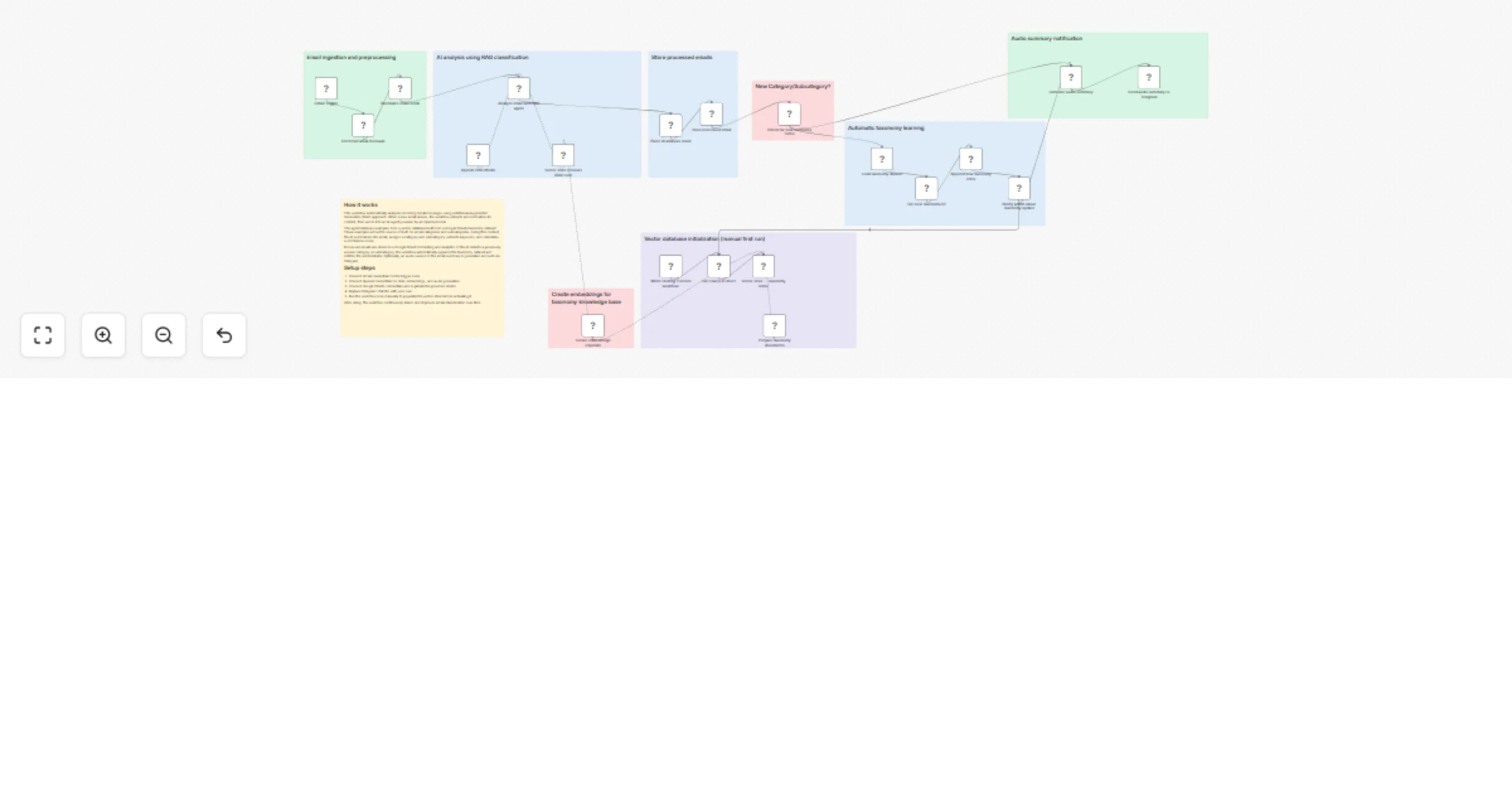
This workflow automatically reads incoming Gmail messages, analyzes them using AI with a retrieval-augmented classification system (RAG), organizes emails into structured categories, stores results in Google Sheets, and even generates an audio summary sent directly to Telegram.


βš™οΈ How It Works

The workflow creates an intelligent email processing pipeline combining Gmail, OpenAI, vector embeddings, and Google Sheets to continuously learn and improve email categorization accuracy.

  1. Email Trigger
    The workflow starts automatically whenever a new email arrives in Gmail using the Gmail Trigger node.
  2. Email Extraction & Cleaning
    The full email content, sender information, subject, and timestamp are retrieved and normalized. HTML formatting is removed so the AI receives clean text data.
  3. Knowledge Base Loading (RAG)
    Email tagging examples stored in a Google Sheets document are loaded and converted into embeddings. These examples act as the official taxonomy for categories and subcategories.
  4. Vector Store Creation
    The workflow builds an in-memory vector database containing historical tagging samples. This allows semantic similarity search during classification.
  5. AI Analysis Agent
    An OpenAI-powered AI Agent performs multiple tasks in a single step:
    • Summarizes the email (short paragraph)
    • Creates a one-line short message
    • Classifies the email using retrieved vector examples
    • Extracts keywords
    • Assigns confidence score
    • Detects whether a new category or subcategory was created

    The agent strictly prioritizes retrieved taxonomy examples to maintain consistent labeling.

  6. Structured Data Storage
    Processed email data β€” including summary, category, keywords, and metadata β€” is appended to a Google Sheets log, creating a searchable email intelligence database.
  7. Self-Learning Taxonomy
    If the AI determines a new category or subcategory is required:
    • The new label is automatically added to the tagging samples sheet
    • An admin notification is sent via Telegram
    This allows the system to evolve over time.
  8. Audio Summary Generation
    The summarized email text is converted into speech using OpenAI audio generation.
  9. Telegram Notification
    The generated audio summary is automatically delivered to Telegram, allowing quick email review without reading.

🧩 Features

  • βœ… Fully automated Gmail monitoring
  • βœ… Retrieval-Augmented Generation (RAG) email classification
  • βœ… Consistent taxonomy enforcement via vector similarity
  • βœ… Automatic keyword extraction & confidence scoring
  • βœ… Self-updating category knowledge base
  • βœ… Google Sheets email database
  • βœ… AI-generated voice summaries
  • βœ… Telegram admin notifications
  • βœ… Continuously improving classification accuracy

πŸš€ Setup Steps

1. Required Accounts

  • Google account (Gmail + Google Sheets)
  • OpenAI API account
  • Telegram Bot
  • n8n instance (Cloud or Self-hosted)

2. Configure Credentials in n8n

Create the following credentials inside n8n:

  • Gmail OAuth2 – used by Gmail Trigger and message retrieval
  • Google Sheets OAuth2 – for email storage and taxonomy dataset
  • OpenAI API – for embeddings, AI analysis, and audio generation
  • Telegram API – for sending notifications and audio summaries

3. Prepare Google Sheets

Sheet 1 β€” Email Log

  • date
  • email
  • name
  • subject
  • summarized text
  • category
  • subcategory
  • keywords

Sheet 2 β€” Tagging Samples (Knowledge Base)

  • id
  • subject
  • email_text
  • category
  • subcategory
  • keywords

This sheet acts as the classification training reference used by the vector store.

4. Configure Telegram

  • Create a Telegram bot using BotFather
  • Copy the bot token into n8n credentials
  • Replace the chatId value with your Telegram user or group ID

5. Connect OpenAI

  • Add your OpenAI API key
  • Ensure access to chat models and embeddings
  • No additional configuration required

6. Activate the Workflow

  • Enable the workflow
  • Send a test email to your Gmail inbox
  • Verify that:
    • Email appears in Google Sheets
    • Categories are assigned
    • Audio summary arrives in Telegram

πŸ’‘ Recommended Usage

  • Email triage automation
  • Customer support inbox classification
  • Sales lead categorization
  • Personal productivity systems
  • AI-assisted knowledge management

🧠 Architecture Notes

This workflow uses a Retrieval-Augmented Generation (RAG) pattern inside n8n by combining Google Sheets as a lightweight knowledge base with an in-memory vector store. Instead of relying purely on model reasoning, classification decisions are grounded in previously approved examples, producing stable and explainable categorization.

Over time, the workflow becomes smarter as new categories are automatically added, effectively turning your inbox into a continuously learning AI system.

1.2 Logical Blocks

This catalog entry is organized from the workflow JSON. The node-level section below shows the executable blocks available for review before importing the template.

2. Block-by-Block Analysis

Block 1 - OpenAI Chat Model

Type / Role
@n8n/n8n-nodes-langchain.lmChatOpenAi - lmChatOpenAi
Config choices
Version 1.3

Block 2 - Gmail Trigger

Type / Role
n8n-nodes-base.gmailTrigger - gmailTrigger
Config choices
Version 1.3

Block 3 - Get row(s) in sheet

Type / Role
n8n-nodes-base.googleSheets - googleSheets
Config choices
Version 4.7

Block 4 - Sticky Note

Type / Role
n8n-nodes-base.stickyNote - stickyNote
Config choices
Version 1

Block 5 - Sticky Note2

Type / Role
n8n-nodes-base.stickyNote - stickyNote
Config choices
Version 1

Block 6 - Sticky Note3

Type / Role
n8n-nodes-base.stickyNote - stickyNote
Config choices
Version 1

Block 7 - Sticky Note4

Type / Role
n8n-nodes-base.stickyNote - stickyNote
Config choices
Version 1

Block 8 - Sticky Note5

Type / Role
n8n-nodes-base.stickyNote - stickyNote
Config choices
Version 1

Block 9 - Sticky Note6

Type / Role
n8n-nodes-base.stickyNote - stickyNote
Config choices
Version 1

Block 10 - Sticky Note1

Type / Role
n8n-nodes-base.stickyNote - stickyNote
Config choices
Version 1

Block 11 - Sticky Note7

Type / Role
n8n-nodes-base.stickyNote - stickyNote
Config choices
Version 1

Block 12 - When clicking β€˜Execute workflow’

Type / Role
n8n-nodes-base.manualTrigger - manualTrigger
Config choices
Version 1

Block 13 - Analyze email with RAG agent

Type / Role
@n8n/n8n-nodes-langchain.agent - agent
Config choices
Version 3.1

Block 14 - Fetch full Gmail message

Type / Role
n8n-nodes-base.gmail - gmail
Config choices
Version 2.2

Block 15 - Normalize email fields

Type / Role
n8n-nodes-base.set - set
Config choices
Version 3.4

Block 16 - Parse AI analysis result

Type / Role
n8n-nodes-base.set - set
Config choices
Version 3.4

Block 17 - Store processed email

Type / Role
n8n-nodes-base.googleSheets - googleSheets
Config choices
Version 4.7

Block 18 - Check for new taxonomy items

Type / Role
n8n-nodes-base.if - if
Config choices
Version 2.3

Block 19 - Load taxonomy dataset

Type / Role
n8n-nodes-base.googleSheets - googleSheets
Config choices
Version 4.7

Block 20 - Get next taxonomy ID

Type / Role
n8n-nodes-base.code - code
Config choices
Version 2

Block 21 - Append new taxonomy entry

Type / Role
n8n-nodes-base.googleSheets - googleSheets
Config choices
Version 4.7

Block 22 - Notify admin about taxonomy update

Type / Role
n8n-nodes-base.telegram - telegram
Config choices
Version 1.2

Block 23 - Generate audio summary

Type / Role
@n8n/n8n-nodes-langchain.openAi - openAi
Config choices
Version 2.1

Block 24 - Send audio summary to Telegram

Type / Role
n8n-nodes-base.telegram - telegram
Config choices
Version 1.2

Showing the first 24 of 29 workflow blocks. Download the JSON for the full node graph.

3. Summary Table

Workflow Analyze, classify, and summarize Gmail with OpenAI RAG and Google Sheets
Complexity advanced
Nodes 29
Categories Ticket Management, AI RAG
Author Amirhosein Zahedi
Published 21 Feb 2026

4. Reproducing the Workflow from Scratch

  1. 1. Download the workflow JSON

    Use the JSON export at /data/workflows/13568/13568.json as the source template for this automation.

  2. 2. Import the template into n8n

    Open n8n, import the downloaded JSON, and review each node before activating the workflow.

  3. 3. Configure credentials and variables

    Replace placeholder credentials, API keys, webhook URLs, account IDs, and environment-specific values with your own settings.

  4. 4. Test with sample data

    Run the workflow manually or in a staging workspace, inspect node output, and confirm downstream systems receive the expected data.

  5. 5. Activate and monitor

    Enable the workflow only after testing, then monitor executions, errors, and rate limits during the first production runs.

5. General Notes & Resources

Review imported nodes carefully before activation. This catalog entry is intended to help you inspect the workflow structure, understand required services, and find related templates faster.

Node names, credentials, schedules, webhook paths, and external service limits may need adjustment for your workspace.

Frequently asked questions

What does Analyze, classify, and summarize Gmail with OpenAI RAG and Google Sheets do?

Analyze, classify, and summarize emails using RAG (automatic taxonomy learning) This workflow automatically reads incoming Gmail messages, analyzes them using AI with a retrieval augm...

What do I need before importing this workflow?

Review the workflow JSON, configure any required credentials in n8n, and test the automation in a safe workspace before using it in production.

Can I customize this workflow?

Yes. Use the block-by-block analysis and the downloadable JSON to inspect each node, then adjust credentials, prompts, schedules, filters, or destinations for your Ticket Management, AI RAG use case.