AI website chatbot with CRM lead collection using GPT and Google Sheets

Workflow preview

Workflow preview
100%
AI website chatbot with CRM lead collection using GPT and Google Sheets preview
Open on n8n.io

Important notice

This workflow is provided as-is. Please review and test before using in production.

1. Workflow Overview

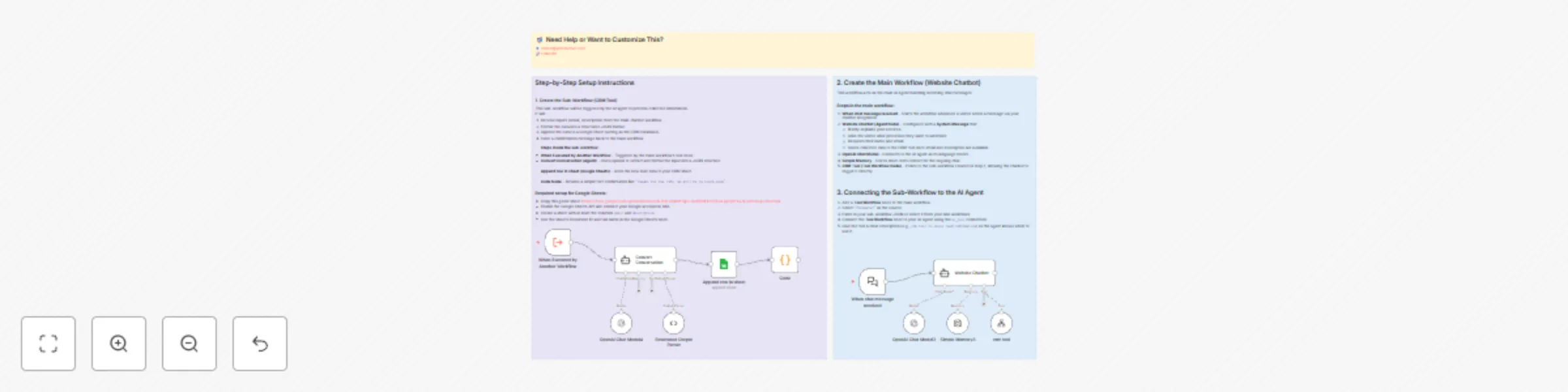
This n8n training workflow demonstrates how to connect a sub workflow as a tool to an AI Agent. In this example, the main workflow is a Website Chatbot that engages visitors, collects contact infor...

Best for

  • Lead Generation automation workflows
  • Multimodal AI automation workflows
  • intermediate n8n builders looking for reusable templates

Tools used

@n8n/n8n-nodes-langchain.chattrigger, n8n-nodes-base.executeworkflowtrigger, @n8n/n8n-nodes-langchain.lmchatopenai, @n8n/n8n-nodes-langchain.memorybufferwindow, @n8n/n8n-nodes-langchain.agent, @n8n/n8n-nodes-langchain.outputparserstructured, n8n-nodes-base.googlesheets, n8n-nodes-base.code

Source and attribution

This workflow is cataloged by N8N Workflows and links back to its original n8n.io source page by Robert Breen.

Original n8n.io source

1.1 Workflow description

Title
AI website chatbot with CRM lead collection using GPT and Google Sheets
Workflow name
AI website chatbot with CRM lead collection using GPT and Google Sheets

This n8n training workflow demonstrates how to connect a sub-workflow as a tool to an AI Agent.
In this example, the main workflow is a Website Chatbot that engages visitors, collects contact information, and sends that data to a CRM process.
The CRM process itself is a separate sub-workflow, connected to the agent as a tool via the Tool Workflow node.


Step-by-Step Setup Instructions

1. Create the Sub-Workflow (CRM Tool)

This sub-workflow will be triggered by the AI agent to process collected information.
It will:

  1. Receive inputs (email, description) from the main chatbot workflow.
  2. Format the data into a structured JSON format.
  3. Append the data to a Google Sheet (acting as the CRM database).
  4. Send a confirmation message back to the main workflow.

Steps inside the sub-workflow:

  • When Executed by Another Workflow – Triggered by the main workflow’s tool node.
  • Convert Conversation (Agent) – Uses OpenAI to extract and format the input into a JSON structure:
    {
      "email": "[email protected]",
      "description": "Wants help automating lead intake and sending Slack notifications."
    }
    

Structured Output Parser – Ensures the extracted data matches the expected JSON schema.

Append row in sheet (Google Sheets) – Adds the new lead data to your CRM sheet.

Code Node – Returns a simple text confirmation like "Thanks for the info, we will be in touch soon".

Required setup for Google Sheets:

  • Enable the Google Sheets API and connect your Google account in n8n.
  • Create a sheet with at least the columns email and description.
  • Use the sheet's Document ID and tab name in the Google Sheets node.

2. Create the Main Workflow (Website Chatbot)

This workflow acts as the main AI Agent handling incoming chat messages.

Steps in the main workflow:

  1. When chat message received – Starts the workflow whenever a visitor sends a message via your chatbot integration.
  2. Website Chatbot (Agent Node) – Configured with a System Message that:
    • Briefly explains your services.
    • Asks the visitor what processes they want to automate.
    • Requests their name and email.
    • Sends collected data to the CRM tool once email and description are available.
  3. OpenAI Chat Model – Connects to the AI agent as its language model.
  4. Simple Memory – Stores short-term context for the ongoing chat.
  5. CRM Tool (Tool Workflow Node) – Points to the sub-workflow created in Step 1, allowing the chatbot to trigger it directly.

3. Connecting the Sub-Workflow to the AI Agent

  1. Add a Tool Workflow node to the main workflow.
  2. Select "Parameter" as the source.
  3. Paste in your sub-workflow JSON or select it from your n8n workflows.
  4. Connect the Tool Workflow node to your AI Agent using the ai_tool connection.
  5. Give the tool a clear description (e.g., crm tool to store lead information) so the agent knows when to use it.

4. How It Works in Action

  1. A visitor sends a message through the chatbot.
  2. The AI Agent engages, asks questions, and collects their name, email, and request.
  3. Once collected, the agent triggers the CRM Tool.
  4. The sub-workflow formats the data, stores it in Google Sheets, and sends a confirmation.
  5. The chatbot confirms with the visitor that their request was received.

5. Customization Ideas

  • Replace Google Sheets with your actual CRM API.
  • Add validation to ensure the email format is correct before saving.
  • Expand the CRM tool to send a Slack or email notification after storing the lead.

Created by Robert A. – Ynteractive
Website: https://ynteractive.com
Email: [email protected]

1.2 Logical Blocks

This catalog entry is organized from the workflow JSON. The node-level section below shows the executable blocks available for review before importing the template.

2. Block-by-Block Analysis

Block 1 - When chat message received

Type / Role
@n8n/n8n-nodes-langchain.chatTrigger - chatTrigger
Config choices
Version 1.3

Block 2 - When Executed by Another Workflow

Type / Role
n8n-nodes-base.executeWorkflowTrigger - executeWorkflowTrigger
Config choices
Version 1.1

Block 3 - OpenAI Chat Model3

Type / Role
@n8n/n8n-nodes-langchain.lmChatOpenAi - lmChatOpenAi
Config choices
Version 1.2

Block 4 - Simple Memory3

Type / Role
@n8n/n8n-nodes-langchain.memoryBufferWindow - memoryBufferWindow
Config choices
Version 1.3

Block 5 - OpenAI Chat Model4

Type / Role
@n8n/n8n-nodes-langchain.lmChatOpenAi - lmChatOpenAi
Config choices
Version 1.2

Block 6 - Website Chatbot

Type / Role
@n8n/n8n-nodes-langchain.agent - agent
Config choices
Version 2.2

Block 7 - Convert Conversation

Type / Role
@n8n/n8n-nodes-langchain.agent - agent
Config choices
Version 2.2

Block 8 - Structured Output Parser

Type / Role
@n8n/n8n-nodes-langchain.outputParserStructured - outputParserStructured
Config choices
Version 1.3

Block 9 - Append row in sheet

Type / Role
n8n-nodes-base.googleSheets - googleSheets
Config choices
Version 4.6

Block 10 - Code

Type / Role
n8n-nodes-base.code - code
Config choices
Version 2

Block 11 - crm tool

Type / Role
@n8n/n8n-nodes-langchain.toolWorkflow - toolWorkflow
Config choices
Version 2.2

Block 12 - Sticky Note3

Type / Role
n8n-nodes-base.stickyNote - stickyNote
Config choices
Version 1

Block 13 - Sticky Note5

Type / Role
n8n-nodes-base.stickyNote - stickyNote
Config choices
Version 1

Block 14 - Sticky Note17

Type / Role
n8n-nodes-base.stickyNote - stickyNote
Config choices
Version 1

3. Summary Table

Workflow AI website chatbot with CRM lead collection using GPT and Google Sheets
Complexity intermediate
Nodes 14
Categories Lead Generation, Multimodal AI
Author Robert Breen
Published 10 Aug 2025

4. Reproducing the Workflow from Scratch

  1. 1. Download the workflow JSON

    Use the JSON export at /data/workflows/7227/7227.json as the source template for this automation.

  2. 2. Import the template into n8n

    Open n8n, import the downloaded JSON, and review each node before activating the workflow.

  3. 3. Configure credentials and variables

    Replace placeholder credentials, API keys, webhook URLs, account IDs, and environment-specific values with your own settings.

  4. 4. Test with sample data

    Run the workflow manually or in a staging workspace, inspect node output, and confirm downstream systems receive the expected data.

  5. 5. Activate and monitor

    Enable the workflow only after testing, then monitor executions, errors, and rate limits during the first production runs.

5. General Notes & Resources

Review imported nodes carefully before activation. This catalog entry is intended to help you inspect the workflow structure, understand required services, and find related templates faster.

Node names, credentials, schedules, webhook paths, and external service limits may need adjustment for your workspace.

Frequently asked questions

What does AI website chatbot with CRM lead collection using GPT and Google Sheets do?

This n8n training workflow demonstrates how to connect a sub workflow as a tool to an AI Agent. In this example, the main workflow is a Website Chatbot that engages visitors, collects contact infor...

What do I need before importing this workflow?

Review the workflow JSON, configure any required credentials in n8n, and test the automation in a safe workspace before using it in production.

Can I customize this workflow?

Yes. Use the block-by-block analysis and the downloadable JSON to inspect each node, then adjust credentials, prompts, schedules, filters, or destinations for your Lead Generation, Multimodal AI use case.