AI-powered X (Twitter) content generator and scheduler with LangChain and Blotato

Workflow preview

Workflow preview
100%
AI-powered X (Twitter) content generator and scheduler with LangChain and Blotato preview
Open on n8n.io

Important notice

This workflow is provided as-is. Please review and test before using in production.

1. Workflow Overview

This n8n template demonstrates how to use AI to fully automate the generation and scheduling of X (formerly Twitter) content based on a specific, predefined persona. Use cases are many: It's perfec...

Best for

  • Social Media automation workflows
  • Multimodal AI automation workflows
  • advanced n8n builders looking for reusable templates

Tools used

@n8n/n8n-nodes-langchain.lmchatopenrouter, @n8n/n8n-nodes-langchain.agent, @n8n/n8n-nodes-langchain.outputparserstructured, n8n-nodes-base.googlesheets, @blotato/n8n-nodes-blotato.blotato, n8n-nodes-base.gmail, n8n-nodes-base.if, n8n-nodes-base.googledrive

Source and attribution

This workflow is cataloged by N8N Workflows and links back to its original n8n.io source page by Yusuke Yamamoto.

Original n8n.io source

1.1 Workflow description

Title
AI-powered X (Twitter) content generator and scheduler with LangChain and Blotato
Workflow name
AI-powered X (Twitter) content generator and scheduler with LangChain and Blotato

This n8n template demonstrates how to use AI to fully automate the generation and scheduling of X (formerly Twitter) content based on a specific, predefined persona.

Use cases are many: It's perfect for social media marketers looking to streamline content creation, individual experts building a consistent brand voice, or businesses aiming to drive traffic to specific services with a steady stream of relevant content.

Good to know
  • The AI model used in this workflow (via OpenRouter) requires an API key and will incur costs based on usage (typically a few cents per generation).
  • The Blotato node used for posting is a third-party community node and requires a separate Blotato account.
How it works

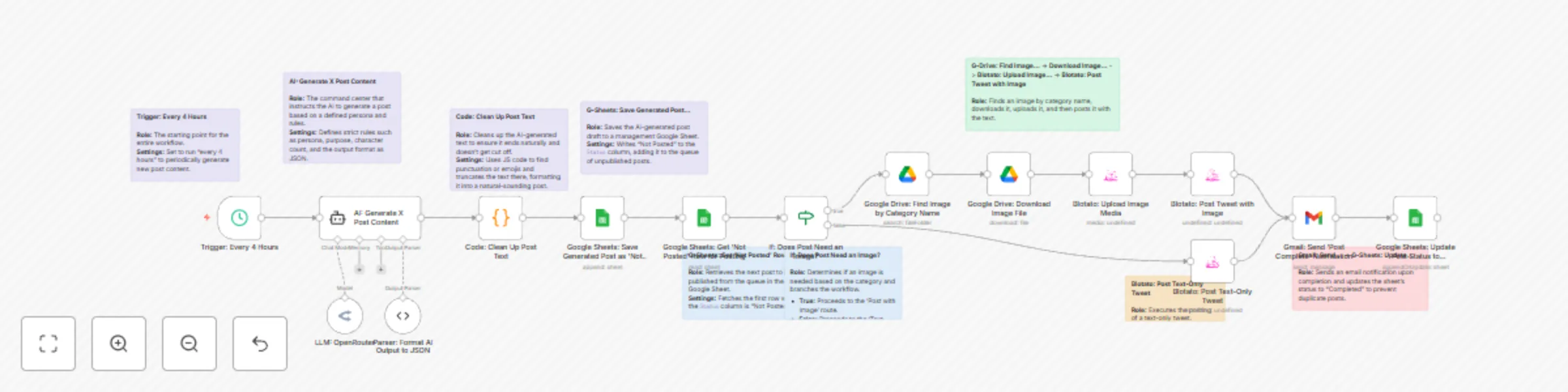
This workflow is divided into two main processes: Content Generation and Content Posting.

  1. Content Generation Process:

    • A Schedule Trigger kicks off the workflow every 4 hours.
    • An AI Agent (LangChain) generates a post based on a detailed prompt defining a persona, purpose, and rules.
    • A Code node refines the AI's output, ensuring the text ends naturally.
    • The generated post is then saved to a Google Sheet with a "Not Posted" status, creating a content queue.
  2. Content Posting Process:

    • The workflow retrieves one "Not Posted" item from the Google Sheet.
    • An IF node checks the post's category to determine if an image is required.
    • If an image is needed, it searches for and retrieves a matching image file from a specified Google Drive folder.
    • The Blotato node posts the text (and image, if applicable) to the designated X (Twitter) account.
    • A confirmation email is sent via Gmail to notify stakeholders of the successful post.
    • Finally, the Google Sheet status is updated to "Completed" to prevent duplicate posts.
How to use
  • You can test the workflow anytime using the manual trigger. For production, adjust the posting frequency in the "Trigger: Every 4 Hours" node.
  • The quality of the generated content is determined by the prompt. Edit the system message within the "AI: Generate X Post Content" node to customize the persona, purpose, tone of voice, etc.
  • To generate posts with images, you must upload image files to the specified Google Drive folder. The filename must exactly match the post's category name (e.g., Evidence-based_Graph.png).
Requirements
  • An OpenRouter account (or another AI service account) for the LLM.
  • A Blotato account for social media posting.
  • A Google account for content management, image storage, and notifications (Sheets, Drive, Gmail).
Customising this workflow
  • Expand the workflow to post to other social media platforms supported by Blotato, such as Facebook or LinkedIn.
  • Instead of posting immediately, add a human-in-the-loop approval step by sending the AI-generated draft to Slack or email for review before publishing.
  • Replace the Schedule Trigger with a Webhook Trigger to generate and post relevant content based on external events, such as "when a new blog post is published."

1.2 Logical Blocks

This catalog entry is organized from the workflow JSON. The node-level section below shows the executable blocks available for review before importing the template.

2. Block-by-Block Analysis

Block 1 - LLM: OpenRouter

Type / Role
@n8n/n8n-nodes-langchain.lmChatOpenRouter - lmChatOpenRouter
Config choices
Version 1

Block 2 - AI: Generate X Post Content

Type / Role
@n8n/n8n-nodes-langchain.agent - agent
Config choices
Version 2.2

Block 3 - Parser: Format AI Output to JSON

Type / Role
@n8n/n8n-nodes-langchain.outputParserStructured - outputParserStructured
Config choices
Version 1.3

Block 4 - Google Sheets: Save Generated Post as 'Not Posted'

Type / Role
n8n-nodes-base.googleSheets - googleSheets
Config choices
Version 4.7

Block 5 - Blotato: Post Text-Only Tweet

Type / Role
@blotato/n8n-nodes-blotato.blotato - blotato
Config choices
Version 2

Block 6 - Gmail: Send 'Post Complete' Notification

Type / Role
n8n-nodes-base.gmail - gmail
Config choices
Version 2.1

Block 7 - Google Sheets: Update Post Status to 'Completed'

Type / Role
n8n-nodes-base.googleSheets - googleSheets
Config choices
Version 4.7

Block 8 - Google Sheets: Get 'Not Posted' Row for Posting

Type / Role
n8n-nodes-base.googleSheets - googleSheets
Config choices
Version 4.7

Block 9 - If: Does Post Need an Image?

Type / Role
n8n-nodes-base.if - if
Config choices
Version 2.2

Block 10 - Google Drive: Find Image by Category Name

Type / Role
n8n-nodes-base.googleDrive - googleDrive
Config choices
Version 3

Block 11 - Blotato: Post Tweet with Image

Type / Role
@blotato/n8n-nodes-blotato.blotato - blotato
Config choices
Version 2

Block 12 - Google Drive: Download Image File

Type / Role
n8n-nodes-base.googleDrive - googleDrive
Config choices
Version 3

Block 13 - Blotato: Upload Image Media

Type / Role
@blotato/n8n-nodes-blotato.blotato - blotato
Config choices
Version 2

Block 14 - Code: Clean Up Post Text

Type / Role
n8n-nodes-base.code - code
Config choices
Version 2

Block 15 - Trigger: Every 4 Hours

Type / Role
n8n-nodes-base.scheduleTrigger - scheduleTrigger
Config choices
Version 1.2

Block 16 - Sticky Note

Type / Role
n8n-nodes-base.stickyNote - stickyNote
Config choices
Version 1

Block 17 - Sticky Note1

Type / Role
n8n-nodes-base.stickyNote - stickyNote
Config choices
Version 1

Block 18 - Sticky Note2

Type / Role
n8n-nodes-base.stickyNote - stickyNote
Config choices
Version 1

Block 19 - Sticky Note3

Type / Role
n8n-nodes-base.stickyNote - stickyNote
Config choices
Version 1

Block 20 - Sticky Note4

Type / Role
n8n-nodes-base.stickyNote - stickyNote
Config choices
Version 1

Block 21 - Sticky Note5

Type / Role
n8n-nodes-base.stickyNote - stickyNote
Config choices
Version 1

Block 22 - Sticky Note6

Type / Role
n8n-nodes-base.stickyNote - stickyNote
Config choices
Version 1

Block 23 - Sticky Note7

Type / Role
n8n-nodes-base.stickyNote - stickyNote
Config choices
Version 1

Block 24 - Sticky Note8

Type / Role
n8n-nodes-base.stickyNote - stickyNote
Config choices
Version 1

3. Summary Table

Workflow AI-powered X (Twitter) content generator and scheduler with LangChain and Blotato
Complexity advanced
Nodes 24
Categories Social Media, Multimodal AI
Author Yusuke Yamamoto
Published 13 Oct 2025

4. Reproducing the Workflow from Scratch

  1. 1. Download the workflow JSON

    Use the JSON export at /data/workflows/9562/9562.json as the source template for this automation.

  2. 2. Import the template into n8n

    Open n8n, import the downloaded JSON, and review each node before activating the workflow.

  3. 3. Configure credentials and variables

    Replace placeholder credentials, API keys, webhook URLs, account IDs, and environment-specific values with your own settings.

  4. 4. Test with sample data

    Run the workflow manually or in a staging workspace, inspect node output, and confirm downstream systems receive the expected data.

  5. 5. Activate and monitor

    Enable the workflow only after testing, then monitor executions, errors, and rate limits during the first production runs.

5. General Notes & Resources

Review imported nodes carefully before activation. This catalog entry is intended to help you inspect the workflow structure, understand required services, and find related templates faster.

Node names, credentials, schedules, webhook paths, and external service limits may need adjustment for your workspace.

Frequently asked questions

What does AI-powered X (Twitter) content generator and scheduler with LangChain and Blotato do?

This n8n template demonstrates how to use AI to fully automate the generation and scheduling of X (formerly Twitter) content based on a specific, predefined persona. Use cases are many: It's perfec...

What do I need before importing this workflow?

Review the workflow JSON, configure any required credentials in n8n, and test the automation in a safe workspace before using it in production.

Can I customize this workflow?

Yes. Use the block-by-block analysis and the downloadable JSON to inspect each node, then adjust credentials, prompts, schedules, filters, or destinations for your Social Media, Multimodal AI use case.