Block 1 - n8n_order
- Type / Role
- n8n-nodes-base.webhook - webhook
- Config choices
- Version 2
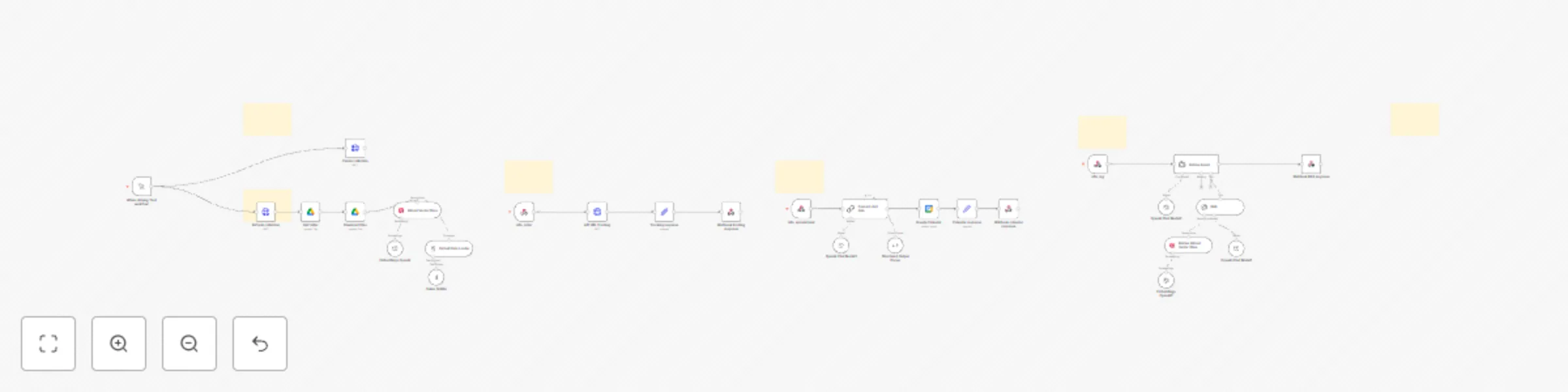


 Early Deal
This workflow is provided as-is. Please review and test before using in production.
Automate AI Powered RAG System with Contextual Q&A, Google Sheets Integration, and Glide Frontend—Powered by n8n, OpenAI, Supabase, and Google Apps Script. Tools & Services Used Glide (Frontend for...
n8n-nodes-base.webhook, n8n-nodes-base.googlecalendar, @n8n/n8n-nodes-langchain.lmchatopenai, @n8n/n8n-nodes-langchain.chainllm, @n8n/n8n-nodes-langchain.vectorstoreqdrant, @n8n/n8n-nodes-langchain.embeddingsopenai, @n8n/n8n-nodes-langchain.toolvectorstore, @n8n/n8n-nodes-langchain.agent
This workflow is cataloged by N8N Workflows and links back to its original n8n.io source page by Sam Yassine.
Original n8n.io sourceAutomate AI-Powered RAG System with Contextual Q&A, Google Sheets Integration, and Glide Frontend—Powered by n8n, OpenAI, Supabase, and Google Apps Script.
Glide (Frontend for user interactions)
Google Sheets (Stores questions and answers)
Google Apps Script (Forms + media upload handling)
OpenAI (Embeddings + GPT-4 to rank and generate answers)
Supabase (Optional for image hosting)
n8n (Automation logic and backend glue)
Trigger: Webhook receives a user question from a Glide frontend.
Fetch Data: Retrieves Q&A entries (and optionally, image URLs) from a connected Google Sheet.
Rank Relevance:
OpenAI Embeddings rank the relevance of stored questions to the new input.
Top matches are passed to a GPT-4 prompt for answer generation.
Generate Answer:
GPT-4 creates a contextual answer using the best match.
Optional: Includes media URL if attached to the matched answer.
Response: Sends the formatted answer back to Glide frontend (text + optional image).
OpenAI (API key with GPT-4 and embedding access)
Google Sheets (linked via Service Account or OAuth2 credentials)
Glide App (with a form to submit questions)
Supabase (optional, if hosting user-uploaded media)
n8n Self-hosted (for community nodes and webhook access)
Upload the provided JSON into your self-hosted n8n instance.
Requires installation of the Community Node: @n8n/n8n-nodes-openai-embeddings
Webhook Trigger: Replace the Glide webhook URL with your actual endpoint from your app.
Google Sheets Node: Set the spreadsheet ID and worksheet name to fetch your Q&A dataset.
OpenAI Nodes:
Insert your OpenAI API key.
Confirm that both text-embedding-ada-002 (or similar) and gpt-4 are available.
Supabase or Apps Script (Optional): Ensure image links are correctly formed in the Sheet.
Update the OpenAI ranking prompt or similarity threshold in the Function or Code node.
Tailor GPT-4 prompts to return concise or detailed answers based on your use case.
Simulate a Question: Trigger the Glide form with a sample question.
Check n8n logs for:
Matching score/ranking success
Correct retrieval from Sheets
GPT-4 answer generation
Image URL handling (if enabled)
Add error-handling nodes for cases when Sheets are empty or GPT-4 fails.
Set up logging via Google Sheets, Supabase, or external database.
Rate-limit or debounce requests from Glide if needed.
Customer Support Portals: Offer instant Q&A with your business data.
Internal Knowledgebase: Employees can query training manuals and SOPs.
AI Concierge: Combine structured answers with friendly tone for guest interactions.
Validate Glide form inputs before full deployment.
Ensure your OpenAI and Google Sheets usage stays within quota limits.
This catalog entry is organized from the workflow JSON. The node-level section below shows the executable blocks available for review before importing the template.
Showing the first 24 of 34 workflow blocks. Download the JSON for the full node graph.
| Workflow | AI-powered RAG Q&A chatbot with OpenAI, Google Sheets, Glide & Supabase |
|---|---|
| Complexity | advanced |
| Nodes | 34 |
| Categories | Support Chatbot, AI RAG |
| Author | Sam Yassine |
| Published | 15 May 2025 |
Use the JSON export at /data/workflows/4071/4071.json as the source template for this automation.
Open n8n, import the downloaded JSON, and review each node before activating the workflow.
Replace placeholder credentials, API keys, webhook URLs, account IDs, and environment-specific values with your own settings.
Run the workflow manually or in a staging workspace, inspect node output, and confirm downstream systems receive the expected data.
Enable the workflow only after testing, then monitor executions, errors, and rate limits during the first production runs.
Review imported nodes carefully before activation. This catalog entry is intended to help you inspect the workflow structure, understand required services, and find related templates faster.
Node names, credentials, schedules, webhook paths, and external service limits may need adjustment for your workspace.
Automate AI Powered RAG System with Contextual Q&A, Google Sheets Integration, and Glide Frontend—Powered by n8n, OpenAI, Supabase, and Google Apps Script. Tools & Services Used Glide (Frontend for...
Review the workflow JSON, configure any required credentials in n8n, and test the automation in a safe workspace before using it in production.
Yes. Use the block-by-block analysis and the downloadable JSON to inspect each node, then adjust credentials, prompts, schedules, filters, or destinations for your Support Chatbot, AI RAG use case.