Billy Christi
Workflows by Billy Christi

Daily Jira ticket summarizer using GPT-5 and Jira API
## **Who is this for?** This workflow is perfect for: * Support teams and customer service departments managing Jira tickets * Team leads and managers who need daily visibility into ticket resolution progress * Organizations wanting to automate ticket reporting and communication * IT departments seeking to streamline support ticket summarization and tracking ## **What problem is this workflow solving?** Manual ticket review and reporting is time-consuming and often lacks comprehensive analysis. This workflow solves those issues by: * **Automating daily ticket analysis** by fetching, analyzing, and summarizing all tickets created each day * **Providing intelligent summaries** using AI to extract key insights from ticket descriptions, comments, and resolutions * **Streamlining communication** by automatically sending formatted daily reports to stakeholders * **Saving time** by eliminating manual ticket review and report generation ## What this workflow does This workflow automatically fetches daily Jira tickets, analyzes them with AI, and sends comprehensive summaries via email to keep your team informed about support activities. **Step by step:** 1. **Schedule Trigger** runs the workflow automatically at your chosen interval (or manual trigger for testing) 2. **Set Project Key** defines the Jira project to monitor (default: SUP project) 3. **Get All Tickets** from the specified project created today 4. **Split Out** extracts individual ticket data including key, summary, and description 5. **Loop Tickets** processes each ticket individually through batch processing 6. **Get Comments from Ticket** retrieves all comments and conversations for complete context 7. **Merge** combines ticket data with associated comments for comprehensive analysis 8. **Ticket Summarizer (AI Agent)** uses OpenAI GPT-5 to generate professional summaries and proposed solutions 9. **Set Output** structures the AI analysis into standardized JSON format 10. **Aggregate** collects all processed ticket summaries into a single dataset 11. **Format Body** creates a readable email format with direct Jira ticket links 12. **Send Ticket Summaries** delivers the daily report via Gmail ## How to set up 1. **Connect your Jira account** by adding your Jira Software Cloud API credentials to the Jira nodes 2. **Add your OpenAI API key** to the OpenAI Chat Model node for AI-powered ticket analysis 3. **Configure Gmail credentials** for the Send Ticket Summaries node to deliver reports 4. **Update the recipient email** in the "Send Ticket Summaries" node to your desired recipient 5. **Adjust the project key** in the "Set Project Key" node to match your Jira project identifier 6. **Configure the schedule trigger** to run daily at your preferred time for automatic reporting 7. **Customize the JQL query** in Jira nodes to filter tickets based on your specific requirements 8. **Test the workflow** using the manual trigger to ensure proper ticket fetching and AI analysis 9. **Review email formatting** in the "Format Body" node and adjust as needed for your reporting style ## How to customize this workflow to your needs * **Modify AI prompts**: customize the ticket analysis prompt in the "Ticket Summarizer" node to focus on specific aspects like priority, resolution time, or customer impact * **Adjust ticket filters**: change the JQL queries to filter by status, priority, assignee, or custom date ranges beyond "today" * **Add more data points**: include additional ticket fields like priority, status, assignee, or custom fields in the analysis * **Customize email format**: modify the "Format Body" node to change the report structure, add charts, or include additional formatting * **Set up different schedules**: create multiple versions for different reporting frequencies (hourly, weekly, monthly) ## Need help customizing? **Contact me for consulting and support:** 📧 **[email protected]**
Agile project generator with ClickUp task hierarchy using GPT-5 & forms
## **Who is this for?** This workflow is perfect for: * Project managers and Agile teams who want to automate project setup and task creation * Software development teams looking to standardize their project initialization process * Business analysts and product owners who need to quickly convert project ideas into structured task breakdowns * Companies using ClickUp for project management who want to leverage AI for intelligent project planning ## **What problem is this workflow solving?** Creating comprehensive project structures with detailed tasks and subtasks is time-consuming and often inconsistent. This workflow solves those issues by: * **Automating project creation** from initial concept to fully structured ClickUp project with tasks and subtasks * **Standardizing task breakdown** using AI to generate professional Agile user stories with proper descriptions * **Eliminating manual setup** while ensuring consistency across all projects and teams * **Improving project planning quality** through AI-driven task analysis and structured output ## What this workflow does This workflow transforms raw project ideas into complete, professional ClickUp projects with AI-generated task breakdowns and subtasks, following Agile best practices. **Step by step:** 1. **Form Trigger** captures project details through a web form (Project Name and Full Features description) 2. **Project Naming AI Agent** uses OpenAI to clean up project names, create professional descriptions, and generate random Jira-style project keys 3. **ClickUp Create List** establishes the main project list in your ClickUp workspace 4. **Task Generator AI Agent** analyzes project features and creates detailed task breakdown following Agile user story format 5. **Split Out** breaks down the AI-generated task array into individual items for processing 6. **Loop Over Items** processes each main task individually through batch processing 7. **ClickUp Create Task** creates each main task with descriptions in the project list 8. **Split Out Subtasks** extracts subtasks from each main task for individual processing 9. **Execute Sub-workflow** triggers the subtask creation workflow to build parent-child task relationships 10. **Gmail Notification** sends success notification email with project link and list ID 11. **Sub-workflow Loop** handles individual subtask creation in ClickUp with proper parent task relationships ## How to set up 1. **Connect your OpenAI account** by adding your API key to the OpenAI Chat Model node for AI-powered project analysis 2. **Configure ClickUp credentials** by adding your ClickUp API key and updating team ID and space ID for your workspace 3. **Set up Gmail OAuth2** credential for sending notification emails 4. **Update email recipient** in the Gmail node from the placeholder email to your actual email address 5. **Configure the Execute Workflow node** to reference the correct sub-workflow ID for subtask creation 6. **Customize the form fields** in the Form Trigger node based on your project input requirements 7. **Test the workflow** with a sample project to ensure proper task generation and ClickUp integration 8. **Verify notifications** are being sent correctly with proper project links ## How to customize this workflow to your needs * **Modify task generation prompts**: adjust the AI prompts in the Task Generator node to match your specific project methodology or industry requirements * **Add custom fields**: enhance the form trigger with additional project metadata fields like priority, team assignment, or project type * **Switch AI models**: replace the OpenAI Chat Model node with other AI providers like Google Gemini, Claude, or local models by using the appropriate n8n AI nodes for different cost and performance requirements ## Need help customizing? **Contact me for consulting and support:** 📧 **[email protected]**
Automate agile project setup with GPT-5 Mini, Jira & form interface
## **Who is this for?** This workflow is perfect for: * Agile development teams and project managers who need to quickly set up Jira projects * Product managers who want to convert feature ideas into structured user stories and tasks * Software development agencies that need to rapidly create detailed project structures for clients * Scrum masters seeking to automate the initial project setup and backlog creation process ## **What problem is this workflow solving?** Creating comprehensive Jira projects with detailed user stories and sub-tasks is time-consuming and often inconsistent. This workflow solves those issues by: * **Automating project creation** from basic feature descriptions to fully structured Jira projects * **Generating professional user stories** following Agile best practices with proper "As a [user], I want to [goal], so that [benefit]" formatting * **Creating detailed sub-tasks** covering design, development, testing, and documentation phases ## What this workflow does This workflow transforms raw project ideas into fully structured Jira projects with comprehensive user stories and sub-tasks using AI-powered analysis and automated Jira integration. **Step by step:** 1. **Form Trigger** collects project name and feature descriptions through a web form 2. **Project Naming** uses GPT-4.1 mini to clean and professionalize the project name while generating a unique project key 3. **Create Project** establishes a new Jira project with proper software development template and configuration 4. **Get Status ID** retrieves project details and available issue types for story creation 5. **Jira Story Generator** analyzes project features using AI to create structured user stories with sub-tasks 6. **Create Story** generates individual Jira stories with proper titles and descriptions 7. **Execute Sub-task Workflow** automatically creates all associated sub-tasks for each story 8. **Gmail Notification** sends completion confirmation with project details and direct links ## How to set up 1. **Connect your Jira account** by adding your Jira Software Cloud API credentials to all Jira-related nodes 2. **Update Jira URL** in the "Set Jira URL" node to match your Jira instance (e.g., https://yourcompany.atlassian.net) 3. **Add OpenAI API key** to the OpenAI Chat Model node for AI-powered story generation 4. **Configure Gmail credentials** for the notification node and update the recipient email address 5. **Update project lead** in the Create Project node by replacing the leadAccountId with your user ID 6. **Test the workflow** using the manual trigger with sample project data 7. **Customize story templates** in the Structured Output Parser if you need different story formats 8. **Set up the sub-workflow** by ensuring the Execute Workflow node points to the correct workflow ID ## How to customize this workflow to your needs * **Adjust story generation prompts**: modify the AI prompts in the "Jira Story Generator" to match your team's specific story writing style or include additional fields * **Include estimation**: add story point estimation logic or time tracking fields to generated stories * **Switch AI models**: replace the OpenAI Chat Model node with other AI providers like Google Gemini, Claude, or local models by using the appropriate n8n AI nodes for different cost and performance requirements ## Need help customizing? **Contact me for consulting and support:** 📧 **[email protected]**
Workflow error logging and alerts with Google Sheets and Gmail
## What this workflow does This workflow creates a comprehensive error monitoring system for your n8n instance by automatically capturing workflow failures, logging them to Google Sheets, and sending immediate email notifications. **Step by step:** 1. **Error Trigger** automatically activates whenever any workflow in your n8n instance encounters an error or failure 2. **Google Sheets - Create Error Log** captures and stores comprehensive error details in a spreadsheet including workflow information, node details, timestamps, and full error stack traces 3. **Gmail - Send Notification** dispatches immediate email alerts with formatted error summaries containing workflow names, failed nodes, error descriptions, and direct links to failed executions ## How to set up 1. **Copy the Google Sheets template structure** from this link: https://docs.google.com/spreadsheets/d/11-vLBAKolEvaL0qQDjckHmvC1S6_hxHbgSP8CLyngSs/edit?gid=0#gid=0 - This step is crucial as it provides the correct column structure for error logging 2. **Connect your Google Sheets account** to the Google Sheets node and update the document ID to point to your copied error logging spreadsheet 3. **Connect your Gmail account** to the Gmail node for sending error notifications 4. **Update the Gmail recipient email** from "[email protected]" to your preferred notification email address 5. **Customize email subject and message format** according to your notification preferences and organizational needs 6. **Test the workflow** by intentionally creating a small error in a test workflow to verify the logging and notification system works correctly 7. **Monitor your error logs** regularly through the Google Sheets document to identify patterns and recurring issues ## How to customize this workflow to your needs * **Add multiple notification recipients**: modify the Gmail node to send alerts to different team members or create separate nodes for different notification channels (Slack, Discord, etc.) * **Customize error filtering**: add conditional logic to only log certain types of errors or exclude specific workflows from monitoring * **Enhance error categorization**: add additional columns to your Google Sheets template for error severity levels, affected systems, or resolution status tracking * **Set up error escalation**: create time-based triggers that send follow-up notifications for unresolved errors after specific time periods ## Need help customizing? **Contact me for consulting and support:** 📧 **[email protected]**
Extract specific website data with form input, Gemini 2.5 flash and Gmail
## What this workflow does This workflow creates an automated web scraper that accepts form submissions, extracts specific data from any website using AI, and emails the results back to you. **Step by step:** 1. **Web Scraper Form Submission** provides a web form interface where users submit a URL and specify what data to extract 2. **Get HTML from Source URL** fetches the complete HTML content from the provided website 3. **HTML Extractor** processes the raw HTML and extracts the body content for analysis 4. **Data Extractor LLM Chain** uses Google Gemini AI to intelligently analyze the content and extract only the specific data requested by the user 5. **Structured Output Parser** formats the AI response into clean JSON structure with standardized format 6. **Gmail Send Result** delivers the extraction results via email including the source URL, extraction request details, and clean extracted results ## How to set up 1. **Connect your Google Gemini API** to the Google Gemini Chat Model node for AI-powered data extraction 2. **Connect your Gmail account** to the Gmail node for sending result emails 3. **Update the recipient email** in the Gmail node 4. **Customize the extraction prompt** in the Data Extractor LLM Chain node based on your specific requirements ## How to customize this workflow to your needs * **Switch AI models**: Replace Google Gemini with OpenAI, Claude, or other LLM providers in the Chat Model node based on your accuracy requirements and budget preferences * **Change result delivery**: Replace Gmail with Google Sheets for data storage, Outlook for corporate email, Slack for team notifications, or webhook integrations for custom applications * **Customize extraction prompts**: Modify the LLM prompt in the Data Extractor Chain to handle specific data types, extraction formats, or industry-specific terminology for your use case ## Need help customizing? **Contact me for consulting and support:** 📧 **[email protected]**
Create a data analyst chatbot for real-time Google Sheets analysis with GPT-5
## **Who is this for?** This workflow is ideal for: * **Business analysts** and **data professionals** who need to quickly analyze spreadsheet data through natural conversation * **Small to medium businesses** seeking AI-powered insights from their Google Sheets without complex dashboard setups * **Sales teams** and **marketing professionals** who want instant access to customer, product, and order analytics --- ## **What problem is this workflow solving?** Traditional data analysis requires technical skills and time-consuming manual work. This AI data analyst chatbot solves that by: * **Eliminating the need for complex formulas or pivot tables** - just ask questions in plain text * **Providing real-time insights** from live Google Sheets data whenever you need them * **Making data analysis accessible** to non-technical team members across the organization * **Maintaining conversation context** so you can ask follow-up questions and dive deeper into insights * **Combining multiple data sources** for comprehensive business intelligence --- ## What this workflow does This workflow creates an intelligent chatbot that can analyze data from Google Sheets in real time, providing AI-powered business intelligence and data insights through a conversational interface. **Step by step:** 1. **Chat Trigger** receives incoming chat messages with session ID tracking for conversation context 2. **Parallel Data Retrieval** fetches live data from multiple Google Sheets simultaneously 3. **Data Aggregation** combines data from each sheet into structured objects for analysis 4. **AI Analysis** processes user queries using OpenAI's language model with the combined data context 5. **Intelligent Response** delivers analytical insights, summaries, or answers back to the chat interface ## How to set up 1. **Connect your Google Sheets account** to all Google Sheets nodes for data access **View & Copy the example Google Sheet template** here: 👉 [Smart AI Data Analyst Chatbot – Google Sheet Template](https://docs.google.com/spreadsheets/d/1-QTFO3TbGFjtYOMUfZb0aY66J_8G-R0Rb0JHLWrEZ90/edit?gid=0#gid=0) 2. **Update Google Sheets document ID** in all Google Sheets nodes to point to your specific spreadsheet 3. **Configure sheet names** to match your Google Sheets structure 4. **Add your OpenAI API key** to the OpenAI Chat Model node for AI-powered analysis 5. **Customize the AI Agent system message** to reflect your specific data schema and analysis requirements 6. **Configure the chat trigger webhook** for your specific chat interface implementation 7. **Test the workflow** by sending sample queries about your data through the chat interface 8. **Monitor responses** to ensure the AI is correctly interpreting and analyzing your Google Sheets data ## How to customize this workflow to your needs * **Replace with your own Google Sheets**: update the Google Sheets nodes to connect to your specific spreadsheets based on your use case. * **Replace with different data sources**: swap Google Sheets nodes with other data connectors like Airtable, databases (PostgreSQL, MySQL), or APIs to analyze data from your preferred platforms * **Modify AI instructions**: customize the Data Analyst AI Agent system message to focus on specific business metrics or analysis types * **Change AI model**: Switch to different LLM models such as Gemini, Claude, and others based on your complexity and cost requirements. ## Need help customizing? **Contact me for consulting and support:** 📧 **[email protected]**
Smart Gmail Labeling Automation with Text Classifier and GPT-5
## What this workflow does This workflow automatically organizes your Gmail inbox by fetching recent emails, analyzing their content with AI, and applying the appropriate Gmail labels based on the results. **Step by step:** 1. **Schedule Trigger** runs the workflow automatically at your chosen interval 2. **Gmail Fetch** retrieves the latest emails from your inbox 3. **Loop Over Items** processes each email individually 4. **AI Text Classifier** analyzes email subject and body content to determine the right category 5. **Add Labels** applies the matching Gmail label according to the AI classification 6. **Loop Back** continues until all emails are processed and organized ## How to set up 1. **Connect your Gmail account** to the Gmail nodes for fetching emails and adding labels 2. **Add your OpenAI API key** to the OpenAI Chat Model node for AI-powered classification 3. **Configure the schedule trigger** to run at your preferred interval (default: every 5 minutes) 4. **Customize email categories** in the Label Classifier node based on your organizational needs 5. **Set up Gmail labels** that match your classification categories in your Gmail account 6. **Adjust the time range** for fetching emails (default: last 5 minutes) and email limit (default: 10) 7. **Test the workflow** with a few sample emails to ensure proper classification and labeling 8. **Monitor the workflow execution** to verify emails are being processed and labeled correctly ## How to customize this workflow to your needs * **Adjust classification categories**: modify the Label Classifier node to include categories like "Work", "Bills", "Social", "Newsletters", or any custom categories you need * **Change time intervals**: customize the schedule trigger to run hourly, daily, or at specific times based on your email volume * **Add more label actions**: create additional Gmail label nodes for more granular categorization (urgent, follow-up, archive, etc.) ## Need help customizing? **Contact me for consulting and support:** 📧 **[email protected]**
AI-Powered RAG Document Processing & Chatbot with Google Drive, Supabase, OpenAI
## **Who is this for?** This workflow is perfect for: * Businesses and teams who need an automated solution to organize, analyze, and retrieve insights from their internal documents. * Researchers who want to quickly analyze and query large collections of research papers, reports, or datasets. * Customer support teams looking to streamline access to product documentation and support resources. * Legal and compliance professionals needing to reference and query legal documents with confidence. * AI enthusiasts and developers wanting to implement Retrieval-Augmented Generation (RAG) systems without starting from scratch. ## **What problem is this workflow solving?** Manually organizing, processing, and searching through documents can be time-consuming, error-prone, and inefficient. This workflow solves that by: * **Automating document processing** from Google Drive, supporting multiple formats like PDFs, CSVs, and Google Docs. * **Extracting, chunking, and enhancing document text**, preserving context and improving AI comprehension. * **Storing vector embeddings** in a secure, scalable Supabase vector database, enabling semantic search and retrieval. * **Providing an interactive AI chat interface** that allows users to ask natural language questions and get precise, document-based answers. This means teams can quickly access relevant insights from their document repositories—boosting productivity and ensuring accurate information retrieval. ## **Key Features** * 🚀 **End-to-End Document Processing**: From Google Drive upload detection to vector embedding and storage. * 🔍 **Semantic Search & Retrieval**: Users can ask complex, natural-language questions and receive contextually relevant answers. * 🤖 **AI-Powered Summaries & Metadata**: Automatically generates document titles and summaries using Google Gemini AI. * 📝 **Smart Chunking & Contextual Enhancement**: Breaks documents into smart chunks with overlap, preserving context and table integrity. * 🔐 **Secure & Scalable Vector Database**: Stores and retrieves embeddings in a Supabase vector store for fast, reliable searches. * 💬 **Conversational AI Interface**: Uses OpenAI to power natural, accurate, and cost-effective AI chat interactions. ## **How does this workflow work?** * Monitors Google Drive for new files * Extracts text from PDFs and CSVs (or Google Docs auto-converted) * Splits text into context-preserving chunks * Enhances chunk quality and stores embeddings in Supabase * Enables natural language search and AI-powered chat interactions with the stored documents ## **Typical Use Cases** * 📚 Corporate Knowledge Base * 🔬 Research Paper Analysis * 📞 Customer Support Document Query * ⚖️ Legal Document Review and Analysis * 🔍 Internal Team Documentation Search ## **Why You’ll Love It** This workflow lets you build a scalable, searchable, and AI-powered document system—without needing to write complex code or manage multiple systems. With this, you can: * Stay organized with automated document processing. * Deliver faster, more accurate answers to user queries. * Reduce manual work and improve productivity. * Gain a competitive edge with cutting-edge AI search capabilities. ## **Setup Requirements** * An n8n instance with Google Drive, Supabase, OpenAI, and Gemini credentials configured. * Access to a Supabase vector store for storing document embeddings. * Configurable chunk size, overlap, and processing limits (default: 1000 characters per chunk, 20 chunks max). **Contact me for consulting and support:** 📧 **[email protected]**
AI-Powered Employee Database Management via Telegram using OpenAI and Airtable
## **Who is this for?** This workflow is perfect for: * **HR professionals** seeking to automate employee and department management * **Startups and SMBs** that want an AI-powered HR assistant on Telegram * **Internal operations teams** that want to simplify onboarding and employee data tracking --- ## **What problem is this workflow solving?** Managing employee databases manually is error-prone and inefficient—especially for growing teams. This workflow solves that by: * Enabling **natural language-based HR operations** directly through Telegram * Automating the **creation, retrieval, and deletion** of employee records in Airtable * Dynamically managing related data such as **departments and job titles** * Handling **data consistency** and linking across relational tables automatically * Providing a conversational interface backed by **OpenAI** for smart decision-making --- ## **What this workflow does** Using Telegram as the interface and Airtable as the backend database, this intelligent HR workflow allows users to: 1. **Chat in natural language** (e.g. “Show me all employees” or “Create employee: Sarah, Marketing…”) 2. **Interpret and route requests** via an AI Agent that acts as the orchestrator 3. **Query employee, department, and job title data** from Airtable 4. **Create or update records** as needed: * Add new departments and job titles automatically if they don’t exist * Create new employees and link them to the correct department and job title 5. **Delete employees** based on ID 6. **Respond directly in Telegram**, providing user-friendly feedback --- ## **Setup** 1. **View & Copy the Airtable base** here: 👉 [Employee Database Management – Airtable Base Template](https://airtable.com/appgVjZcaRP8BsKf0/shrQAqQ2JUW50EEyW) 2. **Telegram Bot**: Set up a Telegram bot and connect it to the Telegram Trigger node 3. **Airtable**: Prepare three Airtable tables: * `Employees` with links to Departments and Job Titles * `Departments` with Name & Description * `Job Titles` with Title & Description 4. **Connect your Airtable API key** and base/table IDs into the appropriate Airtable nodes 5. **Add your OpenAI API key** to the AI Agent nodes 6. **Deploy both workflows**: the main chatbot workflow and the employee creation sub-workflow 7. **Test with sample messages** like: * “Create employee: John Doe, [[email protected]](mailto:[email protected]), Engineering, Software Engineer” * “Remove employee ID rec123xyz” --- ## **How to customize this workflow to your needs** * **Switch databases**: Replace Airtable with Notion, PostgreSQL, or Google Sheets if desired * **Enhance security**: Add authentication and validation before allowing deletion * **Add approval flows**: Integrate Telegram button-based approvals for sensitive actions * **Multi-language support**: Expand system prompts to support multiple languages * **Add logging**: Store every user action in a log table for auditability * **Expand capabilities**: Integrate payroll, time tracking, or Slack notifications --- ## **Extra Tips** * This is a **two-workflow setup**. Make sure the sub-workflow is deployed and accessible from the main agent. * Use **Simple Memory** per chat ID to preserve context across user queries. * You can expand the orchestration logic by adding more tools to the main agent—such as “Get active employees only” or “List employees by job title.” --- **Contact me for consulting and support:** 📧 **[email protected]**
AI-powered candidate screening and evaluation workflow using OpenAI and Airtable
## **Who is this for?** This workflow is ideal for: * **HR professionals** and **recruiters** who want to automate and enhance the hiring process * **Organizations** seeking AI-driven, consistent, and data-backed candidate evaluations * **Hiring managers** using Airtable as their recruitment database --- ## **What problem is this workflow solving?** Screening candidates manually is time-consuming, inconsistent, and difficult to scale. This workflow solves that by: * **Automating resume intake and AI evaluation** * **Matching candidates to job postings dynamically** * **Generating standardized suitability reports** * **Notifying HR only when candidates meet the criteria** * **Storing all applications in a structured Airtable database** --- ## **What this workflow does** This workflow builds an end-to-end AI-powered hiring pipeline using Airtable, OpenAI, and Google Drive. Here's how it works: 1. **Accept candidate applications** via a public web form, including resume upload (PDF only) 2. **Extract text from uploaded resumes** for processing 3. **Store resumes** in Google Drive and generate shareable links 4. **Match the application** to a job posting stored in Airtable 5. **Use AI to evaluate candidates** (via OpenAI GPT-4) against job descriptions and requirements 6. **Generate suitability results** including: * Match percentage * Screening status: Suitable, Not Suitable, Under Review * Detailed notes 7. **Combine AI output and files** into one data object 8. **Create a new candidate record** in Airtable with all application data 9. **Automatically notify HR** via Gmail if a candidate is marked “Suitable” --- ## **Setup** 1. **View & Copy the Airtable base** here: 👉 [Candidate Screening – Airtable Base Template](https://airtable.com/appgVjZcaRP8BsKf0/shrQAqQ2JUW50EEyW) 2. **Set up Google Drive folder** 3. **Connect your OpenAI API key** for the AI agent model 4. **Connect your Gmail account** for email notifications 5. **Deploy the public-facing form** to start receiving applications 6. **Test the workflow** using a sample job and resume --- ## **How to customize this workflow to your needs** * **Expand file support**: Allow DOC or DOCX uploads by adding format conversion nodes * **Add multi-recipient email alerts**: Extend Gmail node for multiple HR recipients * **Handle “Under Review” differently**: Add additional logic to notify or flag these candidates * **Send rejection emails automatically**: Extend the IF branch for “Not Suitable” candidates * **Schedule interviews**: Integrate with Google Calendar or Calendly APIs * **Add Slack notifications**: Send alerts to team channels for real-time updates **Contact me for consulting and support:** 📧 **[email protected]**
Automated PDF invoice processing & approval flow using OpenAI and Google Sheets
## **Who is this for?** This workflow is ideal for: * **Finance teams** that need to process incoming invoices faster with minimal errors * **Small to mid-sized businesses** that want to automate invoice intake, review, and storage * **Operations managers** who require approval workflows and centralized record-keeping ## **What problem is this workflow solving?** Manually processing invoices is time-consuming, error-prone, and often lacks structure. This workflow solves those challenges by: * **Automating the intake of invoices** from multiple sources (email, Google Drive, web form) * **Extracting invoice data using AI**, eliminating manual data entry * **Implementing an email-based approval system** to add human oversight * **Automatically storing approved invoice data** in Google Sheets for easy access and reporting * **Notifying stakeholders** when invoices are approved or rejected ## **What this workflow does** This end-to-end invoice processing workflow includes: 1. **Three invoice input methods**: Google Drive folder monitor, Gmail attachments, and web form uploads 2. **PDF to text extraction** for each input method using native PDF parsing 3. **AI-powered invoice analysis** with GPT-4 to extract structured fields such as vendor, total, and due date 4. **Dynamic categorization** of invoice type (e.g., Travel, Software, Utilities) via AI 5. **Email-based approval workflow** with embedded forms to collect decisions and notes 6. **Automated Google Sheets logging** of all invoice data, approval status, and reviewer feedback 7. **Rejection notifications** sent automatically to your finance team for transparency and follow-up ## **Setup** 1. **Copy the Google Sheet template** here: 👉 [PDF Invoice Parser with Approval Workflow – Google Sheet Template](https://docs.google.com/spreadsheets/d/1ueJfN5dFTXY3_AdvnYUL5_RjV9YwSFvbxwA_ivtqnJk/edit?gid=0#gid=0) 2. **Connect your Google Drive** account and specify the invoice folder ID 3. **Set up Gmail** to monitor incoming invoices with PDF attachments 4. **Enable your form trigger** to accept direct uploads from your internal or external users 5. **Enter your OpenAI API key** in the AI processing node for data extraction 6. **Configure Google Sheets** with a target spreadsheet to store invoice data 7. **Set recipient email addresses** for invoice approvals and rejection notifications 8. **Test with a sample invoice** to ensure end-to-end flow is working ## **How to customize this workflow to your needs** * **Change input sources**: Replace Gmail with Outlook or use Slack uploads instead * **Add validation steps**: Include regex or keyword checks before AI analysis * **Customize the AI schema**: Modify the expected JSON structure based on your internal finance system * **Integrate with accounting tools**: Add Xero, QuickBooks, or custom API nodes to push data * **Route based on category**: Add conditional logic to handle invoices differently based on vendor or category * **Multi-level approvals**: Add additional email steps if higher-level signoff is needed * **Audit logging**: Use database or Google Sheets to maintain a historical log of approvals and rejections **Contact me for consulting and support:** 📧 **[email protected]**
AI-powered PDF invoice parser with Google Drive, Google Sheets & OpenAI
## **Who is this for?** This workflow is perfect for: * Companies that manage invoices through Google Drive * Business owners who want to minimize manual data entry and maximize accuracy * Accounting teams and finance departments seeking to automate invoice processing ## **What problem is this workflow solving?** Processing invoices manually is time-consuming, error-prone, and inconsistent. This workflow solves those issues by: * **Automating invoice processing** from detection to data extraction to storage * **Improving accuracy** by using AI to extract key invoice data fields reliably * **Reducing human workload** while maintaining compliance and consistency ## **What this workflow does** This workflow creates a fully automated invoice processing system by: 1. **Monitoring a Google Drive folder** for new PDF invoices in real time 2. **Downloading the PDF files** and extracting their content using OCR technology 3. **Using AI (OpenAI)** to parse and extract key invoice fields such as invoice number, date, total amount, vendor name, itemized details, tax, and category 4. **Validating the extracted data** to ensure compliance with a structured JSON schema 5. **Storing structured data in Google Sheets** for easy access, review, and reporting Key Features: * AI-powered extraction handles both text-based and scanned PDF invoices * Provides a structured, searchable invoice database in Google Sheets * Configured to run as frequently as the user needs, ensuring timely processing. ## **Setup** 1. **Copy the Google Sheet template** here: 👉 [PDF Invoice Parser – Google Sheet Template](https://docs.google.com/spreadsheets/d/1u5dHeytao9y3L0Mgv8cSomPVLS3CMrn_eOwXW3oQ3c8/edit?gid=0#gid=0) 2. **Connect your Google Drive account** to the Drive Trigger and File Download nodes 3. **Add your OpenAI API key** in the AI Parser node 4. **Link the Google Sheet** in the final storage node 5. **Drop a test invoice PDF** into the monitored Drive folder ### Required Credentials: * **OpenAI API Key** * **Google Drive Credentials** * **Google Sheets Credentials** ## **How to customize this workflow to your needs** * **Modify the polling interval** (default: every minute) for higher/lower frequency. * **Integrate with your accounting software** by adding nodes (e.g., QuickBooks, Xero). * **Use alternative LLM** such as Gemini, Claude. **Contact me for consulting and support:** 📧 **[email protected]**
Auto-respond to Gmail inquiries using OpenAI, Google Sheet & AI agent
## **Who is this for?** This workflow is ideal for: * Customer support teams looking to reduce manual response time * SaaS companies that frequently receive product inquiries * E-commerce stores with common customer questions about orders, shipping, and returns ## **What problem is this workflow solving?** Manually responding to repetitive customer emails is inefficient, prone to inconsistency, and time-consuming. This workflow solves the issue by: * Automatically replying to real customer inquiries 24/7 * Ensuring every response is consistent, friendly, and based on approved knowledge * Preventing responses to non-inquiries like newsletters or confirmations * Logging every interaction for traceability, analysis, and compliance ## **What this workflow does** This AI-powered Gmail auto-responder intelligently handles inbound emails with the following steps: 1. **Monitors your Gmail inbox** for new incoming emails in real time 2. **Classifies each email** as either an “Inquiry” or “Not Inquiry” using GPT-4 3. **Gets context from a Google Sheets FAQ database** The context will be used to determine the most accurate and helpful response 4. **Generates a professional reply** only if it’s a valid inquiry (e.g., pricing, refund, product details) 5. **Builds a context-aware, helpful response** using verified knowledge only 6. **Sends the reply** to the original sender automatically 7. **Logs everything** to a Google Sheet — original email, AI response, timestamp, and email address ### Example Use Case: An email comes in: *"Hi, I want to know your pricing and refund policy."* The workflow: * Detects it’s an inquiry * Finds the pricing and refund FAQs in your Google Sheet * Sends back a professional response like: *"Hi! Thanks for reaching out. Our pricing starts at \$99/month. Refunds can be requested within 30 days of purchase. Let us know if you have more questions!"* * Logs the interaction to your “Enquiry\_Log” tab ## **Setup** 1. **Copy the Google Sheet template** here: 👉 [Gmail Auto-Responder – Google Sheet Template](https://docs.google.com/spreadsheets/d/1bZ7DTp_6-Qs6S7McyIrlMnuCvHbCrgUI-GBjz_eMpHc/edit?gid=419912118#gid=419912118) This contains: * A `FAQ_Context` tab (your knowledge base) * An `Enquiry_Log` tab (interaction logs) 2. **Connect your Gmail account** to the Gmail Trigger and Gmail Send nodes 3. **Add your OpenAI API key** in the classification and response generator nodes 4. **Link the Google Sheet** in both the FAQ lookup and logging nodes 5. **Test with a sample email** — try asking a pricing and refund question to see the complete process in action ## **How to customize this workflow to your needs** * **Adjust tone or brand voice** in the AI prompt for a more casual or formal reply * **Modify classification rules** if your use case includes more custom logic * **Expand the FAQ database** to include new questions and answers * **Add multilingual support** by customizing the AI prompt to detect and respond in different languages * **Integrate CRM or ticketing systems** (like HubSpot, Zendesk, or Notion) to log or escalate unanswered queries **Contact me for consulting and support:** 📧 **[email protected]**
Automate blog content creation with OpenAI, Google Sheets & email approval flow
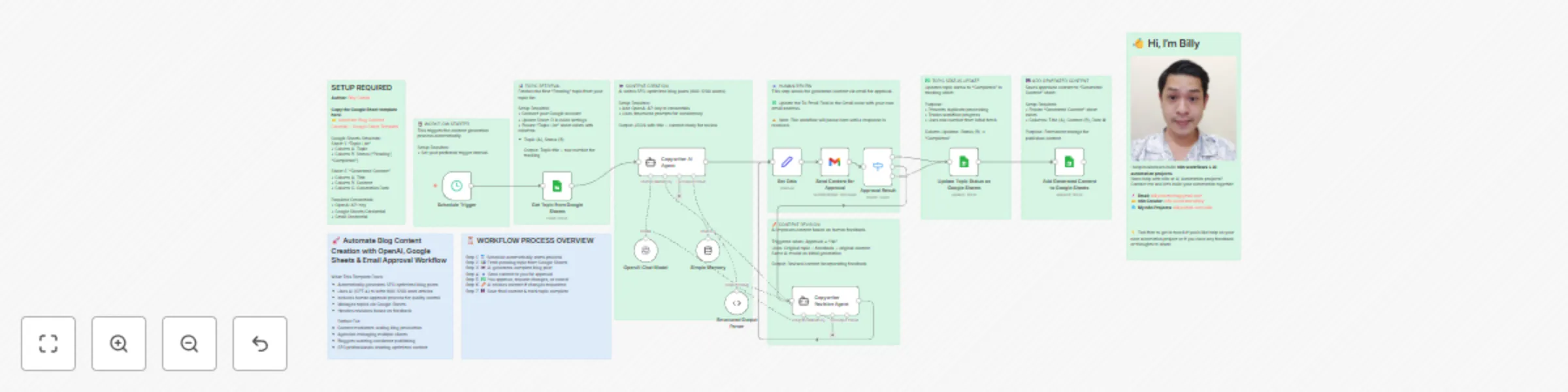
## Who is this for? This workflow is perfect for: * Digital marketers who need to scale SEO-optimized content production * Bloggers and content creators who want to maintain consistent publishing schedules * Small business owners who need regular blog content but lack writing resources ## What problem is this workflow solving? Creating high-quality, SEO-optimized blog content consistently is time-consuming and resource-intensive. This workflow solves that by: * Automating the content generation process from topic to final draft * Ensuring quality control through human-in-the-loop approval * Managing topic queues and preventing duplicate content creation * Streamlining the revision process based on human feedback * Organizing and archiving all generated content for future reference ## What this workflow does From topics stored in Google Sheets, this workflow: 1. **Automatically retrieves pending topics** from your Google Sheets tracking document 2. **Generates SEO-optimized blog posts** (800-1200 words) using OpenAI GPT-4 with structured prompts 3. **Sends content for human approval** via email with custom approval forms 4. **Handles revision requests** by incorporating feedback while maintaining SEO best practices 5. **Updates topic status** to prevent duplicate processing 6. **Add approved generated content** in Google Sheets for easy access and management 7. **Routes workflow** based on approval decisions (approve, revise, or cancel) ## Setup 1. **Copy the Google Sheet template** here: 👉 [Automate Blog Content Creation – Google Sheet Template](https://docs.google.com/spreadsheets/d/1ZZ2RoMYS1DZEhM7hEDUbSCAUlcZrZ15pnGRHuus3fVk/edit?usp=sharing) 2. **Connect Google Sheets** with your topic tracking document (requires "Topic List" and "Generated Content" sheets) 3. **Add your OpenAI API key** to the AI agent nodes for content generation 4. **Configure Gmail** for the approval notification system 5. **Set up your topic list** in Google Sheets with "Topic" and "Status" columns 6. **Customize the schedule trigger** to run at your preferred intervals 7. **Update email recipient** in the approval node to your email address 8. **Test with a sample topic** marked as "Pending" in your Google Sheet ## How to customize this workflow to your needs * **Adjust content length**: modify the word count requirements in the AI agent prompts * **Change writing style**: customize the copywriter prompts for different tones (formal, casual, technical) * **Add multiple reviewers**: extend the approval system to include additional stakeholders * **Integrate with CMS**: add nodes to automatically publish approved content to WordPress, Webflow, or other platforms * **Include keyword research**: add Ahrefs or SEMrush nodes to incorporate keyword data * **Add image generation**: integrate DALL-E or Midjourney for automatic featured image creation * **Customize approval criteria**: modify the approval form to include specific feedback categories * **Add content scoring**: integrate readability checkers or SEO analysis tools before approval **Contact me for consulting and support:** 📧 **[email protected]**