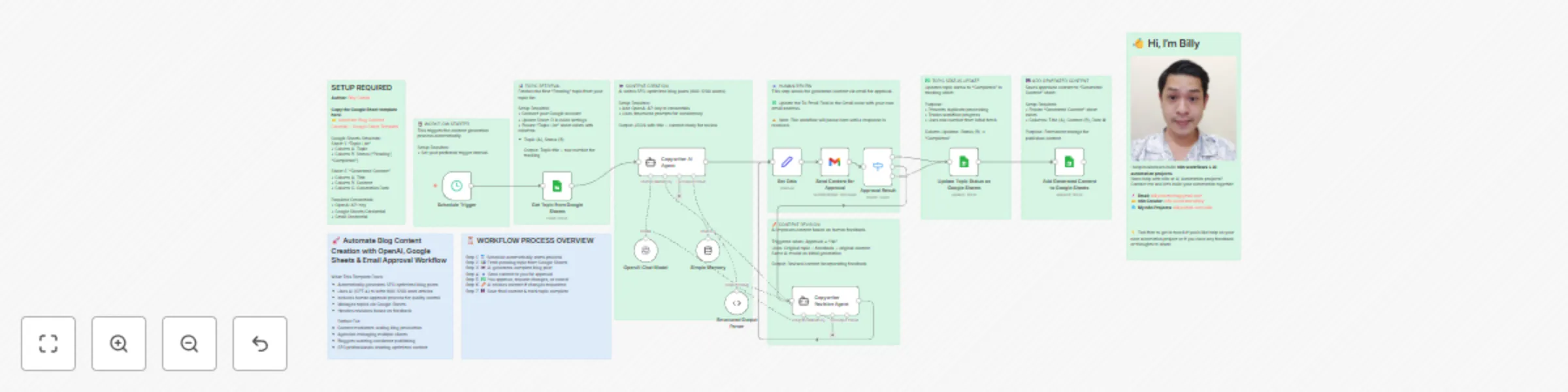
Automate blog content creation with OpenAI, Google Sheets & email approval flow

Workflow preview

Workflow preview
100%
Automate blog content creation with OpenAI, Google Sheets & email approval flow preview
Open on n8n.io

Important notice

This workflow is provided as-is. Please review and test before using in production.

1. Workflow Overview

Who is this for? This workflow is perfect for: Digital marketers who need to scale SEO optimized content production Bloggers and content creators who want to maintain consistent publishing schedule...

Best for

  • Content Creation automation workflows
  • Multimodal AI automation workflows
  • advanced n8n builders looking for reusable templates

Tools used

n8n-nodes-base.scheduletrigger, @n8n/n8n-nodes-langchain.agent, @n8n/n8n-nodes-langchain.lmchatopenai, @n8n/n8n-nodes-langchain.memorybufferwindow, n8n-nodes-base.set, @n8n/n8n-nodes-langchain.outputparserstructured, n8n-nodes-base.googlesheets, n8n-nodes-base.gmail

Source and attribution

This workflow is cataloged by N8N Workflows and links back to its original n8n.io source page by Billy Christi.

Original n8n.io source

1.1 Workflow description

Title
Automate blog content creation with OpenAI, Google Sheets & email approval flow
Workflow name
Automate blog content creation with OpenAI, Google Sheets & email approval flow

Who is this for?

This workflow is perfect for:

  • Digital marketers who need to scale SEO-optimized content production
  • Bloggers and content creators who want to maintain consistent publishing schedules
  • Small business owners who need regular blog content but lack writing resources

What problem is this workflow solving?

Creating high-quality, SEO-optimized blog content consistently is time-consuming and resource-intensive. This workflow solves that by:

  • Automating the content generation process from topic to final draft
  • Ensuring quality control through human-in-the-loop approval
  • Managing topic queues and preventing duplicate content creation
  • Streamlining the revision process based on human feedback
  • Organizing and archiving all generated content for future reference

What this workflow does

From topics stored in Google Sheets, this workflow:

  1. Automatically retrieves pending topics from your Google Sheets tracking document
  2. Generates SEO-optimized blog posts (800-1200 words) using OpenAI GPT-4 with structured prompts
  3. Sends content for human approval via email with custom approval forms
  4. Handles revision requests by incorporating feedback while maintaining SEO best practices
  5. Updates topic status to prevent duplicate processing
  6. Add approved generated content in Google Sheets for easy access and management
  7. Routes workflow based on approval decisions (approve, revise, or cancel)

Setup

  1. Copy the Google Sheet template here: 👉 Automate Blog Content Creation – Google Sheet Template
  2. Connect Google Sheets with your topic tracking document (requires "Topic List" and "Generated Content" sheets)
  3. Add your OpenAI API key to the AI agent nodes for content generation
  4. Configure Gmail for the approval notification system
  5. Set up your topic list in Google Sheets with "Topic" and "Status" columns
  6. Customize the schedule trigger to run at your preferred intervals
  7. Update email recipient in the approval node to your email address
  8. Test with a sample topic marked as "Pending" in your Google Sheet

How to customize this workflow to your needs

  • Adjust content length: modify the word count requirements in the AI agent prompts
  • Change writing style: customize the copywriter prompts for different tones (formal, casual, technical)
  • Add multiple reviewers: extend the approval system to include additional stakeholders
  • Integrate with CMS: add nodes to automatically publish approved content to WordPress, Webflow, or other platforms
  • Include keyword research: add Ahrefs or SEMrush nodes to incorporate keyword data
  • Add image generation: integrate DALL-E or Midjourney for automatic featured image creation
  • Customize approval criteria: modify the approval form to include specific feedback categories
  • Add content scoring: integrate readability checkers or SEO analysis tools before approval

Contact me for consulting and support:
📧 [email protected]

1.2 Logical Blocks

This catalog entry is organized from the workflow JSON. The node-level section below shows the executable blocks available for review before importing the template.

2. Block-by-Block Analysis

Block 1 - Schedule Trigger

Type / Role
n8n-nodes-base.scheduleTrigger - scheduleTrigger
Config choices
Version 1.2

Block 2 - Copywriter AI Agent

Type / Role
@n8n/n8n-nodes-langchain.agent - agent
Config choices
Version 1.9

Block 3 - OpenAI Chat Model

Type / Role
@n8n/n8n-nodes-langchain.lmChatOpenAi - lmChatOpenAi
Config choices
Version 1.2

Block 4 - Simple Memory

Type / Role
@n8n/n8n-nodes-langchain.memoryBufferWindow - memoryBufferWindow
Config choices
Version 1.3

Block 5 - Copywriter Revision Agent

Type / Role
@n8n/n8n-nodes-langchain.agent - agent
Config choices
Version 1.9

Block 6 - Set Data

Type / Role
n8n-nodes-base.set - set
Config choices
Version 3.4

Block 7 - Structured Output Parser

Type / Role
@n8n/n8n-nodes-langchain.outputParserStructured - outputParserStructured
Config choices
Version 1.2

Block 8 - Add Generated Content to Google Sheets

Type / Role
n8n-nodes-base.googleSheets - googleSheets
Config choices
Version 4.5

Block 9 - Update Topic Status on Google Sheets

Type / Role
n8n-nodes-base.googleSheets - googleSheets
Config choices
Version 4.5

Block 10 - Get Topic from Google Sheets

Type / Role
n8n-nodes-base.googleSheets - googleSheets
Config choices
Version 4.5

Block 11 - Send Content for Approval

Type / Role
n8n-nodes-base.gmail - gmail
Config choices
Version 2.1

Block 12 - Approval Result

Type / Role
n8n-nodes-base.switch - switch
Config choices
Version 3.2

Block 13 - Sticky Note

Type / Role
n8n-nodes-base.stickyNote - stickyNote
Config choices
Version 1

Block 14 - Sticky Note1

Type / Role
n8n-nodes-base.stickyNote - stickyNote
Config choices
Version 1

Block 15 - Sticky Note2

Type / Role
n8n-nodes-base.stickyNote - stickyNote
Config choices
Version 1

Block 16 - Sticky Note3

Type / Role
n8n-nodes-base.stickyNote - stickyNote
Config choices
Version 1

Block 17 - Sticky Note4

Type / Role
n8n-nodes-base.stickyNote - stickyNote
Config choices
Version 1

Block 18 - Sticky Note5

Type / Role
n8n-nodes-base.stickyNote - stickyNote
Config choices
Version 1

Block 19 - Sticky Note6

Type / Role
n8n-nodes-base.stickyNote - stickyNote
Config choices
Version 1

Block 20 - Sticky Note7

Type / Role
n8n-nodes-base.stickyNote - stickyNote
Config choices
Version 1

Block 21 - Sticky Note8

Type / Role
n8n-nodes-base.stickyNote - stickyNote
Config choices
Version 1

Block 22 - Sticky Note9

Type / Role
n8n-nodes-base.stickyNote - stickyNote
Config choices
Version 1

Block 23 - Sticky Note10

Type / Role
n8n-nodes-base.stickyNote - stickyNote
Config choices
Version 1

3. Summary Table

Workflow Automate blog content creation with OpenAI, Google Sheets & email approval flow
Complexity advanced
Nodes 23
Categories Content Creation, Multimodal AI
Author Billy Christi
Published 25 May 2025

4. Reproducing the Workflow from Scratch

  1. 1. Download the workflow JSON

    Use the JSON export at /data/workflows/4371/4371.json as the source template for this automation.

  2. 2. Import the template into n8n

    Open n8n, import the downloaded JSON, and review each node before activating the workflow.

  3. 3. Configure credentials and variables

    Replace placeholder credentials, API keys, webhook URLs, account IDs, and environment-specific values with your own settings.

  4. 4. Test with sample data

    Run the workflow manually or in a staging workspace, inspect node output, and confirm downstream systems receive the expected data.

  5. 5. Activate and monitor

    Enable the workflow only after testing, then monitor executions, errors, and rate limits during the first production runs.

5. General Notes & Resources

Review imported nodes carefully before activation. This catalog entry is intended to help you inspect the workflow structure, understand required services, and find related templates faster.

Node names, credentials, schedules, webhook paths, and external service limits may need adjustment for your workspace.

Frequently asked questions

What does Automate blog content creation with OpenAI, Google Sheets & email approval flow do?

Who is this for? This workflow is perfect for: Digital marketers who need to scale SEO optimized content production Bloggers and content creators who want to maintain consistent publishing schedule...

What do I need before importing this workflow?

Review the workflow JSON, configure any required credentials in n8n, and test the automation in a safe workspace before using it in production.

Can I customize this workflow?

Yes. Use the block-by-block analysis and the downloadable JSON to inspect each node, then adjust credentials, prompts, schedules, filters, or destinations for your Content Creation, Multimodal AI use case.