Workflow error logging and alerts with Google Sheets and Gmail

Workflow preview

Workflow preview
100%
Workflow error logging and alerts with Google Sheets and Gmail preview
Open on n8n.io

Important notice

This workflow is provided as-is. Please review and test before using in production.

1. Workflow Overview

What this workflow does This workflow creates a comprehensive error monitoring system for your n8n instance by automatically capturing workflow failures, logging them to Google Sheets, and sending ...

Best for

  • DevOps automation workflows
  • Multimodal AI automation workflows
  • intermediate n8n builders looking for reusable templates

Tools used

n8n-nodes-base.errortrigger, n8n-nodes-base.googlesheets, n8n-nodes-base.gmail, n8n-nodes-base.stickynote

Source and attribution

This workflow is cataloged by N8N Workflows and links back to its original n8n.io source page by Billy Christi.

Original n8n.io source

1.1 Workflow description

Title
Workflow error logging and alerts with Google Sheets and Gmail
Workflow name
Workflow error logging and alerts with Google Sheets and Gmail

What this workflow does

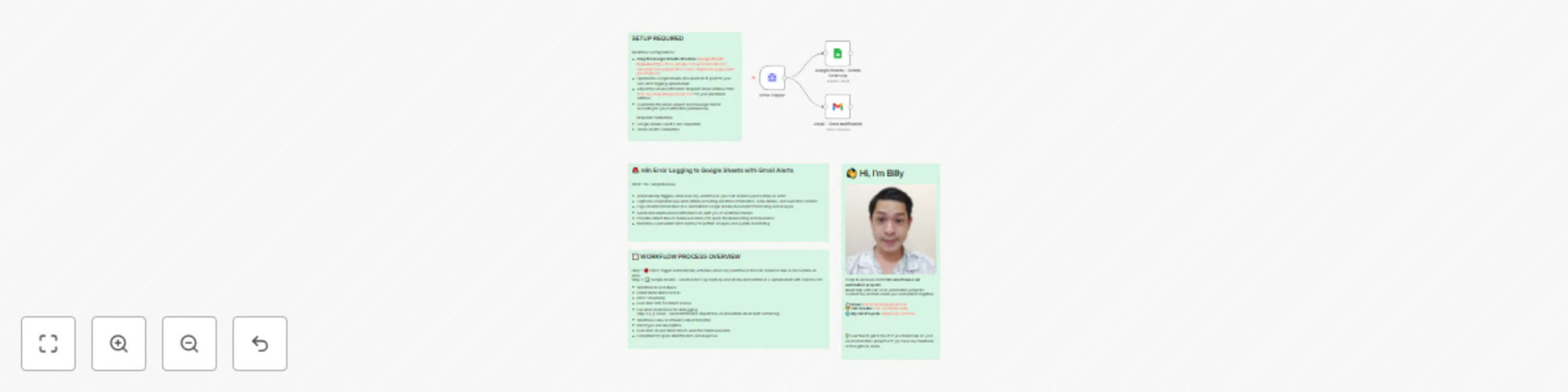
This workflow creates a comprehensive error monitoring system for your n8n instance by automatically capturing workflow failures, logging them to Google Sheets, and sending immediate email notifications.

Step by step:

  1. Error Trigger automatically activates whenever any workflow in your n8n instance encounters an error or failure
  2. Google Sheets - Create Error Log captures and stores comprehensive error details in a spreadsheet including workflow information, node details, timestamps, and full error stack traces
  3. Gmail - Send Notification dispatches immediate email alerts with formatted error summaries containing workflow names, failed nodes, error descriptions, and direct links to failed executions

How to set up

  1. Copy the Google Sheets template structure from this link: https://docs.google.com/spreadsheets/d/11-vLBAKolEvaL0qQDjckHmvC1S6_hxHbgSP8CLyngSs/edit?gid=0#gid=0 - This step is crucial as it provides the correct column structure for error logging
  2. Connect your Google Sheets account to the Google Sheets node and update the document ID to point to your copied error logging spreadsheet
  3. Connect your Gmail account to the Gmail node for sending error notifications
  4. Update the Gmail recipient email from "[email protected]" to your preferred notification email address
  5. Customize email subject and message format according to your notification preferences and organizational needs
  6. Test the workflow by intentionally creating a small error in a test workflow to verify the logging and notification system works correctly
  7. Monitor your error logs regularly through the Google Sheets document to identify patterns and recurring issues

How to customize this workflow to your needs

  • Add multiple notification recipients: modify the Gmail node to send alerts to different team members or create separate nodes for different notification channels (Slack, Discord, etc.)
  • Customize error filtering: add conditional logic to only log certain types of errors or exclude specific workflows from monitoring
  • Enhance error categorization: add additional columns to your Google Sheets template for error severity levels, affected systems, or resolution status tracking
  • Set up error escalation: create time-based triggers that send follow-up notifications for unresolved errors after specific time periods

Need help customizing?

Contact me for consulting and support:
đź“§ [email protected]

1.2 Logical Blocks

This catalog entry is organized from the workflow JSON. The node-level section below shows the executable blocks available for review before importing the template.

2. Block-by-Block Analysis

Block 1 - Error Trigger

Type / Role
n8n-nodes-base.errorTrigger - errorTrigger
Config choices
Version 1

Block 2 - Google Sheets - Create Error Log

Type / Role
n8n-nodes-base.googleSheets - googleSheets
Config choices
Version 4.5

Block 3 - Gmail - Send Notification

Type / Role
n8n-nodes-base.gmail - gmail
Config choices
Version 2.1

Block 4 - Sticky Note

Type / Role
n8n-nodes-base.stickyNote - stickyNote
Config choices
Version 1

Block 5 - Sticky Note1

Type / Role
n8n-nodes-base.stickyNote - stickyNote
Config choices
Version 1

Block 6 - Sticky Note2

Type / Role
n8n-nodes-base.stickyNote - stickyNote
Config choices
Version 1

Block 7 - Sticky Note5

Type / Role
n8n-nodes-base.stickyNote - stickyNote
Config choices
Version 1

3. Summary Table

Workflow Workflow error logging and alerts with Google Sheets and Gmail
Complexity intermediate
Nodes 7
Categories DevOps, Multimodal AI
Author Billy Christi
Published 26 Aug 2025

4. Reproducing the Workflow from Scratch

  1. 1. Download the workflow JSON

    Use the JSON export at /data/workflows/7876/7876.json as the source template for this automation.

  2. 2. Import the template into n8n

    Open n8n, import the downloaded JSON, and review each node before activating the workflow.

  3. 3. Configure credentials and variables

    Replace placeholder credentials, API keys, webhook URLs, account IDs, and environment-specific values with your own settings.

  4. 4. Test with sample data

    Run the workflow manually or in a staging workspace, inspect node output, and confirm downstream systems receive the expected data.

  5. 5. Activate and monitor

    Enable the workflow only after testing, then monitor executions, errors, and rate limits during the first production runs.

5. General Notes & Resources

Review imported nodes carefully before activation. This catalog entry is intended to help you inspect the workflow structure, understand required services, and find related templates faster.

Node names, credentials, schedules, webhook paths, and external service limits may need adjustment for your workspace.

Frequently asked questions

What does Workflow error logging and alerts with Google Sheets and Gmail do?

What this workflow does This workflow creates a comprehensive error monitoring system for your n8n instance by automatically capturing workflow failures, logging them to Google Sheets, and sending ...

What do I need before importing this workflow?

Review the workflow JSON, configure any required credentials in n8n, and test the automation in a safe workspace before using it in production.

Can I customize this workflow?

Yes. Use the block-by-block analysis and the downloadable JSON to inspect each node, then adjust credentials, prompts, schedules, filters, or destinations for your DevOps, Multimodal AI use case.