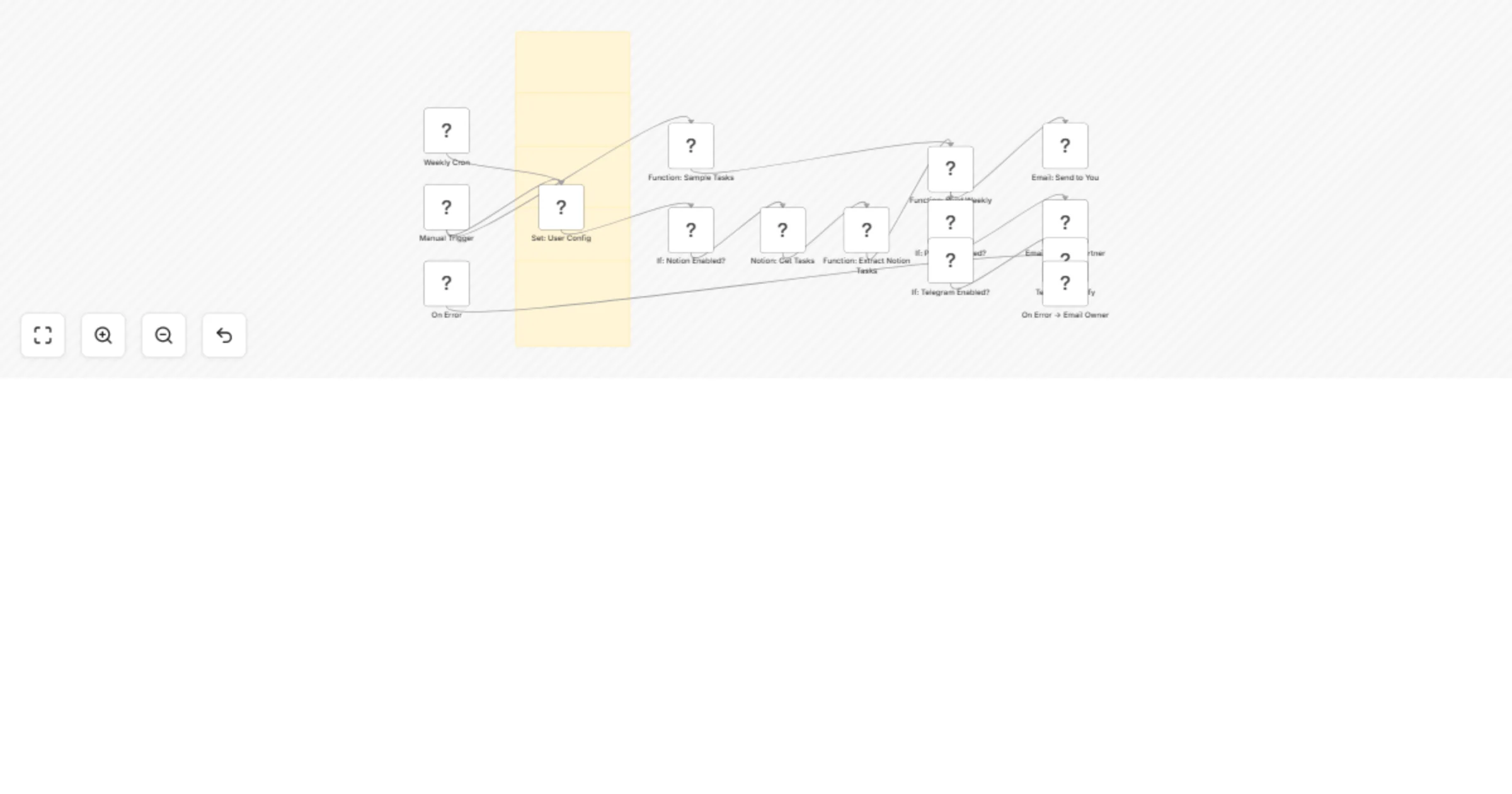
Weekly business & home task planner with Notion, email digests and Telegram

Workflow preview

Workflow preview
100%
Weekly business & home task planner with Notion, email digests and Telegram preview
Open on n8n.io

Important notice

This workflow is provided as-is. Please review and test before using in production.

1. Workflow Overview

Weekly Home & Business Task Planner with Notion DB and n8n Email Digests One calm Sunday email that aligns your business priorities and household rhythm—deep work blocks, gentle home resets, and ...

Best for

  • Personal Productivity automation workflows
  • Multimodal AI automation workflows
  • advanced n8n builders looking for reusable templates

Tools used

n8n-nodes-base.stickynote, n8n-nodes-base.cron, n8n-nodes-base.manualtrigger, n8n-nodes-base.set, n8n-nodes-base.function, n8n-nodes-base.if, n8n-nodes-base.notion, n8n-nodes-base.emailsend

Source and attribution

This workflow is cataloged by N8N Workflows and links back to its original n8n.io source page by Shelly-Ann Davy.

Original n8n.io source

1.1 Workflow description

Title
Weekly business & home task planner with Notion, email digests and Telegram
Workflow name
Weekly business & home task planner with Notion, email digests and Telegram

🪄Weekly Home & Business Task Planner with Notion DB and n8n Email Digests One calm Sunday email that aligns your business priorities and household rhythm—deep-work blocks, gentle home resets, and optional Notion import. Automate with grace. Scale with power.


✨ Concise Description

Design your week with intention in minutes. This n8n workflow collects your Business + Home tasks (optionally from Notion), generates a soft but decisive weekly plan, and emails it to you (and your partner if you’d like). It also suggests protected deep-work blocks and can send a Telegram ping. Import, fill 3 fields, hit Manual Trigger—done.


🧰 Full Description

What it does

  • Runs on Sundays 17:00 (customizable) or Manual Trigger
  • Pulls tasks from Notion (optional) or uses the built-in sample list
  • Builds a single, elegant email with sections for Business, Home, and Protected Focus (2× two-hour deep-work blocks by default)
  • Optionally CCs your partner and sends a Telegram confirmation

Perfect for Women founders, creators, and homemakers who want a weekly plan that respects both the business and the home—without decision fatigue.

Why it works

  • Reduces mental load with a single ritual and a single email
  • Protects your focus windows while honoring household anchors
  • “Soft power” tone that’s motivating, not overwhelming

What’s included

  • Workflow JSON: Weekly_Rhythm_Planner_v1.json (submission-friendly stickies)
  • Quick Start (PDF): 5–minute setup
  • Implementation Checklist (PDF)
  • Troubleshooting (PDF)
  • Notion Tasks CSV template
  • README (what’s inside + defaults)

Requirements

  • Email credentials (SMTP/Gmail)
  • Optional: Notion database for tasks (CSV provided), Telegram bot + chat ID

Setup in 3 steps

  1. Import JSON → open Set: User Config
  2. Fill FROM_EMAIL, EMAIL_TO_SELF (and partner if desired)
  3. Attach credentials → Manual Trigger to preview → enable Weekly Cron

Customization toggles

  • ENABLE_NOTION, ENABLE_PARTNER, ENABLE_TELEGRAM
  • DAYS_AHEAD (default 7), DEEP_WORK_BLOCKS (default 2)
  • CRON_EXPRESSION & CRON_TIMEZONE

FAQ

  • Do I need Notion? No—sample tasks are built in.
  • Can I change the send time? Yes—edit the Cron node or CRON_EXPRESSION.
  • Is my data safe? Credentials live in n8n; no secrets in the JSON.

Motto Automate with grace. Scale with power.

1.2 Logical Blocks

This catalog entry is organized from the workflow JSON. The node-level section below shows the executable blocks available for review before importing the template.

2. Block-by-Block Analysis

Block 1 - Sticky: README

Type / Role
n8n-nodes-base.stickyNote - stickyNote
Config choices
Version 1

Block 2 - Sticky: Prereqs + CSV

Type / Role
n8n-nodes-base.stickyNote - stickyNote
Config choices
Version 1

Block 3 - Sticky: Setup Checklist

Type / Role
n8n-nodes-base.stickyNote - stickyNote
Config choices
Version 1

Block 4 - Sticky: Testing & Behavior

Type / Role
n8n-nodes-base.stickyNote - stickyNote
Config choices
Version 1

Block 5 - Sticky: Compliance + Troubleshooting

Type / Role
n8n-nodes-base.stickyNote - stickyNote
Config choices
Version 1

Block 6 - Weekly Cron

Type / Role
n8n-nodes-base.cron - cron
Config choices
Version 1

Block 7 - Manual Trigger

Type / Role
n8n-nodes-base.manualTrigger - manualTrigger
Config choices
Version 1

Block 8 - Set: User Config

Type / Role
n8n-nodes-base.set - set
Config choices
Version 2

Block 9 - Function: Sample Tasks

Type / Role
n8n-nodes-base.function - function
Config choices
Version 2

Block 10 - If: Notion Enabled?

Type / Role
n8n-nodes-base.if - if
Config choices
Version 2

Block 11 - Notion: Get Tasks

Type / Role
n8n-nodes-base.notion - notion
Config choices
Version 2

Block 12 - Function: Extract Notion Tasks

Type / Role
n8n-nodes-base.function - function
Config choices
Version 2

Block 13 - Function: Build Weekly Plan

Type / Role
n8n-nodes-base.function - function
Config choices
Version 2

Block 14 - Email: Send to You

Type / Role
n8n-nodes-base.emailSend - emailSend
Config choices
Version 2

Block 15 - If: Partner Enabled?

Type / Role
n8n-nodes-base.if - if
Config choices
Version 2

Block 16 - Email: Send to Partner

Type / Role
n8n-nodes-base.emailSend - emailSend
Config choices
Version 2

Block 17 - If: Telegram Enabled?

Type / Role
n8n-nodes-base.if - if
Config choices
Version 2

Block 18 - Telegram: Notify

Type / Role
n8n-nodes-base.telegram - telegram
Config choices
Version 1

Block 19 - On Error

Type / Role
n8n-nodes-base.errorTrigger - errorTrigger
Config choices
Version 1

Block 20 - On Error → Email Owner

Type / Role
n8n-nodes-base.emailSend - emailSend
Config choices
Version 2

3. Summary Table

Workflow Weekly business & home task planner with Notion, email digests and Telegram
Complexity advanced
Nodes 20
Categories Personal Productivity, Multimodal AI
Author Shelly-Ann Davy
Published 24 Aug 2025

4. Reproducing the Workflow from Scratch

  1. 1. Download the workflow JSON

    Use the JSON export at /data/workflows/7789/7789.json as the source template for this automation.

  2. 2. Import the template into n8n

    Open n8n, import the downloaded JSON, and review each node before activating the workflow.

  3. 3. Configure credentials and variables

    Replace placeholder credentials, API keys, webhook URLs, account IDs, and environment-specific values with your own settings.

  4. 4. Test with sample data

    Run the workflow manually or in a staging workspace, inspect node output, and confirm downstream systems receive the expected data.

  5. 5. Activate and monitor

    Enable the workflow only after testing, then monitor executions, errors, and rate limits during the first production runs.

5. General Notes & Resources

Review imported nodes carefully before activation. This catalog entry is intended to help you inspect the workflow structure, understand required services, and find related templates faster.

Node names, credentials, schedules, webhook paths, and external service limits may need adjustment for your workspace.

Frequently asked questions

What does Weekly business & home task planner with Notion, email digests and Telegram do?

Weekly Home & Business Task Planner with Notion DB and n8n Email Digests One calm Sunday email that aligns your business priorities and household rhythm—deep work blocks, gentle home resets, and ...

What do I need before importing this workflow?

Review the workflow JSON, configure any required credentials in n8n, and test the automation in a safe workspace before using it in production.

Can I customize this workflow?

Yes. Use the block-by-block analysis and the downloadable JSON to inspect each node, then adjust credentials, prompts, schedules, filters, or destinations for your Personal Productivity, Multimodal AI use case.