Triage tickets by ranking next actions with VectorPrime via webhook

Workflow preview

Workflow preview
100%
Triage tickets by ranking next actions with VectorPrime via webhook preview
Open on n8n.io

1. Workflow Overview

What this template does (in 1 sentence) Ranks “best next actions” for an incoming ticket/incident using the VectorPrime Decision Kernel (deterministic + auditable), then returns a clean JSON result...

Best for

  • Ticket Management automation workflows
  • AI Summarization automation workflows
  • advanced n8n builders looking for reusable templates

Tools used

n8n-nodes-base.code, n8n-nodes-base.httprequest, n8n-nodes-base.if, n8n-nodes-base.respondtowebhook, n8n-nodes-base.webhook, n8n-nodes-base.set, n8n-nodes-base.stickynote

Source and attribution

This workflow is cataloged by N8N Workflows and links back to its original n8n.io source page by Faisal Khan.

Original n8n.io source

1.1 Workflow description

Title
Triage tickets by ranking next actions with VectorPrime via webhook
Workflow name
Triage tickets by ranking next actions with VectorPrime via webhook

What this template does (in 1 sentence)

Ranks “best next actions” for an incoming ticket/incident using the VectorPrime Decision Kernel (deterministic + auditable), then returns a clean JSON result you can route to Slack, a backlog tool, or email.

Pricing note: Template is free. VectorPrime API requires a user-provided API key (free usage up to a limit; paid plans beyond that).


When you should use this

Use this workflow when you already have a ticket/incident AND a short list of candidate actions, and you want a consistent, explainable “what should we do first?” ranking.

Examples:

  • IT Ops incidents (restart vs rollback vs escalate)
  • Support tickets (refund vs troubleshoot vs escalate)
  • On-call triage (wake someone up vs wait)

What you get (outputs)

A structured JSON response including:

  • ok (true/false)
  • the original request payload
  • VectorPrime ranking + probabilities (when ok=true)
  • an audit timestamp

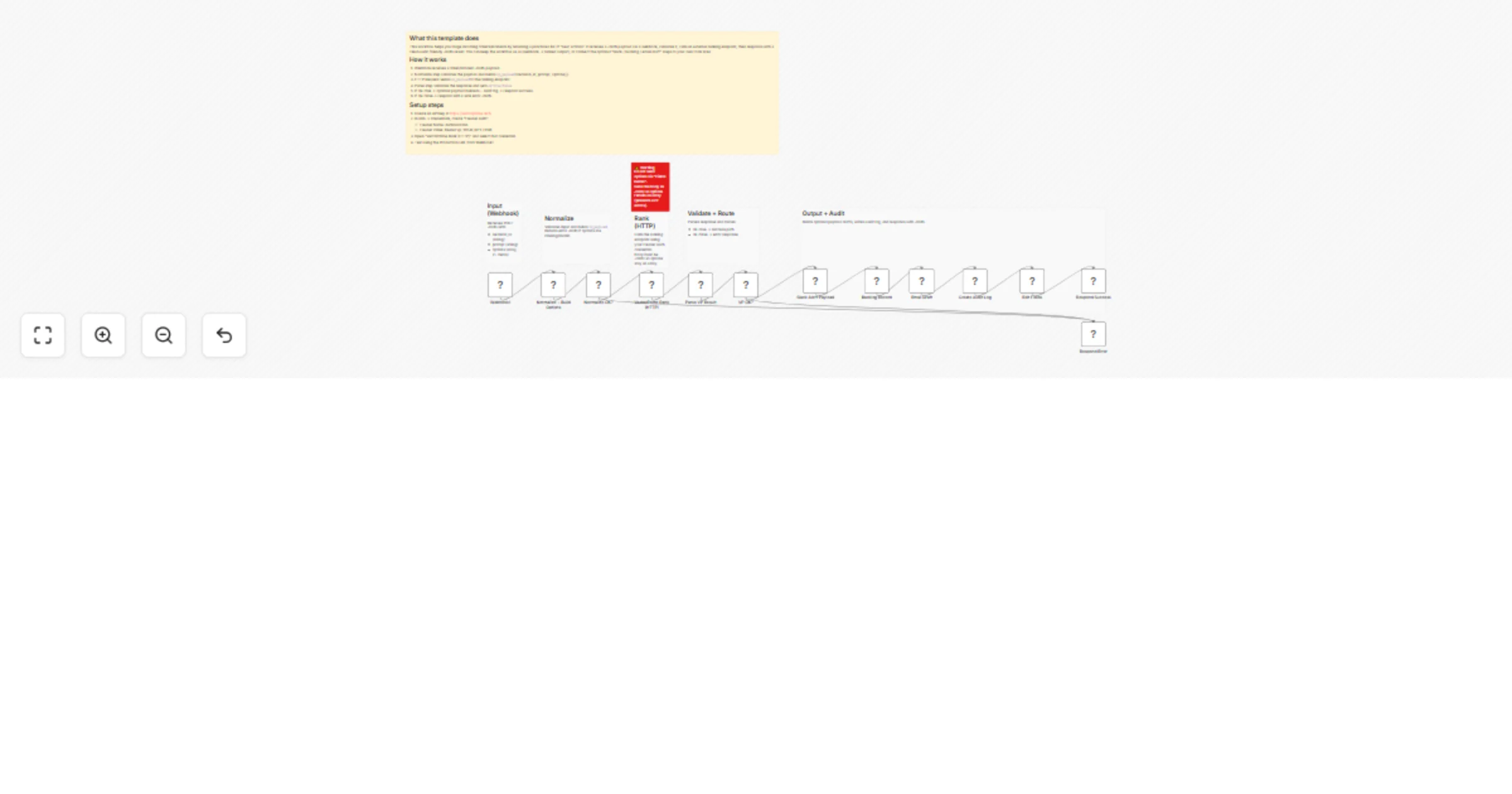
How it works

  1. Webhook receives JSON payload
  2. Normalize step validates and builds vp_payload
  3. VectorPrime Rank (HTTP Request) calls VectorPrime /v1/kernel/rank
  4. Parse step validates the response
  5. If OK → builds optional payloads + writes audit log → responds success
  6. If not OK → responds with a safe error JSON

Setup (IMPORTANT)

Step 1 — Get your webhook URL (required)

After importing this template, your webhook URL will be different for each workspace:

  • Open Webhook1
  • Copy Production URL (real usage)
  • (Test URL is only for editor debugging)

Step 2 — Add your VectorPrime API key (required)

In n8n → Credentials → create/select Header Auth:

  • Header Name: Authorization
  • Header Value: Bearer YOUR_VECTORPRIME_API_KEY

Then open VectorPrime Rank (HTTP) and select that credential.

✅ Secrets are NOT stored in this template. Each user supplies their own key via Credentials.


Input payload this workflow expects

This workflow expects:

  • decision_id (string)
  • prompt (string)
  • options (array of objects)

options must be a REAL JSON array, like:

[ { "id": "a", "label": "Option A" }, { "id": "b", "label": "Option B" } ]

If you send fewer than 2 options, the workflow responds with:

  • ok:false
  • error:not_enough_options

Example JSON payload (copy/paste)

{
 "decision_id": "REQ-1007",
 "prompt": "Customer cannot login",
 "options": [
 { "id": "restart", "label": "Restart auth service" },
 { "id": "rollback", "label": "Rollback last deploy" }
 ]
}

1.2 Logical Blocks

This catalog entry is organized from the workflow JSON. The node-level section below shows the executable blocks available for review before importing the template.

2. Block-by-Block Analysis

Block 1 - Normalize + Build Options

Type / Role
n8n-nodes-base.code - code
Config choices
Version 2

Block 2 - VectorPrime Rank (HTTP)

Type / Role
n8n-nodes-base.httpRequest - httpRequest
Config choices
Version 4.3

Block 3 - Parse VP Result

Type / Role
n8n-nodes-base.code - code
Config choices
Version 2

Block 4 - VP OK?

Type / Role
n8n-nodes-base.if - if
Config choices
Version 2.2

Block 5 - Respond Error

Type / Role
n8n-nodes-base.respondToWebhook - respondToWebhook
Config choices
Version 1.1

Block 6 - Create Audit Log

Type / Role
n8n-nodes-base.code - code
Config choices
Version 2

Block 7 - Respond Success

Type / Role
n8n-nodes-base.respondToWebhook - respondToWebhook
Config choices
Version 1.1

Block 8 - Webhook1

Type / Role
n8n-nodes-base.webhook - webhook
Config choices
Version 2.1

Block 9 - Slack Alert Payload

Type / Role
n8n-nodes-base.set - set
Config choices
Version 3.4

Block 10 - Backlog Record

Type / Role
n8n-nodes-base.set - set
Config choices
Version 3.4

Block 11 - Email Draft

Type / Role
n8n-nodes-base.set - set
Config choices
Version 3.4

Block 12 - Sticky Note2

Type / Role
n8n-nodes-base.stickyNote - stickyNote
Config choices
Version 1

Block 13 - Edit Fields

Type / Role
n8n-nodes-base.set - set
Config choices
Version 3.4

Block 14 - Normalize OK?

Type / Role
n8n-nodes-base.if - if
Config choices
Version 2.3

Block 15 - Sticky Note

Type / Role
n8n-nodes-base.stickyNote - stickyNote
Config choices
Version 1

Block 16 - Sticky Note1

Type / Role
n8n-nodes-base.stickyNote - stickyNote
Config choices
Version 1

Block 17 - Sticky Note3

Type / Role
n8n-nodes-base.stickyNote - stickyNote
Config choices
Version 1

Block 18 - Sticky Note4

Type / Role
n8n-nodes-base.stickyNote - stickyNote
Config choices
Version 1

Block 19 - Sticky Note5

Type / Role
n8n-nodes-base.stickyNote - stickyNote
Config choices
Version 1

Block 20 - Sticky Note6

Type / Role
n8n-nodes-base.stickyNote - stickyNote
Config choices
Version 1

3. Summary Table

Workflow Triage tickets by ranking next actions with VectorPrime via webhook
Complexity advanced
Nodes 20
Categories Ticket Management, AI Summarization
Author Faisal Khan
Published 24 Jan 2026

4. Reproducing the Workflow from Scratch

  1. 1. Download the workflow JSON

    Use the JSON export at /data/workflows/12962/12962.json as the source template for this automation.

  2. 2. Import the template into n8n

    Open n8n, import the downloaded JSON, and review each node before activating the workflow.

  3. 3. Configure credentials and variables

    Replace placeholder credentials, API keys, webhook URLs, account IDs, and environment-specific values with your own settings.

  4. 4. Test with sample data

    Run the workflow manually or in a staging workspace, inspect node output, and confirm downstream systems receive the expected data.

  5. 5. Activate and monitor

    Enable the workflow only after testing, then monitor executions, errors, and rate limits during the first production runs.

5. General Notes & Resources

Review imported nodes carefully before activation. This catalog entry is intended to help you inspect the workflow structure, understand required services, and find related templates faster.

Node names, credentials, schedules, webhook paths, and external service limits may need adjustment for your workspace.

Frequently asked questions

What does Triage tickets by ranking next actions with VectorPrime via webhook do?

What this template does (in 1 sentence) Ranks “best next actions” for an incoming ticket/incident using the VectorPrime Decision Kernel (deterministic + auditable), then returns a clean JSON result...

What do I need before importing this workflow?

Review the workflow JSON, configure any required credentials in n8n, and test the automation in a safe workspace before using it in production.

Can I customize this workflow?

Yes. Use the block-by-block analysis and the downloadable JSON to inspect each node, then adjust credentials, prompts, schedules, filters, or destinations for your Ticket Management, AI Summarization use case.