Transform product images to marketing ads using Google Gemini AI

Workflow preview

Workflow preview
100%
Transform product images to marketing ads using Google Gemini AI preview
Open on n8n.io

Important notice

This workflow is provided as-is. Please review and test before using in production.

1. Workflow Overview

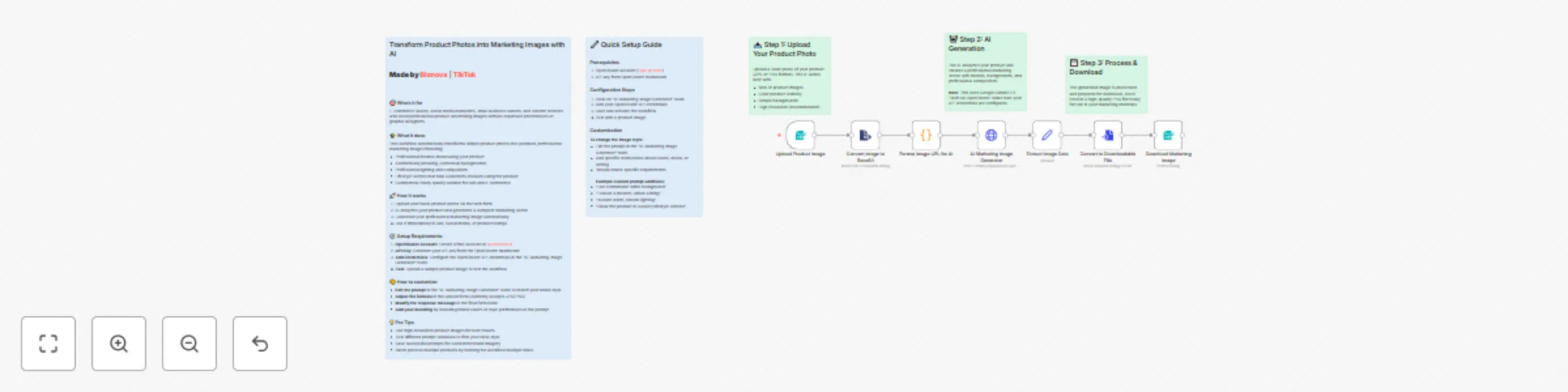
Transform Product Photos into Marketing Images with AI Made by Biznova TikTok Who's it for E commerce sellers, social med...

Best for

  • Content Creation automation workflows
  • Multimodal AI automation workflows
  • intermediate n8n builders looking for reusable templates

Tools used

n8n-nodes-base.set, n8n-nodes-base.converttofile, n8n-nodes-base.form, n8n-nodes-base.stickynote, n8n-nodes-base.httprequest, n8n-nodes-base.formtrigger, n8n-nodes-base.extractfromfile, n8n-nodes-base.code

Source and attribution

This workflow is cataloged by N8N Workflows and links back to its original n8n.io source page by Biznova.

Original n8n.io source

1.1 Workflow description

Title
Transform product images to marketing ads using Google Gemini AI
Workflow name
Transform product images to marketing ads using Google Gemini AI

Transform Product Photos into Marketing Images with AI

Made by Biznova | TikTok


🎯 Who's it for

E-commerce sellers, social media marketers, small business owners, and content creators who need professional product advertising images without expensive photoshoots or graphic designers.

✨ What it does

This workflow automatically transforms simple product photos into polished, professional marketing images featuring:

  • Professional models showcasing your product
  • Aesthetically pleasing, contextual backgrounds
  • Professional lighting and composition
  • Lifestyle scenes that help customers envision using the product
  • Commercial-ready quality suitable for ads and e-commerce

🚀 How it works

  1. Upload your basic product photo via the web form
  2. AI analyzes your product and generates a complete marketing scene
  3. Download your professional marketing image automatically
  4. Use it immediately in ads, social media, or product listings

⚙️ Setup Requirements

  1. OpenRouter Account: Create a free account at openrouter.ai
  2. API Key: Generate your API key from the OpenRouter dashboard
  3. Add Credentials: Configure the OpenRouter API credentials in the "AI Marketing Image Generator" node
  4. Test: Upload a sample product image to test the workflow

🎨 How to customize

  • Edit the prompt in the "AI Marketing Image Generator" node to match your brand style
  • Adjust file formats in the upload form (currently accepts JPG/PNG)
  • Modify the response message in the final form node
  • Add your branding by including brand colors or style preferences in the prompt

💡 Pro Tips

  • Use high-resolution product images for best results
  • Test different prompt variations to find your ideal style
  • Save successful prompts for consistent brand imagery
  • Batch process multiple products by running the workflow multiple times

🔧 Quick Setup Guide

Prerequisites

  1. OpenRouter account (Sign up here)
  2. API key from OpenRouter dashboard

Configuration Steps

  1. Click on "AI Marketing Image Generator" node
  2. Add your OpenRouter API credentials
  3. Save and activate the workflow
  4. Test with a product image

Customization

To change the image style:

  • Edit the prompt in the "AI Marketing Image Generator" node
  • Add specific instructions about colors, mood, or setting
  • Include brand-specific requirements

Example custom prompt additions:

  • "Use a minimalist white background"
  • "Feature a modern, urban setting"
  • "Include warm, natural lighting"
  • "Show the product in a luxury lifestyle context"

1.2 Logical Blocks

This catalog entry is organized from the workflow JSON. The node-level section below shows the executable blocks available for review before importing the template.

2. Block-by-Block Analysis

Block 1 - Extract Image Data

Type / Role
n8n-nodes-base.set - set
Config choices
Version 3.4

Block 2 - Convert to Downloadable File

Type / Role
n8n-nodes-base.convertToFile - convertToFile
Config choices
Version 1.1

Block 3 - Download Marketing Image

Type / Role
n8n-nodes-base.form - form
Config choices
Version 1

Block 4 - Upload Instructions

Type / Role
n8n-nodes-base.stickyNote - stickyNote
Config choices
Version 1

Block 5 - AI Marketing Image Generator

Type / Role
n8n-nodes-base.httpRequest - httpRequest
Config choices
Version 4.2

Block 6 - Workflow Documentation

Type / Role
n8n-nodes-base.stickyNote - stickyNote
Config choices
Version 1

Block 7 - Upload Product Image

Type / Role
n8n-nodes-base.formTrigger - formTrigger
Config choices
Version 2.2

Block 8 - Convert Image to Base64

Type / Role
n8n-nodes-base.extractFromFile - extractFromFile
Config choices
Version 1

Block 9 - Format Image URL for AI

Type / Role
n8n-nodes-base.code - code
Config choices
Version 2

Block 10 - AI Generation Info

Type / Role
n8n-nodes-base.stickyNote - stickyNote
Config choices
Version 1

Block 11 - Download Info

Type / Role
n8n-nodes-base.stickyNote - stickyNote
Config choices
Version 1

Block 12 - Setup Guide

Type / Role
n8n-nodes-base.stickyNote - stickyNote
Config choices
Version 1

3. Summary Table

Workflow Transform product images to marketing ads using Google Gemini AI
Complexity intermediate
Nodes 12
Categories Content Creation, Multimodal AI
Author Biznova
Published 30 Sept 2025

4. Reproducing the Workflow from Scratch

  1. 1. Download the workflow JSON

    Use the JSON export at /data/workflows/9127/9127.json as the source template for this automation.

  2. 2. Import the template into n8n

    Open n8n, import the downloaded JSON, and review each node before activating the workflow.

  3. 3. Configure credentials and variables

    Replace placeholder credentials, API keys, webhook URLs, account IDs, and environment-specific values with your own settings.

  4. 4. Test with sample data

    Run the workflow manually or in a staging workspace, inspect node output, and confirm downstream systems receive the expected data.

  5. 5. Activate and monitor

    Enable the workflow only after testing, then monitor executions, errors, and rate limits during the first production runs.

5. General Notes & Resources

Review imported nodes carefully before activation. This catalog entry is intended to help you inspect the workflow structure, understand required services, and find related templates faster.

Node names, credentials, schedules, webhook paths, and external service limits may need adjustment for your workspace.

Frequently asked questions

What does Transform product images to marketing ads using Google Gemini AI do?

Transform Product Photos into Marketing Images with AI Made by Biznova TikTok Who's it for E commerce sellers, social med...

What do I need before importing this workflow?

Review the workflow JSON, configure any required credentials in n8n, and test the automation in a safe workspace before using it in production.

Can I customize this workflow?

Yes. Use the block-by-block analysis and the downloadable JSON to inspect each node, then adjust credentials, prompts, schedules, filters, or destinations for your Content Creation, Multimodal AI use case.