B

Biznova

2
Workflows

Workflows by Biznova
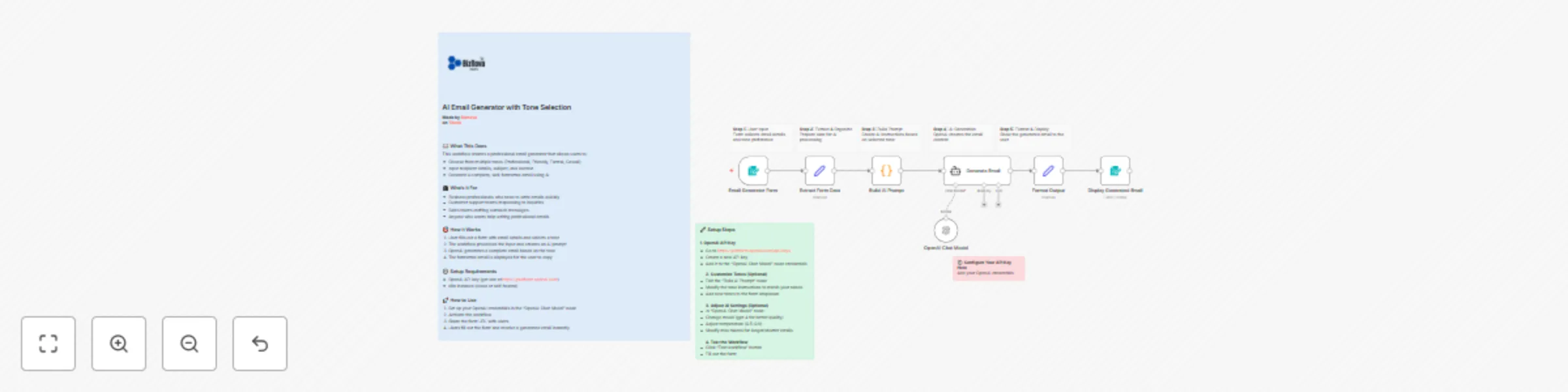
Workflow preview: Generate professional emails with custom tones using OpenAI GPT
Free advanced

Generate professional emails with custom tones using OpenAI GPT

![5min Logo](https://assets.zyrosite.com/cdn-cgi/image/format=auto,w=175,q=95/d9573nnb9LioR05g/logo_tr-Yleq6B4J5WtDk64q.png) ## AI Email Generator with Tone Selection **Made by [Biznova](https://www.biznova.tech/en)** **on [Tiktok](https://www.tiktok.com/@biznova_tech)** ### 📧 What This Does This workflow creates a professional email generator that allows users to: - Choose from multiple tones (Professional, Friendly, Formal, Casual) - Input recipient details, subject, and context - Generate a complete, well-formatted email using AI ### 👥 Who's It For - Business professionals who need to write emails quickly - Customer support teams responding to inquiries - Sales teams crafting outreach messages - Anyone who wants help writing professional emails ### 🎯 How It Works 1. User fills out a form with email details and selects a tone 2. The workflow processes the input and creates an AI prompt 3. OpenAI generates a complete email based on the tone 4. The formatted email is displayed for the user to copy ### ⚙️ Setup Requirements - OpenAI API key (get one at https://platform.openai.com) - n8n instance (cloud or self-hosted) ### 🚀 How to Use 1. Set up your OpenAI credentials in the "OpenAI Chat Model" node 2. Activate the workflow 3. Share the form URL with users 4. Users fill out the form and receive a generated email instantly ### 🔧 Setup Steps **1. OpenAI API Key** - Go to https://platform.openai.com/api-keys - Create a new API key - Add it to the "OpenAI Chat Model" node credentials **2. Customize Tones (Optional)** - Edit the "Build AI Prompt" node - Modify the tone instructions to match your needs - Add new tones to the form dropdown **3. Adjust AI Settings (Optional)** - In "OpenAI Chat Model" node: - Change model (gpt-4 for better quality) - Adjust temperature (0.5-0.9) - Modify max tokens for longer/shorter emails **4. Test the Workflow** - Click "Test workflow" button - Fill out the form - Check the generated email **5. Share the Form** - Activate the workflow - Copy the form URL - Share with your team or customers

B
Biznova
Content Creation
3 Oct 2025
196
0
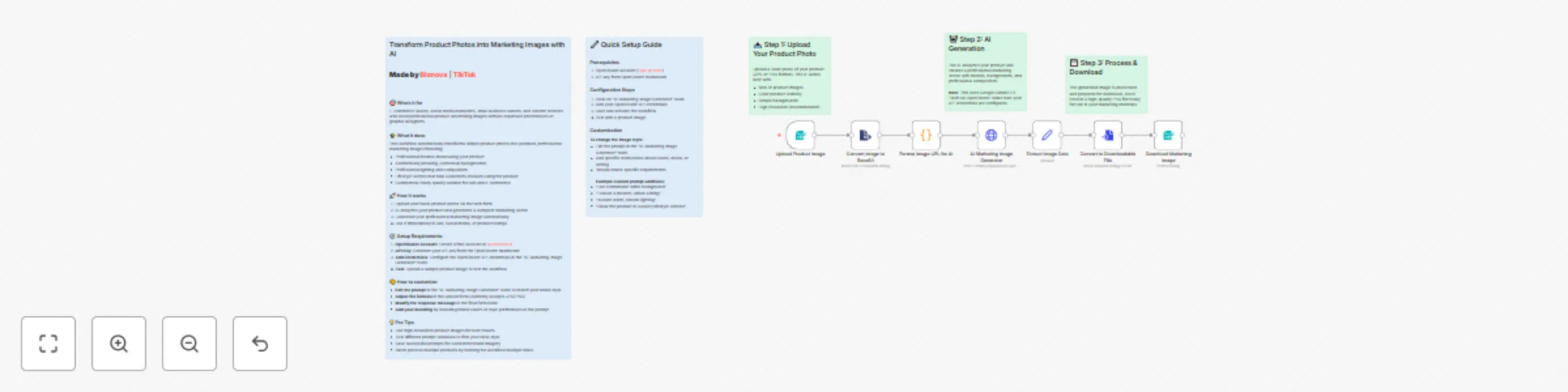
Workflow preview: Transform product images to marketing ads using Google Gemini AI
Free intermediate

Transform product images to marketing ads using Google Gemini AI

## Transform Product Photos into Marketing Images with AI **Made by [Biznova](https://www.biznova.tech/en)** | **[TikTok](https://www.tiktok.com/@biznova_tech)** --- ### 🎯 Who's it for E-commerce sellers, social media marketers, small business owners, and content creators who need professional product advertising images without expensive photoshoots or graphic designers. ### ✨ What it does This workflow automatically transforms simple product photos into polished, professional marketing images featuring: - Professional models showcasing your product - Aesthetically pleasing, contextual backgrounds - Professional lighting and composition - Lifestyle scenes that help customers envision using the product - Commercial-ready quality suitable for ads and e-commerce ### 🚀 How it works 1. Upload your basic product photo via the web form 2. AI analyzes your product and generates a complete marketing scene 3. Download your professional marketing image automatically 4. Use it immediately in ads, social media, or product listings ### ⚙️ Setup Requirements 1. **OpenRouter Account**: Create a free account at [openrouter.ai](https://openrouter.ai) 2. **API Key**: Generate your API key from the OpenRouter dashboard 3. **Add Credentials**: Configure the OpenRouter API credentials in the "AI Marketing Image Generator" node 4. **Test**: Upload a sample product image to test the workflow ### 🎨 How to customize - **Edit the prompt** in the "AI Marketing Image Generator" node to match your brand style - **Adjust file formats** in the upload form (currently accepts JPG/PNG) - **Modify the response message** in the final form node - **Add your branding** by including brand colors or style preferences in the prompt ### 💡 Pro Tips - Use high-resolution product images for best results - Test different prompt variations to find your ideal style - Save successful prompts for consistent brand imagery - Batch process multiple products by running the workflow multiple times ## 🔧 Quick Setup Guide ### Prerequisites 1. OpenRouter account ([Sign up here](https://openrouter.ai)) 2. API key from OpenRouter dashboard ### Configuration Steps 1. Click on "AI Marketing Image Generator" node 2. Add your OpenRouter API credentials 3. Save and activate the workflow 4. Test with a product image ### Customization **To change the image style:** - Edit the prompt in the "AI Marketing Image Generator" node - Add specific instructions about colors, mood, or setting - Include brand-specific requirements **Example custom prompt additions:** - "Use a minimalist white background" - "Feature a modern, urban setting" - "Include warm, natural lighting" - "Show the product in a luxury lifestyle context"

B
Biznova
Content Creation
1 Oct 2025
845
0