Block 1 - Overview
- Type / Role
- n8n-nodes-base.stickyNote - stickyNote
- Config choices
- Version 1


 Early Deal
Description When a Zoom meeting ends, this workflow fires automatically — no manual action needed. It classifies every participant as On Time or Late, logs all attendance data to Google Sheets, and...
n8n-nodes-base.stickynote, n8n-nodes-base.webhook, n8n-nodes-base.set, n8n-nodes-base.code, n8n-nodes-base.googlesheets, n8n-nodes-base.if, @n8n/n8n-nodes-langchain.agent, @n8n/n8n-nodes-langchain.lmchatopenai
This workflow is cataloged by N8N Workflows and links back to its original n8n.io source page by isaWOW.
Original n8n.io sourceWhen a Zoom meeting ends, this workflow fires automatically — no manual action needed. It classifies every participant as On Time or Late, logs all attendance data to Google Sheets, and sends you one AI-written summary via Telegram. For every late joiner, a ClickUp follow-up task is created automatically so no one slips through the cracks. Built for team leads, trainers, and operations managers who run recurring Zoom meetings.
Estimated Setup Time: 20–30 minutes
Import the workflow — Open n8n, go to Workflows → Import from JSON, paste the workflow JSON, and verify all nodes are connected.
Configure Zoom Webhook — In the 1. Webhook — Zoom Meeting Ended node, copy the webhook URL. Go to your Zoom Marketplace app, open your Webhook Only App, and paste the URL under the meeting.ended event subscription.
Set your config values — Open 2. Set — Config Values and replace all six placeholders:
YOUR_TELEGRAM_CHAT_ID — your Telegram chat ID (get it from @userinfobot)YOUR_GOOGLE_SHEET_ID — the ID from your Google Sheet URL (the long string between /d/ and /edit)Attendance Log — rename if your sheet tab has a different nameYOUR HOST NAME — the name that appears in the Telegram summary5 — change to your preferred late threshold in minutesYOUR_CLICKUP_LIST_ID — copy from your ClickUp list URLConnect Google Sheets — Open 4. Google Sheets — Log Participant Row and connect your Google Sheets OAuth2 credential. Authenticate via Google when prompted.
Connect OpenAI — Open 7. OpenAI — GPT-4o-mini Model and connect your OpenAI API credential. Enter your API key from platform.openai.com.
Connect ClickUp — Open 9. ClickUp — Create Late Participant Task and connect your ClickUp API credential. Enter your personal API token from ClickUp Settings → Apps.
Connect Telegram — Open 12. Telegram — Send Meeting Summary and connect your Telegram Bot API credential. Enter the token from BotFather.
Activate the workflow — Toggle the workflow to Active before running your next Zoom meeting.
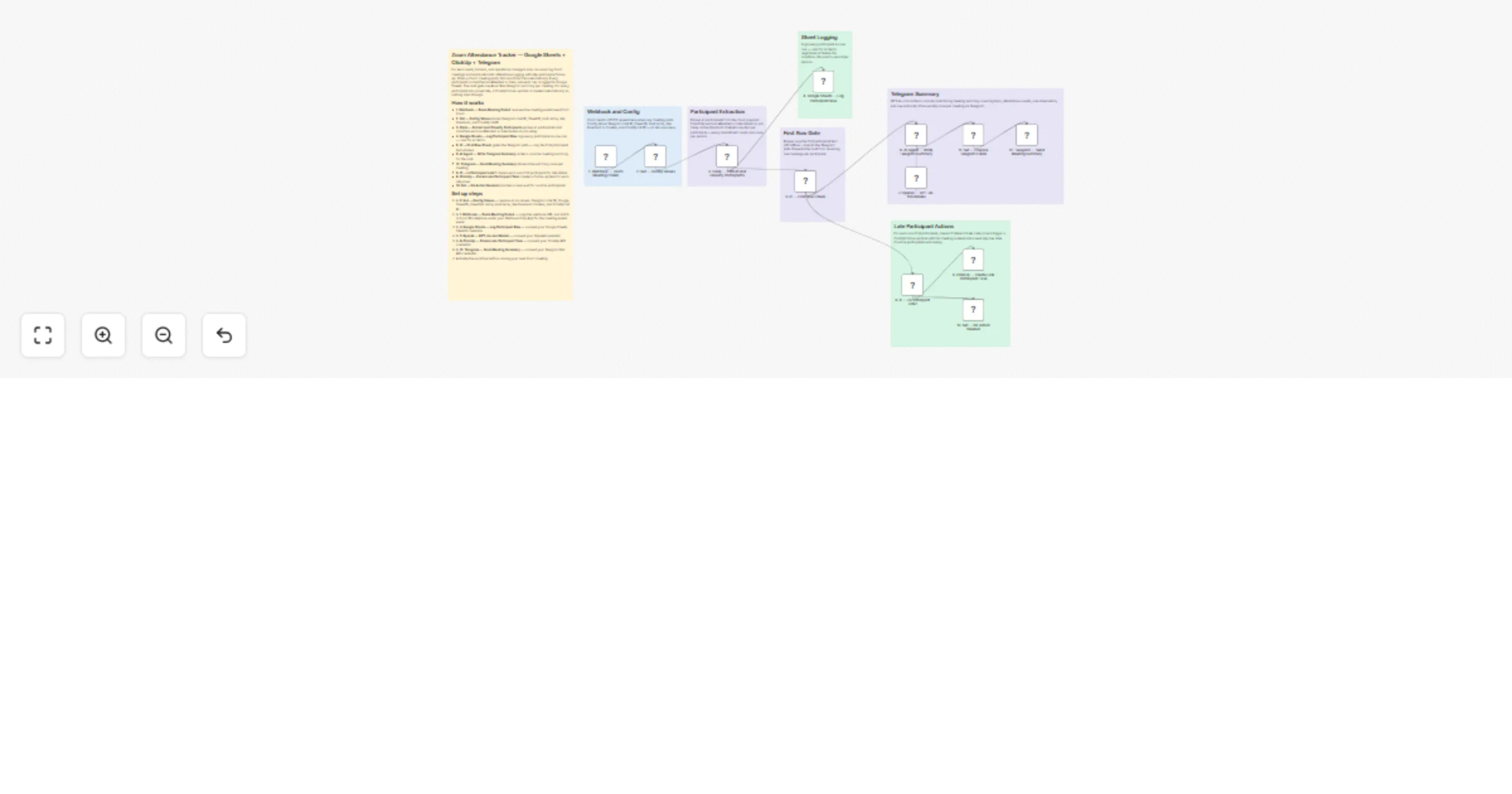
Step 1 — Webhook: Zoom Meeting Ended When any Zoom meeting ends, Zoom sends a POST request to this webhook. This is the trigger that starts the entire workflow. No polling or manual action is needed — it fires the moment the meeting closes.
Step 2 — Set: Config Values This step stores all six configuration values in one place — Telegram chat ID, Google Sheet ID, sheet tab name, host name, late threshold in minutes, and ClickUp list ID. You only set these once, and all downstream steps read from here automatically.
Step 3 — Code: Extract and Classify Participants This step reads the full participant list from the Zoom payload. For each person, it calculates how many minutes after the meeting start they joined. If the delay exceeds the threshold, they are marked Late. Everyone else is marked Attended. This step outputs one item per participant — every step after this runs once per person.
Step 4 — Google Sheets: Log Participant Row Every participant — regardless of status — is written as one row in your Google Sheet. The row includes 14 columns: meeting ID, topic, host email, date, start time, duration, participant name, email, join time, leave time, time in meeting, join delay in minutes, status, and the timestamp when the row was logged.
Step 5 — IF: First Row Check This check gates the Telegram path. Only the first participant item passes through to the summary path (YES). All other participants go to the late-check path (NO). This prevents the host from receiving one Telegram message per attendee.
Step 6 — AI Agent: Write Telegram Summary Using GPT-4o-mini, this step generates a concise, plain-text Telegram message for the host. The message covers the meeting topic, date, duration, participant counts, one observation about attendance quality, and one action suggestion. It is capped at 80 words and uses no markdown.
Step 7 — OpenAI GPT-4o-mini Model This is the language model powering the AI Agent in Step 6. It runs with a max token limit of 200 and a temperature of 0.4 for consistent, professional output.
Step 8 — Set: Prepare Telegram Fields Reads the AI-generated message and the Telegram chat ID, then packages them into a clean output ready to send.
Step 9 — Telegram: Send Meeting Summary Sends the final AI-written message to the host's Telegram chat. This fires exactly once per meeting — not once per participant.
Step 10 — IF: Is Participant Late? For every non-first participant, this check reads their status. If status equals Late (YES), they move to the ClickUp task step. If they joined on time (NO), they exit cleanly through the No Action step.
Step 11 — ClickUp: Create Late Participant Task Creates one ClickUp task per late participant. The task name includes the participant's name and meeting topic. The task body includes full meeting context, participant details, join time, delay in minutes, time in meeting, and three pre-written action items. Due date is automatically set to the next day.
Step 12 — Set: No Action Needed On-time participants exit here with a simple confirmation message. No task is created and no further action is taken.
✅ Zero-click attendance logging — The workflow fires automatically when Zoom ends; you never need to start it manually ✅ Configurable late threshold — Change one value in the config step to adjust what counts as late for your team ✅ One Telegram message per meeting — The first-row gate ensures the host gets one clean summary, not one message per attendee ✅ 14-column Google Sheets record — Every row is complete with time-in-meeting, join delay, and logged-at timestamp for easy reporting ✅ Pre-written ClickUp task body — Late participant tasks include context and three ready-to-act follow-up items out of the box ✅ Next-day due date on tasks — ClickUp tasks are automatically due 24 hours after the meeting ends ✅ GPT-4o-mini for cost efficiency — Telegram summaries use the lightweight model for fast, affordable generation
Change the late threshold per meeting type — In 2. Set — Config Values, update lateThresholdMinutes to a higher value (e.g., 10) for longer or less structured meetings.
Add email notification for late participants — After 9. ClickUp — Create Late Participant Task, connect a Gmail or SMTP node to automatically email the late participant a summary of what they missed.
Log to multiple sheets by meeting topic — In 4. Google Sheets — Log Participant Row, use an expression to dynamically set the sheet tab name based on the meeting topic — one tab per recurring meeting type.
Add a Slack notification alongside Telegram — Duplicate 12. Telegram — Send Meeting Summary and replace it with a Slack node to send the same summary to a team channel in addition to the host's personal Telegram.
Increase task priority for participants who joined very late — In 9. ClickUp — Create Late Participant Task, add an IF check before the task node to set priority: 1 (urgent) if joinDelayMin exceeds 15 minutes.
Filter out internal test accounts — Before 3. Code — Extract and Classify Participants, add a Code node that removes any participants matching test email domains so they don't pollute your sheet or trigger tasks.
Workflow not triggering when the meeting ends:
meeting.ended specifically — not meeting.ended with a typo or a different event typeGoogle Sheets rows not appearing:
sheetName — it is case-sensitiveTelegram message not sending:
ClickUp tasks not being created:
0 for initial testingAI summary is blank or returns an error:
Need help setting this up or want a custom version built for your team or agency?
📧 Email:[email protected] 🌐 Website:https://isawow.com
This catalog entry is organized from the workflow JSON. The node-level section below shows the executable blocks available for review before importing the template.
| Workflow | Track Zoom attendance and create AI summaries with Google Sheets, ClickUp and Telegram |
|---|---|
| Complexity | advanced |
| Nodes | 19 |
| Categories | Project Management, AI Summarization |
| Author | isaWOW |
| Published | 09 Apr 2026 |
Use the JSON export at /data/workflows/14959/14959.json as the source template for this automation.
Open n8n, import the downloaded JSON, and review each node before activating the workflow.
Replace placeholder credentials, API keys, webhook URLs, account IDs, and environment-specific values with your own settings.
Run the workflow manually or in a staging workspace, inspect node output, and confirm downstream systems receive the expected data.
Enable the workflow only after testing, then monitor executions, errors, and rate limits during the first production runs.
Review imported nodes carefully before activation. This catalog entry is intended to help you inspect the workflow structure, understand required services, and find related templates faster.
Node names, credentials, schedules, webhook paths, and external service limits may need adjustment for your workspace.
Description When a Zoom meeting ends, this workflow fires automatically — no manual action needed. It classifies every participant as On Time or Late, logs all attendance data to Google Sheets, and...
Review the workflow JSON, configure any required credentials in n8n, and test the automation in a safe workspace before using it in production.
Yes. Use the block-by-block analysis and the downloadable JSON to inspect each node, then adjust credentials, prompts, schedules, filters, or destinations for your Project Management, AI Summarization use case.