Track iOS app sizes with trend alerts using Google Sheets and Gmail notifications

Workflow preview

Workflow preview
100%
Track iOS app sizes with trend alerts using Google Sheets and Gmail notifications preview
Open on n8n.io

Important notice

This workflow is provided as-is. Please review and test before using in production.

1. Workflow Overview

IPA Size Tracker with Trend Alerts – Automated iOS Apps Size Monitoring This workflow runs on a daily schedule and monitors IPA file sizes from configured URLs. It stores historical size data in Go...

Best for

  • DevOps automation workflows
  • intermediate n8n builders looking for reusable templates

Tools used

n8n-nodes-base.scheduletrigger, n8n-nodes-base.set, n8n-nodes-base.httprequest, n8n-nodes-base.code, n8n-nodes-base.googlesheets, n8n-nodes-base.if, n8n-nodes-base.gmail, n8n-nodes-base.stickynote

Source and attribution

This workflow is cataloged by N8N Workflows and links back to its original n8n.io source page by WeblineIndia.

Original n8n.io source

1.1 Workflow description

Title
Track iOS app sizes with trend alerts using Google Sheets and Gmail notifications
Workflow name
Track iOS app sizes with trend alerts using Google Sheets and Gmail notifications

IPA Size Tracker with Trend Alerts – Automated iOS Apps Size Monitoring

This workflow runs on a daily schedule and monitors IPA file sizes from configured URLs. It stores historical size data in Google Sheets, compares current vs. previous builds and sends email alerts only when significant size changes occur (default: ±10%). A DRY_RUN toggle allows safe testing before real notifications go out.

Who’s it for

  • iOS developers tracking app binary size growth over time.
  • DevOps teams monitoring build artifacts and deployment sizes.
  • Product managers ensuring app size budgets remain acceptable.
  • QA teams detecting unexpected size changes in release builds.
  • Mobile app teams optimizing user experience by keeping apps lightweight.

How it works

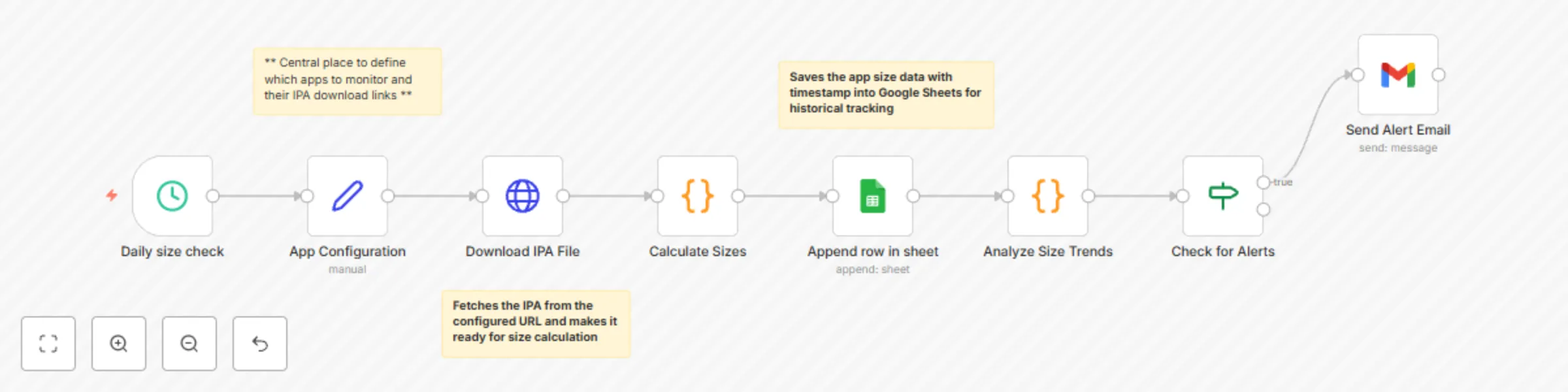
  1. Schedule Trigger (daily at 09:00 UTC) kicks off the workflow.
  2. Configuration: Define monitored apps with {name, version, build, ipa_url}.
  3. HTTP Request downloads the IPA file from its URL.
  4. Size Calculation: Compute file sizes in bytes, KB, MB and attach timestamp metadata.
  5. Google Sheets: Append size data to the IPA Size History sheet.
  6. Trend Analysis: Compare current vs. previous build sizes.
  7. Alert Logic: Evaluate thresholds (>10% increase or >10% decrease).
  8. Email Notification: Send formatted alerts with comparisons and trend indicators.
  9. Rate Limit: Space out notifications to avoid spamming recipients.

How to set up

1. Spreadsheet

Create a Google Sheet with a tab named IPA Size History containing:

Date, Timestamp, App_Name, Version, Build_Number, Size_Bytes, Size_KB, Size_MB, IPA_URL

2. Credentials

  • Google Sheets (OAuth) → for reading/writing size history.
  • Gmail → for sending alert emails (use App Password if 2FA is enabled).

3. Open “Set: Configuration” node

Define your workflow variables:

  • APP_CONFIGS = array of monitored apps ({name, version, build, ipa_url})
  • SPREADSHEET_ID = Google Sheet ID
  • SHEET_NAME = IPA Size History
  • SMTP_FROM = sender email (e.g., [email protected])
  • ALERT_RECIPIENTS = comma-separated emails
  • SIZE_INCREASE_THRESHOLD = 0.10 (10%)
  • SIZE_DECREASE_THRESHOLD = 0.10 (10%)
  • LARGE_APP_WARNING = 300 (MB)
  • SCHEDULE_TIME = 09:00
  • TIMEZONE = UTC
  • DRY_RUN = false (set true to test without sending emails)

4. File Hosting

  • Host IPA files on Google Drive, Dropbox or a web server.
  • Ensure direct download URLs are used (not preview links).

5. Activate the workflow

Once configured, it will run automatically at the scheduled time.

Requirements

  • Google Sheet with the IPA Size History tab.
  • Accessible IPA file URLs.
  • SMTP / gmail account (Gmail recommended).
  • n8n (cloud or self-hosted) with Google Sheets + Email nodes.
  • Sufficient local storage for IPA file downloads.

How to customize the workflow

  • Multiple apps: Add more configs to APP_CONFIGS.
  • Thresholds: Adjust SIZE_INCREASE_THRESHOLD / SIZE_DECREASE_THRESHOLD.
  • Notification templates: Customize subject/body with variables: {{app_name}}, {{current_size}}, {{previous_size}}, {{change_percent}}, {{trend_status}}.
  • Schedule: Change Cron from daily to hourly, weekly, etc.
  • Large app warnings: Adjust LARGE_APP_WARNING.
  • Trend analysis: Extend beyond one build (7-day, 30-day averages).
  • Storage backend: Swap Google Sheets for CSV, DB or S3.

Add-ons to level up

  • Slack Notifications: Add Slack webhook alerts with emojis & formatting.
  • Size History Charts: Generate trend graphs with Chart.js or Google Charts API.
  • Environment separation: Monitor dev/staging/prod builds separately.
  • Regression detection: Statistical anomaly checks.
  • Build metadata: Log bundle ID, SDK versions, architectures.
  • Archive management: Auto-clean old records to save space.
  • Dashboards: Connect to Grafana, DataDog or custom BI.
  • CI/CD triggers: Integrate with pipelines via webhook trigger.

Common Troubleshooting

  • No size data → check URLs return binary IPA (not HTML error).
  • Download failures → confirm hosting permissions & direct links.
  • Missing alerts → ensure thresholds & prior history exist.
  • Google Sheets errors → check sheet/tab names & OAuth credentials.
  • Email issues → validate SMTP credentials, spam folder, sender reputation.
  • Large file timeouts → raise HTTP timeout for >100MB files.
  • Trend errors → make sure at least 2 builds exist.
  • No runs → confirm workflow is active and timezone is correct.

Need Help?

If you’d like this to customize this workflow to suit your app development process, then simply reach out to us here and we’ll help you customize the template to your exact use case.

1.2 Logical Blocks

This catalog entry is organized from the workflow JSON. The node-level section below shows the executable blocks available for review before importing the template.

2. Block-by-Block Analysis

Block 1 - Daily size check

Type / Role
n8n-nodes-base.scheduleTrigger - scheduleTrigger
Config choices
Version 1.2

Block 2 - App Configuration

Type / Role
n8n-nodes-base.set - set
Config choices
Version 3.4

Block 3 - Download IPA File

Type / Role
n8n-nodes-base.httpRequest - httpRequest
Config choices
Version 4.2

Block 4 - Calculate Sizes

Type / Role
n8n-nodes-base.code - code
Config choices
Version 2

Block 5 - Append row in sheet

Type / Role
n8n-nodes-base.googleSheets - googleSheets
Config choices
Version 4.7

Block 6 - Analyze Size Trends

Type / Role
n8n-nodes-base.code - code
Config choices
Version 2

Block 7 - Check for Alerts

Type / Role
n8n-nodes-base.if - if
Config choices
Version 2.2

Block 8 - Send Alert Email

Type / Role
n8n-nodes-base.gmail - gmail
Config choices
Version 2.1

Block 9 - Sticky Note

Type / Role
n8n-nodes-base.stickyNote - stickyNote
Config choices
Version 1

Block 10 - Sticky Note1

Type / Role
n8n-nodes-base.stickyNote - stickyNote
Config choices
Version 1

Block 11 - Sticky Note2

Type / Role
n8n-nodes-base.stickyNote - stickyNote
Config choices
Version 1

3. Summary Table

Workflow Track iOS app sizes with trend alerts using Google Sheets and Gmail notifications
Complexity intermediate
Nodes 11
Categories DevOps
Author WeblineIndia
Published 14 Oct 2025

4. Reproducing the Workflow from Scratch

  1. 1. Download the workflow JSON

    Use the JSON export at /data/workflows/9617/9617.json as the source template for this automation.

  2. 2. Import the template into n8n

    Open n8n, import the downloaded JSON, and review each node before activating the workflow.

  3. 3. Configure credentials and variables

    Replace placeholder credentials, API keys, webhook URLs, account IDs, and environment-specific values with your own settings.

  4. 4. Test with sample data

    Run the workflow manually or in a staging workspace, inspect node output, and confirm downstream systems receive the expected data.

  5. 5. Activate and monitor

    Enable the workflow only after testing, then monitor executions, errors, and rate limits during the first production runs.

5. General Notes & Resources

Review imported nodes carefully before activation. This catalog entry is intended to help you inspect the workflow structure, understand required services, and find related templates faster.

Node names, credentials, schedules, webhook paths, and external service limits may need adjustment for your workspace.

Frequently asked questions

What does Track iOS app sizes with trend alerts using Google Sheets and Gmail notifications do?

IPA Size Tracker with Trend Alerts – Automated iOS Apps Size Monitoring This workflow runs on a daily schedule and monitors IPA file sizes from configured URLs. It stores historical size data in Go...

What do I need before importing this workflow?

Review the workflow JSON, configure any required credentials in n8n, and test the automation in a safe workspace before using it in production.

Can I customize this workflow?

Yes. Use the block-by-block analysis and the downloadable JSON to inspect each node, then adjust credentials, prompts, schedules, filters, or destinations for your DevOps use case.