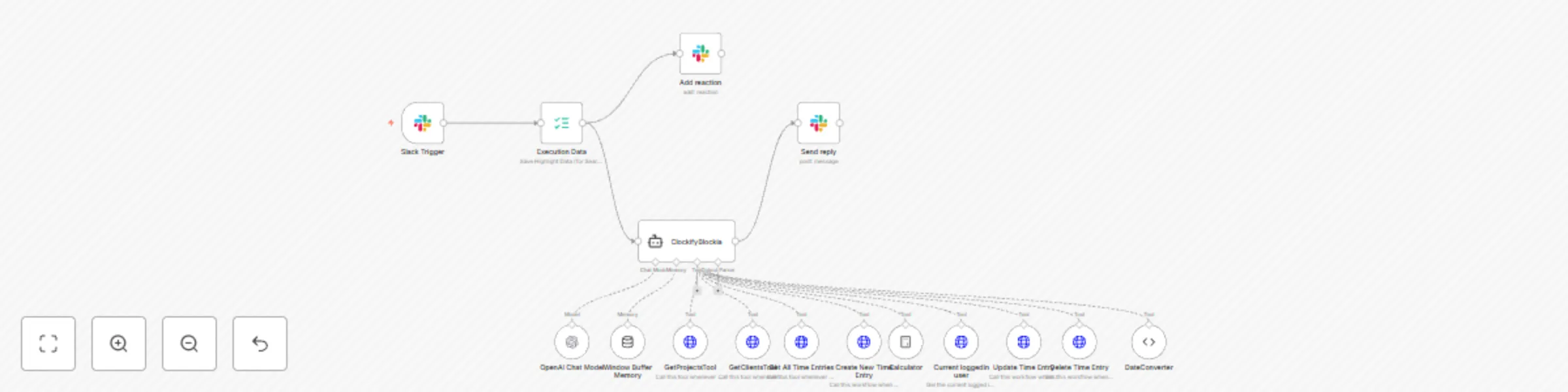
Time logging on Clockify using Slack

Workflow preview

Workflow preview
100%
Time logging on Clockify using Slack preview
Open on n8n.io

Important notice

This workflow is provided as-is. Please review and test before using in production.

1. Workflow Overview

Time Logging on Clockify Using Slack How it works This workflow simplifies time tracking for teams and agencies by integrating Slack with Clockify . It enables users to log, update, or delete time ...

Best for

  • Project Management automation workflows
  • AI Chatbot automation workflows
  • advanced n8n builders looking for reusable templates

Tools used

@n8n/n8n-nodes-langchain.lmchatopenai, @n8n/n8n-nodes-langchain.toolcalculator, @n8n/n8n-nodes-langchain.toolhttprequest, @n8n/n8n-nodes-langchain.toolcode, @n8n/n8n-nodes-langchain.agent, n8n-nodes-base.slacktrigger, n8n-nodes-base.executiondata, @n8n/n8n-nodes-langchain.memorybufferwindow

Source and attribution

This workflow is cataloged by N8N Workflows and links back to its original n8n.io source page by Blockia Labs.

Original n8n.io source

1.1 Workflow description

Title
Time logging on Clockify using Slack
Workflow name
Time logging on Clockify using Slack

Time Logging on Clockify Using Slack

How it works

This workflow simplifies time tracking for teams and agencies by integrating Slack with Clockify. It enables users to log, update, or delete time entries directly within Slack, leveraging an AI-powered assistant for seamless and conversational interactions. Key features include:

  • Effortless Time Logging: Create and manage time entries in Clockify without leaving Slack.
  • AI-Powered Assistant: Get step-by-step guidance to ensure accurate and efficient time logging.
  • Project and Client Management: Retrieve project and client information from Clockify effortlessly.
  • Overlap Prevention: Avoid overlapping entries with built-in time validation.
  • Automated Descriptions: Generate ethical, grammatically correct descriptions for time logs.

Set up steps

1. Prepare your integrations

  • Ensure you have active accounts for both Slack and Clockify.
  • Generate your Clockify API credentials for integration.

2. Import the workflow

  • Download and import the workflow template into your n8n instance.
  • Configure the workflow to connect with your Slack and Clockify accounts.

3. Configure the workflow

  • Add your Clockify API credentials in the workflow settings.
  • Set up the Slack Trigger to listen for app mentions or specific commands.

4. Test the workflow

  • Use Slack to create a time entry and verify it in Clockify.
  • Test updating and deleting existing entries to ensure smooth functionality.
  • Check for any overlapping time logs or incorrect data entries.

Why use this workflow?

  • Efficiency: Eliminate the need to switch between tools for time tracking.
  • Accuracy: AI-driven validation ensures error-free entries.
  • Automation: Simplify repetitive tasks like updating or deleting time logs.
  • Proactive Guidance: Conversational assistant ensures smooth operations.

1.2 Logical Blocks

This catalog entry is organized from the workflow JSON. The node-level section below shows the executable blocks available for review before importing the template.

2. Block-by-Block Analysis

Block 1 - OpenAI Chat Model

Type / Role
@n8n/n8n-nodes-langchain.lmChatOpenAi - lmChatOpenAi
Config choices
Version 1

Block 2 - Calculator

Type / Role
@n8n/n8n-nodes-langchain.toolCalculator - toolCalculator
Config choices
Version 1

Block 3 - Create New Time Entry

Type / Role
@n8n/n8n-nodes-langchain.toolHttpRequest - toolHttpRequest
Config choices
Version 1.1

Block 4 - GetClientsTool

Type / Role
@n8n/n8n-nodes-langchain.toolHttpRequest - toolHttpRequest
Config choices
Version 1.1

Block 5 - Get All Time Entries

Type / Role
@n8n/n8n-nodes-langchain.toolHttpRequest - toolHttpRequest
Config choices
Version 1.1

Block 6 - Current loggedin user

Type / Role
@n8n/n8n-nodes-langchain.toolHttpRequest - toolHttpRequest
Config choices
Version 1.1

Block 7 - GetProjectsTool

Type / Role
@n8n/n8n-nodes-langchain.toolHttpRequest - toolHttpRequest
Config choices
Version 1.1

Block 8 - Update Time Entry

Type / Role
@n8n/n8n-nodes-langchain.toolHttpRequest - toolHttpRequest
Config choices
Version 1.1

Block 9 - Delete Time Entry

Type / Role
@n8n/n8n-nodes-langchain.toolHttpRequest - toolHttpRequest
Config choices
Version 1.1

Block 10 - DateConverter

Type / Role
@n8n/n8n-nodes-langchain.toolCode - toolCode
Config choices
Version 1.1

Block 11 - ClockifyBlockia

Type / Role
@n8n/n8n-nodes-langchain.agent - agent
Config choices
Version 1.7

Block 12 - Slack Trigger

Type / Role
n8n-nodes-base.slackTrigger - slackTrigger
Config choices
Version 1

Block 13 - Execution Data

Type / Role
n8n-nodes-base.executionData - executionData
Config choices
Version 1

Block 14 - Window Buffer Memory

Type / Role
@n8n/n8n-nodes-langchain.memoryBufferWindow - memoryBufferWindow
Config choices
Version 1.3

Block 15 - Add reaction

Type / Role
n8n-nodes-base.slack - slack
Config choices
Version 2.2

Block 16 - Send reply

Type / Role
n8n-nodes-base.slack - slack
Config choices
Version 2.2

3. Summary Table

Workflow Time logging on Clockify using Slack
Complexity advanced
Nodes 16
Categories Project Management, AI Chatbot
Author Blockia Labs
Published 03 Dec 2024

4. Reproducing the Workflow from Scratch

  1. 1. Download the workflow JSON

    Use the JSON export at /data/workflows/2604/2604.json as the source template for this automation.

  2. 2. Import the template into n8n

    Open n8n, import the downloaded JSON, and review each node before activating the workflow.

  3. 3. Configure credentials and variables

    Replace placeholder credentials, API keys, webhook URLs, account IDs, and environment-specific values with your own settings.

  4. 4. Test with sample data

    Run the workflow manually or in a staging workspace, inspect node output, and confirm downstream systems receive the expected data.

  5. 5. Activate and monitor

    Enable the workflow only after testing, then monitor executions, errors, and rate limits during the first production runs.

5. General Notes & Resources

Review imported nodes carefully before activation. This catalog entry is intended to help you inspect the workflow structure, understand required services, and find related templates faster.

Node names, credentials, schedules, webhook paths, and external service limits may need adjustment for your workspace.

Frequently asked questions

What does Time logging on Clockify using Slack do?

Time Logging on Clockify Using Slack How it works This workflow simplifies time tracking for teams and agencies by integrating Slack with Clockify . It enables users to log, update, or delete time ...

What do I need before importing this workflow?

Review the workflow JSON, configure any required credentials in n8n, and test the automation in a safe workspace before using it in production.

Can I customize this workflow?

Yes. Use the block-by-block analysis and the downloadable JSON to inspect each node, then adjust credentials, prompts, schedules, filters, or destinations for your Project Management, AI Chatbot use case.