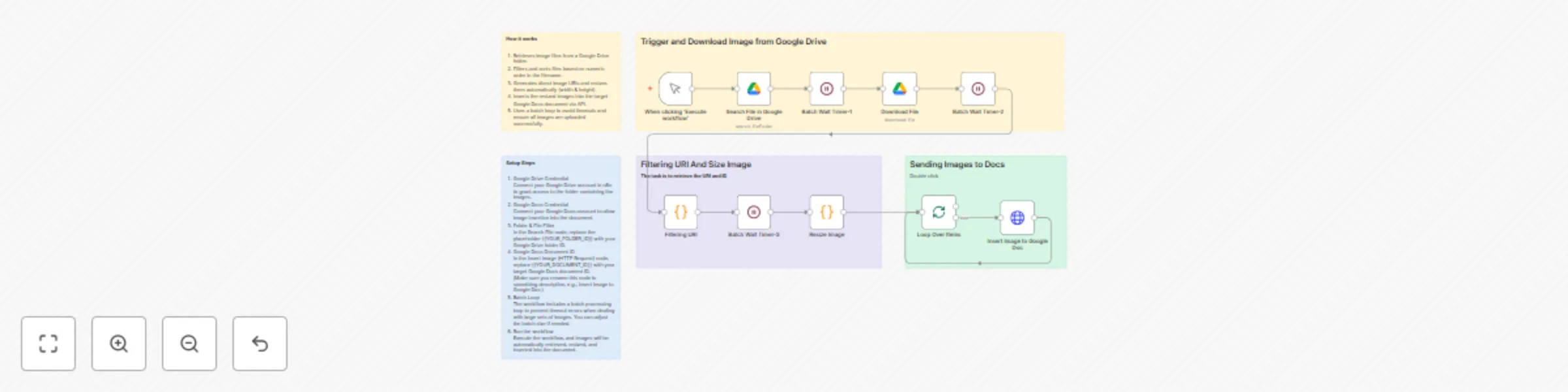
Template for Google Drive and Google Docs with clear structure and purpose

Workflow preview

Workflow preview
100%
Template for Google Drive and Google Docs with clear structure and purpose preview
Open on n8n.io

Important notice

This workflow is provided as-is. Please review and test before using in production.

1. Workflow Overview

Description This n8n workflow automates the process of retrieving images from a specific Google Drive fold...

Best for

  • Document Extraction automation workflows
  • Multimodal AI automation workflows
  • advanced n8n builders looking for reusable templates

Tools used

n8n-nodes-base.manualtrigger, n8n-nodes-base.splitinbatches, n8n-nodes-base.stickynote, n8n-nodes-base.googledrive, n8n-nodes-base.code, n8n-nodes-base.httprequest, n8n-nodes-base.wait

Source and attribution

This workflow is cataloged by N8N Workflows and links back to its original n8n.io source page by Garri.

Original n8n.io source

1.1 Workflow description

Title
Template for Google Drive and Google Docs with clear structure and purpose
Workflow name
Template for Google Drive and Google Docs with clear structure and purpose

Description

This n8n workflow automates the process of retrieving images from a specific Google Drive folder, resizing them, and inserting them into a Google Docs document. It ensures images are processed in numeric order, automatically resized to fit the document, and uploaded in batches to prevent timeouts.

This template is designed for content creators, documentation teams, and businesses who need to automatically insert images (e.g., product photos, reports, or scanned documents) into Google Docs with minimal manual effort.

How it works

  1. Retrieves image files from a Google Drive folder.
  2. Filters and sorts files based on numeric order in the filename.
  3. Generates direct image URIs and resizes them automatically (width & height).
  4. Inserts the resized images into the target Google Docs document via API.
  5. Uses a batch loop to avoid timeouts and ensure all images are uploaded successfully.

Requirements / Pre-conditions

  1. An n8n instance (self-hosted or cloud).
  2. Connected Google Drive credential in n8n.
  3. Connected Google Docs credential in n8n.
  4. A target Google Drive folder containing supported image files.
  5. A Google Docs document ready to receive the images.
  6. Supported formats: PNG, JPG, JPEG, GIF, WEBP. Error handling: If a file is not an image or exceeds Google Docs API limits, the workflow will skip it and continue processing the rest.

Setup Steps

  1. Google Drive Credential Connect your Google Drive account in n8n to grant access to the folder containing the images.
  2. Google Docs Credential Connect your Google Docs account to allow image insertion into the document.
  3. Folder & File Filter In the Search File node, replace the placeholder {{YOUR_FOLDER_ID}} with your Google Drive folder ID.
  4. Google Docs Document ID In the Insert Image (HTTP Request) node, replace {{YOUR_DOCUMENT_ID}} with your target Google Docs document ID. (Make sure you rename this node to something descriptive, e.g., Insert Image to Google Doc.)
  5. Batch Loop The workflow includes a batch processing loop to prevent timeout errors when dealing with large sets of images. You can adjust the batch size if needed.
  6. Run the workflow Execute the workflow, and images will be automatically retrieved, resized, and inserted into the document.

Customization

  • Resize Dimensions: Adjust the width/height in the Image Resize node to fit your document’s style.
  • Ordering Logic: Modify the sorting step if you want alphabetical or upload-date order instead of numeric order.
  • Error Notifications: Add an email or Slack node to notify you when an image fails to insert.
  • Image Placement: By default, images are appended. You can adjust the insert logic (e.g., after specific headings).

1.2 Logical Blocks

This catalog entry is organized from the workflow JSON. The node-level section below shows the executable blocks available for review before importing the template.

2. Block-by-Block Analysis

Block 1 - When clicking ‘Execute workflow’

Type / Role
n8n-nodes-base.manualTrigger - manualTrigger
Config choices
Version 1

Block 2 - Loop Over Items

Type / Role
n8n-nodes-base.splitInBatches - splitInBatches
Config choices
Version 3

Block 3 - Sticky Note

Type / Role
n8n-nodes-base.stickyNote - stickyNote
Config choices
Version 1

Block 4 - Sticky Note1

Type / Role
n8n-nodes-base.stickyNote - stickyNote
Config choices
Version 1

Block 5 - Sticky Note2

Type / Role
n8n-nodes-base.stickyNote - stickyNote
Config choices
Version 1

Block 6 - Download File

Type / Role
n8n-nodes-base.googleDrive - googleDrive
Config choices
Version 3

Block 7 - Filtering URI

Type / Role
n8n-nodes-base.code - code
Config choices
Version 2

Block 8 - Sticky Note3

Type / Role
n8n-nodes-base.stickyNote - stickyNote
Config choices
Version 1

Block 9 - Sticky Note4

Type / Role
n8n-nodes-base.stickyNote - stickyNote
Config choices
Version 1

Block 10 - Search File in Google Drive

Type / Role
n8n-nodes-base.googleDrive - googleDrive
Config choices
Version 3

Block 11 - Resize Image

Type / Role
n8n-nodes-base.code - code
Config choices
Version 2

Block 12 - Insert Image to Google Doc

Type / Role
n8n-nodes-base.httpRequest - httpRequest
Config choices
Version 4.2

Block 13 - Batch Wait Timer-1

Type / Role
n8n-nodes-base.wait - wait
Config choices
Version 1.1

Block 14 - Batch Wait Timer-2

Type / Role
n8n-nodes-base.wait - wait
Config choices
Version 1.1

Block 15 - Batch Wait Timer-3

Type / Role
n8n-nodes-base.wait - wait
Config choices
Version 1.1

3. Summary Table

Workflow Template for Google Drive and Google Docs with clear structure and purpose
Complexity advanced
Nodes 15
Categories Document Extraction, Multimodal AI
Author Garri
Published 08 Aug 2025

4. Reproducing the Workflow from Scratch

  1. 1. Download the workflow JSON

    Use the JSON export at /data/workflows/7178/7178.json as the source template for this automation.

  2. 2. Import the template into n8n

    Open n8n, import the downloaded JSON, and review each node before activating the workflow.

  3. 3. Configure credentials and variables

    Replace placeholder credentials, API keys, webhook URLs, account IDs, and environment-specific values with your own settings.

  4. 4. Test with sample data

    Run the workflow manually or in a staging workspace, inspect node output, and confirm downstream systems receive the expected data.

  5. 5. Activate and monitor

    Enable the workflow only after testing, then monitor executions, errors, and rate limits during the first production runs.

5. General Notes & Resources

Review imported nodes carefully before activation. This catalog entry is intended to help you inspect the workflow structure, understand required services, and find related templates faster.

Node names, credentials, schedules, webhook paths, and external service limits may need adjustment for your workspace.

Frequently asked questions

What does Template for Google Drive and Google Docs with clear structure and purpose do?

Description This n8n workflow automates the process of retrieving images from a specific Google Drive fold...

What do I need before importing this workflow?

Review the workflow JSON, configure any required credentials in n8n, and test the automation in a safe workspace before using it in production.

Can I customize this workflow?

Yes. Use the block-by-block analysis and the downloadable JSON to inspect each node, then adjust credentials, prompts, schedules, filters, or destinations for your Document Extraction, Multimodal AI use case.