G

Garri

4
Workflows

Workflows by Garri
Workflow preview: Download Instagram reels & videos with Telegram bot
Free intermediate

Download Instagram reels & videos with Telegram bot

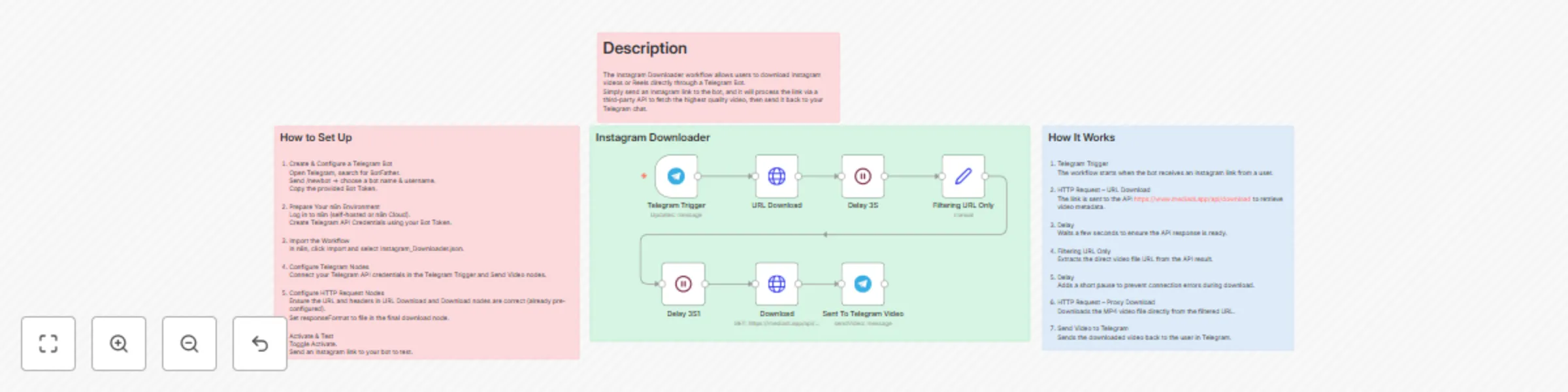
![AI8.png](fileId:2014) ![ai9.png](fileId:2013) **Description** The Instagram Downloader workflow allows users to download Instagram videos or Reels directly through a Telegram Bot. Simply send an Instagram link to the bot, and it will process the link via a third-party API to fetch the highest quality video, then send it back to your Telegram chat. **How It Works** 1. Telegram Trigger The workflow starts when the bot receives an Instagram link from a user. 2. HTTP Request – URL Download The link is sent to the API https://www.mediadl.app/api/download to retrieve video metadata. 3. Delay Waits a few seconds to ensure the API response is ready. 4. Filtering URL Only Extracts the direct video file URL from the API result. 5. Delay Adds a short pause to prevent connection errors during download. 6. HTTP Request – Proxy Download Downloads the MP4 video file directly from the filtered URL. 7. Send Video to Telegram Sends the downloaded video back to the user in Telegram. **How to Set Up** 1. Create & Configure a Telegram Bot - Open Telegram, search for BotFather. - Send /newbot → choose a bot name & username. - Copy the provided Bot Token. 2. Prepare Your n8n Environment - Log in to n8n (self-hosted or n8n Cloud). - Create Telegram API Credentials using your Bot Token. 3. Import the Workflow - In n8n, click Import and select Instagram_Downloader.json. 4. Configure Telegram Nodes - Connect your Telegram API credentials in the Telegram Trigger and Send Video nodes. 5. Configure HTTP Request Nodes - Ensure the URL and headers in URL Download and Download nodes are correct (already pre-configured). - Set responseFormat to file in the final download node. 6. Activate & Test - Toggle Activate. - Send an Instagram link to your bot to test.

G
Garri
File Management
10 Aug 2025
4039
0
Workflow preview: AI-powered domain & IP security check automation
Free advanced

AI-powered domain & IP security check automation

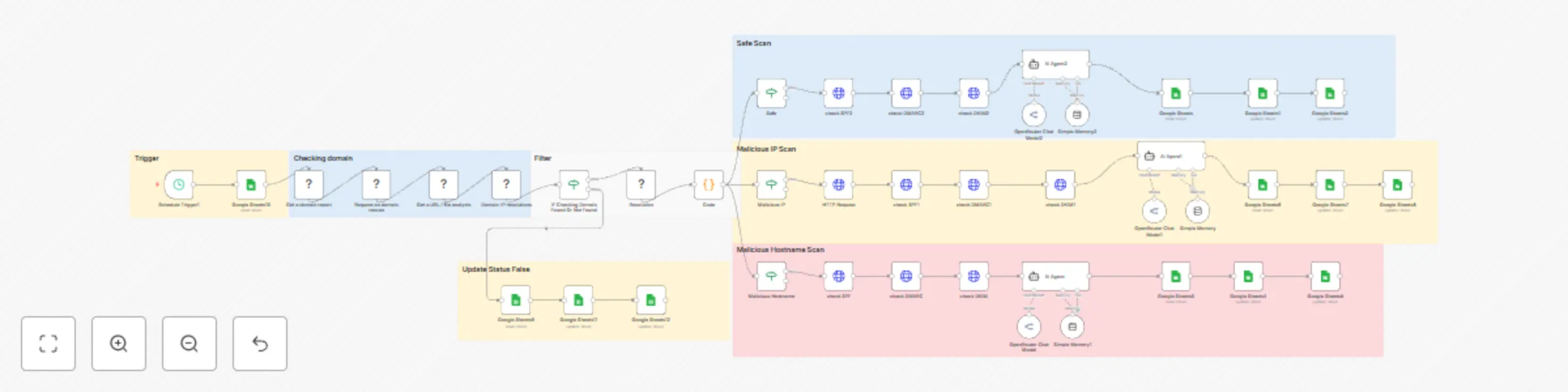
![AI5.png](fileId:2001)![AI4.png](fileId:2002) **Description** This workflow is designed to automate the security reputation check of domains and IP addresses using multiple APIs such as VirusTotal, AbuseIPDB, and Google DNS. It assesses potential threats including malicious and suspicious scores, as well as email security configurations (SPF, DKIM, DMARC). The analysis results are processed by AI to produce a concise assessment, then automatically updated into Google Sheets for documentation and follow-up. **How It Works** 1. Automatic Trigger – The workflow runs periodically via a Schedule Trigger. 2. Data Retrieval – Fetches a list of domains from Google Sheets with status "To do". 3. Domain Analysis – Uses VirusTotal API to get the domain report, perform a rescan, and check IP resolutions. 4. IP Analysis – Checks IP reputation using AbuseIPDB. 5. Email Security Validation – Verifies SPF, DKIM, and DMARC configurations via Google DNS. 6. AI Assessment – Analysis data is processed by AI to produce a short summary in Indonesian. 7. Data Update – The results are automatically updated to Google Sheets, changing the status to "Done" or adding notes if potential threats are found. **How to Setup** 1. Prepare API Keys - Sign up and obtain API keys from VirusTotal and AbuseIPDB. - Set up access to Google Sheets API. 2. Configure Credentials in n8n - Add VirusTotal API, AbuseIPDB API, and Google Sheets OAuth credentials in n8n. 3. Prepare Google Sheets - Create a sheet with columns No, Domain, Customer, Keterangan, Status. - Ensure initial data has the status "To do". 4. Import Workflow - Upload the workflow JSON file into n8n. 5. Set Schedule Trigger - Define the checking interval as needed (e.g., every 1 hour). 6. Test Run - Run the workflow manually to ensure all API connections and Google Sheets output work properly.

G
Garri
SecOps
9 Aug 2025
1079
0
Workflow preview: Automated TikTok video downloader bot (no watermark) using n8n and Telegram
Free intermediate

Automated TikTok video downloader bot (no watermark) using n8n and Telegram

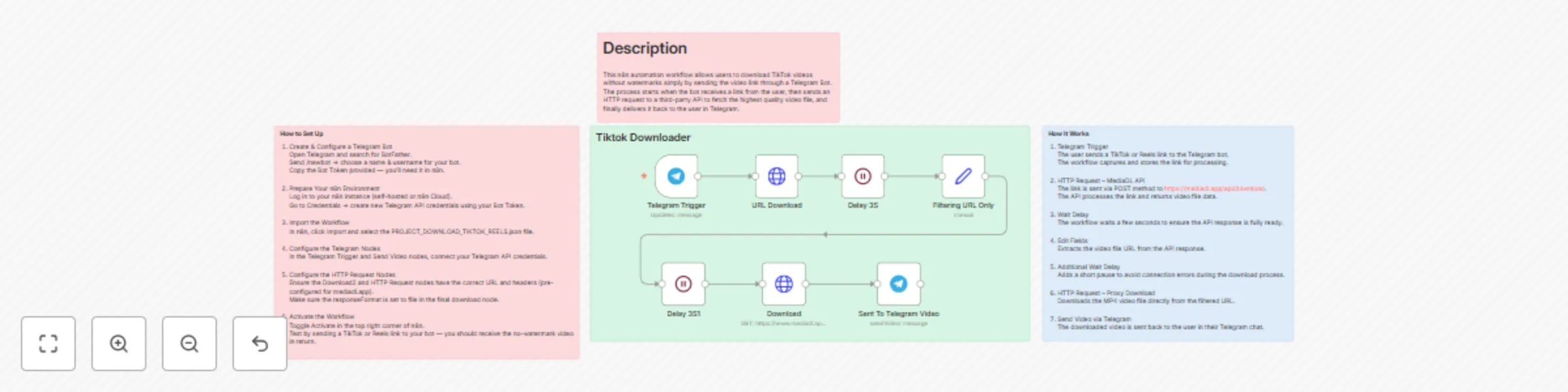
![AI2.png](fileId:2000)![AI3.png](fileId:1999) **Description** This workflow is an n8n-based automation that allows users to download TikTok/Reels videos without watermarks simply by sending the video link through a Telegram Bot. It uses a Telegram Trigger to receive the link from the user, then makes an HTTP request to a third-party API (tiktokio.com) to process and retrieve the download link. The workflow filters the results to find the Download without watermark link, downloads the video in MP4 format, and sends it back to the user directly in their Telegram chat. *Key features:* - Supports the best available video quality (bestvideo+bestaudio). - Automatically removes watermarks. - Instant response directly in Telegram chat. - Fully automated — no manual downloads required. **How It Works** 1. Telegram Trigger - The user sends a TikTok or Reels link to the Telegram bot. - The workflow captures and stores the link for processing. 2. HTTP Request – MediaDL API - The link is sent via POST method to https://mediadl.app/api/download. - The API processes the link and returns video file data. 3. Wait Delay - The workflow waits a few seconds to ensure the API response is fully ready. 4. Edit Fields - Extracts the video file URL from the API response. 5. Additional Wait Delay - Adds a short pause to avoid connection errors during the download process. 6. HTTP Request – Proxy Download - Downloads the MP4 video file directly from the filtered URL. 7. Send Video via Telegram - The downloaded video is sent back to the user in their Telegram chat. **How to Set Up** 1. Create & Configure a Telegram Bot - Open Telegram and search for BotFather. - Send /newbot → choose a name & username for your bot. - Copy the Bot Token provided — you’ll need it in n8n. 2. Prepare Your n8n Environment - Log in to your n8n instance (self-hosted or n8n Cloud). - Go to Credentials → create new Telegram API credentials using your Bot Token. 3. Import the Workflow - In n8n, click Import and select the PROJECT_DOWNLOAD_TIKTOK_REELS.json file. 4. Configure the Telegram Nodes - In the Telegram Trigger and Send Video nodes, connect your Telegram API credentials. 5. Configure the HTTP Request Nodes - Ensure the Download2 and HTTP Request nodes have the correct URL and headers (pre-configured for mediadl.app). - Make sure the responseFormat is set to file in the final download node. 6. Activate the Workflow - Toggle Activate in the top right corner of n8n. - Test by sending a TikTok or Reels link to your bot — you should receive the no-watermark video in return.

G
Garri
Personal Productivity
8 Aug 2025
2307
0
Workflow preview: Template for Google Drive and Google Docs with clear structure and purpose
Free advanced

Template for Google Drive and Google Docs with clear structure and purpose

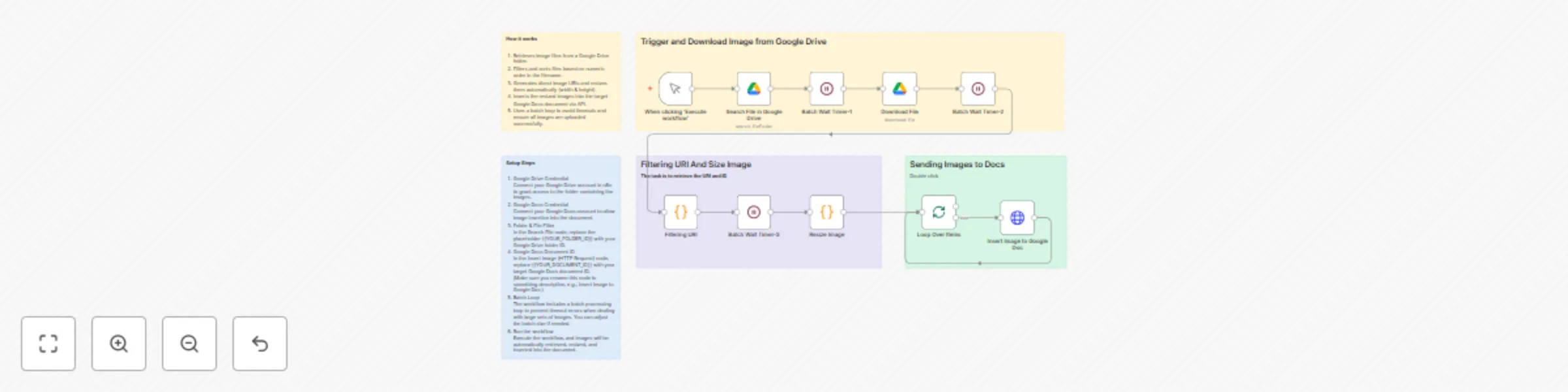
![Automate Image Transfer from Google Drive to Google Docs with Resizing.png](fileId:2120) **Description** This n8n workflow automates the process of retrieving images from a specific Google Drive folder, resizing them, and inserting them into a Google Docs document. It ensures images are processed in numeric order, automatically resized to fit the document, and uploaded in batches to prevent timeouts. This template is designed for content creators, documentation teams, and businesses who need to automatically insert images (e.g., product photos, reports, or scanned documents) into Google Docs with minimal manual effort. **How it works** 1. Retrieves image files from a Google Drive folder. 2. Filters and sorts files based on numeric order in the filename. 3. Generates direct image URIs and resizes them automatically (width & height). 4. Inserts the resized images into the target Google Docs document via API. 5. Uses a batch loop to avoid timeouts and ensure all images are uploaded successfully. **Requirements / Pre-conditions** 1. An n8n instance (self-hosted or cloud). 2. Connected Google Drive credential in n8n. 3. Connected Google Docs credential in n8n. 4. A target Google Drive folder containing supported image files. 5. A Google Docs document ready to receive the images. 6. Supported formats: PNG, JPG, JPEG, GIF, WEBP. Error handling: If a file is not an image or exceeds Google Docs API limits, the workflow will skip it and continue processing the rest. **Setup Steps** 1. Google Drive Credential Connect your Google Drive account in n8n to grant access to the folder containing the images. 2. Google Docs Credential Connect your Google Docs account to allow image insertion into the document. 3. Folder & File Filter In the Search File node, replace the placeholder {{YOUR_FOLDER_ID}} with your Google Drive folder ID. 4. Google Docs Document ID In the Insert Image (HTTP Request) node, replace {{YOUR_DOCUMENT_ID}} with your target Google Docs document ID. (Make sure you rename this node to something descriptive, e.g., Insert Image to Google Doc.) 5. Batch Loop The workflow includes a batch processing loop to prevent timeout errors when dealing with large sets of images. You can adjust the batch size if needed. 6. Run the workflow Execute the workflow, and images will be automatically retrieved, resized, and inserted into the document. **Customization** - Resize Dimensions: Adjust the width/height in the Image Resize node to fit your document’s style. - Ordering Logic: Modify the sorting step if you want alphabetical or upload-date order instead of numeric order. - Error Notifications: Add an email or Slack node to notify you when an image fails to insert. - Image Placement: By default, images are appended. You can adjust the insert logic (e.g., after specific headings).

G
Garri
Document Extraction
8 Aug 2025
503
0