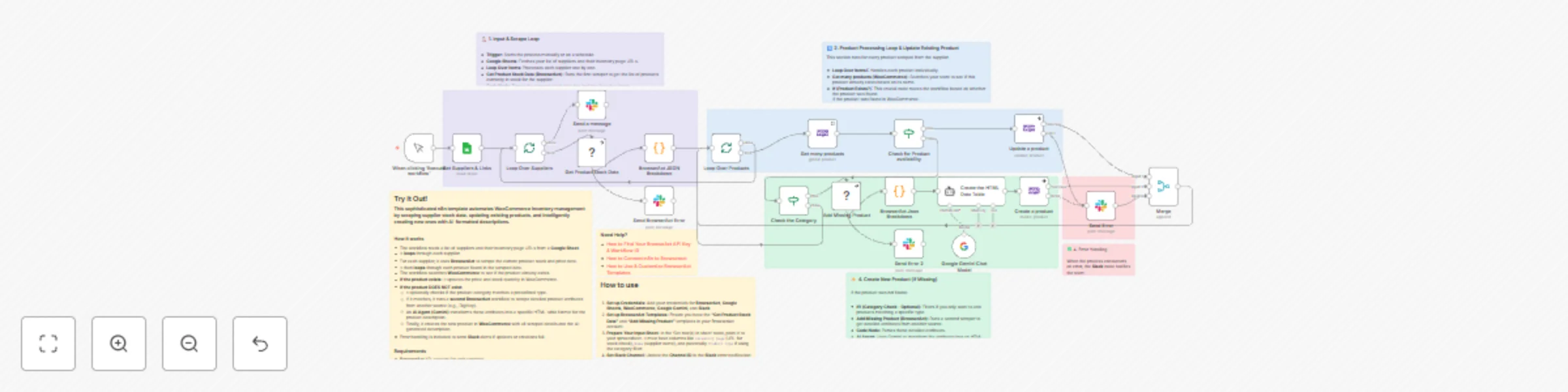
Synchronizing WooCommerce inventory and creating products with Google Gemini AI and BrowserAct

Workflow preview

Workflow preview
100%
Synchronizing WooCommerce inventory and creating products with Google Gemini AI and BrowserAct preview
Open on n8n.io

Important notice

This workflow is provided as-is. Please review and test before using in production.

1. Workflow Overview

Synchronize WooCommerce Inventory & Create Products with Gemini AI & BrowserAct This sophisticated...

Best for

  • CRM automation workflows
  • Multimodal AI automation workflows
  • advanced n8n builders looking for reusable templates

Tools used

n8n-nodes-base.woocommerce, n8n-nodes-browseract-workflows.browseract, @n8n/n8n-nodes-langchain.lmchatgooglegemini, n8n-nodes-base.slack, n8n-nodes-base.merge, n8n-nodes-base.manualtrigger, n8n-nodes-base.stickynote, n8n-nodes-base.splitinbatches

Source and attribution

This workflow is cataloged by N8N Workflows and links back to its original n8n.io source page by Madame AI Team | Kai.

Original n8n.io source

1.1 Workflow description

Title
Synchronizing WooCommerce inventory and creating products with Google Gemini AI and BrowserAct
Workflow name
Synchronizing WooCommerce inventory and creating products with Google Gemini AI and BrowserAct

Synchronize WooCommerce Inventory & Create Products with Gemini AI & BrowserAct

This sophisticated n8n template automates WooCommerce inventory management by scraping supplier data, updating existing products, and intelligently creating new ones with AI-formatted descriptions.

This workflow is essential for e-commerce operators, dropshippers, and inventory managers who need to ensure their product pricing and stock levels are synchronized with multiple third-party suppliers, minimizing overselling and maximizing profit.


Self-Hosted Only

This Workflow uses a community contribution and is designed and tested for self-hosted n8n instances only.


How it works

  • The workflow is typically run by a Schedule Trigger (though a Manual Trigger is also shown) to check stock automatically.
  • It reads a list of suppliers and their inventory page URLs from a central Google Sheet.
  • The workflow loops through each supplier:
    • A BrowserAct node scrapes the current stock and price data from the supplier's inventory page.
    • A Code node parses this bulk data into individual product items.
    • It then loops through each individual product found.
  • The workflow checks WooCommerce to see if the product already exists based on its name.
    • If the product exists: It proceeds to update the existing product's price and stock quantity.
    • If the product DOES NOT exist:
      • An If node checks if the missing product's category matches a predefined type (optional filtering).
      • If it passes the filter, a second BrowserAct workflow scrapes detailed product attributes from a dedicated product page (e.g., DigiKey).
      • An AI Agent (Gemini) transforms these attributes into a specific, styled HTML table for the product description.
      • Finally, the product is created in WooCommerce with all scraped details and the AI-generated description.
  • Error Handling: Multiple Slack nodes are configured to alert your team immediately if any scraping task fails or if the product update/creation process encounters an issue.

Note: This workflow does not support image uploads for new products. To enable this functionality, you must modify both the n8n and BrowserAct workflows.


Requirements

  • BrowserAct API account for web scraping
  • BrowserAct n8n Community Node -> (n8n Nodes BrowserAct)
  • BrowserAct templates named “WooCommerce Inventory & Stock Synchronization” and “WooCommerce Product Data Reconciliation”
  • Google Sheets credentials for the supplier list
  • WooCommerce credentials for product management
  • Google Gemini account for the AI Agent
  • Slack credentials for error alerts

Need Help?


Workflow Guidance and Showcase

1.2 Logical Blocks

This catalog entry is organized from the workflow JSON. The node-level section below shows the executable blocks available for review before importing the template.

2. Block-by-Block Analysis

Block 1 - Get many products

Type / Role
n8n-nodes-base.wooCommerce - wooCommerce
Config choices
Version 1

Block 2 - Update a product

Type / Role
n8n-nodes-base.wooCommerce - wooCommerce
Config choices
Version 1

Block 3 - Get Product Stock Data

Type / Role
n8n-nodes-browseract-workflows.browserAct - browserAct
Config choices
Version 1

Block 4 - Google Gemini Chat Model

Type / Role
@n8n/n8n-nodes-langchain.lmChatGoogleGemini - lmChatGoogleGemini
Config choices
Version 1

Block 5 - Send a message

Type / Role
n8n-nodes-base.slack - slack
Config choices
Version 2.3

Block 6 - Create a product

Type / Role
n8n-nodes-base.wooCommerce - wooCommerce
Config choices
Version 1

Block 7 - Merge

Type / Role
n8n-nodes-base.merge - merge
Config choices
Version 3.2

Block 8 - Add Missing Product

Type / Role
n8n-nodes-browseract-workflows.browserAct - browserAct
Config choices
Version 1

Block 9 - When clicking ‘Execute workflow’

Type / Role
n8n-nodes-base.manualTrigger - manualTrigger
Config choices
Version 1

Block 10 - Sticky Note - Intro

Type / Role
n8n-nodes-base.stickyNote - stickyNote
Config choices
Version 1

Block 11 - Sticky Note - How to Use

Type / Role
n8n-nodes-base.stickyNote - stickyNote
Config choices
Version 1

Block 12 - Sticky Note - Need Help

Type / Role
n8n-nodes-base.stickyNote - stickyNote
Config choices
Version 1

Block 13 - Sticky Note - Input & Scrape Loop

Type / Role
n8n-nodes-base.stickyNote - stickyNote
Config choices
Version 1

Block 14 - Sticky Note - Product Processing Loop

Type / Role
n8n-nodes-base.stickyNote - stickyNote
Config choices
Version 1

Block 15 - Sticky Note - Create New Product

Type / Role
n8n-nodes-base.stickyNote - stickyNote
Config choices
Version 1

Block 16 - Sticky Note

Type / Role
n8n-nodes-base.stickyNote - stickyNote
Config choices
Version 1

Block 17 - Sticky Note1

Type / Role
n8n-nodes-base.stickyNote - stickyNote
Config choices
Version 1

Block 18 - Sticky Note2

Type / Role
n8n-nodes-base.stickyNote - stickyNote
Config choices
Version 1

Block 19 - Sticky Note3

Type / Role
n8n-nodes-base.stickyNote - stickyNote
Config choices
Version 1

Block 20 - Sticky Note - Create New Product1

Type / Role
n8n-nodes-base.stickyNote - stickyNote
Config choices
Version 1

Block 21 - Send Error 2

Type / Role
n8n-nodes-base.slack - slack
Config choices
Version 2.3

Block 22 - Send Error

Type / Role
n8n-nodes-base.slack - slack
Config choices
Version 2.3

Block 23 - Loop Over Suppliers

Type / Role
n8n-nodes-base.splitInBatches - splitInBatches
Config choices
Version 3

Block 24 - Loop Over Products

Type / Role
n8n-nodes-base.splitInBatches - splitInBatches
Config choices
Version 3

Showing the first 24 of 31 workflow blocks. Download the JSON for the full node graph.

3. Summary Table

Workflow Synchronizing WooCommerce inventory and creating products with Google Gemini AI and BrowserAct
Complexity advanced
Nodes 31
Categories CRM, Multimodal AI
Author Madame AI Team | Kai
Published 23 Oct 2025

4. Reproducing the Workflow from Scratch

  1. 1. Download the workflow JSON

    Use the JSON export at /data/workflows/10089/10089.json as the source template for this automation.

  2. 2. Import the template into n8n

    Open n8n, import the downloaded JSON, and review each node before activating the workflow.

  3. 3. Configure credentials and variables

    Replace placeholder credentials, API keys, webhook URLs, account IDs, and environment-specific values with your own settings.

  4. 4. Test with sample data

    Run the workflow manually or in a staging workspace, inspect node output, and confirm downstream systems receive the expected data.

  5. 5. Activate and monitor

    Enable the workflow only after testing, then monitor executions, errors, and rate limits during the first production runs.

5. General Notes & Resources

Review imported nodes carefully before activation. This catalog entry is intended to help you inspect the workflow structure, understand required services, and find related templates faster.

Node names, credentials, schedules, webhook paths, and external service limits may need adjustment for your workspace.

Frequently asked questions

What does Synchronizing WooCommerce inventory and creating products with Google Gemini AI and BrowserAct do?

Synchronize WooCommerce Inventory & Create Products with Gemini AI & BrowserAct This sophisticated...

What do I need before importing this workflow?

Review the workflow JSON, configure any required credentials in n8n, and test the automation in a safe workspace before using it in production.

Can I customize this workflow?

Yes. Use the block-by-block analysis and the downloadable JSON to inspect each node, then adjust credentials, prompts, schedules, filters, or destinations for your CRM, Multimodal AI use case.