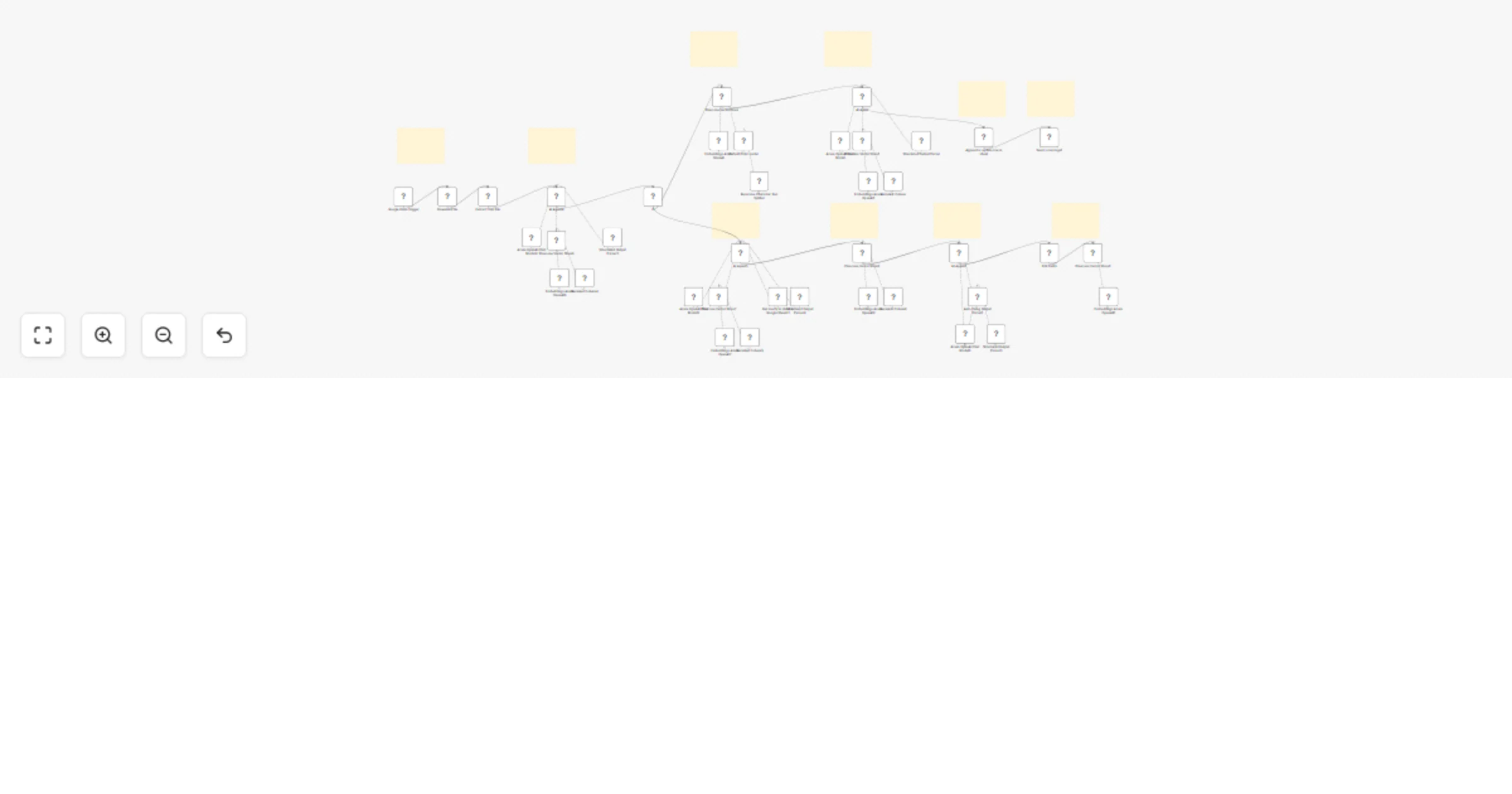
Synchronize Slack status updates with Pinecone, Google Sheets & GPT-4o

Workflow preview

Workflow preview
100%
Synchronize Slack status updates with Pinecone, Google Sheets & GPT-4o preview
Open on n8n.io

Important notice

This workflow is provided as-is. Please review and test before using in production.

1. Workflow Overview

Streamline client onboarding and lay the groundwork for future Retrieval Augmented Generation (RAG) capabilities by automatically transforming Slack messages into structured data using GPT 4o, Goog...

Best for

  • Document Extraction automation workflows
  • AI RAG automation workflows
  • advanced n8n builders looking for reusable templates

Tools used

n8n-nodes-base.googledrivetrigger, n8n-nodes-base.googledrive, @n8n/n8n-nodes-langchain.vectorstorepinecone, @n8n/n8n-nodes-langchain.embeddingsazureopenai, @n8n/n8n-nodes-langchain.documentdefaultdataloader, @n8n/n8n-nodes-langchain.textsplitterrecursivecharactertextsplitter, n8n-nodes-base.slack, @n8n/n8n-nodes-langchain.agent

Source and attribution

This workflow is cataloged by N8N Workflows and links back to its original n8n.io source page by Rahul Joshi.

Original n8n.io source

1.1 Workflow description

Title
Synchronize Slack status updates with Pinecone, Google Sheets & GPT-4o
Workflow name
Synchronize Slack status updates with Pinecone, Google Sheets & GPT-4o

Streamline client onboarding and lay the groundwork for future Retrieval-Augmented Generation (RAG) capabilities by automatically transforming Slack messages into structured data using GPT-4o, Google Sheets, and Pinecone—all orchestrated within n8n.

Perfect for teams setting up new client workspaces or preparing project data, this template listens to onboarding updates in Slack, retrieves the client’s latest files, and intelligently merges new information with existing records—ensuring a seamless, organized handoff and persistent data integrity for future AI-powered retrieval.

Setup Instructions

Connect Slack

  • Set up a bot with access to channels:history, app_mentions:read, and users.profile:read.
  • Paste your channel ID into the Slack Trigger node.

Set Up Google Sheets

  • Prepare a sheet that stores basic user metadata like names, emails, IDs, etc.
  • Connect your Google Sheets account via OAuth2 and point the template to your doc.

Configure Pinecone

  • Create a Pinecone project with a vector index named n8n (or update accordingly).
  • Connect using your Pinecone API key and environment.

Integrate OpenAI or Azure OpenAI

  • Use GPT-4o or GPT-4 via OpenAI or Azure.
  • Provide your API credentials in the AzureOpenAI nodes.

Optional: Enable Cohere Reranking

  • Add Cohere API credentials to enhance document relevance for retrieval steps.

Test the Workflow

  • Mention the bot in your Slack channel or send a direct message.
  • Watch it pull prior records, merge your message intelligently, and sync to both systems.

How It Works (Key Steps)

Trigger: Listens for Slack messages or mentions related to client onboarding or project setup.

User & Client Profile Fetch: Retrieves the sender’s and client’s profiles using the Slack API.

ID Resolution: GPT-4o identifies and matches client and user IDs across Google Sheets and Pinecone.

Previous File Retrieval: Pulls the most recent client onboarding documents or status from Pinecone.

AI-Powered Merge: Combines new onboarding messages with existing client files—preserving all relevant data and structure for future RAG use.

Validation & Schema Matching: Output is parsed and automatically fixed to align with your onboarding or project data schema.

Update Storage: Saves the updated client document back to Pinecone, building a robust vector database ready for future RAG workflows.

Best For

  • Teams onboarding new clients and needing a structured, automated process
  • Solution architects or data engineers preparing data infrastructure for RAG solutions
  • Project managers tracking client setup tasks and documentation
  • Organizations building a vector database to support future AI-powered document retrieval and knowledge management

1.2 Logical Blocks

This catalog entry is organized from the workflow JSON. The node-level section below shows the executable blocks available for review before importing the template.

2. Block-by-Block Analysis

Block 1 - Google Drive Trigger

Type / Role
n8n-nodes-base.googleDriveTrigger - googleDriveTrigger
Config choices
Version 1

Block 2 - Download file

Type / Role
n8n-nodes-base.googleDrive - googleDrive
Config choices
Version 3

Block 3 - Pinecone Vector Store

Type / Role
@n8n/n8n-nodes-langchain.vectorStorePinecone - vectorStorePinecone
Config choices
Version 1.3

Block 4 - Embeddings Azure OpenAI

Type / Role
@n8n/n8n-nodes-langchain.embeddingsAzureOpenAi - embeddingsAzureOpenAi
Config choices
Version 1

Block 5 - Default Data Loader

Type / Role
@n8n/n8n-nodes-langchain.documentDefaultDataLoader - documentDefaultDataLoader
Config choices
Version 1.1

Block 6 - Recursive Character Text Splitter

Type / Role
@n8n/n8n-nodes-langchain.textSplitterRecursiveCharacterTextSplitter - textSplitterRecursiveCharacterTextSplitter
Config choices
Version 1

Block 7 - Send a message1

Type / Role
n8n-nodes-base.slack - slack
Config choices
Version 2.3

Block 8 - AI Agent

Type / Role
@n8n/n8n-nodes-langchain.agent - agent
Config choices
Version 2

Block 9 - Azure OpenAI Chat Model

Type / Role
@n8n/n8n-nodes-langchain.lmChatAzureOpenAi - lmChatAzureOpenAi
Config choices
Version 1

Block 10 - Structured Output Parser

Type / Role
@n8n/n8n-nodes-langchain.outputParserStructured - outputParserStructured
Config choices
Version 1.3

Block 11 - Pinecone Vector Store1

Type / Role
@n8n/n8n-nodes-langchain.vectorStorePinecone - vectorStorePinecone
Config choices
Version 1.3

Block 12 - Embeddings Azure OpenAI1

Type / Role
@n8n/n8n-nodes-langchain.embeddingsAzureOpenAi - embeddingsAzureOpenAi
Config choices
Version 1

Block 13 - Append or update row in sheet

Type / Role
n8n-nodes-base.googleSheets - googleSheets
Config choices
Version 4.6

Block 14 - Reranker Cohere

Type / Role
@n8n/n8n-nodes-langchain.rerankerCohere - rerankerCohere
Config choices
Version 1

Block 15 - Extract from File

Type / Role
n8n-nodes-base.extractFromFile - extractFromFile
Config choices
Version 1

Block 16 - AI Agent4

Type / Role
@n8n/n8n-nodes-langchain.agent - agent
Config choices
Version 2

Block 17 - Azure OpenAI Chat Model4

Type / Role
@n8n/n8n-nodes-langchain.lmChatAzureOpenAi - lmChatAzureOpenAi
Config choices
Version 1

Block 18 - Pinecone Vector Store6

Type / Role
@n8n/n8n-nodes-langchain.vectorStorePinecone - vectorStorePinecone
Config choices
Version 1.3

Block 19 - Embeddings Azure OpenAI6

Type / Role
@n8n/n8n-nodes-langchain.embeddingsAzureOpenAi - embeddingsAzureOpenAi
Config choices
Version 1

Block 20 - Reranker Cohere4

Type / Role
@n8n/n8n-nodes-langchain.rerankerCohere - rerankerCohere
Config choices
Version 1

Block 21 - Structured Output Parser3

Type / Role
@n8n/n8n-nodes-langchain.outputParserStructured - outputParserStructured
Config choices
Version 1.3

Block 22 - If

Type / Role
n8n-nodes-base.if - if
Config choices
Version 2.2

Block 23 - AI Agent5

Type / Role
@n8n/n8n-nodes-langchain.agent - agent
Config choices
Version 2

Block 24 - Azure OpenAI Chat Model5

Type / Role
@n8n/n8n-nodes-langchain.lmChatAzureOpenAi - lmChatAzureOpenAi
Config choices
Version 1

Showing the first 24 of 49 workflow blocks. Download the JSON for the full node graph.

3. Summary Table

Workflow Synchronize Slack status updates with Pinecone, Google Sheets & GPT-4o
Complexity advanced
Nodes 49
Categories Document Extraction, AI RAG
Author Rahul Joshi
Published 15 Jul 2025

4. Reproducing the Workflow from Scratch

  1. 1. Download the workflow JSON

    Use the JSON export at /data/workflows/6019/6019.json as the source template for this automation.

  2. 2. Import the template into n8n

    Open n8n, import the downloaded JSON, and review each node before activating the workflow.

  3. 3. Configure credentials and variables

    Replace placeholder credentials, API keys, webhook URLs, account IDs, and environment-specific values with your own settings.

  4. 4. Test with sample data

    Run the workflow manually or in a staging workspace, inspect node output, and confirm downstream systems receive the expected data.

  5. 5. Activate and monitor

    Enable the workflow only after testing, then monitor executions, errors, and rate limits during the first production runs.

5. General Notes & Resources

Review imported nodes carefully before activation. This catalog entry is intended to help you inspect the workflow structure, understand required services, and find related templates faster.

Node names, credentials, schedules, webhook paths, and external service limits may need adjustment for your workspace.

Frequently asked questions

What does Synchronize Slack status updates with Pinecone, Google Sheets & GPT-4o do?

Streamline client onboarding and lay the groundwork for future Retrieval Augmented Generation (RAG) capabilities by automatically transforming Slack messages into structured data using GPT 4o, Goog...

What do I need before importing this workflow?

Review the workflow JSON, configure any required credentials in n8n, and test the automation in a safe workspace before using it in production.

Can I customize this workflow?

Yes. Use the block-by-block analysis and the downloadable JSON to inspect each node, then adjust credentials, prompts, schedules, filters, or destinations for your Document Extraction, AI RAG use case.