Sync Zendesk tickets to Pipedrive contact owners

Workflow preview

Workflow preview
100%
Sync Zendesk tickets to Pipedrive contact owners preview
Open on n8n.io

Important notice

This workflow is provided as-is. Please review and test before using in production.

1. Workflow Overview

This workflow syncs Zendesk tickets to Pipedrive contact owners. This workflow is triggered every day at 09:00 with Zendesk collecting all the tickets updated after the last execution timestamp and...

Best for

  • CRM automation workflows
  • advanced n8n builders looking for reusable templates

Tools used

n8n-nodes-base.noop, n8n-nodes-base.functionitem, n8n-nodes-base.if, n8n-nodes-base.httprequest, n8n-nodes-base.merge, n8n-nodes-base.zendesk, n8n-nodes-base.set, n8n-nodes-base.pipedrive

Source and attribution

This workflow is cataloged by N8N Workflows and links back to its original n8n.io source page by n8n Team.

Original n8n.io source

1.1 Workflow description

Title
Sync Zendesk tickets to Pipedrive contact owners
Workflow name
Sync Zendesk tickets to Pipedrive contact owners

This workflow syncs Zendesk tickets to Pipedrive contact owners.

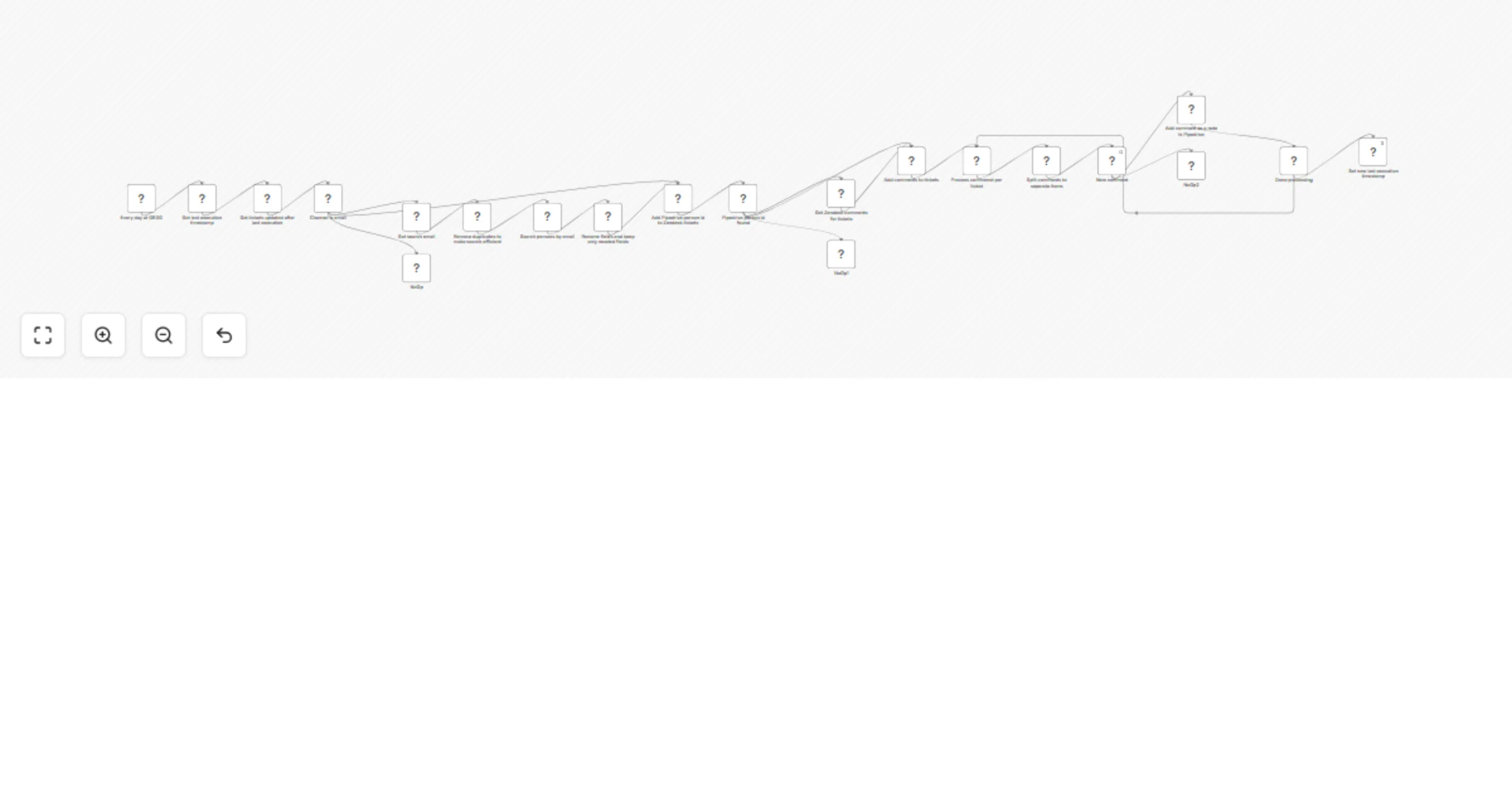
This workflow is triggered every day at 09:00 with Zendesk collecting all the tickets updated after the last execution timestamp and updating them according to Pipedrive contacts. It also adds Zendesk comments to the tickets as notes in Pipedrive.

Prerequisites

Note: The Pipedrive and the Zendesk accounts need to be created by the same person / with the same email.

How it works

  1. Cron node triggers the workflow every day at 09:00.
  2. Zendesk node collects all the tickets updated after the last execution timestamp.
  3. If node checks if the channel in the ticket is an email, and if so, it continues the workflow.
  4. The Item Lists node removes duplicates to make search efficient.
  5. Pipedrive node searches persons by email.
  6. Set node renames and keeps only needed fields (email & person id)
  7. Merge by key node adds the Pipedrive contact id to Zendesk tickets.
  8. The HTTP Request node gets Zendesk comments for tickets and the Merge node adds them to tickets.
  9. Split node adds nodes in batches with each iteration.
  10. Item list node splits comments into separate items.
  11. Pipedrive node adds comment as notes.
  12. If node checks if the data processing is done and if not, goes back to the Split node. The Function Item node sets the new last execution timestamp.

1.2 Logical Blocks

This catalog entry is organized from the workflow JSON. The node-level section below shows the executable blocks available for review before importing the template.

2. Block-by-Block Analysis

Block 1 - NoOp

Type / Role
n8n-nodes-base.noOp - noOp
Config choices
Version 1

Block 2 - Get last execution timestamp

Type / Role
n8n-nodes-base.functionItem - functionItem
Config choices
Version 1

Block 3 - Set new last execution timestamp

Type / Role
n8n-nodes-base.functionItem - functionItem
Config choices
Version 1

Block 4 - Pipedrive person Id found

Type / Role
n8n-nodes-base.if - if
Config choices
Version 1

Block 5 - NoOp1

Type / Role
n8n-nodes-base.noOp - noOp
Config choices
Version 1

Block 6 - Get Zendesk comments for tickets

Type / Role
n8n-nodes-base.httpRequest - httpRequest
Config choices
Version 2

Block 7 - Add comments to tickets

Type / Role
n8n-nodes-base.merge - merge
Config choices
Version 1

Block 8 - Add Pipedrive person Id to Zendesk tickets

Type / Role
n8n-nodes-base.merge - merge
Config choices
Version 1

Block 9 - Get tickets updated after last execution

Type / Role
n8n-nodes-base.zendesk - zendesk
Config choices
Version 1

Block 10 - Channel is email

Type / Role
n8n-nodes-base.if - if
Config choices
Version 1

Block 11 - Rename fields and keep only needed fields

Type / Role
n8n-nodes-base.set - set
Config choices
Version 1

Block 12 - Search persons by email

Type / Role
n8n-nodes-base.pipedrive - pipedrive
Config choices
Version 1

Block 13 - Remove duplicates to make search efficient

Type / Role
n8n-nodes-base.itemLists - itemLists
Config choices
Version 1

Block 14 - Set search email

Type / Role
n8n-nodes-base.set - set
Config choices
Version 1

Block 15 - Process commenst per ticket

Type / Role
n8n-nodes-base.splitInBatches - splitInBatches
Config choices
Version 1

Block 16 - New comment

Type / Role
n8n-nodes-base.if - if
Config choices
Version 1

Block 17 - Split comments to seperate items

Type / Role
n8n-nodes-base.itemLists - itemLists
Config choices
Version 1

Block 18 - Add comment as a note in Pipedrive

Type / Role
n8n-nodes-base.pipedrive - pipedrive
Config choices
Version 1

Block 19 - NoOp2

Type / Role
n8n-nodes-base.noOp - noOp
Config choices
Version 1

Block 20 - Every day at 09:00

Type / Role
n8n-nodes-base.cron - cron
Config choices
Version 1

Block 21 - Done processing

Type / Role
n8n-nodes-base.if - if
Config choices
Version 1

3. Summary Table

Workflow Sync Zendesk tickets to Pipedrive contact owners
Complexity advanced
Nodes 21
Categories CRM
Author n8n Team
Published 07 Oct 2022

4. Reproducing the Workflow from Scratch

  1. 1. Download the workflow JSON

    Use the JSON export at /data/workflows/1807/1807.json as the source template for this automation.

  2. 2. Import the template into n8n

    Open n8n, import the downloaded JSON, and review each node before activating the workflow.

  3. 3. Configure credentials and variables

    Replace placeholder credentials, API keys, webhook URLs, account IDs, and environment-specific values with your own settings.

  4. 4. Test with sample data

    Run the workflow manually or in a staging workspace, inspect node output, and confirm downstream systems receive the expected data.

  5. 5. Activate and monitor

    Enable the workflow only after testing, then monitor executions, errors, and rate limits during the first production runs.

5. General Notes & Resources

Review imported nodes carefully before activation. This catalog entry is intended to help you inspect the workflow structure, understand required services, and find related templates faster.

Node names, credentials, schedules, webhook paths, and external service limits may need adjustment for your workspace.

Frequently asked questions

What does Sync Zendesk tickets to Pipedrive contact owners do?

This workflow syncs Zendesk tickets to Pipedrive contact owners. This workflow is triggered every day at 09:00 with Zendesk collecting all the tickets updated after the last execution timestamp and...

What do I need before importing this workflow?

Review the workflow JSON, configure any required credentials in n8n, and test the automation in a safe workspace before using it in production.

Can I customize this workflow?

Yes. Use the block-by-block analysis and the downloadable JSON to inspect each node, then adjust credentials, prompts, schedules, filters, or destinations for your CRM use case.