Sync Shopify customers to Google Sheets + Squarespace compatible csv

Workflow preview

Workflow preview
100%
Sync Shopify customers to Google Sheets + Squarespace compatible csv preview
Open on n8n.io

Important notice

This workflow is provided as-is. Please review and test before using in production.

1. Workflow Overview

This workflow retrieves all Shopify Customers and saves them into a Google Sheets spreadsheet using the Shopify Admin REST API....

Best for

  • CRM automation workflows
  • intermediate n8n builders looking for reusable templates

Tools used

n8n-nodes-base.manualtrigger, n8n-nodes-base.code, n8n-nodes-base.stickynote, n8n-nodes-base.scheduletrigger, n8n-nodes-base.set, n8n-nodes-base.if, n8n-nodes-base.httprequest, n8n-nodes-base.splitout

Source and attribution

This workflow is cataloged by N8N Workflows and links back to its original n8n.io source page by bangank36.

Original n8n.io source

1.1 Workflow description

Title
Sync Shopify customers to Google Sheets + Squarespace compatible csv
Workflow name
Sync Shopify customers to Google Sheets + Squarespace compatible csv

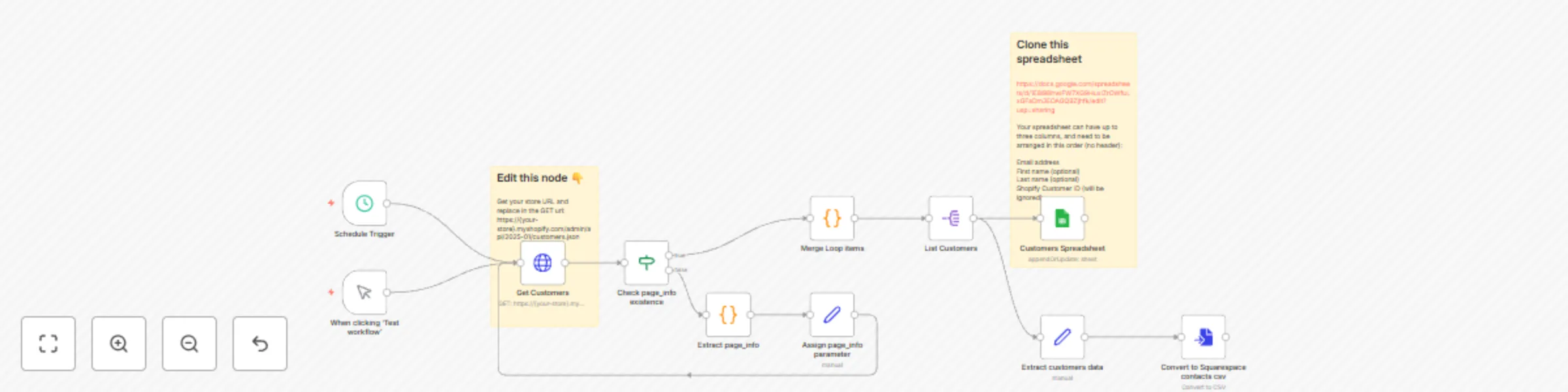
This workflow retrieves all Shopify Customers and saves them into a Google Sheets spreadsheet using the Shopify Admin REST API. It uses pagination to ensure all customers are collected efficiently.

N8n does not have built-in actions for Customers, so I built the workflow using an HTTP Request node.

How It Works

This workflow uses the HTTP Request node to fetch paginated chunks manually.

  • Shopify uses cursor-based pagination (page_info) instead of traditional page numbers.
  • Pagination data is stored in the response headers, so we need to enable Include Response Headers and Status in the HTTP Request node.
  • The workflow processes customer data, saves it to Google Sheets, and formats a compatible CSV for Squarespace Contacts import.
  • This workflow can be run on demand or scheduled to keep your data up to date.

Parameters

You can adjust these parameters in the HTTP Request node:

  • limit – The number of customers per request (default: 50, max: 250).
  • fields – Comma-separated list of fields to retrieve.
  • page_info – Used for pagination; only limit and fields are allowed when paginating.

📌 Note: When you query paginated chunks with page_info, only the limit and fields parameters are allowed.

Credentials

  • Shopify API Key – Required for authentication.
  • Google Sheets API credentials – Needed to insert data into the spreadsheet.

Google Sheets Template

Clone this spreadsheet:

📎 Google Sheets Template

According to Squarespace documentation, your spreadsheet can have up to three columns and must be arranged in this order (no header):

  1. Email Address
  2. First Name (optional)
  3. Last Name (optional)
  4. Shopify Customer ID (this field will be ignored)

Exporting a Compatible CSV for Squarespace Contacts

This workflow also generates a CSV file that can be imported into Squarespace Contacts.

How to Import the CSV to Squarespace:

  1. Open the Lists & Segments panel and click on your mailing list.
  2. Click Add Subscribers, then select Upload a list.
  3. Click Add a CSV file and select the file to import.
  4. Toggle These subscribers accept marketing to confirm permission.
  5. Preview your list, then click Import.

Who Is This For?

  • Shopify store owners who need to export all customers to Google Sheets.
  • Anyone looking for a flexible and scalable Shopify customers extraction solution.
  • Squarespace website owners who want to bulk-create their Contacts using CSV.

Explore More Templates
👉 Check out my other n8n templates

1.2 Logical Blocks

This catalog entry is organized from the workflow JSON. The node-level section below shows the executable blocks available for review before importing the template.

2. Block-by-Block Analysis

Block 1 - When clicking ‘Test workflow’

Type / Role
n8n-nodes-base.manualTrigger - manualTrigger
Config choices
Version 1

Block 2 - Extract page_info

Type / Role
n8n-nodes-base.code - code
Config choices
Version 2

Block 3 - Merge Loop items

Type / Role
n8n-nodes-base.code - code
Config choices
Version 2

Block 4 - Sticky Note

Type / Role
n8n-nodes-base.stickyNote - stickyNote
Config choices
Version 1

Block 5 - Sticky Note1

Type / Role
n8n-nodes-base.stickyNote - stickyNote
Config choices
Version 1

Block 6 - Schedule Trigger

Type / Role
n8n-nodes-base.scheduleTrigger - scheduleTrigger
Config choices
Version 1.2

Block 7 - Assign page_info parameter

Type / Role
n8n-nodes-base.set - set
Config choices
Version 3.4

Block 8 - Check page_info existence

Type / Role
n8n-nodes-base.if - if
Config choices
Version 2.2

Block 9 - Get Customers

Type / Role
n8n-nodes-base.httpRequest - httpRequest
Config choices
Version 4.2

Block 10 - List Customers

Type / Role
n8n-nodes-base.splitOut - splitOut
Config choices
Version 1

Block 11 - Customers Spreadsheet

Type / Role
n8n-nodes-base.googleSheets - googleSheets
Config choices
Version 4.5

Block 12 - Convert to Squarespace contacts csv

Type / Role
n8n-nodes-base.convertToFile - convertToFile
Config choices
Version 1.1

Block 13 - Extract customers data

Type / Role
n8n-nodes-base.set - set
Config choices
Version 3.4

3. Summary Table

Workflow Sync Shopify customers to Google Sheets + Squarespace compatible csv
Complexity intermediate
Nodes 13
Categories CRM
Author bangank36
Published 21 Mar 2025

4. Reproducing the Workflow from Scratch

  1. 1. Download the workflow JSON

    Use the JSON export at /data/workflows/3280/3280.json as the source template for this automation.

  2. 2. Import the template into n8n

    Open n8n, import the downloaded JSON, and review each node before activating the workflow.

  3. 3. Configure credentials and variables

    Replace placeholder credentials, API keys, webhook URLs, account IDs, and environment-specific values with your own settings.

  4. 4. Test with sample data

    Run the workflow manually or in a staging workspace, inspect node output, and confirm downstream systems receive the expected data.

  5. 5. Activate and monitor

    Enable the workflow only after testing, then monitor executions, errors, and rate limits during the first production runs.

5. General Notes & Resources

Review imported nodes carefully before activation. This catalog entry is intended to help you inspect the workflow structure, understand required services, and find related templates faster.

Node names, credentials, schedules, webhook paths, and external service limits may need adjustment for your workspace.

Frequently asked questions

What does Sync Shopify customers to Google Sheets + Squarespace compatible csv do?

This workflow retrieves all Shopify Customers and saves them into a Google Sheets spreadsheet using the Shopify Admin REST API....

What do I need before importing this workflow?

Review the workflow JSON, configure any required credentials in n8n, and test the automation in a safe workspace before using it in production.

Can I customize this workflow?

Yes. Use the block-by-block analysis and the downloadable JSON to inspect each node, then adjust credentials, prompts, schedules, filters, or destinations for your CRM use case.