B

bangank36

13
Workflows

Workflows by bangank36

Workflow preview: Automatic Squarespace order fulfillment process
Free intermediate

Automatic Squarespace order fulfillment process

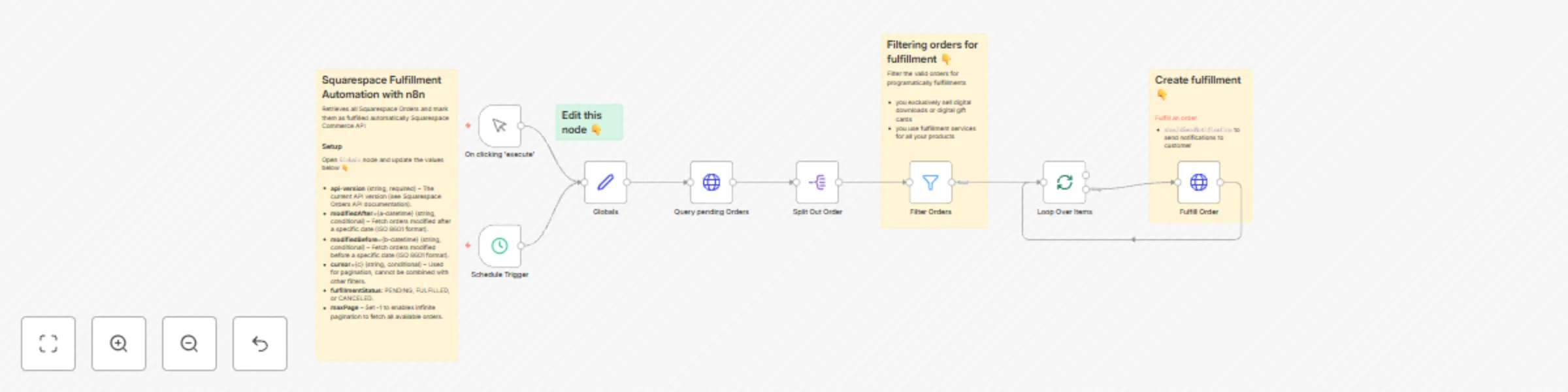
This workflow automates the `Mark as Fulfilled` action in Squarespace for each order, ensuring a seamless fulfillment process without manual intervention. ![image.png](fileId:1044) ## How It Works This workflow retrieves all pending Squarespace orders and processes their fulfillment automatically. The workflow follows these steps: 1️⃣ Get all pending orders using the HTTP Request node (Since Squarespace does not have a n8n node) 2️⃣ Create a fulfillment request using `Fulfill Order` node The `Filter Orders` node can be used to filter valid pending order to process. ## Step-by-step The workflow can be run as requested or on schedule You can adjust these parameters within the Global and filter nodes: ### Global node for API Setting - **api-version** (string, required) – The current API version (see Squarespace Orders API documentation). - **modifiedAfter**={a-datetime} (string, conditional) – Fetch orders modified after a specific date (ISO 8601 format). - **modifiedBefore**={b-datetime} (string, conditional) – Fetch orders modified before a specific date (ISO 8601 format). - **cursor**={c} (string, conditional) – Used for pagination, cannot be combined with other filters. - **fulfillmentStatus**={status} (optional, enum) – Filter by fulfillment status: PENDING, FULFILLED, or CANCELED. - **maxPage** – Set -1 to enables infinite pagination to fetch all available orders. ### Filter Orders node Order Filtering – Ensures only valid orders are fulfilled, particularly useful if: - You sell digital downloads or gift cards exclusively. - You use third-party fulfillment services for all products. ## Requirements ### Credentials To use this workflow, you need: - [Squarespace API Key](https://developers.squarespace.com/commerce-apis/authentication-and-permissions) – Retrieve from your Squarespace settings. ## Who Is This For? Squarespace store owners looking to automate their fulfillment process. Merchants selling digital or personalized products who need instant fulfillment. --- Explore More Templates - [Get all orders in Squarespace to Google Sheets](https://n8n.io/workflows/3116-get-all-orders-in-squarespace-to-google-sheets/) - [Convert Squarespace Profiles to Shopify Customers in Google Sheets](https://n8n.io/workflows/3110-convert-squarespace-profiles-to-shopify-customers-in-google-sheets/) - [Fetch Squarespace Blog & Event Collections to Google Sheets](https://n8n.io/workflows/3098-fetch-squarespace-blog-and-event-collections-to-google-sheets/) 👉 [Check out my other n8n templates](https://n8n.io/creators/bangank36/)

b
bangank36
CRM
26 Mar 2025
577
0
Workflow preview: Automatic Shopify order fulfillment process
Free intermediate

Automatic Shopify order fulfillment process

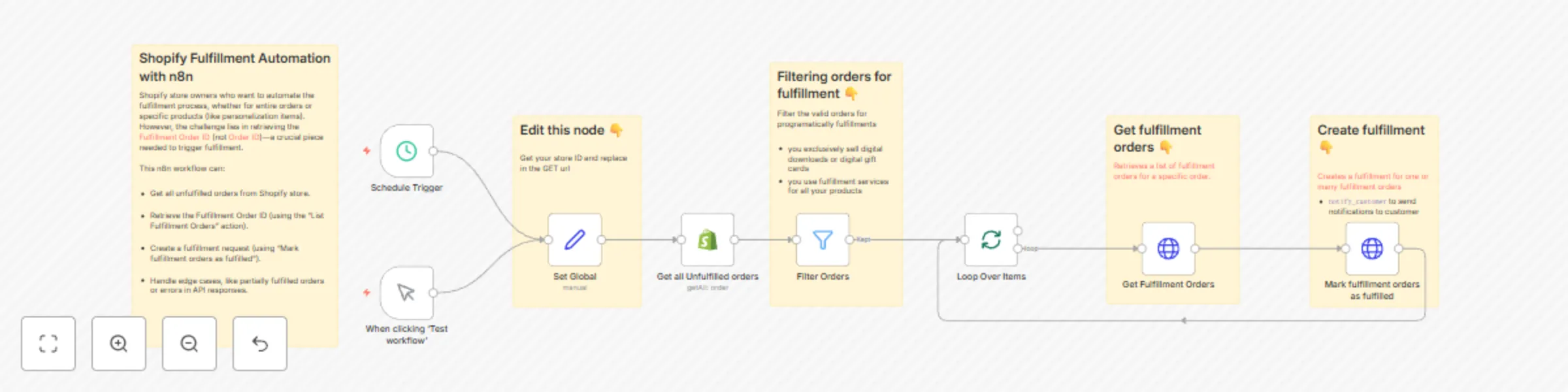
This workflow automates the `Mark as Fulfilled` action in Shopify for each order, ensuring a seamless fulfillment process without manual intervention. ![image.png](fileId:1030) ## How It Works This workflow retrieves all unfulfilled orders and processes their fulfillment automatically. Since Shopify requires a [Fulfillment Order ID](https://shopify.dev/docs/api/admin-rest/2025-01/resources/fulfillmentorder#get-orders-order-id-fulfillment-orders) (not [Order ID](https://shopify.dev/docs/api/admin-rest/2025-01/resources/order#get-orders-order-id?fields=id,line-items,name,total-price)) to trigger fulfillment, the workflow follows these steps: 1️⃣ Get all unfulfilled orders using the Shopify node. 2️⃣ Retrieve the Fulfillment Order ID using the "List Fulfillment Orders" action. 3️⃣ Create a fulfillment request using "Mark fulfillment order as fulfilled." 4️⃣ Handle edge cases, such as partially fulfilled orders or API errors. This ensures that every valid order is marked as fulfilled efficiently. 🔗 Ongoing discussions on this topic: [Relevant Shopify API Discussion](https://community.shopify.com/c/shopify-flow-app/how-can-i-use-flow-to-automatically-fulfil-one-product/m-p/2209832) ## Step-by-step The workflow can be run as requested or on schedule You can adjust these parameters within the Shopify and filter nodes: **Shopify Admin URL** – A Global node to customize the Shopify store URL. - To find your Shopify store ID, login into your Shopify admin, then look at the URL in your browser's address bar, the subdomain portion (e.g., `example_store_id.myshopify.com`) is your store ID (in this case: `example_store_id`) **Order Filtering** – Ensures only valid orders are fulfilled, particularly useful if: - You sell digital downloads or gift cards exclusively. - You use third-party fulfillment services for all products. ## Credentials To run this workflow, you'll need: - Shopify API Key – Required for authentication. ## Who Is This For? Shopify store owners looking to automate their fulfillment process. Merchants selling digital or personalized products who need instant fulfillment. --- Explore More Templates 👉 [Check out my other n8n templates](https://n8n.io/creators/bangank36/)

b
bangank36
CRM
24 Mar 2025
5057
0
Workflow preview: Sync Shopify customers to Google Sheets + Squarespace compatible csv
Free intermediate

Sync Shopify customers to Google Sheets + Squarespace compatible csv

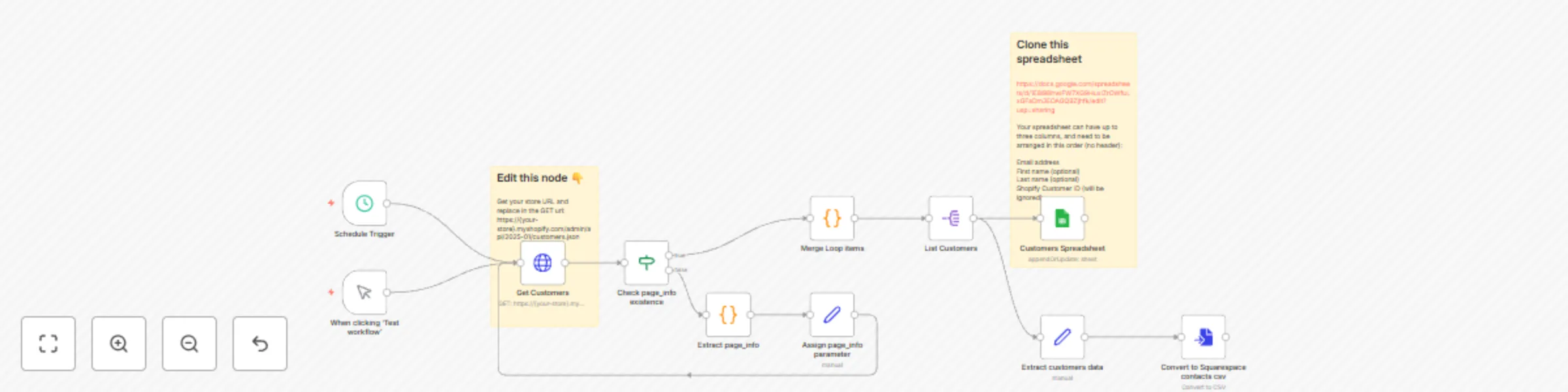
This workflow retrieves all Shopify Customers and saves them into a Google Sheets spreadsheet using the [Shopify Admin REST API](https://shopify.dev/docs/api/admin-rest/2025-01/resources/customer). It uses [pagination](https://shopify.dev/docs/api/admin-rest/usage/pagination) to ensure all customers are collected efficiently. N8n does not have built-in actions for Customers, so I built the workflow using an HTTP Request node. ## How It Works This workflow uses the HTTP Request node to fetch paginated chunks manually. - Shopify uses cursor-based pagination (**page_info**) instead of traditional page numbers. - Pagination data is stored in the response headers, so we need to enable `Include Response Headers and Status` in the HTTP Request node. - The workflow processes customer data, saves it to Google Sheets, and formats a compatible CSV for Squarespace Contacts import. - This workflow can be run on demand or scheduled to keep your data up to date. ## Parameters You can adjust these parameters in the HTTP Request node: - **limit** – The number of customers per request (default: 50, max: 250). - **fields** – Comma-separated list of fields to retrieve. - **page_info** – Used for pagination; only limit and fields are allowed when paginating. 📌 **Note:** When you query paginated chunks with `page_info`, only the `limit` and `fields` parameters are allowed. ## Credentials - **Shopify API Key** – Required for authentication. - **Google Sheets API credentials** – Needed to insert data into the spreadsheet. ## Google Sheets Template ### Clone this spreadsheet: 📎 [Google Sheets Template](https://docs.google.com/spreadsheets/d/1E8i98hwiFW7XG9HuxIZrOWfuLxGFaDm3EOAGQBZjhfk/edit?usp=sharing) According to [Squarespace documentation](https://support.squarespace.com/hc/en-us/articles/360001280708-Building-mailing-lists#h_01H95WGA8Y7F3D2AJ4K7J30CMY), your spreadsheet can have up to three columns and must be arranged in this order (no header): 1. **Email Address** 2. **First Name** (optional) 3. **Last Name** (optional) 4. **Shopify Customer ID** (this field will be ignored) ## Exporting a Compatible CSV for Squarespace Contacts This workflow also generates a CSV file that can be imported into Squarespace Contacts. ### How to Import the CSV to Squarespace: 1. Open the **Lists & Segments** panel and click on your mailing list. 2. Click **Add Subscribers**, then select **Upload a list**. 3. Click **Add a CSV file** and select the file to import. 4. Toggle **These subscribers accept marketing** to confirm permission. 5. Preview your list, then click **Import**. ## Who Is This For? - **Shopify store owners** who need to export all customers to Google Sheets. - **Anyone looking for a flexible and scalable** Shopify customers extraction solution. - **Squarespace website owners** who want to bulk-create their Contacts using CSV. --- Explore More Templates 👉 [Check out my other n8n templates](https://n8n.io/creators/bangank36/)

b
bangank36
CRM
22 Mar 2025
621
0
Workflow preview: Sync Squarespace newsletter signups to Mailchimp via Google Sheets
Free intermediate

Sync Squarespace newsletter signups to Mailchimp via Google Sheets

This workflow captures Squarespace newsletter signups in a Google Sheet and automatically creates new Mailchimp contacts in the selected audience. It overcomes the limitation in Squarespace’s native Mailchimp integration, which only supports [new, empty audiences](https://support.squarespace.com/hc/en-us/articles/205815508-Using-Mailchimp-with-Squarespace#toc-connect-a-form-block-or-newsletter-block). You can trigger the workflow manually or schedule it for continuous synchronization. --- ## Step-by-step tutorial - First, you need to connect Squarespace newsletter block submission to Google Drive - In Mailchimp node, choose your targeted audience in `List Name or ID` ### Connect a Squarespace Form to Google Drive To connect a form to Google Drive: 1. In the form's storage options, click **Connect on Google Drive**. 2. Log into your Google account. 3. Click **Allow** to permit Squarespace to connect to Google Drive. 4. Enter a **Spreadsheet Name**. This creates a new spreadsheet for your form submissions. **Columns in my sheet:** - `Submitted On` - `Email Address` - `Name` This structure is inspired by Squarespace’s newsletter block connection, but you can modify it based on your preferred data format. 👉 **[Clone my Google Sheets template](https://docs.google.com/spreadsheets/d/1wi2Ucb4b35e0-fuf-96sMnyzTft0ADz3MwdE_cG_WnQ/edit?usp=sharing)** --- ## Requirements ### Credentials To use this workflow, you need: - **Mailchimp API Key** – Required to add contacts to Mailchimp. - **Google Sheets API credentials** – Required to retrieve signups from the spreadsheet. 📌 [Mailchimp API Authentication Guide](https://mailchimp.com/developer/marketing/guides/quick-start/) --- ## Explore More Templates 👉 **[Check out my other n8n templates](https://n8n.io/creators/bangank36/)**

b
bangank36
Social Media
21 Mar 2025
486
0
Workflow preview: Automate n8n user invitations from a Google spreadsheet
Free intermediate

Automate n8n user invitations from a Google spreadsheet

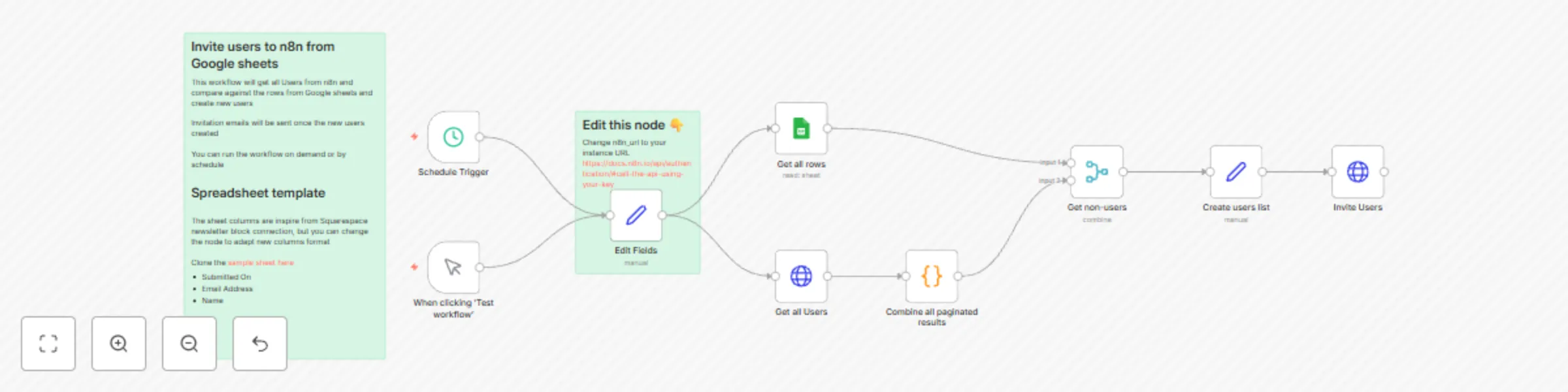
This workflow retrieves all users from n8n, compares them against entries in a Google Sheets spreadsheet, and automatically creates new users when needed. Once new users are created, invitation emails are sent automatically. You can trigger the workflow manually or set it to run on a schedule to ensure continuous synchronization. ### Spreadsheet Template This workflow is designed to work with a Google Sheets structure inspired by Squarespace's newsletter block connection. You can modify the node settings to adapt to a different column format. 👉 [Clone the sample sheet here](https://docs.google.com/spreadsheets/d/1wi2Ucb4b35e0-fuf-96sMnyzTft0ADz3MwdE_cG_WnQ/edit?usp=sharing) **Suggested columns:** - Submitted On - Email Address - Name ## Requirements ### Credentials To use this workflow, you need: - n8n API Key – to update users from n8n. - Google Sheets API credentials – Required to get data from a spreadsheet. ### Configure Your n8n Instance To make this workflow work with your n8n instance, update the API endpoint: 🔧 **Edit Global node 👇** Change `n8n_url` to match your instance URL: [Authentication Guide](https://docs.n8n.io/api/authentication/#call-the-api-using-your-key) --- Explore More Templates 👉 [Check out my other n8n templates](https://n8n.io/creators/bangank36/)

b
bangank36
DevOps
20 Mar 2025
702
0
Workflow preview: Get all orders in Shopify to Google Sheets
Free intermediate

Get all orders in Shopify to Google Sheets

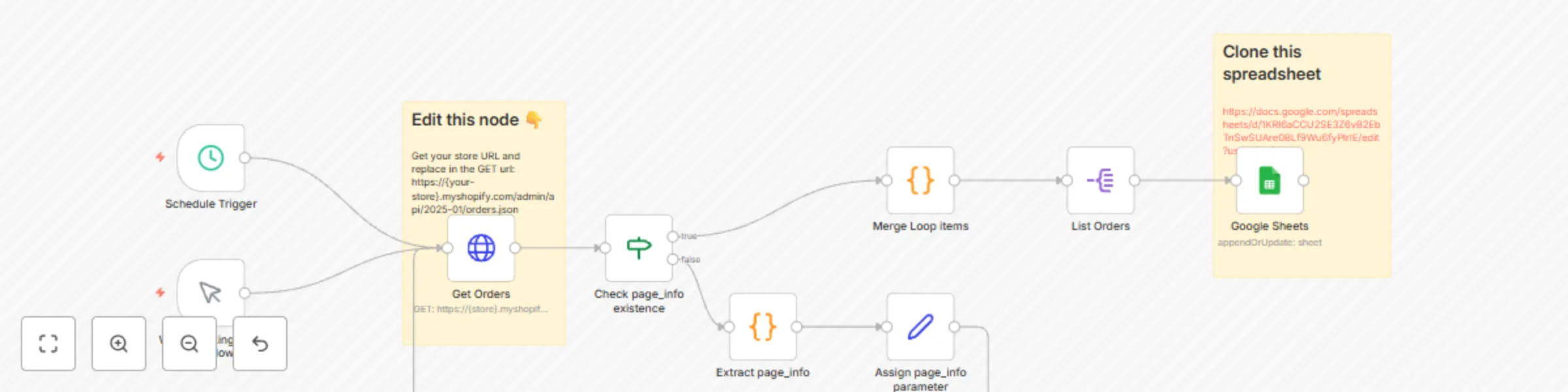
This workflow retrieves all Shopify Orders and saves them into a Google Sheets spreadsheet using the [Shopify Admin REST API](https://shopify.dev/docs/api/admin-rest/2025-01/resources/order#get-orders?status=any). It uses [pagination](https://shopify.dev/docs/api/admin-rest/usage/pagination) to ensure all orders are collected efficiently. I originally built this workflow for my own use and found it valuable for understanding how Shopify pagination works. Now, I’m sharing it to help others automate their order retrieval process. ## How It Works Instead of relying on the built-in Shopify node (**Get Orders Many**), this workflow leverages the HTTP Request node to fetch paginated chunks manually. - Shopify uses cursor-based pagination (**page_info**) instead of traditional page numbers. - Pagination data is stored in the response headers, so we need to enable `Include Response Headers and Status` in the HTTP Request node. - You can modify the limit parameter to control batch sizes and optimize for rate limits. - This workflow can be run on demand or scheduled to keep your data up to date. ## Parameters You can adjust these parameters in the HTTP Request node: - limit – The number of orders per request (default: 50, max: 250). - fields – Comma-separated list of fields to retrieve. - page_info – Used for pagination; only limit and fields are allowed when paginating. 📌 Note: when you query the paginated chunks with `page_info`, only the limit and fields parameters are allowed ## Credentials - Shopify API Key – Required for authentication. - Google Sheets API credentials – Needed to insert data into the spreadsheet. 💾 [Clone the Google Sheets template here](https://docs.google.com/spreadsheets/d/1KRl6aCCU2SE3Z6vB2EbTnSwSUAre0BLf9Wu6fyPlrIE/edit?gid=0#gid=0) ## Who Is This For? - Shopify store owners who need to export all orders to Google Sheets. - Users who want full control over API parameters for optimized queries. - Anyone looking for a flexible and scalable Shopify data extraction solution. --- Explore More Templates 👉 [Check out my other n8n templates](https://n8n.io/creators/bangank36/)

b
bangank36
CRM
19 Mar 2025
1513
0
Workflow preview: Scrape Trustpilot reviews to Google Sheets + HelpfulCrowd compatible csv
Free intermediate

Scrape Trustpilot reviews to Google Sheets + HelpfulCrowd compatible csv

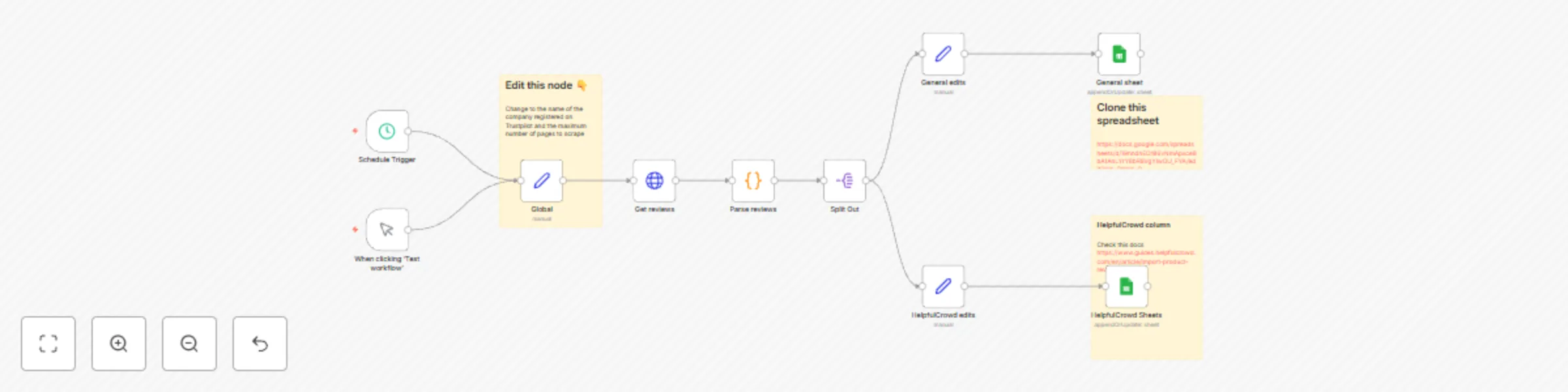
This workflow scrapes Trustpilot reviews for a given profile and saves them into Google Sheets. ## How It Works Clone this [Google Sheets template](https://docs.google.com/spreadsheets/d/19nndnEO186vNmApxce8bA1AnLYrY8bR8VgYlwOU_FYA/edit?gid=0#gid=0), which includes two sheets: ### **trustpilot** A raw collection of Trustpilot reviews. You can customize it as needed. ### **helpfulcrowd** This sheet follows the format from [this HelpfulCrowd guide](https://www.guides.helpfulcrowd.com/en/article/import-product-reviews-wof0oy/), with a slight modification: an added `review_id` column to support the upsert process. Once the workflow is complete, export the sheet as a CSV and upload it to HelpfulCrowd. For detailed steps, see [this post](https://www.guides.helpfulcrowd.com/en/article/import-product-reviews-wof0oy/). ## Running the Workflow You can trigger the workflow **on-demand** or schedule it to run at a set interval. ## Requirements - **Trustpilot business name** (e.g., `n8n.io` in `https://www.trustpilot.com/review/n8n.io`). Update this name and pagination settings in the Global node. - **Google Sheets API credentials** --- Check out my other templates: 👉 [My n8n Templates](https://n8n.io/creators/bangank36/)

b
bangank36
Market Research
14 Mar 2025
2503
0
Workflow preview: Get all orders in Squarespace to Google Sheets
Free intermediate

Get all orders in Squarespace to Google Sheets

This workflow retrieves all Squarespace Orders and saves them into a Google Sheets spreadsheet using the Squarespace Commerce API. It uses pagination to ensure all orders are collected efficiently. ## How It Works - The workflow queries your [Squarespace Orders API](https://developers.squarespace.com/commerce-apis/retrieve-all-orders). - It fetches data in paginated batches and inserts them into Google Sheets. - The **Global node** is used to configure API parameters dynamically, allowing users to set date filters, pagination, and fulfillment status. - The workflow runs on demand or on a schedule, ensuring your data stays up to date. ### Parameters This workflow allows you to customize the API request using the Global node settings: - **api-version** (string, required) – The current API version (see Squarespace Orders API documentation). - **modifiedAfter**={a-datetime} (string, conditional) – Fetch orders modified after a specific date (ISO 8601 format). - **modifiedBefore**={b-datetime} (string, conditional) – Fetch orders modified before a specific date (ISO 8601 format). - **cursor**={c} (string, conditional) – Used for pagination, cannot be combined with other filters. - **fulfillmentStatus**={status} (optional, enum) – Filter by fulfillment status: PENDING, FULFILLED, or CANCELED. - **maxPage** – Set -1 to enables infinite pagination to fetch all available orders. ## Requirements ### Credentials To use this workflow, you need: - [Squarespace API Key](https://developers.squarespace.com/commerce-apis/authentication-and-permissions) – Retrieve from your Squarespace settings. - Google Sheets API credentials – Required to insert data into a spreadsheet. ### Google Sheets Setup - Use the [Squarespace order export](https://beyondspace.studio/blog/how-to-export-orders-data-from-squarespace) feature to create a reference sheet. - [Google Sheets template](https://docs.google.com/spreadsheets/d/1hXR3N6xr7zItmGbSlYZmgZ6hf8f3Z8xr-nSWp4AZCqY/edit?usp=sharing) is available ## Who Is This For? This workflow is designed for: - Squarespace store owners exporting orders for tax reports, analytics, or sales tracking. - Businesses automating order data retrieval for external reporting. - Anyone needing an [efficient way to extract Squarespace](https://beyondspace.studio/blog/how-to-export-orders-data-from-squarespace) order data without manual effort. Explore More Templates - [Get all orders in Shopify to Google Sheets](https://n8n.io/workflows/3218-get-all-orders-in-shopify-to-google-sheets/) - [Sync Shopify customers to Google Sheets + Squarespace compatible csv](https://n8n.io/workflows/3280-sync-shopify-customers-to-google-sheets-squarespace-compatible-csv/) 👉 [Check out my other n8n templates](https://n8n.io/creators/bangank36/)

b
bangank36
CRM
10 Mar 2025
1232
0
Workflow preview: Backup Squarespace code injections to Github
Free advanced

Backup Squarespace code injections to Github

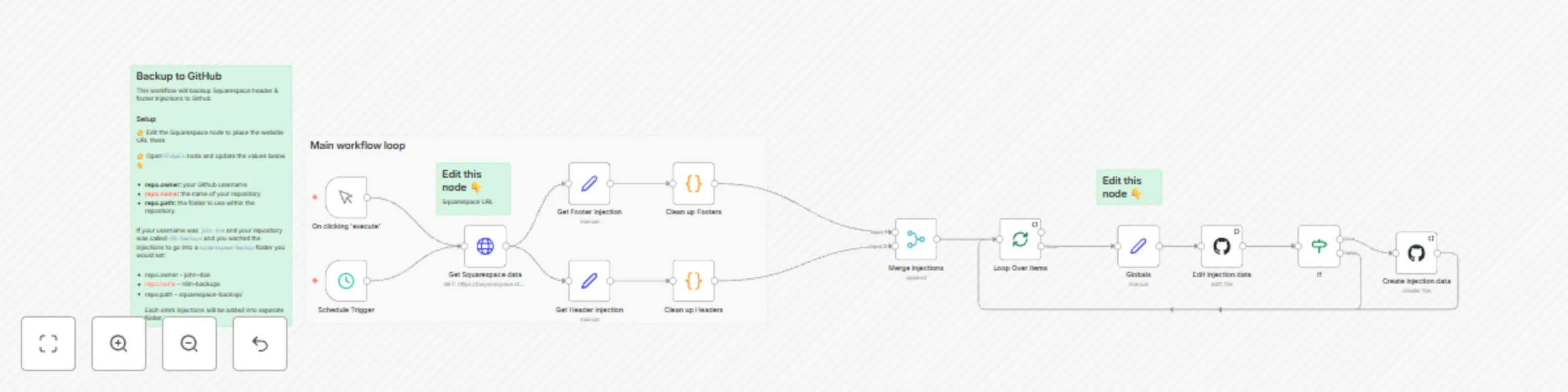
This workflow backup Squarespace website header and footer injections into Github ## How It Works The Squarespace injections are fetched when an URL is placed ## Setup Instructions First, edit HTTP Request's URL to put your Squarespace site URL there Next, to configure the Github, update the Globals node with the following values: - repo.owner – Your GitHub username - repo.name – The name of your GitHub repository storing the workflows - repo.path – The folder path within the repository where workflows are stored For example, if your GitHub username is john-doe, your repository is named n8n-backups, and injections are stored in a squarespace-backup/ folder, you would set: - repo.owner → john-doe - repo.name → n8n-backups - repo.path → squarespace-backup/ Each site's injections will be added into seperate folder ![n8n template Squarespace injections backup.png](fileId:992) ### Required Credentials GitHub API – Access to your repository ## Who Is This For? This template is made for Squarespace users who want to backup their header and footer injections at interval to or on demand Check out my other templates: 👉 [My n8n Templates](https://n8n.io/creators/bangank36/)

b
bangank36
DevOps
9 Mar 2025
353
0
Workflow preview: Convert Squarespace profiles to Shopify customers in Google Sheets
Free intermediate

Convert Squarespace profiles to Shopify customers in Google Sheets

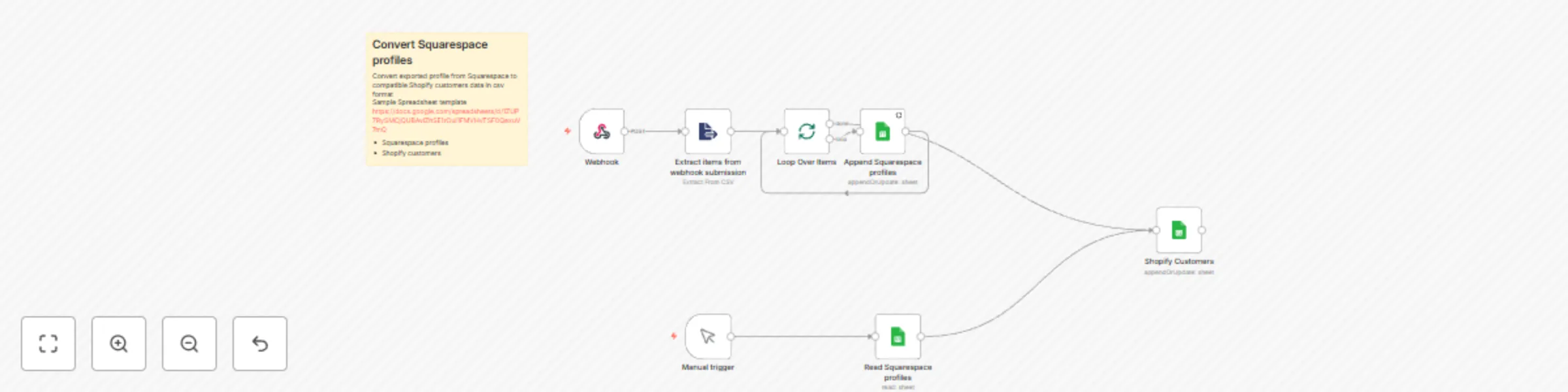
This workflow converts an exported CSV from Squarespace profiles into a Shopify-compatible format for customer import. ## How It Works Clone this [Google Sheets template](https://docs.google.com/spreadsheets/d/1ZUP7RySMCjQUBAvlZhSE1rOul1FMVHvTSF0QexuV7mQ/edit?usp=sharing), which includes two sheets: #### Squarespace Profiles (Input) 1. Go to **Squarespace Dashboard → Contacts** 2. Click the **three-dot icon** → Select **Export all Contacts** #### Shopify Customers (Output) - This sheet formats the data to match Shopify's customer import CSV. - Shopify Dashboard → Customers → **Import customers by CSV** The workflow can run **on-demand** or be **triggered via webhook**. ### Via webhook 1. Set up webhook node to expect a POST request 2. Trigger the webhook using this code (psuedo) - replace {webhook-url} with the actual URL ``` const formData = new FormData(); formData.append('file', blob, 'profiles_export.csv'); // Add file to FormData fetch('{webhook-url}', { // Replace with your target URL method: 'POST', mode: 'no-cors', body: formData }); ``` 3. The data is processed into the Shopify Customers sheet. ### Manually trigger 1. Import Squarespace profiles into the sheet. 2. Run the workflow to convert and populate the Shopify Customers sheet. Once workflow is done, export the Shopify to csv and import to Shopify customers ## Requirements To use this template, you need: - Google Sheets API credentials ### Google Sheets Setup Use this [sample Google Sheets template](https://docs.google.com/spreadsheets/d/1ZUP7RySMCjQUBAvlZhSE1rOul1FMVHvTSF0QexuV7mQ/edit?usp=sharing) to get started quickly. ## Who Is This For? For anyone looking to automate Squarespace contact exports into a Shopify-compatible format—no more manual conversion! Explore More Templates Check out my other n8n templates: 👉 [n8n.io/creators/bangank36](https://n8n.io/creators/bangank36/)

b
bangank36
CRM
9 Mar 2025
326
0
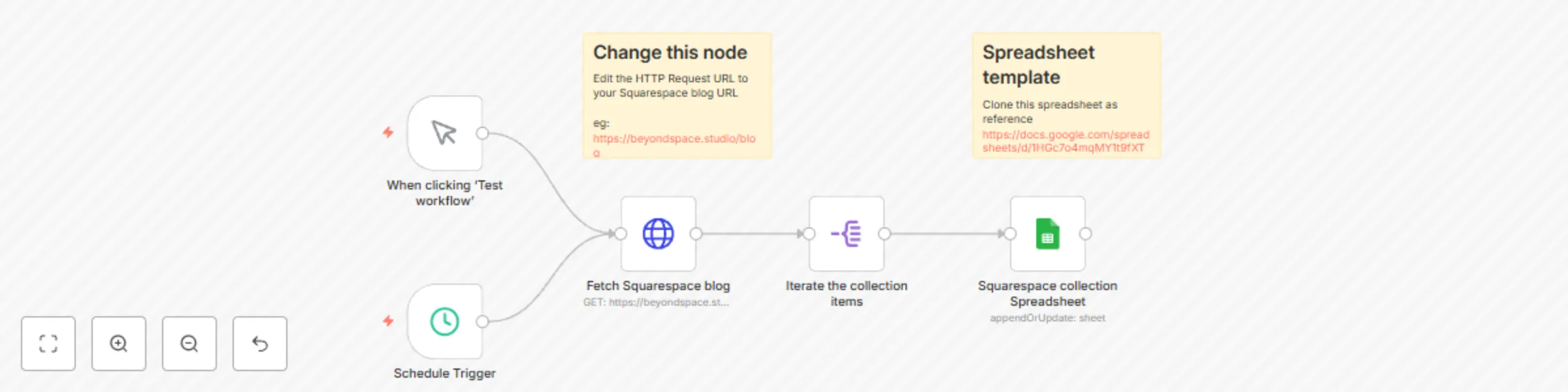
Workflow preview: Fetch Squarespace Blog & Event Collections to Google Sheets
Free intermediate

Fetch Squarespace Blog & Event Collections to Google Sheets

## Overview This workflow retrieves all blog and event collection items from a Squarespace site and saves them into a Google Sheets spreadsheet. It uses pagination to fetch 20 items per request, ensuring all content is collected efficiently. ## How It Works 1. The workflow queries your Squarespace blog and event collections. 2. It fetches data in paginated batches (20 items per page). 3. The retrieved data is formatted and inserted into Google Sheets. 4. The workflow runs on demand or on a schedule, ensuring your data stays up to date. ## Requirements ### Credentials To use this template, you need: - Your Squarespace collection URL - Google Sheets API credentials ### Google Sheets Setup Use [this sample Google Sheets template](https://docs.google.com/spreadsheets/d/1HGc7o4mqMY1t9fXT6LBhmZixjJYr0eapSUosXMA9v8E/edit?gid=0#gid=0) to get started quickly. ## Who Is This For? This template is designed for: - Bloggers looking to manage and analyze content externally. - Businesses and marketers tracking content performance. - Anyone who needs an automated way to extract Squarespace blog and event data. ## Explore More Templates Check out my other n8n templates: 👉 [n8n.io/creators/bangank36](https://n8n.io/creators/bangank36/)

b
bangank36
Miscellaneous
6 Mar 2025
637
0
Workflow preview: Restore your credentials from GitHub
Free intermediate

Restore your credentials from GitHub

This workflow restores all n8n instance credentials from GitHub backups using the n8n API node. It complements the [Backup Your Credentials to GitHub](https://n8n.io/workflows/2307-backup-your-credentials-to-github/) template by allowing users to seamlessly restore previously saved credentials. ## How It Works The workflow fetches credentials stored in a GitHub repository and imports them into your n8n instance. ## Setup Instructions To configure the workflow, update the `Globals` node with the following values: - **repo.owner** – Your GitHub username - **repo.name** – The name of your GitHub repository storing the credentials - **repo.path** – The folder path within the repository where credentials are stored For example, if your GitHub username is `john-doe`, your repository is named `n8n-backups`, and credentials are stored in a `credentials/` folder, you would set: - `repo.owner` → `john-doe` - `repo.name` → `n8n-backups` - `repo.path` → `credentials/` ### Required Credentials - **GitHub API** – Access to your repository - **n8n API** – To import credentials into your n8n instance ## Who Is This For? This template is ideal for users who want to restore their credentials from GitHub backups, ensuring easy migration and recovery in case of data loss. --- Check out my other templates: 👉 [My n8n Templates](https://n8n.io/creators/bangank36/)

b
bangank36
DevOps
6 Mar 2025
3347
0
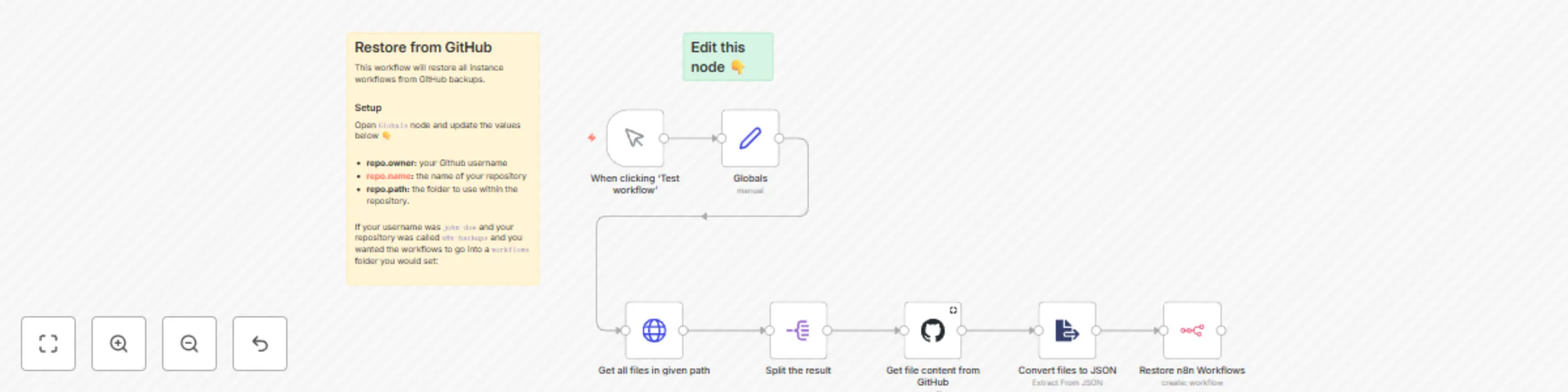
Workflow preview: Restore your workflows from GitHub
Free intermediate

Restore your workflows from GitHub

This workflow restores all n8n instance workflows from GitHub backups using the n8n API node. It complements the [Backup Your Workflows to GitHub](https://n8n.io/workflows/2652-backup-your-workflows-to-github/) template by allowing users to seamlessly restore previously saved workflows. ## How It Works The workflow fetches workflows stored in a GitHub repository and imports them into your n8n instance. ## Setup Instructions To configure the workflow, update the `Globals` node with the following values: - **repo.owner** – Your GitHub username - **repo.name** – The name of your GitHub repository storing the workflows - **repo.path** – The folder path within the repository where workflows are stored For example, if your GitHub username is `john-doe`, your repository is named `n8n-backups`, and workflows are stored in a `workflows/` folder, you would set: - `repo.owner` → `john-doe` - `repo.name` → `n8n-backups` - `repo.path` → `workflows/` ### Required Credentials - **GitHub API** – Access to your repository - **n8n API** – To import workflows into your n8n instance ## Who Is This For? This template is ideal for users who want to restore their workflows from GitHub backups, ensuring easy migration and recovery in case of data loss. --- Check out my other templates: 👉 [My n8n Templates](https://n8n.io/creators/bangank36/)

b
bangank36
DevOps
6 Mar 2025
2638
0