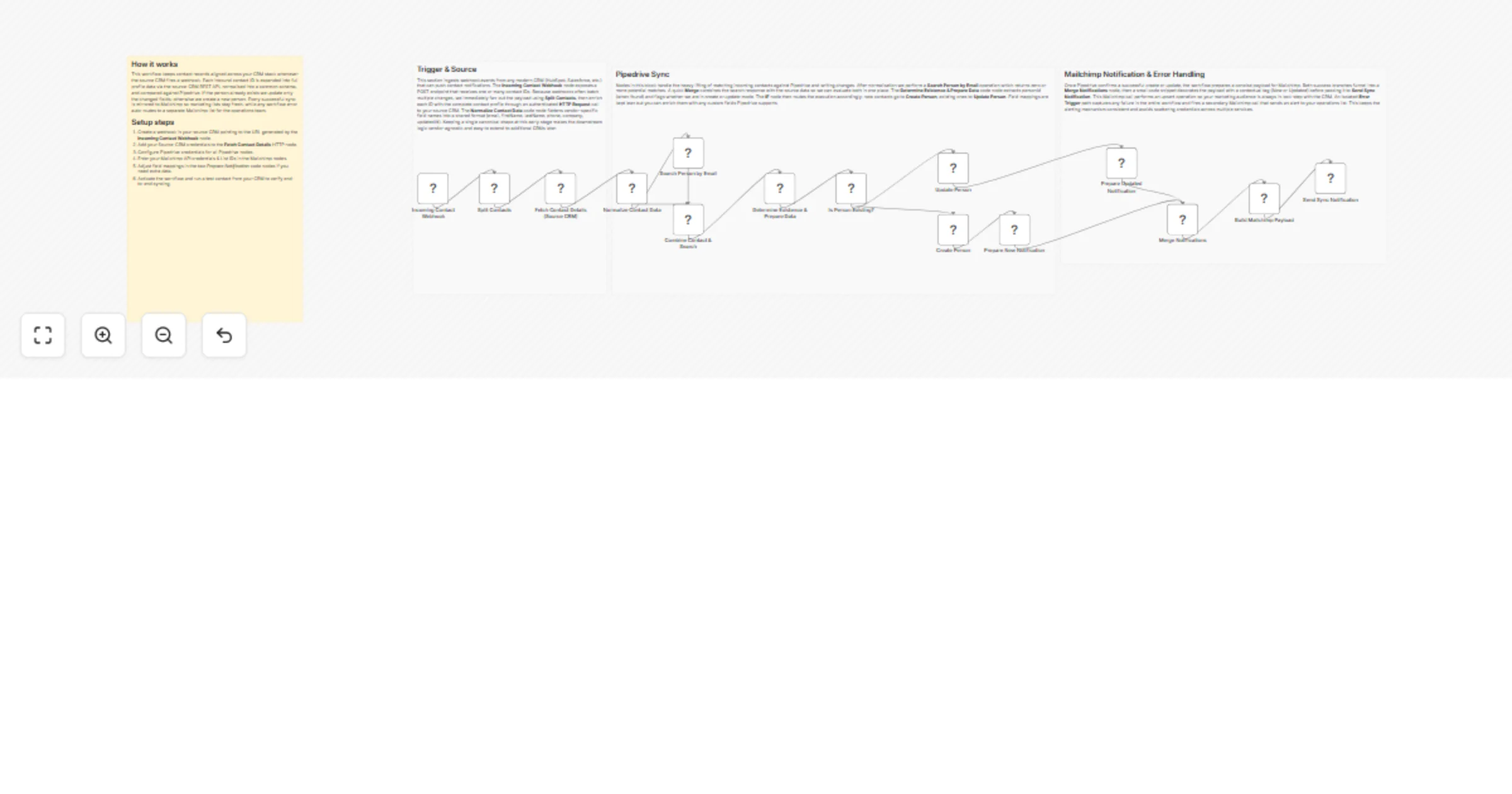
Sync CRM contacts with Mailchimp and Pipedrive

Workflow preview

Workflow preview
100%
Sync CRM contacts with Mailchimp and Pipedrive preview
Open on n8n.io

1. Workflow Overview

CRM Contact Sync with Mailchimp and Pipedrive This workflow keeps your contact records perfectly aligned between your CRM (e.g. HubSpot / Salesforce / Pipedrive) and Mailchimp. Whenever a contact i...

Best for

  • CRM automation workflows
  • advanced n8n builders looking for reusable templates

Tools used

n8n-nodes-base.webhook, n8n-nodes-base.splitinbatches, n8n-nodes-base.httprequest, n8n-nodes-base.code, n8n-nodes-base.pipedrive, n8n-nodes-base.merge, n8n-nodes-base.if, n8n-nodes-base.mailchimp

Source and attribution

This workflow is cataloged by N8N Workflows and links back to its original n8n.io source page by vinci-king-01.

Original n8n.io source

1.1 Workflow description

Title
Sync CRM contacts with Mailchimp and Pipedrive
Workflow name
Sync CRM contacts with Mailchimp and Pipedrive

CRM Contact Sync with Mailchimp and Pipedrive

This workflow keeps your contact records perfectly aligned between your CRM (e.g. HubSpot / Salesforce / Pipedrive) and Mailchimp. Whenever a contact is created or updated in one system, the automation propagates the change to the other platform, ensuring every email address, phone number and custom field stays in sync.

Pre-conditions/Requirements

Prerequisites

  • n8n instance (self-hosted or cloud)
  • Community nodes: Pipedrive, Mailchimp
  • A dedicated service account in each platform with permission to read & write contacts
  • Basic understanding of how webhooks work (for CRM → n8n triggers)

Required Credentials

  • Pipedrive API Token – Used for creating, updating and searching contacts in Pipedrive
  • Mailchimp API Key – Grants access to lists/audiences and contact operations
  • CRM Webhook Secret (optional) – If your CRM supports signing webhook payloads

Specific Setup Requirements

Environment Variable Description Example
PIPEDRIVE_API_KEY Stored in n8n credential manager 123abc456def
MAILCHIMP_API_KEY Stored in n8n credential manager us-1:abcd1234efgh5678
MAILCHIMP_DC Mailchimp Datacenter (sub-domain) us-1
CRM_WEBHOOK_URL Generated by the Webhook node https://n8n.myserver/webhook/...

How it works

This workflow keeps your contact records perfectly aligned between your CRM (e.g. HubSpot / Salesforce / Pipedrive) and Mailchimp. Whenever a contact is created or updated in one system, the automation propagates the change to the other platform, ensuring every email address, phone number and custom field stays in sync.

Key Steps:

  • Inbound Webhook: Receives contact-change events from the CRM.
  • Split in Batches: Processes contacts in chunks to stay within API rate limits.
  • Mailchimp Upsert: Adds or updates each contact in the specified Mailchimp audience.
  • Pipedrive Upsert: Mirrors the same change in Pipedrive (or vice-versa).
  • Merge & IF nodes: Decide whether to create or update a contact by checking existence.
  • Error Trigger: Captures any API failures and posts them to the configured alert channel.

Set up steps

Setup Time: 15-25 minutes

  1. Create credentials • In n8n, add new credentials for Pipedrive and Mailchimp using your API keys. • Name them clearly (e.g. “Pipedrive Main”, “Mailchimp Main”).

  2. Import the workflow • Download or paste the JSON template into n8n. • Save the workflow.

  3. Configure the Webhook node • Set HTTP Method to POST. • Copy the generated URL and register it as a webhook in your CRM’s contact-update events.

  4. Map CRM fields • Open the first Set node and match CRM field names (firstName, lastName, email, etc.) to the standard keys used later in the flow.

  5. Select Mailchimp Audience • In the Mailchimp node, choose the audience/list that should receive the contacts.

  6. Define Pipedrive Person Fields • If you have custom fields, add them in the Pipedrive node’s Additional Fields section.

  7. Enable the workflow • Turn the workflow from “Inactive” to “Active”. • Send a test update from the CRM to verify that contacts appear in both Mailchimp and Pipedrive.

Node Descriptions

Core Workflow Nodes:

  • Webhook – Accepts contact-change payloads from the CRM.
  • Set – Normalises field names to a common schema.
  • SplitInBatches – Loops through contacts in controllable group sizes.
  • HTTP Request – Generic calls (e.g. HubSpot/Salesforce look-ups when required).
  • Pipedrive – Searches for existing persons; creates or updates accordingly.
  • Mailchimp – Performs contact upsert into an audience.
  • If – Branches logic on “contact exists?”.
  • Merge – Re-assembles branch data back into a single execution line.
  • Code – Small JS snippets for complex field transformations.
  • Error Trigger – Listens for any node failure and routes it to alerts.
  • StickyNote – Documentation hints inside the workflow.

Data Flow:

  1. WebhookSet (Normalise)SplitInBatches
  2. SplitInBatchesMailchimp (Get)If (Exists?)Mailchimp (Upsert)
  3. SplitInBatchesPipedrive (Search)If (Exists?)Pipedrive (Upsert)
  4. MergeEnd / Success

Customization Examples

Add a Tag to Mailchimp contacts

// Place inside a Code node before the Mailchimp Upsert
item.tags = ['Synced from CRM', 'High-Value'];
return item;

Apply a Deal Stage in Pipedrive

// Pipedrive node → Additional Fields
"deal": {
 "title": "New Lead from Mailchimp",
 "stage_id": 2
}

Data Output Format

The workflow outputs structured JSON data:

{
 "id": 1472,
 "status": "updated",
 "email": "[email protected]",
 "source": "CRM",
 "synced": {
 "pipedrive": "success",
 "mailchimp": "success"
 },
 "timestamp": "2024-04-27T10:15:00Z"
}

Troubleshooting

Common Issues

  1. HTTP 401 Unauthorized – Verify that the API keys are still valid and have not been revoked.
  2. Webhook receives no data – Double-check that the CRM webhook URL matches exactly and that the event is enabled.

Performance Tips

  • Batch contacts in groups of 50-100 to respect Mailchimp & Pipedrive rate limits.
  • Use Continue On Fail in non-critical nodes to prevent the entire run from stopping.

Pro Tips:

  • Map your CRM’s custom fields once in the Set node to avoid touching each downstream node.
  • Use Merge+If pattern to keep “create vs update” logic tidy.
  • Enable workflow execution logs only in development to reduce storage usage.

Community Template Disclaimer: This workflow is provided by the n8n community “as is”. n8n GmbH makes no warranties regarding its performance, security or compliance. Always review and test in a development environment before using it in production.

1.2 Logical Blocks

This catalog entry is organized from the workflow JSON. The node-level section below shows the executable blocks available for review before importing the template.

2. Block-by-Block Analysis

Block 1 - Incoming Contact Webhook

Type / Role
n8n-nodes-base.webhook - webhook
Config choices
Version 1

Block 2 - Split Contacts

Type / Role
n8n-nodes-base.splitInBatches - splitInBatches
Config choices
Version 3

Block 3 - Fetch Contact Details (Source CRM)

Type / Role
n8n-nodes-base.httpRequest - httpRequest
Config choices
Version 4

Block 4 - Normalize Contact Data

Type / Role
n8n-nodes-base.code - code
Config choices
Version 2

Block 5 - Search Person by Email

Type / Role
n8n-nodes-base.pipedrive - pipedrive
Config choices
Version 1

Block 6 - Combine Contact & Search

Type / Role
n8n-nodes-base.merge - merge
Config choices
Version 2

Block 7 - Determine Existence & Prepare Data

Type / Role
n8n-nodes-base.code - code
Config choices
Version 2

Block 8 - Is Person Existing?

Type / Role
n8n-nodes-base.if - if
Config choices
Version 2

Block 9 - Create Person

Type / Role
n8n-nodes-base.pipedrive - pipedrive
Config choices
Version 1

Block 10 - Prepare New Notification

Type / Role
n8n-nodes-base.code - code
Config choices
Version 2

Block 11 - Update Person

Type / Role
n8n-nodes-base.pipedrive - pipedrive
Config choices
Version 1

Block 12 - Prepare Updated Notification

Type / Role
n8n-nodes-base.code - code
Config choices
Version 2

Block 13 - Merge Notifications

Type / Role
n8n-nodes-base.merge - merge
Config choices
Version 2

Block 14 - Build Mailchimp Payload

Type / Role
n8n-nodes-base.code - code
Config choices
Version 2

Block 15 - Send Sync Notification

Type / Role
n8n-nodes-base.mailchimp - mailchimp
Config choices
Version 1

Block 16 - Overview

Type / Role
n8n-nodes-base.stickyNote - stickyNote
Config choices
Version 1

Block 17 - Trigger & Source

Type / Role
n8n-nodes-base.stickyNote - stickyNote
Config choices
Version 1

Block 18 - Pipedrive Sync

Type / Role
n8n-nodes-base.stickyNote - stickyNote
Config choices
Version 1

Block 19 - Notification & Error Handling

Type / Role
n8n-nodes-base.stickyNote - stickyNote
Config choices
Version 1

3. Summary Table

Workflow Sync CRM contacts with Mailchimp and Pipedrive
Complexity advanced
Nodes 19
Categories CRM
Author vinci-king-01
Published 05 Feb 2026

4. Reproducing the Workflow from Scratch

  1. 1. Download the workflow JSON

    Use the JSON export at /data/workflows/13225/13225.json as the source template for this automation.

  2. 2. Import the template into n8n

    Open n8n, import the downloaded JSON, and review each node before activating the workflow.

  3. 3. Configure credentials and variables

    Replace placeholder credentials, API keys, webhook URLs, account IDs, and environment-specific values with your own settings.

  4. 4. Test with sample data

    Run the workflow manually or in a staging workspace, inspect node output, and confirm downstream systems receive the expected data.

  5. 5. Activate and monitor

    Enable the workflow only after testing, then monitor executions, errors, and rate limits during the first production runs.

5. General Notes & Resources

Review imported nodes carefully before activation. This catalog entry is intended to help you inspect the workflow structure, understand required services, and find related templates faster.

Node names, credentials, schedules, webhook paths, and external service limits may need adjustment for your workspace.

Frequently asked questions

What does Sync CRM contacts with Mailchimp and Pipedrive do?

CRM Contact Sync with Mailchimp and Pipedrive This workflow keeps your contact records perfectly aligned between your CRM (e.g. HubSpot / Salesforce / Pipedrive) and Mailchimp. Whenever a contact i...

What do I need before importing this workflow?

Review the workflow JSON, configure any required credentials in n8n, and test the automation in a safe workspace before using it in production.

Can I customize this workflow?

Yes. Use the block-by-block analysis and the downloadable JSON to inspect each node, then adjust credentials, prompts, schedules, filters, or destinations for your CRM use case.